
Ọrọ Iṣaaju
This user manual provides comprehensive instructions for the Macally Wired Keyboard for Mac (USB C + A), model UCABLZKEYLPSG. Designed specifically for Apple devices, this keyboard features large print keys, backlighting, and versatile USB-A and USB-C connectivity to enhance your typing experience.
Kini To wa
- Keyboard onirin
- Itọsọna olumulo

Figure 1: Macally Wired Keyboard for Mac (USB C + A)
Ṣeto
The Macally Wired Keyboard offers plug-and-play functionality, requiring no additional drivers for most Mac operating systems. Simply connect the keyboard to your device using the appropriate USB port.
Nsopọ Keyboard
- Identify the available USB port on your Mac device. The keyboard features a dual-port plug compatible with both USB-A and USB-C ports.
- For USB-A ports, use the standard USB-A connector.
- For USB-C ports, connect the USB-C adapter attached to the cable.
- Insert the appropriate connector firmly into the USB port on your Mac. The keyboard will be automatically recognized and ready for use.

Figure 2: Dual USB-A and USB-C Connectivity
Video 1: Demonstrates the dual port plug for USB-A and USB-C connectivity, showing how to connect the keyboard to different Mac devices.
Awọn ilana Iṣiṣẹ
Key Awọn ẹya ara ẹrọ
- Oversized Key Print: The keyboard features print 4x larger than on traditional keyboards, making it easier to locate any key and type confidently.

Figure 3: Easy to See Keys with Extra Large Print
- Awọn bọtini Afẹyinti: The keys are equipped with clear LED backlighting, offering 3 levels of brightness. This allows for comfortable typing in various lighting conditions.
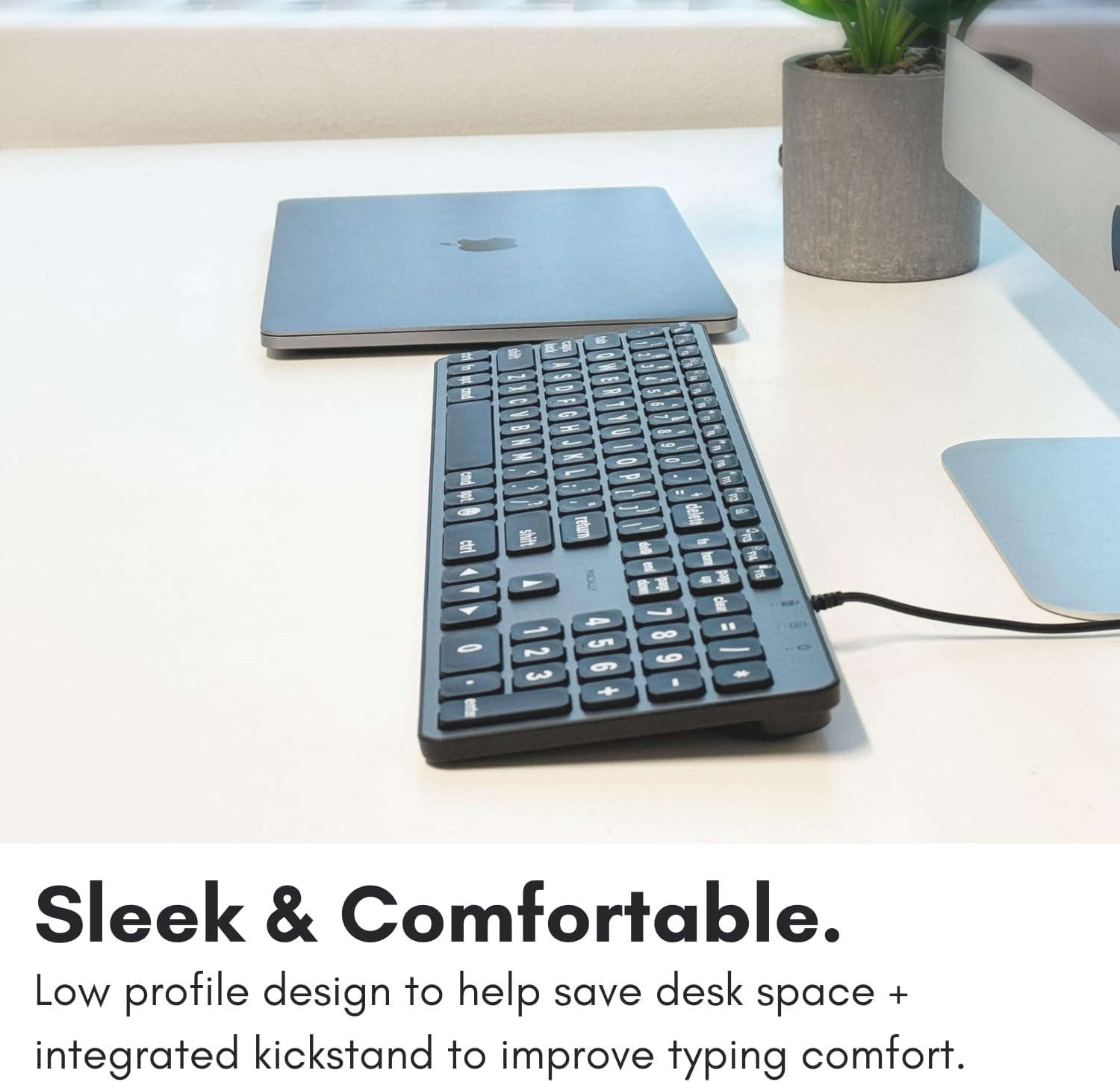
Figure 4: Clear Backlit Keys with Adjustable Brightness
To adjust the backlight brightness, use the dedicated brightness control keys (usually F1 and F2, indicated by sun icons) on the top row of the keyboard.
- MacOS Layout with Shortcut Keys: The keyboard features a familiar 107-key MacOS layout, including 16 shortcut keys designed to streamline your workflow.

Figure 5: Purpose-Built for Mac Layout
Awọn bọtini iṣẹ ati Awọn ọna abuja
The top row of keys (F1-F15) provides quick access to various Mac functions. These include:
- F1/F2: Backlight brightness adjustment
- F3: Iṣakoso apinfunni
- F4: Paadi ifilọlẹ
- F7/F8/F9: Media playback controls (Previous, Play/Pause, Next)
- F10/F11/F12: Volume controls (Mute, Volume Down, Volume Up)
- Eject key (top right): Eject disc or media
- Power key (top right): Sleep/Wake or Power Off (functionality may vary by Mac model)
To use the standard F1-F15 functions instead of the media/shortcut functions, you may need to press the Fn key in conjunction with the desired function key, or adjust your keyboard settings in macOS System Preferences.
Itoju
To ensure the longevity and optimal performance of your Macally keyboard, follow these simple maintenance guidelines:
- Ninu: Lo asọ asọ, ti ko ni lint die-die dampened with water or a mild, non-abrasive cleaner to wipe down the keys and surface of the keyboard. Avoid excessive moisture.
- Yiyọ eruku kuro: Use compressed air to remove dust and debris from between the keys. Hold the can upright to prevent propellant from spraying onto the keyboard.
- Yago fun Idasonu: Jeki awọn olomi kuro ni keyboard lati ṣe idiwọ ibajẹ si awọn paati inu.
- Ibi ipamọ: Tí o kò bá lò ó fún ìgbà pípẹ́, tọ́jú keyboard náà sí ibi tí ó mọ́ tónítóní tí ó sì gbẹ, tí ó jìnnà sí ibi tí ooru bá pọ̀ sí.
Laasigbotitusita
If you encounter issues with your Macally keyboard, please refer to the following common solutions:
| Isoro | Ojutu |
|---|---|
| Keyboard ko dahun. |
|
| Backlight is not working or is too dim/bright. |
|
| Some keys are not functioning correctly. |
|
Awọn pato
| Ẹya ara ẹrọ | Ẹ̀kúnrẹ́rẹ́ |
|---|---|
| Nọmba awoṣe | UCABLZKEYLPSG |
| Ọja Mefa | 17.52 x 5.51 x 0.79 inches |
| Iwọn Nkan | 1.57 iwon |
| Olupese | Mace Group Inc / Macally Peripherals |
| Asopọmọra Technology | USB-A, USB-C (Wired) |
| Apejuwe Keyboard | Scissor Key Wired USB C Keyboard |
| Nọmba ti Awọn bọtini | 107 |
| Imọlẹ afẹyinti | Single Color LED, 3 Brightness Levels |
| Awọn ẹrọ ibaramu | Apple Mac Pro / Mini, MacBook Pro / Air, iMac |
| Ilu isenbale | China |
Atilẹyin ọja ati Support
Macally products are designed for reliability and performance. For information regarding warranty coverage, technical support, or service inquiries, please visit the official Macally webojula tabi kan si wọn onibara iṣẹ Eka. Tọju iwe-ẹri rira rẹ fun awọn ẹtọ atilẹyin ọja.
For the most up-to-date support information, please refer to the Macally webojula: www.maally.com