
Ọrọ Iṣaaju
This manual provides detailed instructions for the setup, operation, maintenance, and troubleshooting of your Tera P161 Android 11 Barcode Scanner PDA. The P161 is a robust portable data terminal designed for various industrial and retail environments, featuring a Qualcomm processor, Android 11 operating system, and a high-performance Zebra SE4710 scan engine.
Awọn ẹya pataki pẹlu:
- Eto isesise: Android 11 for enhanced data protection and application compatibility.
- Olupilẹṣẹ: Qualcomm Octa-Core 2.0GHz for robust performance and stable connectivity.
- Ayẹwo: Integrated Zebra SE4710 1D/2D/QR scan engine for fast and accurate barcode capture.
- Batiri: 6700mAh hot-swappable battery with a 100mAh backup for continuous operation.
- Bọtini foonu: 37-key numeric keypad for easy operation, even with gloves.
- Iduroṣinṣin: IP65 rated for water, dust, and drop resistance (up to 1.5 meters).
- Asopọmọra: Dual-band Wi-Fi (2.4G/5G), Bluetooth 5.0, GPS, and NFC.
Package Awọn akoonu
Nigbati o ba ṣii, jọwọ rii daju pe gbogbo awọn nkan ti o wa ni isalẹ wa ati ni ipo to dara:
- 1 x Tera P161 Android 11 Barcode Scanner PDA
- 1 x Pistol Grip
- 1 x Jojolo gbigba agbara
- 1 x Okun Ọwọ
- 1 x Adapter Gbigba agbara
- 1 x QC Adapter
- 1 x Olugbeja iboju
- 1 x SIM Card Ejector Ọpa
- 1 x Okun USB
- 1 x Itọsọna olumulo (iwe yii)
- 1 x SDK (Software Development Kit)

Image: The Tera P161 PDA shown with its included pistol grip and charging cradle, illustrating the main components of the package.
Ṣeto
1. Fifi sori batiri ati gbigba agbara
The Tera P161 is equipped with a 6700mAh removable battery and a 100mAh backup battery for hot-swapping. Before first use, fully charge the device.
- Locate the battery compartment on the back of the PDA.
- Insert the 6700mAh battery, ensuring proper alignment of the contacts.
- Place the PDA into the charging cradle or connect the USB cable directly to the device using the provided charging adapter.
- Ina Atọka gbigba agbara yoo tan imọlẹ. Gbigba agbara ni kikun maa n gba to wakati mẹta.

Image: The Tera P161 PDA securely placed in its charging cradle, indicating the charging process.
2. SIM Card and MicroSD Card Installation (Optional)
If you plan to use cellular data or expand storage, install a SIM card or MicroSD card.
- Pa ẹrọ naa kuro.
- Use the SIM ejector tool to open the SIM/MicroSD card tray.
- Insert the SIM card and/or MicroSD card into the tray with the contacts facing down.
- Fi iṣọra tun fi atẹ naa sinu ẹrọ naa.
3. Attaching the Pistol Grip and Hand Strap (Optional)
The pistol grip provides ergonomic handling for extended scanning tasks, and the hand strap offers additional security.
- To attach the pistol grip: Align the connectors on the grip with the corresponding ports on the bottom of the PDA and secure it firmly.
- To attach the hand strap: Thread the strap through the designated loops on the PDA.
Awọn ilana Iṣiṣẹ
1. Agbara Tan / Paa
- Agbara Tan: Press and hold the Power button on the side of the device until the screen illuminates.
- Agbara Pa: Tẹ mọlẹ bọtini agbara, lẹhinna yan "Agbara kuro" lati awọn aṣayan ti o han loju iboju.
- Tun bẹrẹ: Tẹ mọlẹ bọtini agbara, lẹhinna yan "Tun bẹrẹ" lati awọn aṣayan.
2. Barcode Scanning
The Tera P161 features a Zebra SE4710 2D scan engine for efficient barcode reading.
- Open a scanning application or a field that requires barcode input.
- Point the scanner window at the barcode.
- Press the scan button (typically located on the side or the pistol grip) to activate the scanner.
- Ensure the red aiming beam covers the entire barcode for optimal reading.
- A successful scan will usually be indicated by an audible beep and/or a visual confirmation on the screen.
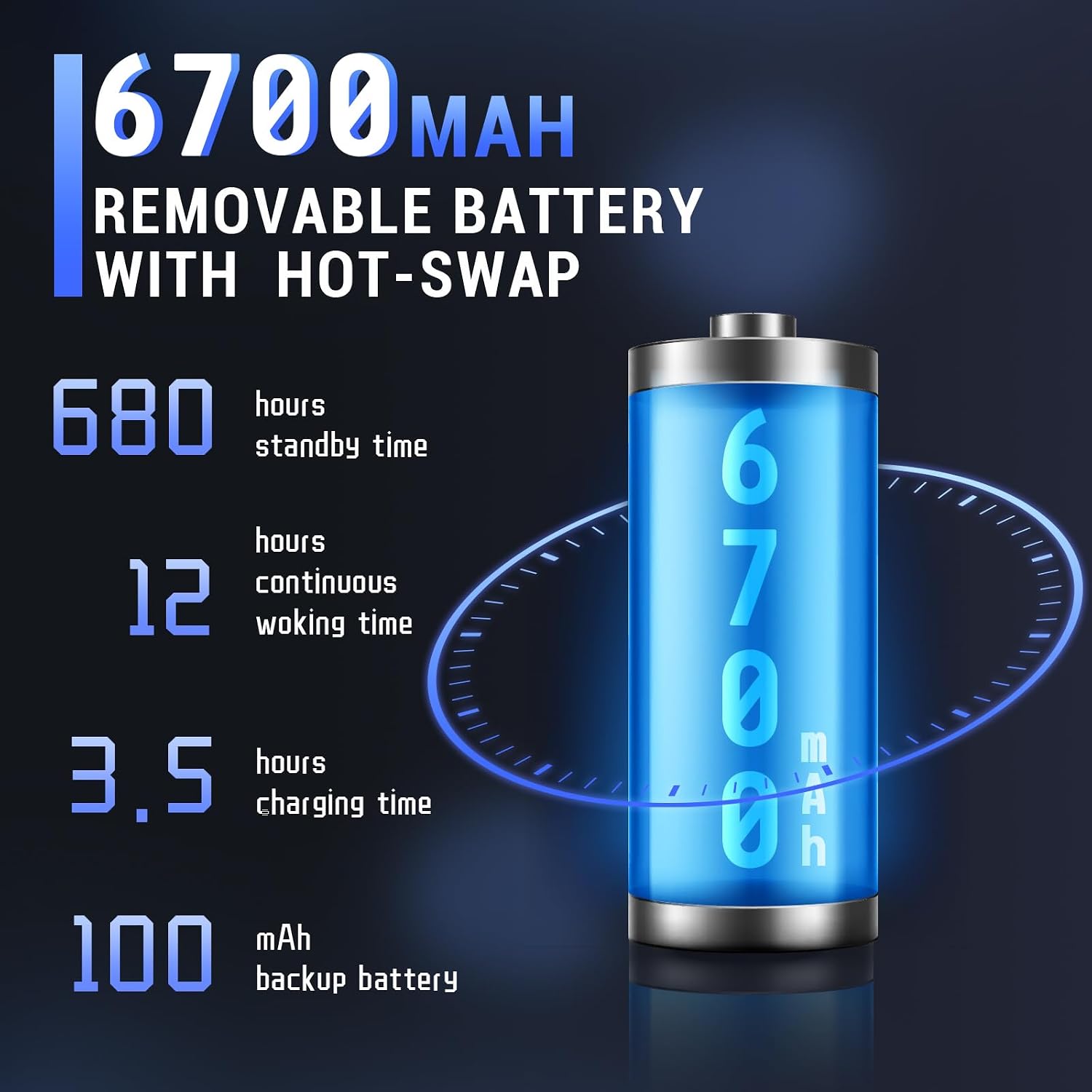
Image: The Tera P161 PDA actively scanning a barcode, demonstrating its primary function.
3. Keypad and Touchscreen Usage
The device combines a 4-inch touchscreen with a physical 37-key numeric keypad.
- Afi ika te: Navigate the Android interface by tapping, swiping, and pinching.
- Bọtini foonu: Use the physical keys for data entry, navigation, and quick access functions. The keypad is designed for use even with gloves.

Aworan: A alaye view of the Tera P161 PDA's 37-key physical keypad, highlighting its layout and design.
4. Asopọmọra
- Wi-Fi: Connect to available Wi-Fi networks via the Android settings menu. Supports 2.4G and 5G bands.
- Bluetooth: Pair with Bluetooth devices (e.g., headphones, printers) through the Bluetooth settings. The device uses Bluetooth 5.0 for faster data transfer.
- GPS: The integrated GPS module allows for location-based services and tracking.
- NFC: For Near Field Communication, ensure the pistol grip is removed for optimal performance. Access NFC settings in the Android menu.
Itoju
1. Ninu ẹrọ
Lati ṣetọju iṣẹ ṣiṣe to dara julọ ati mimọ:
- Pa iboju ati ara rẹ pẹlu asọ ti ko ni lint.
- Fun idoti alagidi, die-die dampen asọ pẹlu omi tabi a ìwọnba, ti kii-abrasive regede.
- Má ṣe lo àwọn kẹ́míkà líle, àwọn ohun èlò olómi, tàbí àwọn ohun èlò ìpara.
- Rii daju pe ko si omi ti o wọ awọn ibudo tabi awọn ṣiṣi.
2. Itọju batiri
The 6700mAh battery is designed for long operational periods. The 100mAh backup battery allows for hot-swapping the main battery without losing data.
- Yago fun gbigba agbara si batiri ni kikun nigbagbogbo.
- Tọju ẹrọ naa ni itura, aye gbigbẹ nigbati o ko ba wa ni lilo fun awọn akoko gigun.
- If replacing the main battery, ensure the device is powered on and the backup battery is charged to facilitate a hot-swap.
3. Awọn ero Ayika
The Tera P161 has an IP65 rating, indicating resistance to dust and water jets, and can withstand drops up to 1.5 meters.
- While robust, avoid intentional exposure to extreme conditions.
- Rí i dájú pé gbogbo àwọn ibojú èbúté ti sé dáadáa láti lè dènà omi àti eruku.
- Ma ṣe fi ẹrọ naa sinu omi.

Image: The Tera P161 PDA being shown to withstand drops and splashes, illustrating its IP65 durability rating.
Laasigbotitusita
If you encounter issues with your Tera P161, refer to the following common problems and solutions:
| Isoro | Owun to le Fa | Ojutu |
|---|---|---|
| Ẹrọ naa ko ṣiṣẹ. | Batiri kekere tabi dinku. | Connect the device to the charger and allow it to charge for at least 30 minutes before attempting to power on. |
| Barcode scanner not reading. | Barcode damaged, scanner window dirty, incorrect symbology settings, or scanner application not active. | Clean the scanner window. Ensure the barcode is clear and undamaged. Check scanner settings in the application. Verify the scanning application is open and active. |
| Awọn iṣoro asopọ Wi-Fi tabi Bluetooth. | Out of range, incorrect password, or interference. | Move closer to the Wi-Fi router or Bluetooth device. Re-enter the password. Restart the device and try again. |
| Ẹ̀rọ náà lọ́ra tàbí kò dáhùn. | Too many applications running, low memory, or software glitch. | Close unnecessary applications. Restart the device. Clear cache if possible. |
| Forgotten PIN or password. | Security lock activated. | If you have forgotten your device PIN or password, you may need to perform a factory reset. Warning: A factory reset will erase all data on the device. Consult the online support resources or contact customer service for guidance before proceeding. |
If the problem persists after trying these solutions, please contact Tera customer support.
Awọn pato
| Ẹya ara ẹrọ | Ẹ̀kúnrẹ́rẹ́ |
|---|---|
| Nọmba awoṣe | FUN-PDA-P161-EU |
| Eto isesise | Android 11 |
| isise | Qualcomm Octa-Core 2.0GHz |
| Scanner Engine | Zebra SE4710 (1D/2D/QR) |
| Ifihan | 4-inch Touchscreen |
| Iranti | 3GB Ramu, 32GB ROM |
| Main Batiri | 6700mAh (Removable, Hot-swappable) |
| Batiri Afẹyinti | 100mAh |
| Akoko gbigba agbara | Isunmọ. wakati meji 3.5 |
| Bọtini foonu | 37-key Numeric Keypad |
| Asopọmọra | Wi-Fi (2.4G/5G), Bluetooth 5.0, GPS, NFC |
| Rating agbara | IP65 (Water, Dust, 1.5m Drop Resistance) |
| Orisun agbara | Cable ina |
Atilẹyin ọja ati Support
Tera is committed to providing high-quality products and excellent customer service.
- Atilẹyin Onibara: 24/7 customer support is available for any inquiries or assistance.
- Iranlọwọ Imọ-ẹrọ: Comprehensive technical support is provided to help with setup, operation, and troubleshooting.
- SDK and Customization: SDKs are provided, and customization services are available to meet specific business needs.
- Ibi iwifunni: For support, please refer to the contact details provided with your product documentation or visit the official Tera webojula.
For more information about Tera products and services, you can visit the Tera Brand Store.