
Ọrọ Iṣaaju
This manual provides instructions for the Akasa AK-CR-12 2-in-1 USB 3.2 Dual Card Reader. This device offers expanded connectivity for common memory cards, including SD, SDHC, SDXC, microSD, microSDHC, and microSDXC, in a compact aluminum housing. It is designed for compatibility with various devices featuring either USB Type-C or USB Type-A connectors.
Ọja Awọn ẹya ara ẹrọ
- Apẹrẹ Ibudo Meji: Features both USB Type-A and Type-C connectors for versatile device compatibility.
- Gbigbe Data Iyara Giga: Supports USB 3.2 Gen 1, providing data transfer rates up to 5Gbps.
- Iho kaadi Meji: Simultaneously reads and writes SD and microSD cards.
- Ibamu Eto Iṣiṣẹ jakejado: Works with macOS, Windows, Linux, and Android systems.
- Ikole ti o tọ: Premium aluminum housing enhances heat dissipation and protection.
- Pulọọgi & Ṣiṣẹ: A ko nilo awakọ fun ọpọlọpọ awọn ọna ṣiṣe.
- Gbona Swappable: Allows for connection and disconnection without restarting the device.
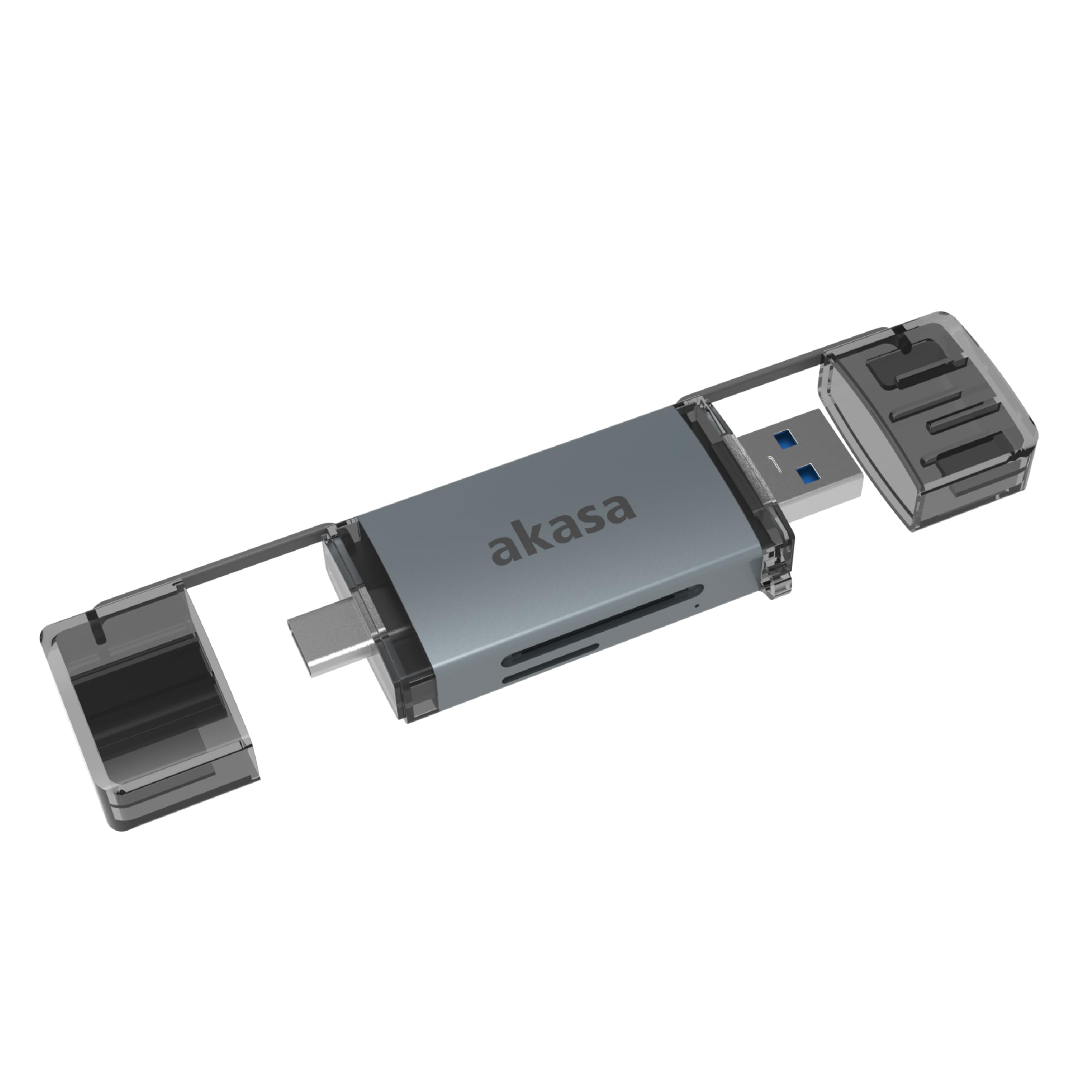
Image: The Akasa AK-CR-12 connected to a laptop, highlighting its USB 3.2 Gen 1 high-speed data transmission capability of up to 5Gbps, compared to USB 2.0's 480Mbps.

Aworan: A sunmọ-soke view of the Akasa AK-CR-12, emphasizing its aluminum housing designed for enhanced heat dissipation and protection, and its ease of plugging into various devices.
Eto ati isẹ
- Fi Kaadi Iranti sii: Gently insert your SD or microSD card into the corresponding slot on the Akasa AK-CR-12. Ensure the card is inserted correctly with the contacts facing down.
- Sopọ si Ẹrọ:
- For devices with a USB Type-C port (e.g., modern laptops, smartphones, tablets), connect the USB Type-C end of the card reader.
- For devices with a USB Type-A port (e.g., older laptops, desktop PCs), connect the USB Type-A end of the card reader.
- Wiwọle Data: Once connected, your operating system should automatically detect the card reader and the inserted memory card. The memory card will appear as a removable drive. You can then access, transfer, and manage filegẹ́gẹ́ bí o ṣe máa ṣe pẹ̀lú èyíkéyìí ẹ̀rọ ìpamọ́ mìíràn.
- Eject Safely: Before disconnecting the card reader, always safely eject the removable drive through your operating system's interface to prevent data corruption.
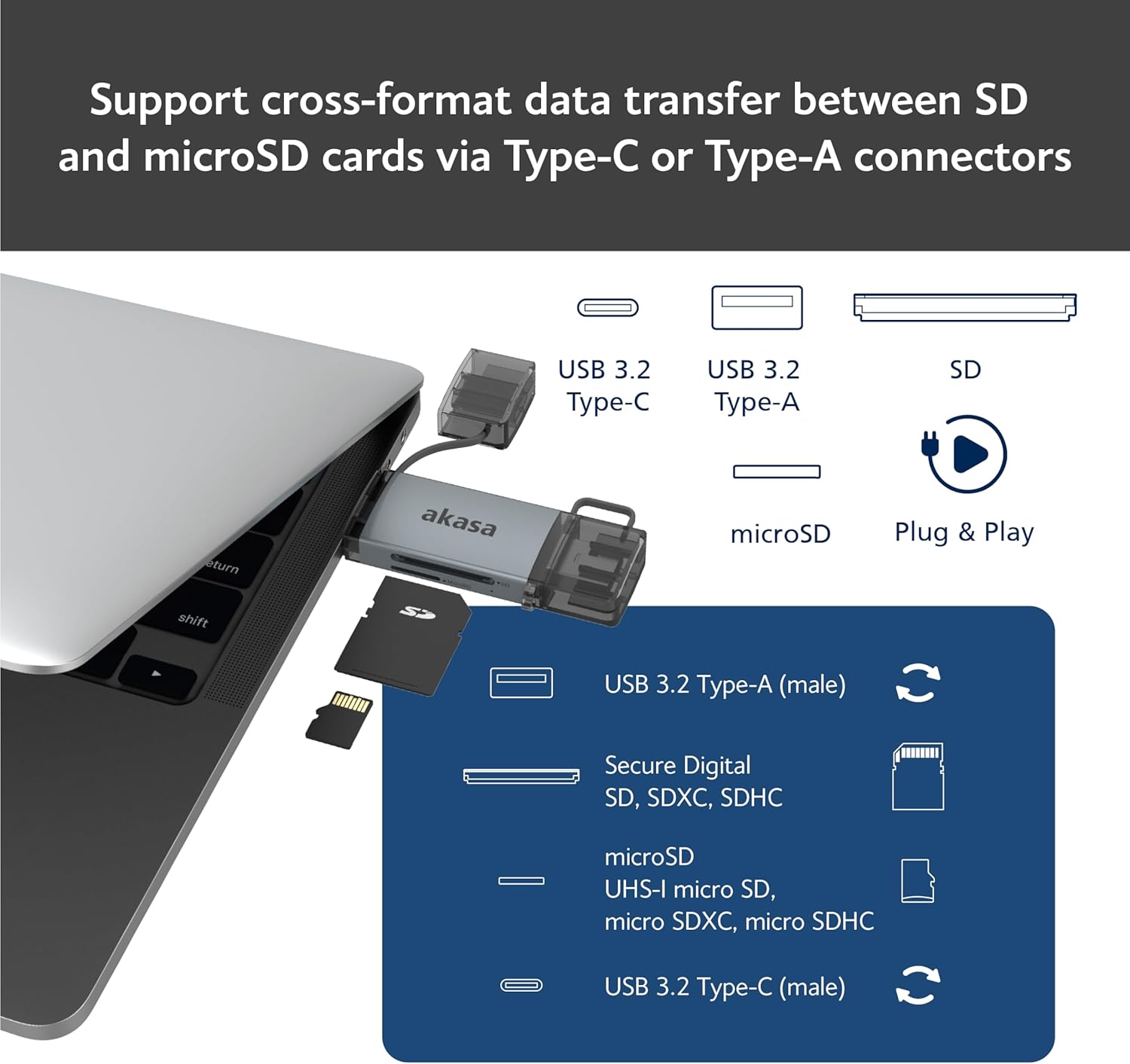
Image: An illustration demonstrating how to support cross-format data transfer between SD and microSD cards using the Type-C or Type-A connectors of the Akasa AK-CR-12, showing the different connector types and card slots.
Ibamu
The Akasa AK-CR-12 is designed for broad compatibility with various operating systems and devices:
- Awọn ọna ṣiṣe:
- macOS 10.6.2 tabi ga julọ
- Windows XP / 7/8/10/11
- Linux Fedora FC8 or higher
- Android System
- Awọn ẹrọ ibaramu: Personal Computers, Laptops, Smartphones, Tablets.
- Memory Card Types: Secure Digital (SD, SDHC, SDXC, UHS-I), microSD (microSD, microSDHC, microSDXC).
Note for Smartphone/Tablet Devices:
If an adapter is needed for smartphone/tablet devices, the device must have USB OTG (On-The-Go) functionality to utilize the card reader feature.
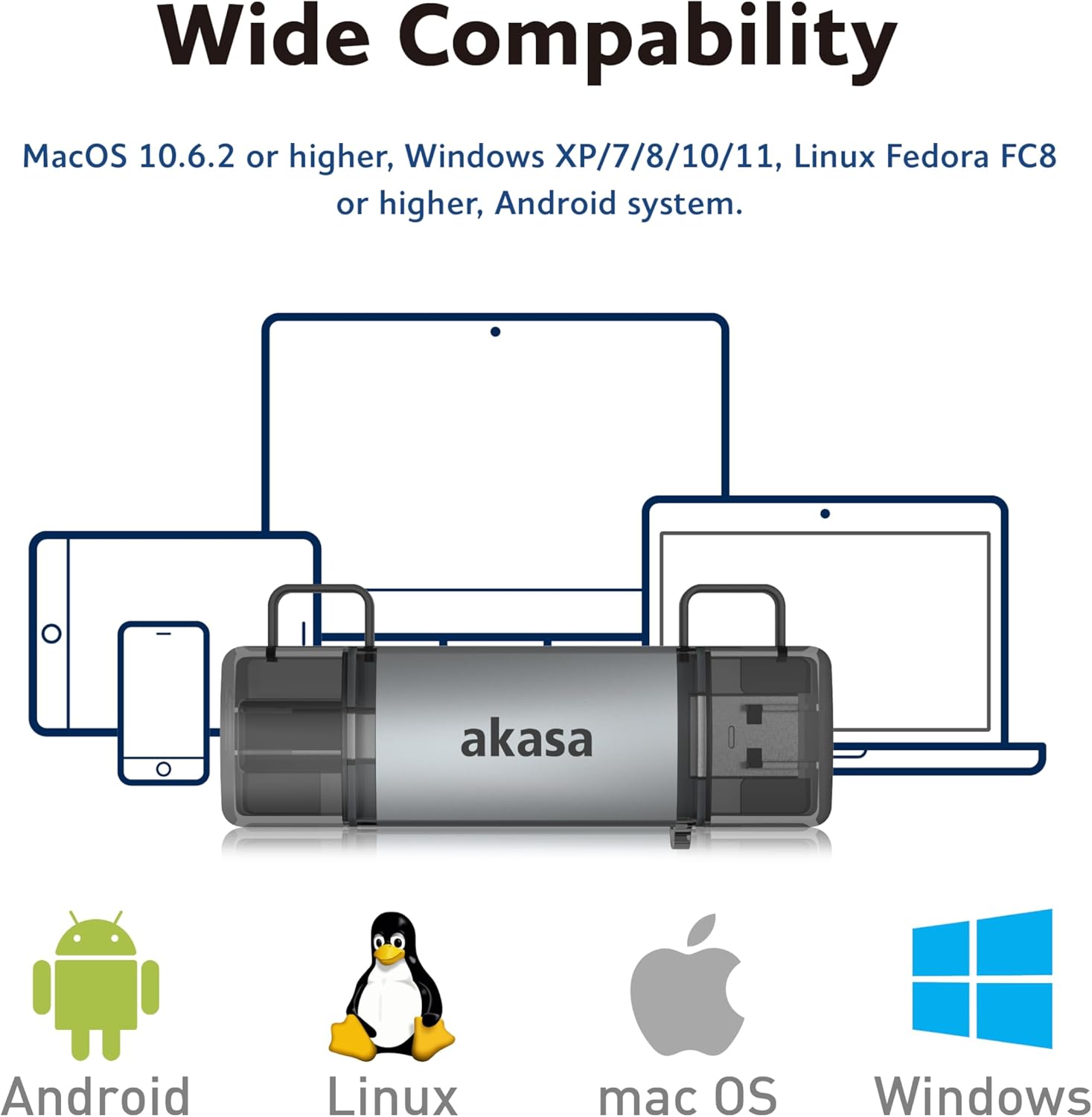
Image: The Akasa AK-CR-12 positioned centrally with logos for Android, Linux, macOS, and Windows operating systems, illustrating its wide compatibility across different platforms.
Awọn pato
| Ẹya ara ẹrọ | Ẹ̀kúnrẹ́rẹ́ |
|---|---|
| Ohun elo | External USB 3.2 Gen 1 Card Reader |
| Awọn iwọn | 84.5 x 25.35 x 11.4 mm |
| Upstream Ports | USB 3.2 Type-C (male) & USB 3.2 Type-A (male) |
| Memory Card Types | Secure Digital (UHS-I micro SD, micro SDXC, micro SDHC), microSD (micro SD, micro SDXC, micro SDHC) |
| Oṣuwọn Gbigbe Data Max | 5Gb/s (USB 3.2 Gen 1 / USB 3.0), 480Mb/s (USB 2.0) |
| Ibamu OS | macOS 10.6.2 or higher, Windows XP/7/8/10/11, Linux Fedora FC8 or higher, Android System |
| Pulọọgi & Ṣiṣẹ | Atilẹyin |
| Gbona Swappable | Atilẹyin |
| koodu ọja | AK-CR-12 |
| Iwọn Nkan | 20 giramu |

Image: A detailed diagram illustrating the physical dimensions of the Akasa AK-CR-12, including its length (84.5mm), width (25.35mm), and thickness (11.4mm).
Laasigbotitusita
- A ko rii Ẹrọ:
- Ensure the card reader is firmly connected to your device's USB port.
- Try a different USB port on your computer or device.
- Daju pe o ti fi kaadi iranti sii daradara sinu oluka kaadi.
- Test the card reader on another compatible device to rule out a port issue.
- Gbigbe Data lọra:
- Ensure you are connected to a USB 3.0/3.2 port for optimal speeds. Connecting to a USB 2.0 port will result in lower transfer rates (up to 480Mb/s).
- Check the speed class of your memory card; slower cards will limit transfer speeds.
- Yago fun gbigbe ọpọlọpọ awọn kekere files ni akoko kanna, nitori eyi le dinku iyara gbogbogbo.
- Ko le Wiwọle Files:
- Ensure the memory card is not write-protected (check for a physical lock switch on SD cards).
- Verify the memory card is formatted correctly for your operating system.
- Try accessing the card directly if your device has a built-in card reader to confirm the card itself is functional.
- Smartphone/Tablet Compatibility:
- Confirm your smartphone or tablet supports USB OTG (On-The-Go) functionality. This is essential for the device to recognize external USB storage.
- Some devices may require enabling OTG in their settings.
Itoju
- Ninu: Use a soft, dry cloth to clean the exterior of the card reader. Avoid liquid cleaners or solvents.
- Ibi ipamọ: Tọju oluka kaadi ni itura, aye gbigbẹ kuro lati orun taara ati awọn iwọn otutu to gaju.
- Idaabobo: Keep the protective caps on the USB connectors when not in use to prevent dust and damage.
- Mimu: Yago fun sisọ ẹrọ naa silẹ tabi fifisilẹ si awọn ipa to lagbara.
Atilẹyin ọja ati Support
For warranty information and technical support, please refer to the official Akasa webaaye tabi kan si alagbata agbegbe rẹ. Tọju iwe-ẹri rira rẹ bi ẹri rira.
Akasa Official Webojula: www.akasa.com.tw