
1. Ifihan
Thank you for choosing the PAPIFEED Automatic Cat Feeder. This device is designed to provide a convenient and reliable feeding solution for your cats and small dogs. Featuring 2.4G WiFi app control, a 3-liter food capacity, and a dual power supply system, it ensures your pet is fed on schedule, even when you're away. Its detachable design also makes cleaning simple and hygienic.
2. Ohun ti o wa ninu Apoti
- PAPIFEED Automatic Cat Feeder (Main Unit)
- Irin alagbara, irin Food ekan
- Food Bowl Base
- Adapter agbara
- Okun Ngba agbara USB
- Desiccant Box (pre-installed in lid)
- Itọsọna olumulo
3. Eto
3.1. Apejọ
- Place the stainless steel food bowl into the food bowl base.
- Align the food bowl base with the main feeder unit and slide it into place until it clicks securely.
3.2. Agbara Ipese
The PAPIFEED Automatic Cat Feeder supports a dual-mode power supply for uninterrupted operation:
- Agbara ifibọ: Connect the USB charging cable to the feeder's port and plug the adapter into a wall outlet.
- Backup Battery Power: For protection against power outages, insert four (4) AA batteries (not included) into the battery compartment at the bottom of the feeder. The feeder will automatically switch to battery power if the main power supply is interrupted.
Iṣeduro: Maintain dual power supply mode for daily use to ensure the backup battery is always ready for sudden power outages.
3.3. Kíkún Àpótí Oúnjẹ
- Twist the top lid counter-clockwise to unlock and remove it.
- Fill the food tank with dry pet food. The transparent window on the front allows for easy monitoring of the food level.
- Replace the lid and twist clockwise to lock it securely. Ensure the lid is tightly sealed to maintain food freshness.
Akiyesi pataki: Only use dry pet food. Do not use canned, wet, or moist pet food, as this can cause blockages and spoilage. Recommended kibble size ranges from 5-12mm (0.2-0.47 inches) in diameter.

Image: Feeder features including transparent food window and secure lid.
4. App Installation & Connection (2.4G WiFi)
4.1. Gba awọn Smart Life App
- Scan the QR code provided in the user manual or search for "Smart Life" in your device's app store (App Store for iOS, Google Play for Android).
- Fi sori ẹrọ app naa ki o ṣẹda akọọlẹ kan ti o ko ba ni ọkan.

Image: Instructions for downloading the Smart Life app.
4.2. Connect the Feeder to WiFi
- Ensure your mobile device is connected to a 2.4G WiFi network. The feeder only supports 2.4G WiFi.
- Plug in the feeder or ensure batteries are installed. The indicator light will blink blue, indicating it's ready for connection.
- Open the Smart Life app, tap '+' to add a device, and select 'Smart Pet Feeder'.
- Follow the on-screen instructions in the app to complete the pairing process. You may need to long-press the WiFi reset button on the feeder for 15 seconds until the blue light blinks rapidly.
- Ni kete ti a ti sopọ, ina Atọka yoo tan buluu to lagbara.
Imọran: When powered by backup batteries, the feeder may remain offline (unable to connect to the APP), but it will still strictly implement the preset feeding plan.
5. Awọn ilana Iṣiṣẹ
5.1. Afowoyi ono
- Nipasẹ App: Open the Smart Life app, select your feeder, and tap the 'Feed' button to dispense food immediately. You can adjust the number of portions to dispense.
- Nipasẹ Bọtini Olufunni: Short press the manual feed button on the feeder to dispense one portion of food.
5.2. Scheduled Feeding (App Control)
The app allows you to create a customized feeding schedule for your pet:
- In the Smart Life app, navigate to your feeder's interface and select 'Timer' or 'Schedule'.
- Set desired feeding times, days of the week, and the number of portions for each meal. The feeder supports up to 10 meals per day with 1-12 portions per meal.
- Save your schedule. The feeder will automatically dispense food according to your programmed settings.

Image: App interface showing remote control and scheduling options.
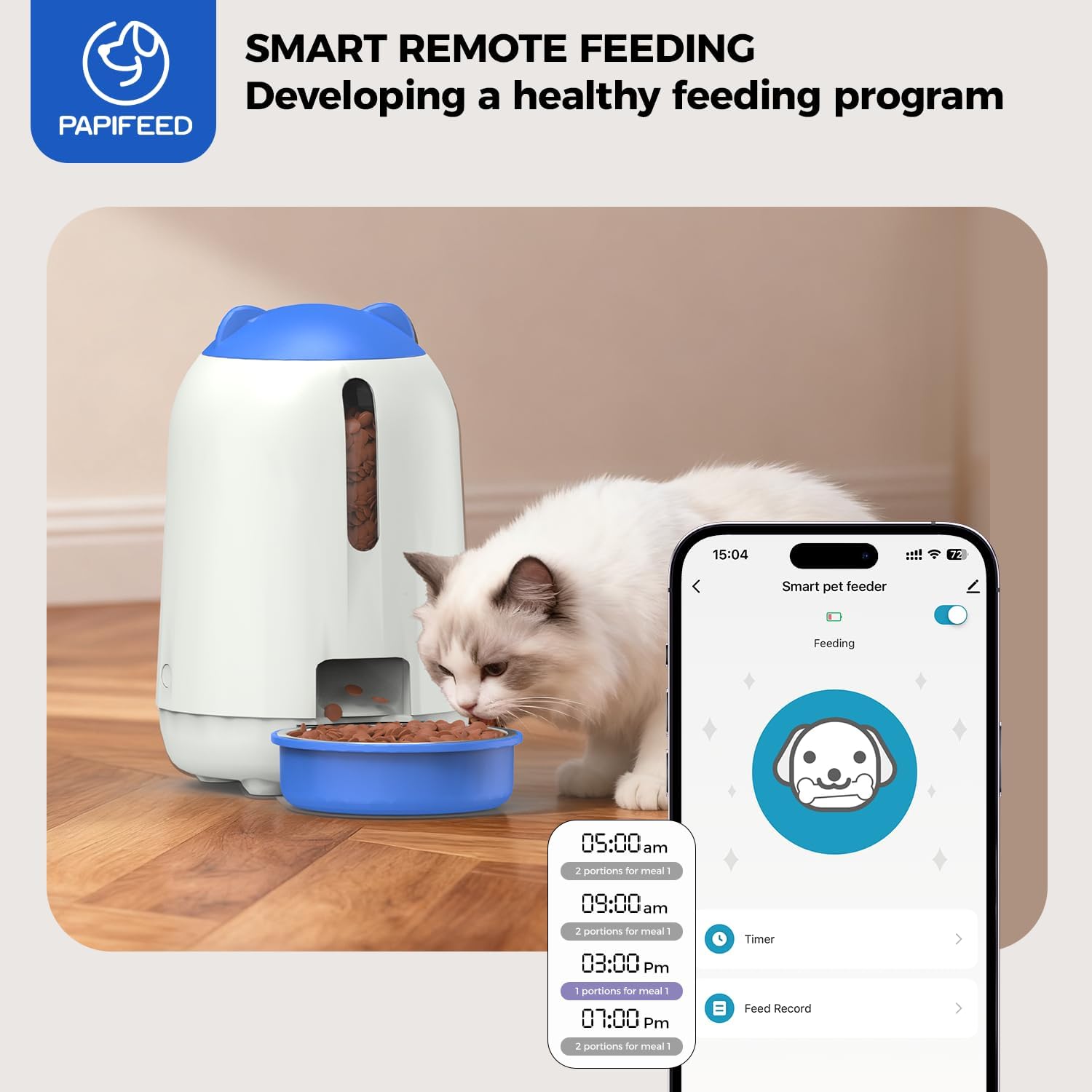
Aworan: Example of a scientifically scheduled feeding program.
5.3. Food Freshness & Capacity
- The feeder features a built-in desiccant box and a sealed grain bin to effectively isolate moisture and prevent food from getting damp or spoiling.
- The knob-type bin cover design requires manual rotation to open, preventing pets from accessing the food.
- The 3-liter capacity food bin can store approximately 1-2 weeks of food, depending on your pet's size and consumption. This reduces the frequency of refills and is suitable for short trips.

Image: Anti-clog design and recommended kibble sizes/types.
6. Itọju & Cleaning
The feeder features a split and detachable design for easy cleaning, promoting your pet's health:
- The grain bin and grain outlet channel can be completely disassembled and rinsed directly with clean water. This eliminates sanitary dead corners and prevents bacteria growth.
- The stainless steel food bowl is also removable and can be washed separately.
- Pataki: The main base unit containing electronic components should kii ṣe be rinsed with water. Clean it with a damp asọ.

Image: Detachable parts for easy cleaning, highlighting non-washable base.
7. Laasigbotitusita
7.1. Cannot Connect Feeder to WiFi
- Ensure your phone is close to the router and the feeder.
- Verify your WiFi network signal is strong and stable.
- Restart the feeder and your router.
- Confirm the feeder is connected to a 2.4G WiFi network.
- Check if the indicator light is blinking blue. If not, long-press the WiFi reset button for 15 seconds until it blinks rapidly.
7.2. No Food Dispensed
- Check the food level in the tank and refill if necessary.
- Ensure the food outlet is not blocked by kibble or debris.
- Daju pe ipese agbara ti sopọ ati ṣiṣe ni deede.
- Check the app for any error messages or feeding history.
For further assistance, please refer to the detailed troubleshooting section in your user manual or contact customer support.
8. Awọn pato
| Ẹya ara ẹrọ | Ẹ̀kúnrẹ́rẹ́ |
|---|---|
| Brand | PAPIFEED |
| Nọmba awoṣe | MAOER-BUTTON-BLUE |
| Iwọn Nkan | 3.01 iwon (1.37 kilo) |
| Awọn iwọn Nkan (LxWxH) | 7.3 x 7.3 x 5 inches |
| Awọn Iwọn Ohun elo (LxWxH) | 12.61 x 7.88 x 7.45 inches |
| Àwọ̀ | Buluu |
| Ara | Pet Feeder (2.4G WiFi) |
| Àkọlé Eya | Ologbo |
| Pataki Ẹya | Rọrun lati nu |

Image: Feeder dimensions and included accessories.
9. Atilẹyin ọja & Atilẹyin
9.1. Atilẹyin ọja olupese
The PAPIFEED Automatic Cat Feeder comes with a 2-Odun olupese atilẹyin ọja.
9.2. Onibara Support
For any questions, technical support, or warranty claims, please contact PAPIFEED customer service:
- Tẹlifoonu: (1) 877-290-0617 (Monday - Friday, 8 a.m. - 5 p.m. PST)
- Imeeli: service@papifeed.cn