
1. Ifihan
This manual provides essential information for the safe and efficient use of your Amazon Basics 24 Inch FHD 100Hz Monitor. Please read these instructions carefully before operating the device and retain them for future reference.
The Amazon Basics 24 Inch Monitor features a 23.8-inch viewable IPS panel with Full HD (1080p) resolution and a maximum refresh rate of 100Hz. It includes built-in speakers and is VESA compatible for flexible mounting options. The monitor is designed for various uses, including office work, entertainment, and gaming.

Iwaju view of the Amazon Basics 24 Inch FHD 100Hz Monitor.
2. Package Awọn akoonu
Jẹrisi pe gbogbo awọn ohun kan wa ninu package:
- Amazon Basics 24 Inch Monitor
- Ipilẹ Iduro
- Duro Ọrun
- Adapter agbara
- Okun HDMI

Image showing the monitor's package contents: stand base, stand neck, power adapter, and HDMI cable.
3. Awọn ilana iṣeto
3.1 So Iduro
- Insert the stand neck into the stand base until it clicks securely into place.
- Align the assembled stand with the mounting slot on the back of the monitor. Push the stand into the slot until it locks. Ensure it is firmly attached.
3.2 Nsopọ Awọn okun
The monitor features multiple input ports for connectivity:
- DP 1.2: DisplayPort input for high-resolution video and audio.
- HDMI1.4: HDMI input for video and audio from compatible devices.
- VGA: VGA input for analog video signals.
- ODIO NINU: 3.5mm audio input for external audio sources.
- AUDIO JADE: 3.5mm audio output for headphones or external speakers.
- Connect the provided HDMI cable from your computer's video output port to the HDMI input port on the monitor. Alternatively, use a DisplayPort or VGA cable if your device supports those connections.
- Connect the power adapter to the monitor's power input port, then plug the power adapter into a wall outlet.
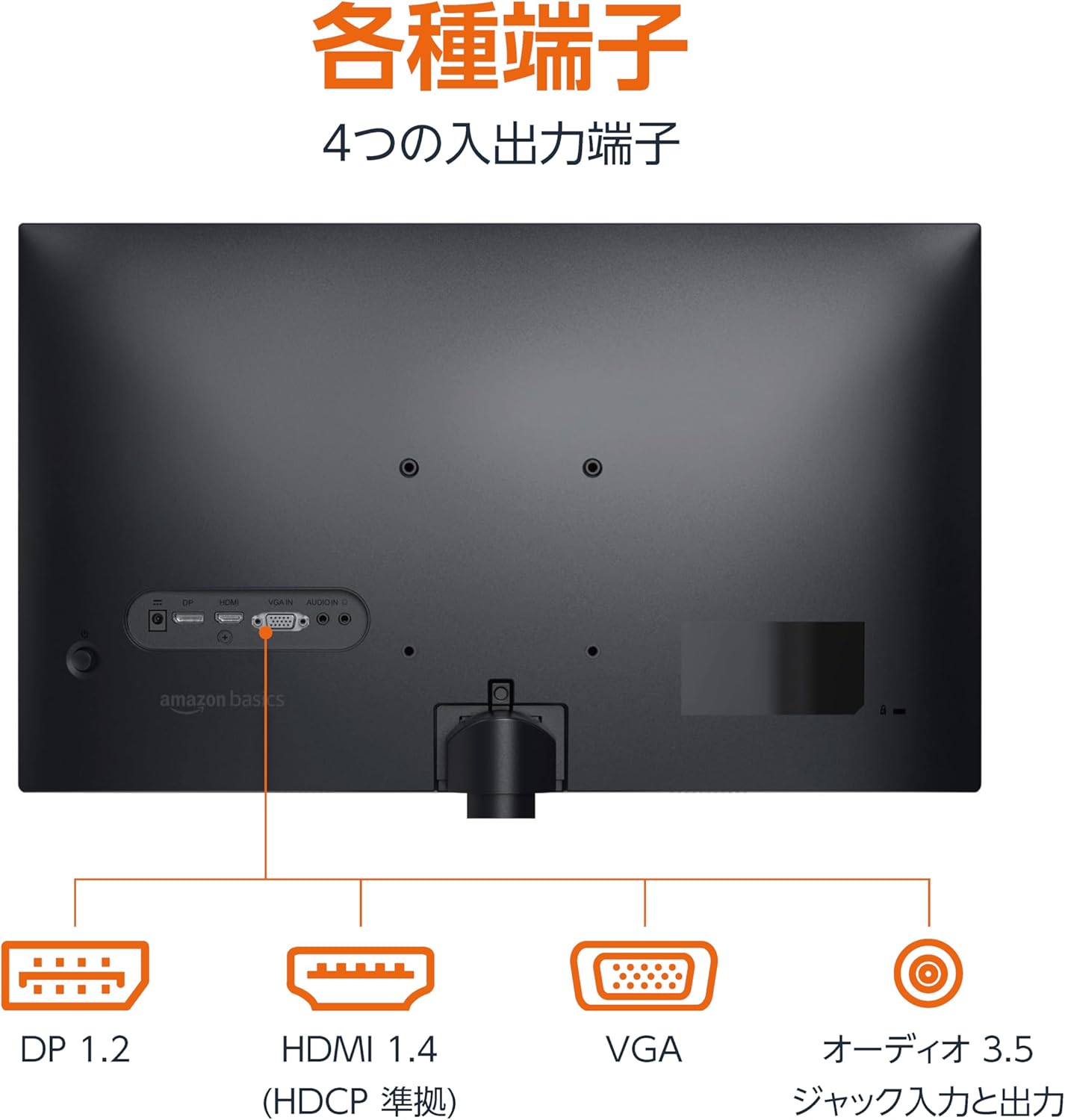
Ẹyìn view of the monitor displaying various input and output ports.
3.3 Agbara Lori
Press the power button located on the back or bottom of the monitor to turn it on. The monitor will automatically detect the active input signal.
3.4 Pulọọgi Atunṣe
The monitor allows for tilt adjustment to achieve an optimal viewing angle. Gently hold the top and bottom edges of the monitor and tilt it forward or backward. The tilt range is approximately -5° to 20°.

Monitor demonstrating its tilt adjustment capability.
3.5 Optional: VESA Mounting and Cable Lock
The monitor is VESA compatible, allowing it to be mounted on a wall or an adjustable arm (mounting hardware sold separately). Refer to the VESA mount's instructions for installation.
An optional cable lock slot is available on the rear of the monitor to secure it to a stable object, preventing theft.
3.6 Oṣo Video Itọsọna
For a visual guide on setting up your Amazon Basics monitor, please watch the video below:
This video demonstrates the assembly of the stand, connecting cables, and basic adjustments for the Amazon Basics monitor.
4. Awọn ilana Iṣiṣẹ
4.1 Lori-iboju Ifihan (OSD) Akojọ aṣyn
The monitor features an On-Screen Display (OSD) menu for adjusting various settings. Use the buttons located on the back or bottom of the monitor to navigate the menu. Common settings include:
- Imọlẹ/Itọtọ: Satunṣe awọn ifihan ká luminance ati itansan awọn ipele.
- Eto awọ: Ṣe àtúnṣe iwọn otutu awọ, àwọ̀, àti ìtẹ́lọ́rùn.
- Aṣayan titẹ sii: Manually switch between DP, HDMI, and VGA inputs.
- Ohun: Ṣàtúnṣe iwọn didun fún àwọn agbọ́hùnsọ tàbí àwọn agbekọri tí a so pọ̀.
- Ipo aworan: Select from preset display modes (e.g., Standard, Game, Movie).
4.2 Using Built-in Speakers
The monitor includes integrated speakers. Audio will be played through these speakers when connected via HDMI or DisplayPort. If using a VGA connection, ensure an audio cable is connected to the 'AUDIO IN' port on the monitor and your computer's audio output.
5. Awọn pato
| Ẹya ara ẹrọ | Sipesifikesonu |
|---|---|
| Brand | Amazon Awọn ipilẹ |
| Nọmba awoṣe | 24M2020DJP |
| Iwon iboju | 24 Inches (23.8 inch viewle) |
| Panel Iru | IPS |
| Ipinnu | FHD 1080p (1920 x 1080) |
| Oṣuwọn sọtun | O pọju 100 Hz |
| Apakan Ipin | 16:9 |
| Awọn Agbọrọsọ ti a ṣe sinu | Bẹẹni |
| VESA ibamu | Bẹẹni |
| Awọn ibudo igbewọle | 1x DisplayPort 1.2, 1x HDMI 1.4, 1x VGA, 1x Audio In (3.5mm) |
| Awọn ibudo ti njade | 1x Ohùn Ìjáde (3.5mm) |
| Iwọn Ọja | 2.8 kg |
| Sisanra Bezel | 1.44 mm (slim bezel) |
| Atilẹyin ọja | 1 odun lopin atilẹyin ọja |
5.1 Awọn iwọn
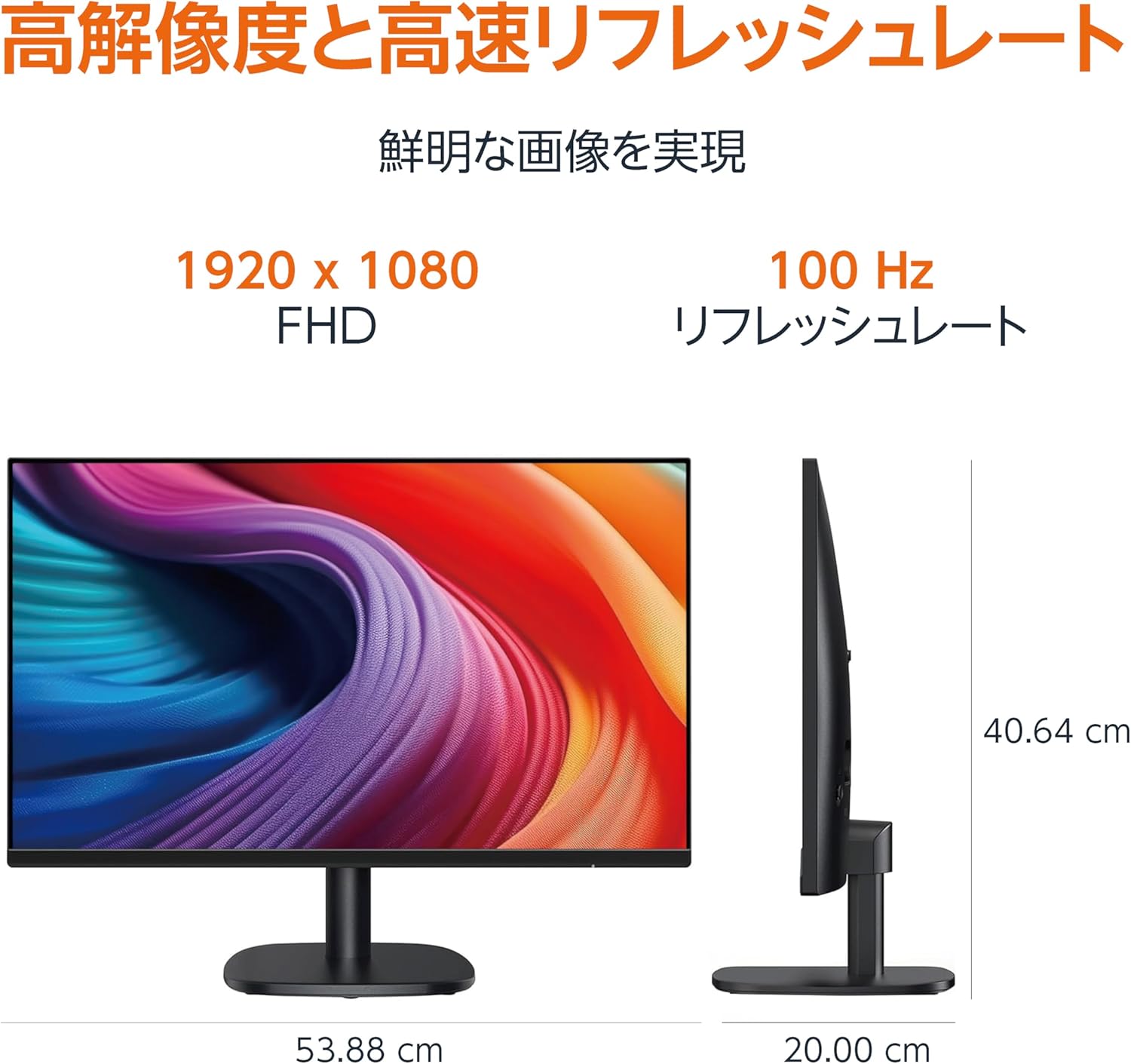
Diagram showing the monitor's dimensions (Width: 53.88 cm, Height: 40.64 cm, Depth: 20.00 cm).
Apẹrẹ Bezel Tinrin 5.2

Detail showing the monitor's slim bezel design, measuring 1.44 mm.
6. Laasigbotitusita
Ti o ba pade awọn ọran pẹlu atẹle rẹ, tọka si awọn solusan ti o wọpọ wọnyi:
- Ko si Agbara: Ensure the power cable is securely connected to both the monitor and a working power outlet. Check if the power adapter's indicator light is on.
- Ko si ifihan agbara: Verify that the video cable (HDMI, DP, or VGA) is firmly connected to both the monitor and your computer. Ensure the correct input source is selected in the monitor's OSD menu. Try restarting your computer.
- Iboju didan: Check the video cable for damage or loose connections. Ensure your computer's graphics driver is up to date. Adjust the refresh rate in your computer's display settings.
- Ko si ohun lati ọdọ awọn agbọrọsọ: If using HDMI or DisplayPort, ensure the audio output is set to the monitor in your computer's sound settings. If using VGA, confirm the 3.5mm audio cable is connected. Check the volume level on both the monitor and your computer.
- Awọn ọran Didara Aworan: Adjust brightness, contrast, and color settings via the OSD menu. Ensure the display resolution on your computer matches the monitor's native resolution (1920 x 1080).
If the problem persists after trying these steps, contact customer support.
7. Itọju
Proper maintenance helps ensure the longevity and performance of your monitor:
- Ninu iboju: Rọra nu iboju naa pẹlu asọ ti ko ni lint. Fun awọn ami alagidi, fẹẹrẹ dampen the cloth with water or a specialized screen cleaner. Avoid using harsh chemicals, alcohol, or abrasive materials.
- Ninu ile Casing: Lo aṣọ rirọ ati gbigbẹ lati nu iboju naaasing.
- Afẹfẹ: Rii daju pe awọn ṣiṣi atẹgun ti atẹle naa ko ni idinamọ lati ṣe idiwọ igbona.
- Agbara Paa Nigbati Ko Si Lo: Pa atẹle naa nigbati o ko ba wa ni lilo fun awọn akoko gigun lati fi agbara pamọ ati gigun igbesi aye rẹ.
8. Atilẹyin ọja ati Support
This Amazon Basics monitor comes with a 1-odun lopin atilẹyin ọja lati ọjọ ti o ra. Atilẹyin ọja yi ni wiwa awọn abawọn iṣelọpọ ati iṣẹ ṣiṣe labẹ lilo deede.
For warranty claims, technical support, or further assistance, please refer to the Amazon Basics support page or contact Amazon customer service directly. Keep your proof of purchase for warranty validation.