
Ọrọ Iṣaaju
The FiiO KA11 is a compact and powerful Lightning to 3.5mm audio adapter designed to enhance your audio experience. It features a high-performance DAC (Digital-to-Analog Converter) chip, supporting high-resolution audio up to 32bit/384KHz. This device allows you to connect 3.5mm headphones to your Lightning-enabled devices, delivering high-fidelity sound for music, gaming, and communication.
The KA11 is compatible with a wide range of operating systems, including iOS, Android, Windows, and Mac, offering versatility for various devices.
Package Awọn akoonu
- FiiO KA11 Lightning to 3.5mm Audio Adapter
- Afowoyi Olumulo (iwe-ipamọ yii)
Ṣeto
Nsopọ KA11
- Sopọ̀ mọ́ ẹ̀rọ rẹ: Insert the Lightning connector of the FiiO KA11 into the Lightning port of your iOS device (e.g., iPhone, iPad).
- Connect your headphones: Plug your 3.5mm headphones or earphones into the 3.5mm audio jack of the FiiO KA11.
- Idanimọ aifọwọyi: The device should automatically recognize the KA11 as an audio output device. No additional drivers are typically required for basic audio playback.

Image: The FiiO KA11 adapter connected to a smartphone, with headphones plugged into the adapter's 3.5mm jack.
FiiO Control App (Android Only)
For Android devices, the FiiO Control app allows for advanced settings such as UAC1.0 mode switching, RGB lighting control, and digital filters. This app is not available for iOS devices.
Awọn ilana Iṣiṣẹ
Sisisẹsẹhin ohun
Once connected, your device will route audio through the FiiO KA11. Adjust the volume directly on your connected device. The KA11 features a high-performance DAC chip (CS43131) and op-amp for high-fidelity sound reproduction.
LED Atọka
The FiiO KA11 includes an LED indicator that displays the current audio sampIwọn ling:
- Imọlẹ bulu: PCM ≤ 48kHz
- Imọlẹ ofeefee: PCM > 48kHz
- Imọlẹ alawọ ewe: Ohun afetigbọ DSD

Image: The FiiO KA11 adapter showing its LED indicator, which changes color based on the audio sampling rate (Blue for PCM ≤ 48kHz, Yellow for PCM > 48kHz, Green for DSD).
UAC1.0 Mode for Gaming
The KA11 supports UAC1.0 mode, which is beneficial for devices like Nintendo Switch and PlayStation 5. This mode enables plug-and-play functionality and a low-latency gaming experience with rich sound effects. To activate UAC1.0 mode, use the FiiO Control app (Android only).

Image: The FiiO KA11 adapter connected to a Nintendo Switch console, demonstrating its use for an immersive gaming experience.
Ijade agbara
The KA11 provides significant power output to drive most headphones:
- 245mW at 16Ω load
- 200mW at 32Ω load
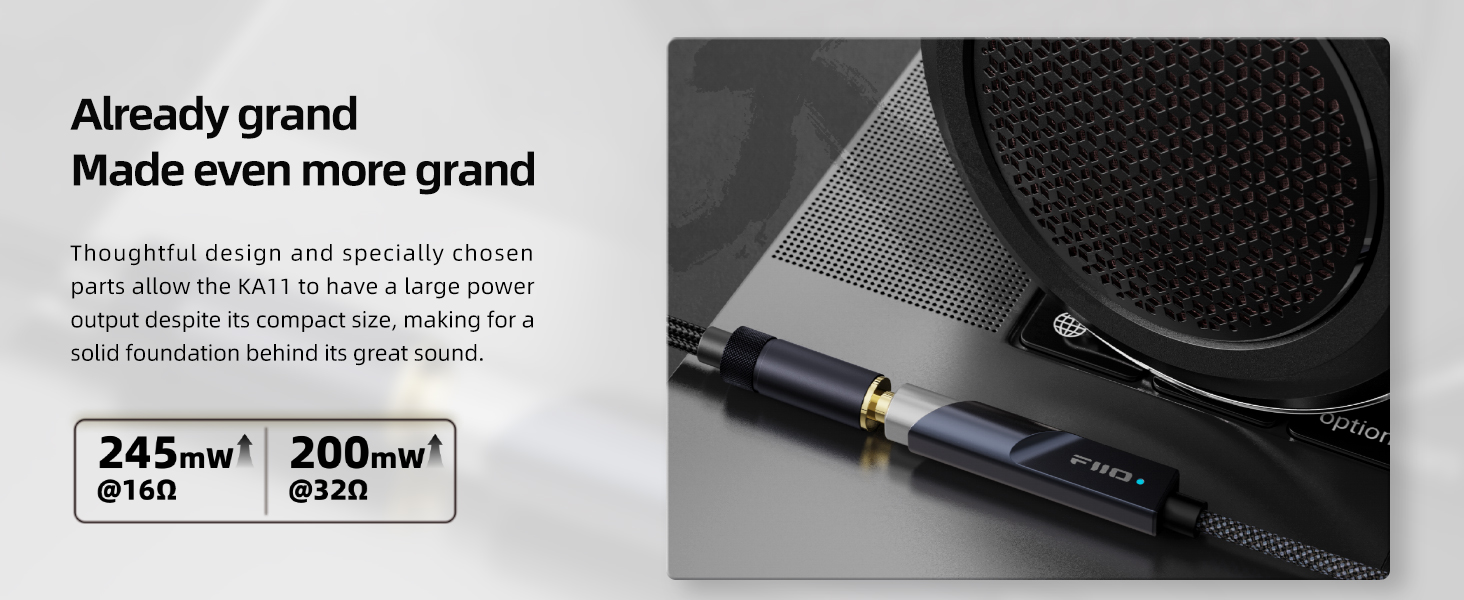
Image: A graphic illustrating the power output capabilities of the FiiO KA11, showing 245mW at 16Ω and 200mW at 32Ω.
Itoju
- Ninu: Use a soft, dry cloth to clean the exterior of the KA11. Avoid using harsh chemicals or abrasive materials.
- Ibi ipamọ: Tọju ẹrọ naa ni itura, aye gbigbẹ kuro lati orun taara ati awọn iwọn otutu to gaju.
- Mimu: Handle the adapter with care. Avoid bending or twisting the cable excessively, especially near the connectors, to prevent damage.
- Ooru: It is normal for the KA11 to become slightly warm during extended use. If it becomes excessively hot, disconnect it and allow it to cool down.
Laasigbotitusita
Ko si Ohun tabi Iwọn didun Kekere
- Ensure both the Lightning connector and the 3.5mm headphone jack are fully inserted.
- Ṣayẹwo ipele iwọn didun lori ẹrọ ti a ti sopọ.
- Test with different headphones to rule out headphone issues.
- Ensure your device's audio output is set to the FiiO KA11 if multiple options are available.
"Accessory requires too much power" Error (iOS)
- This error may occur if the iOS device detects excessive power draw.
- Ensure your iOS device is running the latest software version.
- Try disconnecting and reconnecting the KA11.
- If the issue persists, contact FiiO support for potential firmware updates or further assistance.
Audio Imbalance or Distortion
- Ensure the 3.5mm headphone jack is securely connected.
- Test with different audio files or streaming services to determine if the issue is source-related.
- Reduce the volume on your device to see if distortion decreases.
No Microphone or In-line Control Functionality
- The FiiO KA11 is designed primarily for audio output. It does not support microphone input or in-line remote controls (play/pause, volume up/down) from connected headphones.
Awọn pato
| Ẹya ara ẹrọ | Sipesifikesonu |
|---|---|
| Awoṣe | KA11 |
| DAC Chip | CS43131 |
| Max SampOṣuwọn ling | 32bit/384KHz, DSD256 |
| Asopọmọra Iru | Lightning to 3.5mm |
| Awọn ẹrọ ibaramu | iOS, Android, Windows, Mac |
| Agbara Ijade (16Ω) | 245mW |
| Agbara Ijade (32Ω) | 200mW |
| THD+N | <0.0006% |
| SNR | 125dB |
| Ariwo | <1.7uV |
| Awọn iwọn (L x W x H) | 44 x 9.7 x 10.5mm (1.73 x 0.41 x 0.04 inches) |
| Iwọn | O fẹrẹ to 8.5g |

Image: A graphic detailing the technical specifications of the FiiO KA11, including its CS43131 DAC, 245mW output, Hi-Res Audio certification, and compatibility with various operating systems.
Atilẹyin ọja
The FiiO KA11 Lightning to 3.5mm Audio Adapter comes with a 1-odun lopin atilẹyin ọja from the date of purchase. This warranty covers manufacturing defects and malfunctions under normal use. It does not cover damage caused by misuse, accidents, unauthorized modifications, or normal wear and tear.
For warranty claims or service, please retain your proof of purchase and contact FiiO customer support or your authorized dealer.
Atilẹyin
For further assistance, technical support, or to download the FiiO Control app (for Android), please visit the official FiiO webojula:
You may also contact your local FiiO distributor or retailer for support.
Fidio ọja
Fidio: Iyara tunview of the FiiO KA11, highlighting its features and what you need to know about the product.