
Ọrọ Iṣaaju
This manual provides detailed instructions for the setup, operation, and maintenance of your Prechen 10.1 inch Portable Touchscreen Monitor, Model HD-101. Please read this manual thoroughly before using the device to ensure proper functionality and to prevent damage.
Ọja Awọn ẹya ara ẹrọ
- Portable Touchscreen: This 10.1-inch monitor is compact and lightweight, designed for portability. The touchscreen functionality allows for intuitive navigation and interaction, enhancing productivity on the go.
- High-Resolution IPS Display: Features a 1920x1200 resolution with a 16:10 aspect ratio, delivering clear and vibrant visuals. IPS technology provides wide viewing angles and accurate color reproduction, suitable for various applications.
- Asopọmọra Wapọ: Equipped with HDMI and USB-C ports, offering flexible connection options. It can be easily connected to Windows PCs, laptops, and gaming consoles like Xbox. Note: USB-C is for touch functionality and power.
- Awọn Agbọrọsọ Iṣọkan: Built-in speakers provide clear and dynamic audio, eliminating the need for external speakers during media consumption, gaming, or virtual meetings.
- Òkè VESA Ni ibamu: The monitor supports VESA mounting standards, allowing for attachment to compatible stands or arms for customized workspace setups and comfortable viewing awọn igun.
Ṣeto
Package Awọn akoonu
Jẹrisi pe gbogbo awọn ohun kan wa ninu package:
- Prechen 10.1 inch Portable Touchscreen Monitor
- Okun HDMI
- USB-C si okun USB-C
- USB-A to USB-C Cable (for power/touch)
- Adapter agbara
- Afowoyi Olumulo (iwe-ipamọ yii)
Nsopọ Atẹle
- Asopọ agbara: Connect the provided power adapter to the DC Power Port on the monitor and plug it into a power outlet. Alternatively, if your device supports power delivery, connect a USB-C to USB-C cable to the USB-C (Power & Touch) port for both power and signal.
- Asopọ fidio:
- HDMI: Connect one end of the HDMI cable to the HDMI port on the monitor and the other end to the HDMI output of your computer or device.
- USB-C (DisplayPort Alternate Mode): If your device supports DisplayPort Alternate Mode over USB-C, connect a USB-C to USB-C cable to the USB-C (Power & Touch) port on the monitor and your device. This single cable can provide video, power, and touch functionality.
- Iṣiṣẹ Fọwọkan: For touch functionality, ensure the USB-C (Power & Touch) port is connected to your device. If using HDMI for video, you will also need to connect a USB-A to USB-C cable from your device's USB-A port to the monitor's USB-C (Power & Touch) port.
- Ijade ohun: If you wish to use external headphones or speakers, connect them to the 3.5mm Audio Port on the monitor.
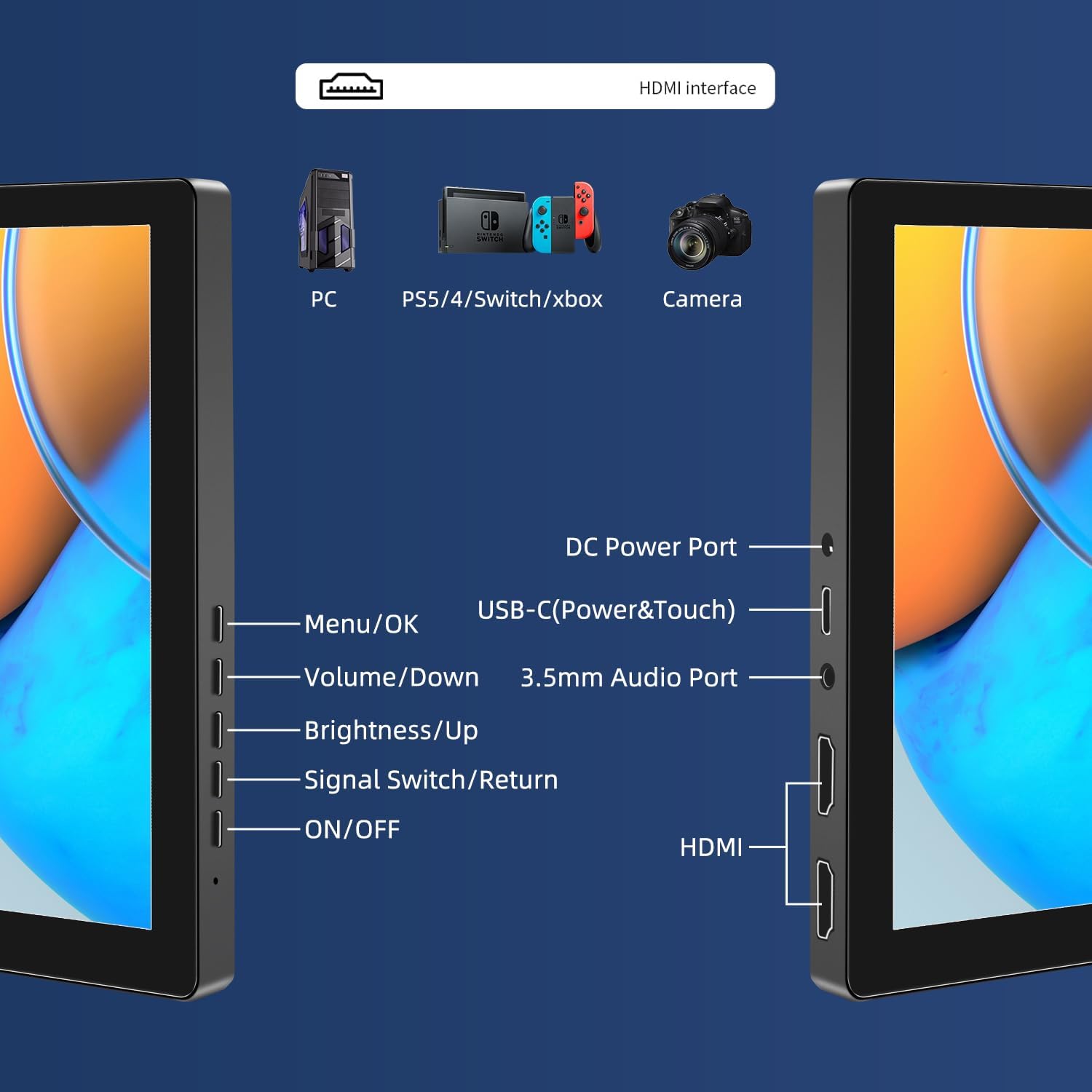
Aworan: Pariview of the monitor's ports including DC Power, USB-C (Power & Touch), 3.5mm Audio, HDMI, and control buttons.
Awọn ilana Iṣiṣẹ
Titan / Pipa agbara
- To power on the monitor, press the TAN/PA bọtini.
- Lati fi agbara si pipa, tẹ mọlẹ TAN/PA button for a few seconds until the screen turns off.
Lilo Akojọ Ifihan On-iboju (OSD)
Àkójọ OSD náà fún ọ láàyè láti ṣàtúnṣe onírúurú ètò ìfihàn.
- Tẹ awọn Akojọ / O DARA bọtini lati ṣii akojọ aṣayan OSD.
- Lo awọn Iwọn didun / Isalẹ ati Imọlẹ/Soke awọn bọtini lati lọ kiri nipasẹ awọn aṣayan akojọ aṣayan.
- Tẹ Akojọ / O DARA láti yan àṣàyàn kan tàbí láti jẹ́rìí sí ètò kan.
- Tẹ awọn Signal Switch/Return button to go back to the previous menu or exit the OSD.
Ṣíṣe àtúnṣe Àwọn Ìpo Ìfihàn
The monitor supports multiple display modes when connected to a computer:
- Ipò Àdáwòkọ: Displays the same content on both your primary screen and the portable monitor.
- Fa Ipo: Ó fẹ̀ síi kọ̀ǹpútà rẹ káàkiri àwọn ìbòjú méjèèjì, ó sì ń fúnni ní ibi iṣẹ́ púpọ̀ sí i.
- Ipo Iboju Keji: Uses only the portable monitor as the display.
These modes are typically configured through your operating system's display settings (e.g., Windows Display Settings, macOS System Preferences).
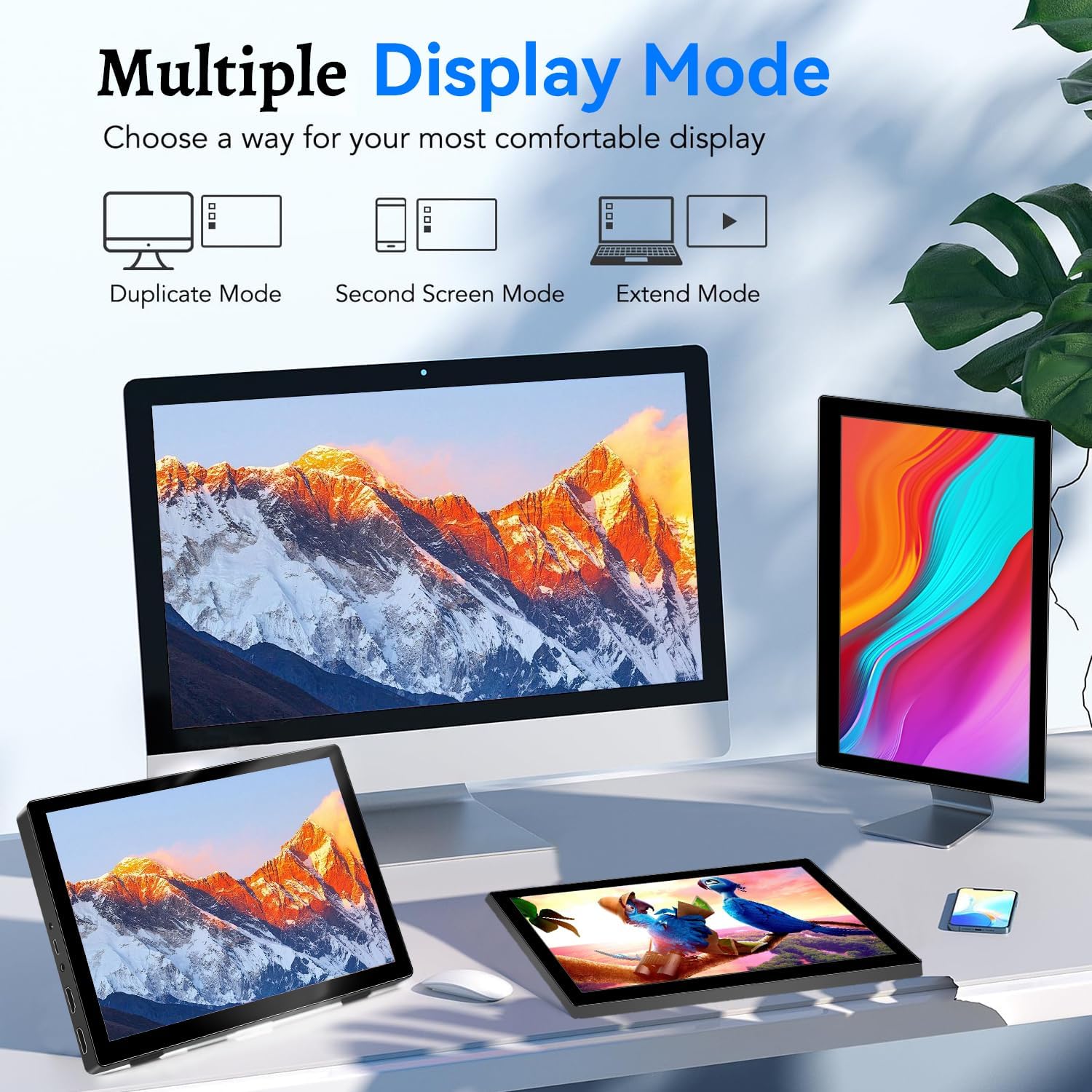
Image: Visual representation of Duplicate, Second Screen, and Extend display modes.
Using Touchscreen Functionality
The monitor supports 10-point touchscreen technology. Ensure the USB-C (Power & Touch) port is correctly connected to your device for touch input to function.

Aworan: Examples of 10-point touchscreen gestures for interaction.
Itoju
- Ninu iboju: Lo asọ asọ, ti ko ni lint die-die dampened with water or a non-abrasive screen cleaner. Do not spray cleaner directly onto the screen.
- Ninu ile Casing: Pa atẹle naa nu casinpẹ̀lú aṣọ rírọ̀ tí ó gbẹ. Yẹra fún lílo àwọn ọṣẹ ìfọṣọ tí ó lágbára tàbí àwọn ohun olómi.
- Ibi ipamọ: Nigbati o ko ba wa ni lilo, tọju atẹle naa ni itura, aye gbigbẹ, kuro lati oorun taara ati awọn iwọn otutu to gaju.
- Mimu: Avoid dropping or subjecting the monitor to strong impacts. Do not place heavy objects on top of the monitor.
Laasigbotitusita
| Isoro | Owun to le Fa | Ojutu |
|---|---|---|
| Ko si ifihan/Iboju dudu |
|
|
| Iboju ifọwọkan ko dahun |
|
|
| Ko si ohun lati ọdọ awọn agbọrọsọ |
|
|
| Image quality issues (blurry, distorted) |
|
|
Awọn pato
| Ẹya ara ẹrọ | Ẹ̀kúnrẹ́rẹ́ |
|---|---|
| Brand | Prechen |
| Nọmba awoṣe | HD-101 |
| Iwon iboju | 10.1 inches |
| Ipinnu | 1920 x 1200 (UXGA Wide) |
| Apakan Ipin | 16:10 |
| Panel Iru | IPS |
| Oṣuwọn sọtun | 60 Hz |
| Akoko Idahun | 1 ms |
| Asopọmọra | 1x HDMI, 1x USB-C (Power & Touch), 1x 3.5mm Audio Jack, 1x DC Power Port |
| Awọn iwọn (L x W x H) | 21.8 x 15.8 x 1.4 cm |
| Iwọn | 990 giramu |
| Olupese | Shenzhen Kenowa Electronics Co., LTD |
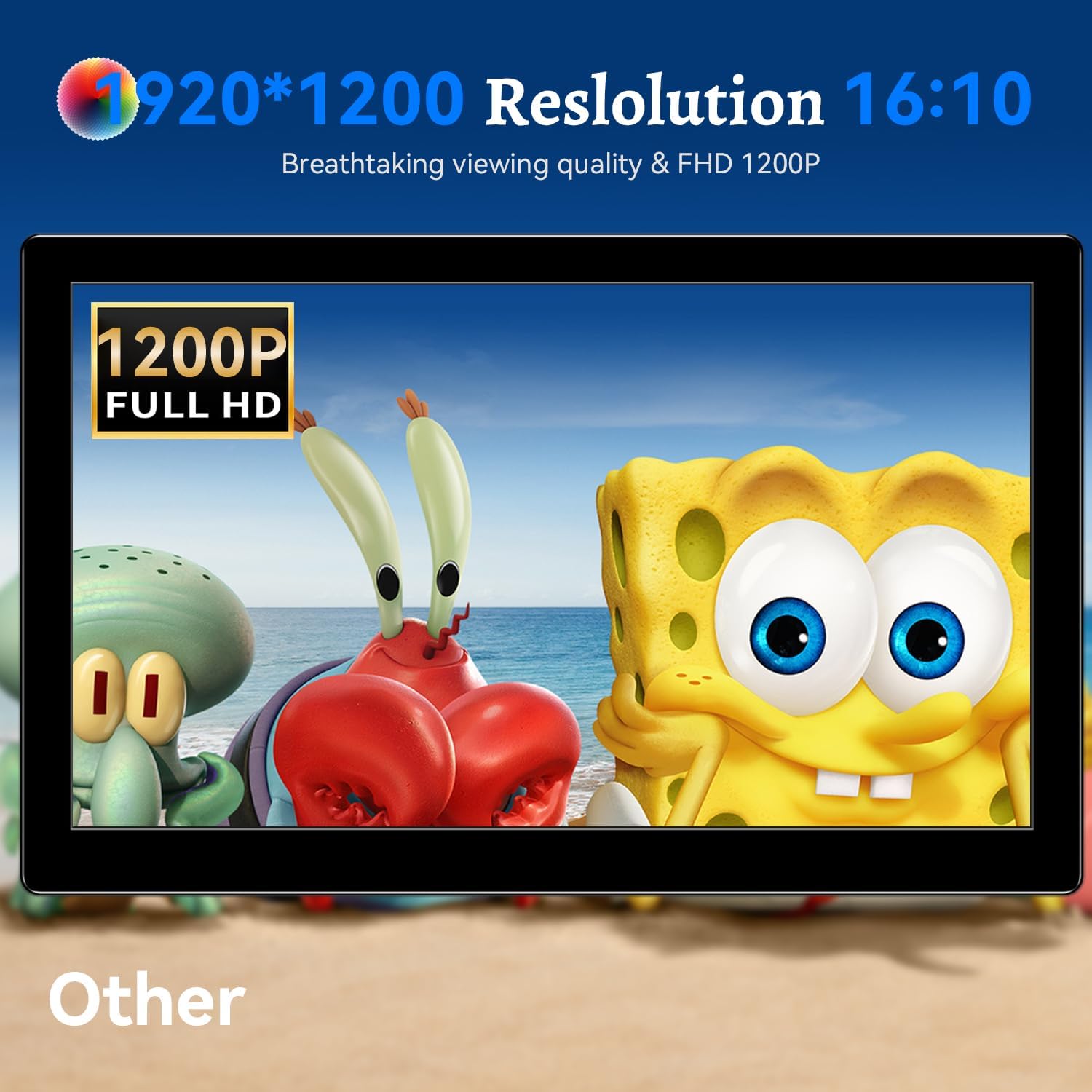
Àwòrán: Ìfihàn àtẹ̀gùnasing its 1920x1200 Full HD resolution.

Image: The monitor's IPS panel offering wide viewing angles and rich colors.
Atilẹyin ọja ati Support
For warranty information and technical support, please refer to the warranty card included with your product or contact Prechen customer service through their official website. Please have your model number (HD-101) and purchase details ready when contacting support.