
1. Ifihan
This manual provides comprehensive instructions for the installation, operation, and maintenance of your TAFFIO 10.25-inch Touchscreen Android Navigation System. This system is designed to integrate seamlessly into Volvo S40, C30, C70, and V50 models from 2004-2013, offering advanced navigation, entertainment, and communication features.
Please read this manual thoroughly before installation and use to ensure proper function and to maximize your experience with the device. Keep this manual for future reference.
2. Alaye Aabo
- Always prioritize safe driving. Do not operate the system in a way that distracts you from the road.
- Ensure all connections are secure and correctly installed to prevent electrical hazards or damage to the vehicle's systems.
- Ma ṣe gbiyanju lati ṣajọpọ tabi yi ẹyọ naa pada. Eyi le sọ atilẹyin ọja di ofo ati ki o fa ibajẹ.
- Kan si alamọja kan fun fifi sori ẹrọ ti o ko ba ni idaniloju nipa awọn igbesẹ eyikeyi.
- Jẹ́ kí ibojú náà mọ́ tónítóní kí ó sì wà láìsí ìdènà láti ríran kedere.
3. Eto
3.1 Package Awọn akoonu
Ṣaaju ki o to bẹrẹ fifi sori ẹrọ, rii daju pe gbogbo awọn paati wa ninu package:
- 1x Android multimedia system
- 1x Okun Agbara
- 1x CAN-BUS Decoder
- 2x okun USB
- 1x RCA Plugs & Sim Card Slot cable
- 1x Rear camera input cable
- 1x eriali GPS
- 1x 4G eriali

Figure 3.1: Included components of the TAFFIO Android multimedia system.
3.2 fifi sori ẹrọ
The TAFFIO Android multimedia system is designed for Plug & Play installation, minimizing the need for additional adapters or mounting frames. However, careful attention to connections is required.
- Igbaradi: Rii daju pe ina ọkọ ti wa ni pipa ati pe batiri naa ti ge asopọ ṣaaju ki o to bẹrẹ fifi sori ẹrọ.
- Yọ Ẹ̀yà Àtilẹ̀wá kúrò: Carefully remove the existing car radio or display unit from your Volvo dashboard. Refer to your vehicle's service manual for specific instructions on removing dashboard components.
- So Ẹrọ Akọkọ pọ: Connect the main power cable (B) from the TAFFIO system to the original main unit's wiring harness.
- Connect to TAFFIO Radio: Connect the appropriate cable (A) to the TAFFIO Android multimedia system.
- LCD Plug Connection: Connect the original LCD plug (C) to the designated port on the TAFFIO system.
- Iho kaadi SIM: Insert your 4G LTE SIM card into the provided slot (D) if you intend to use mobile internet without Wi-Fi.
- Afikun Awọn isopọ: Connect the GPS antenna, 4G antenna, USB cables, RCA plugs, and rear camera input cable to their respective ports on the TAFFIO system. Ensure the CAN-BUS decoder is correctly integrated into the wiring harness (E) to support steering wheel controls and vehicle settings.
- AUX Input Verification: It is crucial to determine if your original Volvo radio has an AUX (Auxiliary Audio Input). This information may be necessary for proper audio integration.
- Iṣe idanwo: Before fully reassembling the dashboard, reconnect the battery and test the system's basic functions, including power on/off, audio, touchscreen response, and steering wheel controls.
- Apejọ ipari: Once functionality is confirmed, carefully reassemble the dashboard components, ensuring no wires are pinched.
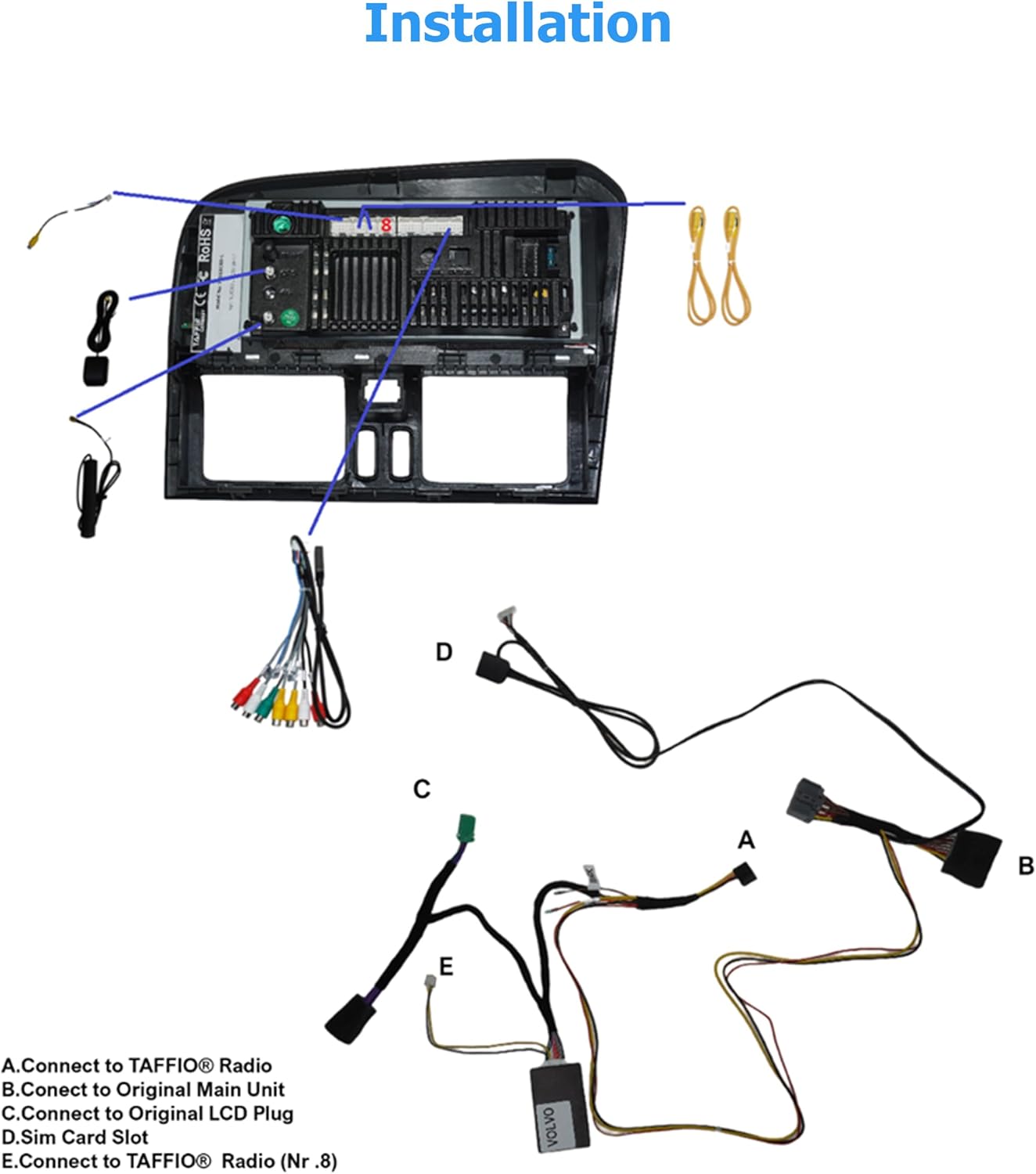
Figure 3.2: Installation diagram for the TAFFIO Android multimedia system.
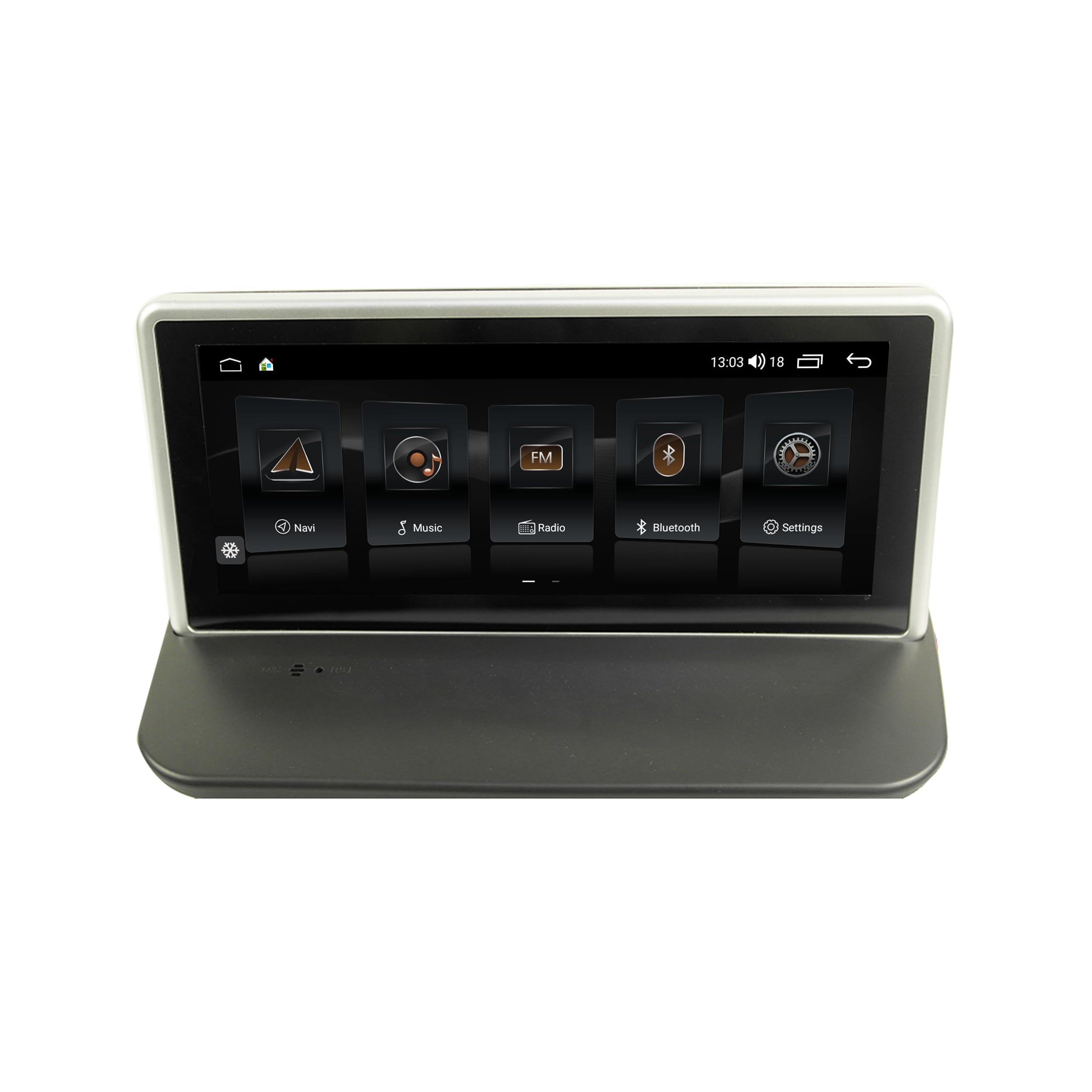
Figure 3.3: TAFFIO system installed in a Volvo dashboard, showing the main interface and rearview kamẹra view.
4. Awọn ilana Iṣiṣẹ
4.1 Agbara Titan ati Eto Ibẹrẹ
After installation, turn on your vehicle's ignition. The system will boot up, displaying the TAFFIO logo. The initial boot may take slightly longer. Follow any on-screen prompts for language selection and basic Android setup.
4.2 Olumulo Interface ati Lilọ kiri
The system features an intuitive user interface with a 3D graphical display. Control is primarily via the capacitive multitouch screen. You can also use the vehicle's original steering wheel controls, which are supported by the system.

Figure 4.1: Main menu of the TAFFIO Android system.

Figure 4.2: Android applications screen.
4.3 Asopọmọra
- Wi-Fi: Connect to available WLAN hotspots or your smartphone's hotspot for internet access. Navigate to Settings > Network & Internet > Wi-Fi.
- 4G LTE: If a SIM card is installed, the system will automatically connect to the mobile network for internet access.
- Bluetooth: Pair your mobile phone for hands-free calling and A2DP music streaming. Go to Settings > Connected devices > Pair new device. The system supports synchronization of phone book contacts.
- USB: Use the provided USB cables to connect external storage devices for music, pictures, and videos.
4.4 Lilọ kiri
The system comes with pre-installed GPS navigation map material and offers free lifetime updates. Access navigation through the dedicated 'Maps' or 'Navigation' app icon. The system supports 2-Zone function, allowing you to listen to radio or music while navigating.

Figure 4.3: Wireless Carplay navigation interface.
4.5 CarPlay & Android Auto
The system features integrated CarPlay and Android Auto functionality without requiring an additional adapter. Connect your compatible smartphone via USB or wirelessly (if supported by your phone and the system) to access these features.

Figure 4.4: Android Auto interface.
4.6 Àwọn Ẹ̀yà Onímọ̀ọ́rọ̀ Módíòpídíà
- Redio: FM/AM tuner with RDS (Radio Data System) for displaying station names.
- Sisisẹsẹhin Media: Mu orin ṣiṣẹ, awọn fidio, ati view pictures from USB drives or internal storage.
- Agbẹgbẹ: Customize audio settings with preset EQ modes (Pop, Classic, Rock, Jazz) or user-defined Bass/Treble/Balance controls.
- Back-Zone Function: Allows navigation on the front screen while passengers in the back can watch TV or video (requires additional rear displays).
4.7 Vehicle Integration
The system supports various vehicle-specific functions:
- Awọn idari Kẹkẹ idari: Ntọju iṣẹ iṣakoso kẹkẹ idari atilẹba.
- Awọn Eto Ọkọ: Access and adjust certain vehicle settings through the system interface.
- Ẹyìnview Kamẹra: Automatic switching to the rearview camera display when reversing.
- Day and Night Display: Automatic or manual adjustment of screen brightness for optimal visibility.

Figure 4.5: Vehicle personalization settings.
5. Itọju
- Isọsọ iboju: Use a soft, lint-free cloth to clean the touchscreen. For stubborn marks, lightly dampen awọn asọ pẹlu omi tabi a iboju-ailewu regede. Yago fun awọn ohun elo abrasive tabi awọn kemikali lile.
- Awọn imudojuiwọn sọfitiwia: Periodically check for software updates to ensure optimal performance and access to new features. Updates can typically be found through the system's settings or TAFFIO's official support channels.
- Gbogbogbo Itọju: Yago fun ṣiṣafihan ẹyọkan si awọn iwọn otutu to gaju, imọlẹ orun taara fun awọn akoko gigun, tabi ọrinrin pupọ.
6. Laasigbotitusita
This section addresses common issues you might encounter with your TAFFIO Android Navigation System.
| Isoro | Owun to le Fa | Ojutu |
|---|---|---|
| No power / System does not turn on | Wáyà tí kò tọ́; Fúúsì tí ó fẹ́; ìṣòro bátìrì ọkọ̀ | Check all power connections. Verify vehicle fuses. Ensure vehicle battery is charged. |
| Ko si ohun | Volume too low; Mute activated; Incorrect audio output settings; Wiring issue | Increase volume. Check if mute is active. Verify audio settings. Inspect speaker wiring. Ensure AUX input is correctly configured if applicable. |
| Touchscreen unresponsive or inaccurate | Software glitch; Screen dirty; Physical damage | Restart the system. Clean the screen. If issue persists, contact support. |
| Ifihan GPS sọnu tabi aiṣedeede | GPS antenna obstructed or disconnected; Environmental interference | Rii daju pe eriali GPS ti sopọ daradara ati pe o ni kedere view ti ọrun. Gbe lọ si agbegbe ti o ṣii. |
| Awọn oran asopọ Bluetooth | Device not in pairing mode; Interference; Software issue | Ensure both devices are in pairing mode. Restart both devices. Clear Bluetooth cache on phone. |
| CarPlay/Android Auto ko sopọ | Incorrect USB cable; Phone software issue; System software issue | Use a high-quality USB data cable. Ensure phone's CarPlay/Android Auto settings are correct. Restart phone and system. |
| Awọn idari kẹkẹ idari ko ṣiṣẹ | CAN-BUS decoder not connected; Incorrect settings | Verify CAN-BUS decoder connection. Check system settings for steering wheel control configuration. |
If you encounter an issue not listed here or if the suggested solutions do not resolve the problem, please contact TAFFIO customer support for further assistance.
7. Awọn pato
| Ẹya ara ẹrọ | Ẹ̀kúnrẹ́rẹ́ |
|---|---|
| Orukọ awoṣe | TJ-S40 |
| Iwọn Ifihan | 10.25 inches |
| Eto isesise | Android 10 |
| isise | Octa-Core 1.8Ghz CPU |
| Àgbo | 4 GB |
| Ibi ipamọ inu | 64 GB Flash |
| Asopọmọra | Bluetooth, USB, Wi-Fi, 4G LTE (SIM card slot) |
| Pataki Awọn ẹya ara ẹrọ | Touchscreen, Integrated CarPlay & Android Auto, GPS Navigation, RDS Radio, Rear Camera Input |
| Oriṣi maapu | Worldwide (with free lifetime updates) |
| Ipo Ijade Ohun | Sitẹrio |
| Iṣagbesori Iru | Dasibodu Oke |
| Awọn ọkọ ibaramu | Volvo S40, C30, C70, V50 (2004-2013) |
8. Atilẹyin ọja ati Support
8.1 atilẹyin ọja Alaye
Your TAFFIO 10.25-inch Touchscreen Android Navigation System comes with a 2-odun olupese ká atilẹyin ọja. This warranty covers defects in materials and workmanship under normal use. Please retain your purchase invoice as proof of purchase for warranty claims.
The warranty does not cover damage caused by improper installation, misuse, accidents, unauthorized modifications, or normal wear and tear.
8.2 Onibara Support
For technical assistance, warranty claims, or any questions regarding your TAFFIO product, please contact TAFFIO customer support through the retailer where you purchased the device or visit the official TAFFIO webojula fun alaye olubasọrọ.