
1. Ifihan
The GREENKINDER Kids Instant Print Camera KC05 is designed to capture and instantly print memories. This digital camera features photo and video recording capabilities, a rotating lens for selfies, and thermal printing technology for immediate black and white prints. It is suitable for children aged 3-12 years.
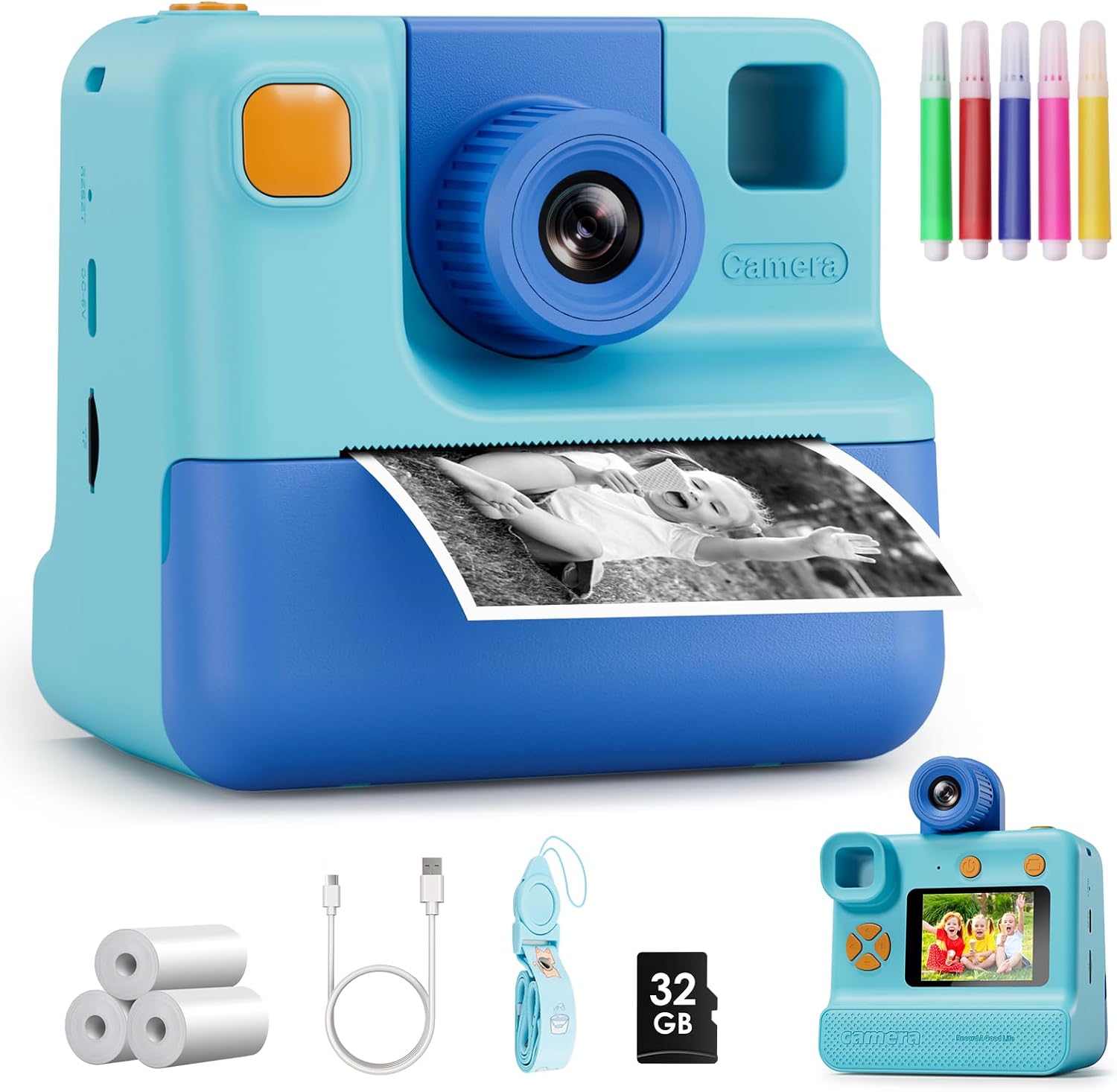
Image 1.1: The GREENKINDER Kids Instant Print Camera KC05, illustrating its instant print function.
2. Eto
2.1. Unboxing ati irinše
Jẹrisi pe gbogbo awọn paati wa ninu package:
- Kids Instant Print Camera KC05
- 3 rolls of thermal print paper
- 1x 32GB MicroSD card
- 1x Lanyard
- 1x USB Iru-C okun gbigba agbara
- 1x Sheet of cartoon stickers
- 1x Set of 5 colored pencils
Fidio 2.1: Olutaja ká tunview demonstrating the unboxing and contents of the Kids Instant Print Camera.
2.2. Ngba agbara si Kamẹra
Connect the provided USB Type-C cable to the camera's charging port and to a compatible USB power source. The camera features a 1000mAh battery, providing approximately 3-4 hours of continuous use on a full charge.
2.3. Installing Print Paper
- Gently pull out the film guides on the front of the camera.
- Insert a roll of thermal print paper into the designated compartment, ensuring the paper feeds correctly. Leave about 1 to 2 inches of paper extending from the slot.
- Pa ilẹkun fiimu ni aabo.

Image 2.1: Step-by-step guide for installing the thermal print paper.
2.4. Fifi kaadi MicroSD sii
Locate the MicroSD card slot on the side of the camera. Insert the provided 32GB MicroSD card until it clicks into place. This card stores photos and videos.
3. Awọn ilana Iṣiṣẹ
3.1. Agbara Tan / Paa
Tẹ bọtini agbara naa ki o si dimu (eyiti o maa n wa ni oke tabi ẹgbẹ) fun iṣẹju diẹ lati tan tabi pa kamẹra naa. Iboju itẹwọgba yoo han nigbati o ba bẹrẹ iṣẹ naa.
3.2. Lilọ kiri
Use the directional buttons (up, down, left, right) to navigate through the menu options displayed on the 2.0-inch screen. The menu typically includes options for Photo, Video, Gallery, and Settings.
3.3. Gbigba Awọn fọto
Select the 'Photo' icon from the main menu. Frame your shot using the screen. Press the shutter button (usually a prominent button on top) to capture a 24MP photo.
3.4. Awọn fidio gbigbasilẹ
Select the 'Video' icon from the main menu. Press the shutter button to start recording 1080p video. Press it again to stop recording.
3.5. Selfie Ipo
The camera features a 180-degree rotating lens. Flip the lens to face forward for regular photos or backward for selfies. This makes capturing self-portraits easier.

Image 3.1: The camera's 180-degree rotating lens facilitates easy selfies.
3.6. Ìtẹ̀wé Lẹ́sẹ̀kẹsẹ̀
After taking a photo, you can choose to print it instantly. The camera uses thermal printing technology, producing black and white prints in approximately 3 seconds without the need for ink cartridges. You can adjust print density in the settings for desired lightness or darkness.
Video 3.1: Demonstration of the instant printing function of the camera.
3.7. Creative Awọn ẹya ara ẹrọ
Explore various built-in photo frames and filters to add fun effects to your pictures. Use the included colored pencils to customize your black and white prints.

Image 3.2: Children can personalize their instant prints using the provided colored pencils.
4. Itọju
4.1. Rírọ́pò ìwé ìtẹ̀wé
When the print paper runs out, follow the steps in Section 2.3 to install a new roll. The camera comes with 3 rolls, each capable of printing up to 60 photos.
4.2. Ninu Kamẹra
Use a soft, dry cloth to clean the exterior of the camera. Avoid using liquid cleaners or abrasive materials. Keep the lens clean for optimal photo quality.
5. Laasigbotitusita
5.1. Kamẹra Ko Titan
- Ensure the battery is charged. Connect the camera to a power source using the USB-C cable.
- Try pressing and holding the power button for a longer duration (5-10 seconds).
5.2. Printing Issues
- Check if the print paper is installed correctly and not jammed. Refer to Section 2.3.
- Ensure there is enough paper in the roll.
- Adjust print density in the camera settings if prints are too light or too dark.
5.3. Photo/Video Storage Issues
- Verify that the MicroSD card is properly inserted.
- Check if the MicroSD card has sufficient storage space. Delete unnecessary files ti o ba nilo.
6. Awọn pato
| Ẹya ara ẹrọ | Ẹ̀kúnrẹ́rẹ́ |
|---|---|
| Ọja Mefa | 7.76 x 4.5 x 3.03 inches |
| Iwọn Nkan | 13.1 iwon |
| Nọmba awoṣe | KC05 |
| Awọn batiri | Awọn batiri litiumu polima 1 nilo (pẹlu) |
| Olupese | GREENKINDER |
| Pataki Ẹya | Tẹjade lẹsẹkẹsẹ |
| Film kika Iru | 35mm (Thermal Paper) |
| Awọ fiimu | Dudu ati Funfun |
| Awọn ẹrọ ibaramu | Kamẹra |
| Awọn irinše to wa | Ara kamẹra & Awọn ẹya ẹrọ |
7. Atilẹyin ọja ati Support
The GREENKINDER Kids Instant Print Camera KC05 includes a 2-year guarantee. For any product inquiries, technical support, or warranty claims, please refer to the contact information provided in your product packaging or visit the official GREENKINDER webojula.