
1. Ifihan
This manual provides detailed instructions for the installation, operation, and maintenance of your EZoneTronics RM-26VW93-2G32 9-inch Android 11 Car Stereo. This universal car radio is designed for various VW models including Passat, Golf MK5, Golf MK6, Jetta, T5, EOS, POLO, Touran, Seat, and Sharan. It features an Android 11 operating system, integrated CarPlay and Android Auto, Bluetooth 5.0, FM/RDS radio, and GPS navigation. Please read this manual thoroughly before using the product to ensure proper function and safety.
2. Alaye Aabo
- Ṣiṣẹ ẹrọ naa nigbagbogbo ni ifojusọna ati ni ibamu pẹlu awọn ofin ijabọ agbegbe. Wiwakọ idalọwọduro le ja si awọn ijamba.
- Do not attempt to install or repair the unit yourself if you are not qualified. Improper installation can cause damage to the vehicle's electrical system or the unit itself.
- Rii daju pe gbogbo awọn onirin ti sopọ ni deede ati idabobo lati yago fun awọn iyika kukuru.
- Pa ẹrọ kuro lati omi ati ọrinrin pupọ.
- Yago fun ṣiṣafihan ẹyọ naa si awọn iwọn otutu to gaju.
3. Package Awọn akoonu
Daju pe gbogbo awọn nkan ti a ṣe akojọ rẹ si isalẹ wa ninu package rẹ:
- 1 x EZoneTronics Android Car Stereo Unit
- 1 x Eriali GPS
- 1 x VW Wiring Harness
- 1 x CANBUS Box
- 1 x Radio Antenna Adapter
- 1 x USB Adapter
- 1 x Itọsọna olumulo (iwe yii)
4. Ọja Ipariview
The EZoneTronics RM-26VW93-2G32 is a 9-inch universal car stereo designed to enhance your driving experience with advanced features and seamless integration. Key features include:
- Eto Android 11: Provides a fast, stable, and user-friendly operating environment.
- 9-inch TFT Capacitive Touchscreen: High-definition display with 1280 x 720 pixels for clear visuals.
- Integrated CarPlay & Android Auto: Connect your smartphone via USB for navigation, music, calls, and messages.
- Bluetooth 5.0: For hands-free calling, phonebook access, and audio streaming (A2DP).
- GPS Lilọ kiri: Built-in receiver compatible with various navigation apps like Waze, Navfree, and Google Maps.
- Rédíò FM/RDS: Automatic memory and preset scanning for your favorite stations.
- Atilẹyin Iṣakoso Kẹkẹ Iwakọ: Retains original vehicle steering wheel control functionality via CANBUS.
- Olorin-ọpọlọpọ: Supports various audio and video formats.
- Iṣawọle Kamẹra Tẹhin: Supports CVBS/AHD cameras for parking assistance.
- Iranti Flash 32GB: Ample storage for music, map data, and videos.
- 4 x 45W Output Power: Nfi ohun afetigbọ han ati alagbara.
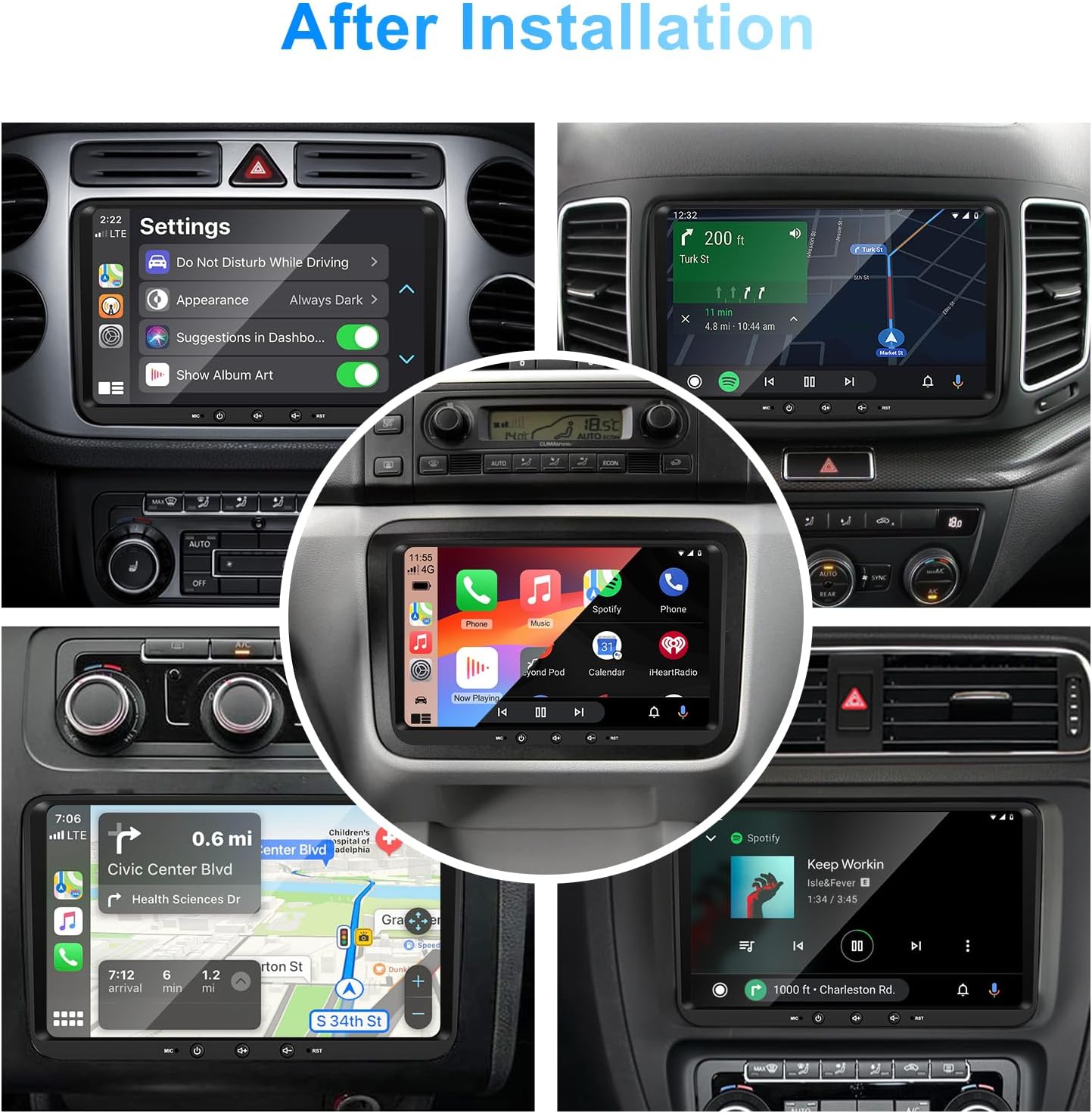
Aworan 1: Iwaju view of the EZoneTronics 9-inch Android 11 Car Stereo unit, showcasing its large touchscreen display and sleek design.
5. Eto & Fifi sori
A gbani nimọran fifi sori ẹrọ ọjọgbọn. Rii daju pe agbara ọkọ naa ti ge asopọ ṣaaju ki o to bẹrẹ fifi sori ẹrọ.
5.1 Wiring aworan atọka
Refer to the following diagram for proper wiring connections. Each connector is labeled for clarity.

Image 2: Detailed wiring diagram illustrating connections for the power harness, CANBUS box, USB extension, backup camera video input, radio antenna adapter, and GPS antenna.
5.2 Awọn igbesẹ fifi sori ẹrọ (Gbogbogbo)
- Yọ Ẹ̀yà Àtilẹ̀wá kúrò: Carefully remove your vehicle's existing car stereo unit and trim panels.
- Sopọ Ijanu Agbara: Connect the provided VW wiring harness to the vehicle's wiring and then to the car stereo unit. Ensure all connections are secure.
- Connect CANBUS Box: Integrate the CANBUS box as shown in the wiring diagram. This enables steering wheel controls and other vehicle data integration.
- So Antenna GPS pọ: So eriali GPS naa si ipo kan pẹlu aaye ti o han gbangba view of the sky (e.g., dashboard or windshield corner) and connect it to the unit.
- Connect Radio Antenna: Use the provided radio antenna adapter to connect the vehicle's radio antenna to the unit.
- Connect USB Adapters: Connect the USB extension harnesses for external USB devices.
- Awọn isopọ iyan: Connect any optional accessories such as a backup camera (CVBS/AHD), external amplifier (RCA output), or additional video inputs/outputs.
- Iṣe idanwo: Before fully reassembling the dashboard, temporarily connect the unit and test all functions (power, audio, radio, GPS, Bluetooth, steering wheel controls, camera).
- Ẹka to ni aabo: Once all functions are verified, secure the car stereo unit in the dashboard and reassemble all trim panels.
6. Awọn ilana Iṣiṣẹ
This section details the primary functions and operations of your EZoneTronics car stereo.
6.1 Ipilẹ isẹ
- Titan/Apapa: Tẹ bọtini agbara ki o si dimu (nigbagbogbo lori panẹli iwaju) lati tan tabi pa ẹrọ naa. Titẹ kukuru maa n da ohun duro/mu ohun kuro.
- Iṣakoso iwọn didun: Use the physical volume knob or the on-screen controls to adjust the audio level.
- Àwòrán ojú iboju Fọwọkan: Lọ kiri nipasẹ awọn akojọ aṣayan ati awọn ohun elo nipa titẹ, fifa, ati fifun lori iboju ifọwọkan capacitive 9-inch.
Ètò Android 11 6.2
The unit runs on Android 11, providing a familiar smartphone-like experience. You can download and install various applications from the Google Play Store.

Image 3: Screenshot of the Android 11 system interface, showing various applications and media options available on the car stereo.
6.3 CarPlay & Android Auto
Connect your iPhone or Android smartphone via USB to access CarPlay or Android Auto. This allows for safe and convenient use of phone features while driving.
- Asopọmọra: Connect your smartphone to one of the unit's USB ports using a certified USB cable.
- Muu ṣiṣẹ: The unit should automatically detect and prompt you to launch CarPlay or Android Auto. Follow on-screen instructions.
- Awọn ẹya: Access navigation, make calls, send/receive messages, and play music using voice commands (Siri or Google Assistant) or the touchscreen.

Image 4: Display showing the CarPlay interface with Siri voice commands and the Android Auto interface with Google Assistant commands, demonstrating smartphone integration.
6.4 GPS Lilọ kiri
The unit includes a built-in GPS receiver and supports various navigation applications.
- Pre-installed Maps: Sygic Maps are typically pre-installed. For offline use, download regional map data as needed.
- Lilọ kiri lori ayelujara: Connect to Wi-Fi or use a mobile hotspot to access real-time traffic information and online map services like Google Maps.
- External GPS Antenna: Ensure the external GPS antenna is properly connected and positioned for optimal signal reception.

Image 5: The car stereo displaying an online navigation map, showing a route and real-time traffic conditions within a vehicle dashboard.
6.5 Bluetooth 5.0
Connect your smartphone via Bluetooth for hands-free communication and audio streaming.
- Pipọpọ: Enable Bluetooth on your smartphone and search for the car stereo (e.g., "EZoneTronics"). Select the device and confirm the pairing code.
- Npe ni Ọwọ: Make and receive calls directly from the car stereo. Access your phonebook and recent call history.
- Sisanwọle ohun (A2DP): Play music from your smartphone through the car stereo's speakers.

Image 6: The car stereo displaying music playback via Bluetooth 5.0, with a smartphone shown next to it also playing music, illustrating the wireless audio connection.
6.6 FM / RDS Redio
Access local radio stations with the built-in FM/RDS tuner.
- Yiyi: Use the on-screen controls to manually tune to frequencies or perform an automatic scan for available stations.
- Awọn tito tẹlẹ: Fipamọ́ àwọn ibùdó ayanfẹ́ rẹ sí àwọn bọ́tìnì tí a ti ṣètò tẹ́lẹ̀ fún wíwọlé kíákíá.
- RDS (Eto Data Redio): Displays station information such as song title, artist, or program type where available.
6.7 Iṣakoso kẹkẹ idari
The unit supports your vehicle's original steering wheel controls through the CANBUS box, allowing you to manage audio and other functions without taking your hands off the wheel.
- Iṣẹ ṣiṣe: Control volume, change tracks, answer calls, and switch modes directly from your steering wheel.
- Iṣeto: In some cases, steering wheel controls may require initial configuration in the unit's settings menu.

Image 7: Illustration showing a steering wheel with control buttons and corresponding icons on the car stereo display, indicating seamless integration of steering wheel controls.
6.8 Ètò Ohùn (EQ-band 32)
Customize your audio experience with the built-in 32-band equalizer and other sound controls.
- Agbẹgbẹ: Adjust frequency bands to fine-tune the sound output to your preference.
- Àwọn Ìgbékalẹ̀ EQ tí a ti ṣètò tẹ́lẹ̀: Select from various preset equalizer modes (e.g., Pop, Rock, Jazz, Classic).
- Fader / Iwontunwonsi: Adjust the audio distribution between front/rear and left/right speakers.
- Loudness: Mu bass ati treble pọ si ni awọn ipele iwọn didun kekere.

Image 8: Screenshot of the car stereo's 32-band equalizer interface, showing adjustable frequency sliders and preset sound modes, along with a visual representation of sound distribution in a car cabin.
6.9 After Installation Overview
Once installed, the unit provides a comprehensive interface for various functions, including system settings, navigation, media playback, and vehicle information.
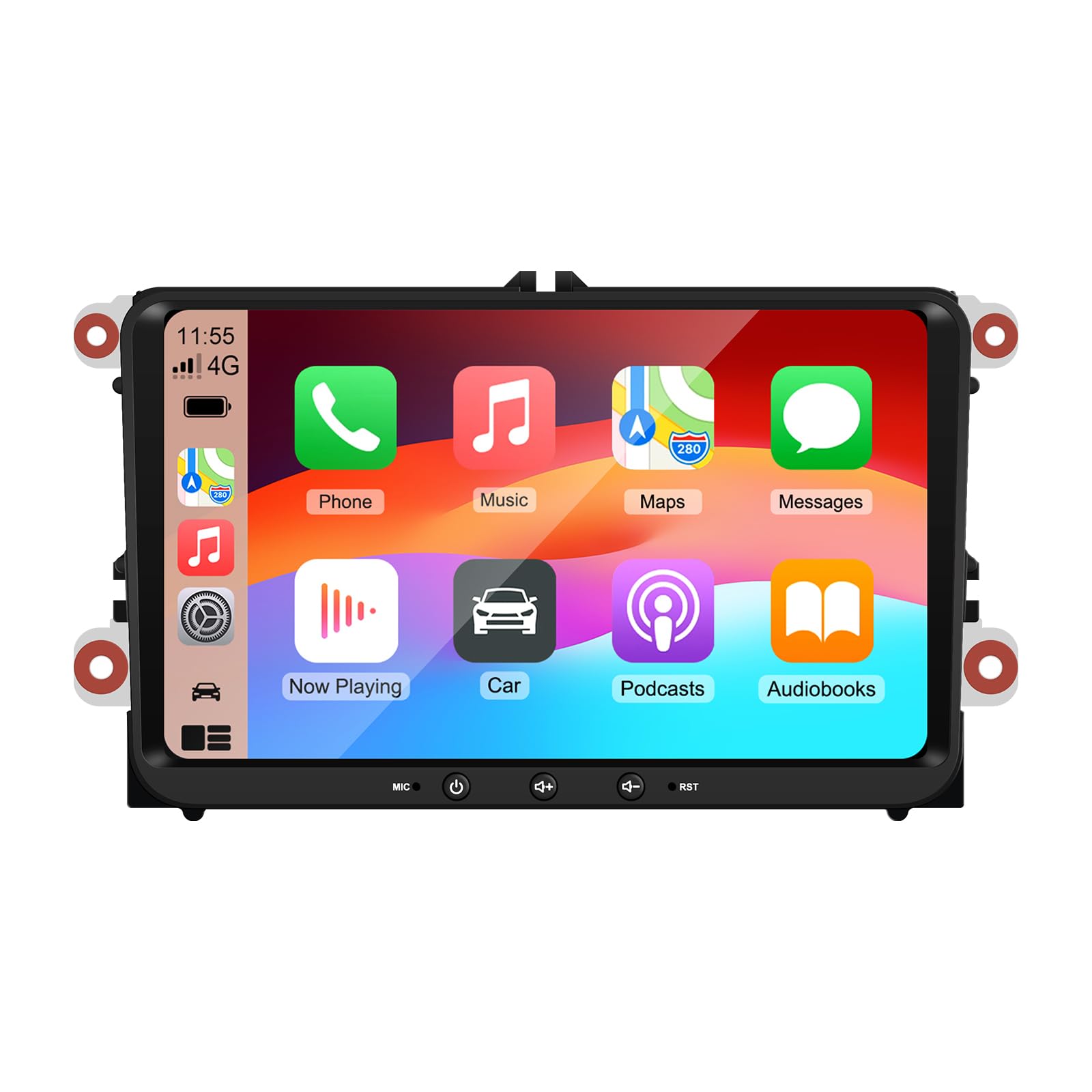
Image 9: A collage of various screen displays from the car stereo after installation, showing settings, navigation, CarPlay, Spotify, and vehicle information screens.
7. Itọju
- Ninu iboju: Lo asọ rirọ, ti ko ni lint lati mu rọra nu iboju ifọwọkan. Fun agidi smudges, die-die dampen awọn asọ pẹlu omi tabi a iboju-ailewu regede. Yago fun awọn kẹmika lile.
- Awọn imudojuiwọn sọfitiwia: Ṣe àyẹ̀wò lẹ́ẹ̀kọ̀ọ̀kan fún àwọn àtúnṣe sọ́fítíwèètì nípasẹ̀ àtòjọ ètò ẹ̀rọ tàbí ti olùpèsè webojú-òpó wẹ́ẹ̀bù láti rí i dájú pé iṣẹ́ tó dára jùlọ àti wíwọlé sí àwọn ẹ̀yà tuntun.
- Eto atunto: If the unit experiences persistent issues, a factory reset option is available in the settings. Note that this will erase all user data and settings.
8. Laasigbotitusita
If you encounter problems with your EZoneTronics car stereo, refer to the following common issues and solutions:
| Isoro | Owun to le Fa | Ojutu |
|---|---|---|
| Ẹka ko ni agbara lori. | Incorrect wiring; Blown fuse; Vehicle power issue. | Check power connections and fuses. Consult a professional installer. |
| Ko si ohun. | Volume muted; Speaker wiring incorrect; Amporan lifier. | Check volume and mute settings. Verify speaker connections. |
| Ifihan GPS sọnu tabi aiṣedeede. | A ti fi eriali GPS si tabi ge asopọ kuro ni ọna ti ko tọ. | Rii daju pe eriali GPS ni gbangba view ti ọrun ati ki o ti wa ni labeabo ti sopọ. |
| Asopọ Bluetooth kuna. | Bluetooth not enabled on phone/unit; Incorrect pairing process. | Ensure Bluetooth is active on both devices. Restart pairing process. |
| Àwọn ìṣàkóso kẹ̀kẹ́ ìdarí kò ṣiṣẹ́. | CANBUS box not connected; Incorrect configuration. | Verify CANBUS box connection. Check steering wheel control settings in the unit. |
9. Awọn pato
Technical specifications for the EZoneTronics RM-26VW93-2G32 car stereo:
| Ẹya ara ẹrọ | Sipesifikesonu |
|---|---|
| Nọmba awoṣe | RM-26VW93-2G32 |
| Eto isesise | Android 11 |
| Iwon iboju | 9 inches |
| Ipinnu Ifihan | 1280 x 720 awọn piksẹli |
| isise | Quad Core 1.5G |
| Àgbo | 2G DDR4 |
| Ibi ipamọ inu | 32GB Flash Memory |
| Ẹya Bluetooth | 5.0 |
| Agbara Ijade | 4 x 45W (180 Watts total) |
| Nọmba ti awọn ikanni | 2 |
| Olugba GPS | Built-in, with external antenna |
| Wi-Fi | Ti a ṣe sinu |
| Input USB | 2 x Okun USB |
| Iṣagbewọle kamẹra | CVBS/AHD compatible |
| Olupese | Rhythm Electronics Limited |
10. Atilẹyin ọja & Atilẹyin
10.1 atilẹyin ọja Alaye
The EZoneTronics RM-26VW93-2G32 car stereo comes with a 1-odun atilẹyin ọja Láti ọjọ́ tí a rà á. Àtìlẹ́yìn yìí bo àwọn àbùkù àti àìṣedéédéé iṣẹ́-ọnà lábẹ́ lílò déédéé. Kò bo ìbàjẹ́ tí ó bá wáyé nípasẹ̀ fífi sori ẹrọ tí kò tọ́, àìlòkulò, ìjàǹbá, tàbí àwọn àtúnṣe tí a kò fún ní àṣẹ.
10.2 Onibara Support
For technical assistance, warranty claims, or any questions regarding your product, please contact our customer support team:
- Imeeli: support@ezonetronics.com
When contacting support, please provide your product model number (RM-26VW93-2G32) and a detailed description of the issue.