
Sprleaf Car Play Sreen with 4K Dash Cam

Sprleaf Wireless Car Play Screen with 4K Dashcam and 1080P Backup Camera
Model: Car Play Sreen with 4K Dash Cam
Ọrọ Iṣaaju
This manual provides comprehensive instructions for the setup, operation, maintenance, and troubleshooting of your Sprleaf Wireless Car Play Screen. Please read this manual thoroughly before use to ensure optimal performance and safety.
Ohun ti o wa ninu Apoti

Image: All components included in the Sprleaf Wireless Car Play Screen package.
- 1 x CarPlay/Android Auto Screen with 4K Dash Camera (Included a 64GB card)
- 1 x 1080P Backup Camera and Rear Camera cable
- 1 x 9.8 ft Car Charger Cable
- 1 x 4.65ft Aux cable
- 1 x Itọsọna olumulo
- Installation Tools (Crowbar, Cable Clips)
Ṣeto
Iṣagbesori Aw
The Sprleaf Car Play Screen offers versatile mounting options to suit your vehicle's dashboard or windshield.

Image: Demonstrates the two primary mounting methods: adhesive sticker bracket for dashboard and windshield suction mount bracket.
- Oke Dashboard: Use the adhesive sticker bracket for a secure placement on your dashboard.
- Windshield Suction Mount: Attach the suction cup mount to your windshield for an elevated view.
Awọn Igbesẹ fifi sori ẹrọ
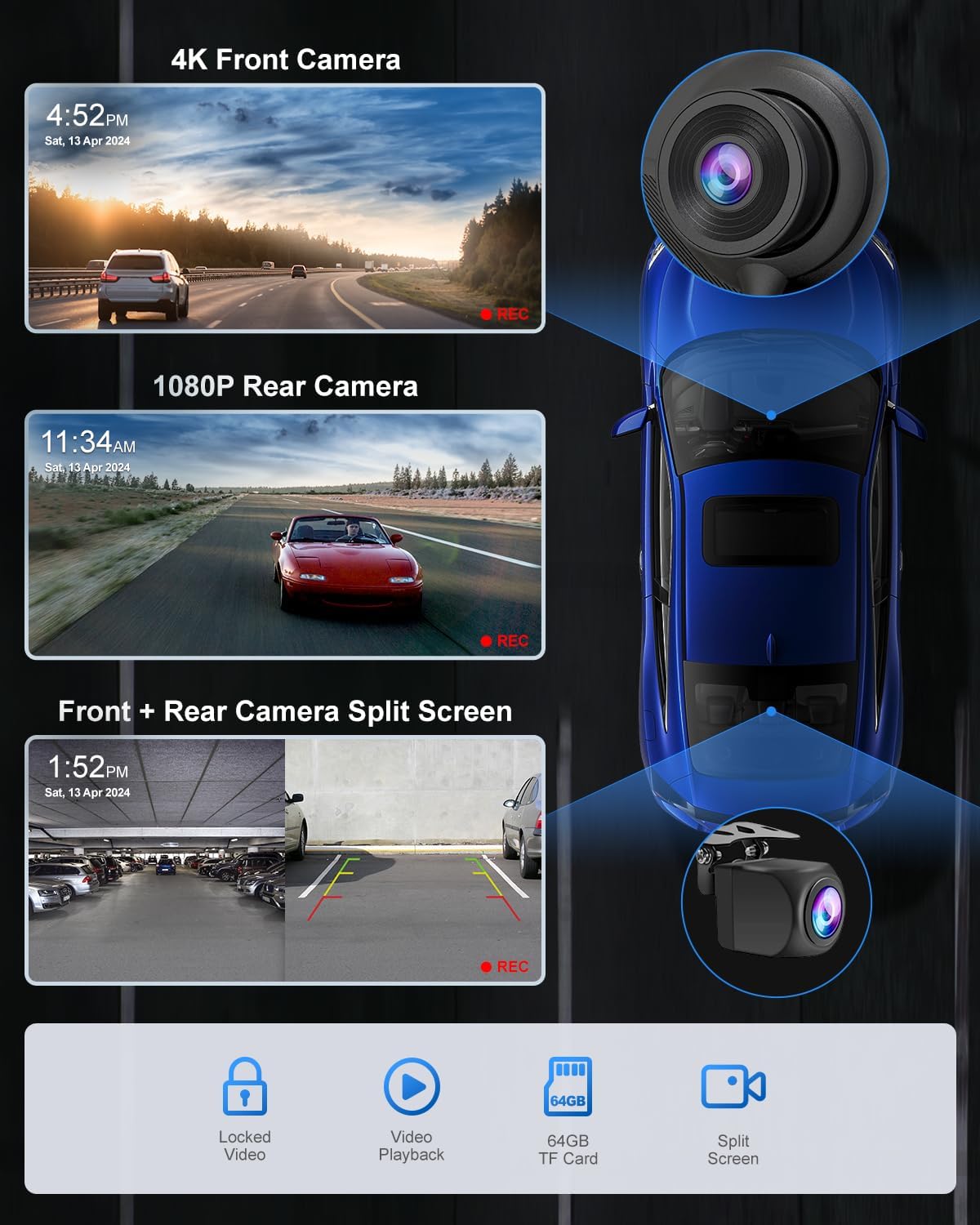
Image: Visual guide showing the four steps for connecting the main unit and rear camera.
- So agbara: Plug the Type-C connector into the bottom of the Car Play screen.
- Orisun Agbara: Insert the cigarette lighter connector into your vehicle's cigarette lighter socket.
- Asopọmọ kamẹra ẹhin: Connect the 1080P backup camera cable to the main unit. The red cable from the rear camera should be connected to the reverse light positive wire for automatic display when reversing.
- Ibi Ipari: After confirming normal operation, remove the protective film from the screen.

Image: Illustration demonstrating how to route and hide cables within the car interior for a clean and organized setup.
Utilize the provided cable clips and crowbar to neatly tuck away wires, preventing clutter on your dashboard.
Awọn ilana Iṣiṣẹ
CarPlay Alailowaya ati Android Auto

Image: The Sprleaf screen showcasing wireless CarPlay/Android Auto functionality, with a smartphone displaying navigation.
The device supports both Apple CarPlay and Android Auto wirelessly. After initial setup, the unit will automatically connect to your smartphone, providing access to navigation, music, calls, and messages.

Image: Step-by-step guide for establishing a wireless Apple CarPlay connection.

Image: Step-by-step guide for establishing a wireless Android Auto connection.
Lati sopọ:
- Turn on CarPlay/Android Auto on the device.
- Mu Wi-Fi ati Bluetooth ṣiṣẹ lori foonuiyara rẹ.
- Wa fun the device's Bluetooth name (e.g., "T86 xxxx") and pair.
- Confirm the connection on your phone.
Dashcam Functionality

Image: A split-screen display showing simultaneous recordings from the 4K front dashcam and the 1080P rear camera.
The integrated dual camera system includes a 4K front dashcam and a waterproof 1080P rear camera. Footage is recorded onto the included 64GB SD card. You can view recordings directly on the screen or transfer them for review.
Video: Demonstrates the 4K Ultra HD Dashcam and its features.
Video: Shows the portable wireless Carplay screen with backup camera in 4K resolution.

Image: Illustrates the clarity of day and night recordings from both the 4K front camera and 1080P rear camera.
GPS Lilọ kiri

Image: The 6.25-inch screen showing real-time GPS navigation, mirroring a smartphone's map application.
Utilize your smartphone's GPS data through CarPlay or Android Auto for real-time navigation with popular apps like Google Maps and Waze. The 6.25-inch screen provides a clear and accurate display of your route.
Mirror Link / Airplay / Android Cast
The device supports screen mirroring from your smartphone, allowing you to display content directly on the Car Play screen.

Image: Step-by-step instructions for connecting an iPhone via Airplay for screen mirroring.

Image: Step-by-step instructions for connecting an Android device via Android Cast for screen mirroring.
Iṣakoso ohun

Image: The screen displaying voice command options for hands-free operation, including calls, navigation, and music playback.
Access Siri or Google Voice Assistant for hands-free control of navigation, calls, music playback, and more, enhancing driving safety.
Awọn aṣayan Ijade ohun

Image: Visual representation of the four available audio output methods for the device.
The device offers multiple audio output options:
- Bluetooth: Connect wirelessly to your car's speakers for stable and clear audio.
- Awọn Agbọrọsọ ti A ṣe sinu: The unit has its own speakers for direct audio output.
- Gbigbe FM: Transmit audio to your car's FM radio by tuning to a specific frequency.
- AUX to Car's Audio: Use the provided AUX cable to connect directly to your car's auxiliary input.

Image: Illustration detailing the Bluetooth connection process to integrate with your car's existing speaker system.
Split-Screen Display

Aworan: Examples of split-screen layouts, such as messages with camera view, maps with music, and voice assistant with camera view.
The split-screen feature allows you to view multiple applications simultaneously, such as navigation alongside music playback or front/rear camera feeds.
Itoju
To ensure the longevity and optimal performance of your Sprleaf Wireless Car Play Screen, follow these maintenance guidelines:
- Ninu: Use a soft, dry cloth to clean the screen. For stubborn smudges, lightly dampen awọn asọ pẹlu omi tabi a iboju-ailewu regede. Yago fun awọn ohun elo abrasive tabi awọn kemikali lile.
- Iwọn otutu: Do not expose the device to extreme temperatures. Prolonged exposure to direct sunlight or very cold conditions can affect performance and lifespan.
- Iṣakoso USB: Periodically check all connected cables for wear or damage. Ensure they are securely connected and not pinched.
- Awọn imudojuiwọn sọfitiwia: Ṣayẹwo awọn olupese ká website for any available firmware updates to ensure the device operates with the latest features and bug fixes.
- Kaadi SD: Regularly back up important dashcam footage from the 64GB SD card. Consider formatting the SD card periodically (e.g., monthly) to maintain optimal recording performance.
Laasigbotitusita
If you encounter issues with your Sprleaf Wireless Car Play Screen, refer to the following common solutions:
| Isoro | Owun to le Fa | Ojutu |
|---|---|---|
| Ẹrọ naa ko ṣiṣẹ. | Loose power connection, faulty cigarette lighter socket. | Ensure the car charger cable is securely plugged into both the device and the cigarette lighter socket. Test the cigarette lighter with another device. |
| Alailowaya CarPlay/Android Auto kuna lati so pọ. | Bluetooth/Wi-Fi ti pa lori foonu, isopọmọ ti ko tọ, idamu. | Verify Bluetooth and Wi-Fi are enabled on your phone. Forget the device from your phone's Bluetooth settings and re-pair. Ensure no other devices are interfering. |
| Audio quality is poor or has an echo. | Multiple audio outputs active, volume imbalance. | Ensure only one audio output method (Bluetooth, FM, AUX, or built-in speakers) is active. Adjust the volume on both the device and your car's stereo to find a balanced level. |
| Kamẹra ẹhin ko han. | Incorrect wiring, faulty camera/cable. | Check that the rear camera cable is properly connected to the main unit and the red wire is connected to the reverse light positive. Ensure the camera lens is clean and unobstructed. |
| SD card error or recording issues. | Full SD card, corrupted card, incorrect format. | Format the SD card through the device's settings. If the issue persists, try a different compatible SD card. |
Awọn pato
| Ẹya ara ẹrọ | Ẹ̀kúnrẹ́rẹ́ |
|---|---|
| Brand | Sprleaf |
| Orukọ awoṣe | Car Play Sreen with 4K Dash Cam |
| Iwon iboju | 6.25 inches |
| Ipinnu Kamẹra iwaju | 4K UHD |
| Ipinnu Kamẹra ti o kẹhin | 1080P FHD |
| Ibamu System isẹ | Android, iOS (Apple CarPlay, Android Auto) |
| Awọn ọna ẹrọ Asopọmọra | Auxiliary, Bluetooth, Wireless (Wi-Fi) |
| Human Interface Input | Afi ika te |
| Pataki Awọn ẹya ara ẹrọ | Android Auto, Apple CarPlay, Compact Design, Hands-Free Calling, Voice Control, Mirror Link |
| Ipo Ijade Ohun | Stereo (Built-in Speaker, FM Transmitter, Bluetooth to Car Speakers, AUX Connected to Car Speakers) |
| Iṣagbesori Iru | Dashboard Mount, Windshield Suction Mount |
| Ọkọ Iṣẹ Iru | Minivan, Semi Truck, Pick-up, RV, 12-24V vehicle, Car, Truck, Bus, SUV, Van |
| Iwọn Nkan | 1.59 iwon |
| Package Mefa | 7.36 x 5.55 x 3.5 inches |
Ibamu

Image: Icons representing different vehicle types, indicating broad compatibility with 12-24V models.
The Sprleaf Wireless Car Play Screen is designed for broad compatibility with 99% of 12-24V vehicle models, including cars, trucks, vans, buses, SUVs, and pickups.
Atilẹyin ọja ati Support

Image: Visual representation of customer support offerings: 24/7 support, a 90-day guarantee, and lifetime support.
- Ẹri ọjọ 90: Enjoy a 90-day guarantee for returns or exchanges.
- Atilẹyin igbesi aye: Sprleaf provides lifelong service for all its products.
- 24/7 atilẹyin: Quick and professional responses are available anytime.
For further assistance, please refer to the contact information provided in your product packaging or visit the official Sprleaf webojula.
Ask a question about this manual
Ask about setup, troubleshooting, compatibility, parts, safety, or missing instructions. Manuals+ will review the question and use this page’s manual context to help answer it.