
1. Alaye Aabo pataki
Please read these safety instructions carefully before operating your TV and retain them for future reference. This manual provides important information regarding the safe installation, use, and maintenance of your Sharp 40FH2EA television.
- Orisun Agbara: Connect the TV only to an AC 220-240V, 50Hz power supply.
- Afẹfẹ: Rii daju pe fentilesonu to ni ayika TV. Ma ṣe dina awọn ṣiṣi atẹgun.
- Omi ati Ọrinrin: Ma ṣe fi TV han si ojo tabi ọrinrin. Ma ṣe gbe awọn nkan ti o kun fun awọn olomi, gẹgẹbi awọn ikoko, lori TV.
- Awọn orisun Ooru: Keep the TV away from heat sources like radiators, heat registers, stoves, or other apparatus that produce heat.
- Ninu: Yọ TV kuro lati inu iṣan ogiri ṣaaju ṣiṣe mimọ. Lo asọ asọ ti o gbẹ. Maṣe lo awọn olutọpa olomi tabi awọn ẹrọ aerosol.
- Iṣagbesori: When wall-mounting, ensure the wall mount is suitable for the TV's weight and installed by qualified personnel.
- Awọn ọmọde: Supervise children to ensure they do not play with the TV.
2. Package Awọn akoonu
Daju pe gbogbo awọn nkan wa ninu apoti:
- Sharp 40FH2EA 40-inch Full HD LED Android TV
- Isakoṣo latọna jijin
- TV Stands (2x)
- Awọn skru fun Awọn iduro TV
- Okun agbara
- Quick Bẹrẹ Itọsọna
- Ìwé Ìròyìn Ààbò

Aworan: Iwaju view of the Sharp 40FH2EA television, showcasing its slim bezel design.
3. Eto
3.1 So awọn iduro TV
- Fi iṣọra gbe TV ni oju-isalẹ lori rirọ, dada mimọ lati ṣe idiwọ ibajẹ iboju.
- Ṣe deede iduro kọọkan pẹlu awọn iho ti o baamu lori isalẹ ti TV.
- Ṣe aabo awọn iduro nipa lilo awọn skru ti a pese. Rii daju pe wọn ti di ṣinṣin.

Image: The Sharp 40FH2EA television viewed from an angle, showing the two attached stand feet supporting the unit.
3.2 Nsopọ Awọn ẹrọ ita
The Sharp 40FH2EA offers various connection options for your external devices.
- HDMI: Connect Blu-ray players, game consoles, or set-top boxes to the HDMI ports. This model features 3 HDMI inputs.
- USB: Insert USB drives for media playback or software updates into the 2 USB ports.
- Antenna/Cable: So eriali rẹ tabi ifihan agbara TV USB pọ si titẹ sii RF.
- Àjọlò (LAN): Fun asopọ intanẹẹti iduroṣinṣin, so okun Ethernet pọ si ibudo LAN.
- Ohun Jade: Use the optical digital audio output for connecting to a soundbar or home theater system.

Aworan: Ẹgbẹ profile of the Sharp 40FH2EA TV, highlighting the accessible USB and HDMI ports on the left side.
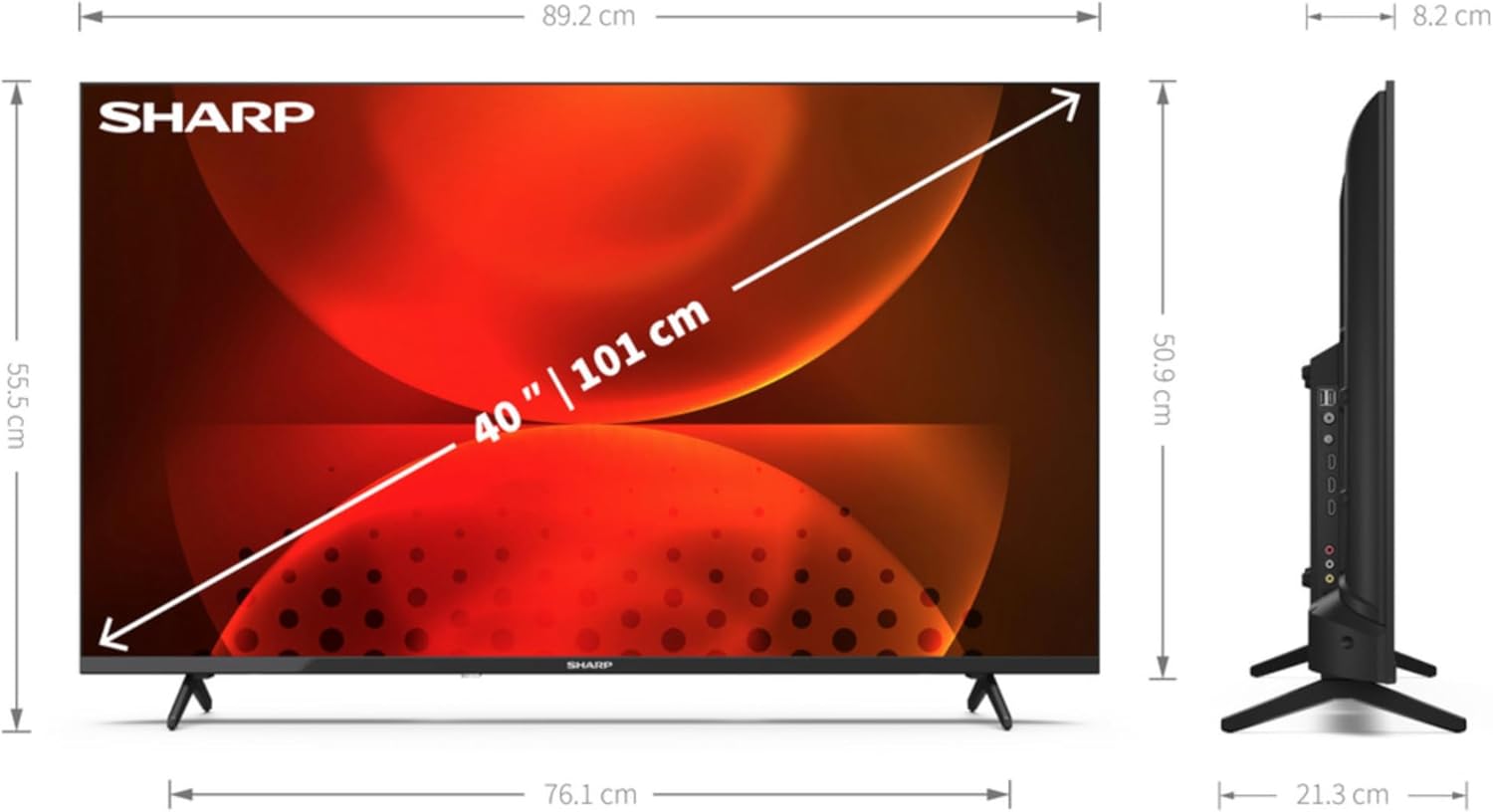
Aworan: Ẹyin view of the Sharp 40FH2EA TV, displaying the various input and output ports including HDMI, USB, and antenna connections.
3.3 Eto Agbara-Ṣibẹrẹ ati Eto Akoko-akọkọ
- So okun agbara pọ si TV ati lẹhinna si iṣan ogiri.
- Tẹ bọtini agbara lori isakoṣo latọna jijin tabi lori TV.
- Follow the on-screen instructions to select your language, country, and network settings (Wi-Fi or Ethernet).
- Perform a channel scan for DVB-T/T2/C/S/S2 signals to find available TV channels.
- Log in with your Google account to access Android TV features and download apps.
4. Ṣiṣẹ TV
4.1 Latọna Iṣakoso Awọn iṣẹ
The remote control allows you to navigate the TV's features. Familiarize yourself with the main buttons:
- Agbara (bọtini pupa): Tan TV si tan tabi paa.
- Orisun: Selects input sources (HDMI 1, HDMI 2, TV, etc.).
- Awọn bọtini nọmba (0-9): Aṣayan ikanni taara.
- Iwọn didun (+/-): Ṣe atunṣe ipele iwọn didun.
- Ikanni (CH +/-): Ayipada TV awọn ikanni.
- Paadi lilọ kiri (Soke/isalẹ/osi/ọtun/DARA): Lilọ kiri awọn akojọ aṣayan ati jẹrisi awọn aṣayan.
- Pada: Pada si iboju iṣaaju tabi akojọ aṣayan.
- Ile: Wọle si iboju ile Android TV.
- Netflix, Fidio Prime, YouTube, Google Play: Dedicated buttons for quick access to streaming services.

Image: The remote control for the Sharp 40FH2EA TV, showing its layout with navigation buttons and dedicated streaming service buttons.
4.2 Awọn ẹya Smart TV (Android TV)
Your Sharp 40FH2EA TV runs on Android TV, providing access to a wide range of apps and services.
- Iboju ile: The central hub for your apps, recommended content, and settings.
- Google Play itaja: Ṣe igbasilẹ awọn ohun elo afikun, awọn ere, ati akoonu.
- Iṣakoso ohun: Use the built-in Google Assistant (if available on your remote) to search for content, control smart home devices, and more.
- Chromecast ti a ṣe sinu: Simẹnti akoonu lati foonuiyara tabi tabulẹti taara si TV.
- Awọn iṣẹ ṣiṣanwọle: Access popular services like Netflix, YouTube, Amazon Prime Video, Hulu, Disney+, and more.

Image: The Android TV home screen displayed on the Sharp 40FH2EA, featuring various streaming app icons and content recommendations.
5. Itọju
5.1 Ninu TV
- Yọọ TV nigba gbogbo ṣaaju ṣiṣe mimọ.
- Lo asọ, gbẹ, asọ ti ko ni lint lati nu iboju ati minisita.
- Fun abori aami lori iboju, sere dampen the cloth with water or a specialized screen cleaner (ensure it's safe for LED screens) and wipe gently.
- Never spray cleaners directly onto the screen or cabinet.
5.2 Software imudojuiwọn
Your Android TV may receive software updates periodically. It is recommended to keep your TV's software updated for optimal performance and security. Updates can usually be found in the TV's settings menu under 'About' or 'System Update'.
6. Laasigbotitusita
Ti o ba pade awọn ọran pẹlu TV rẹ, tọka si awọn iṣoro ti o wọpọ ati awọn ojutu wọnyi:
| Isoro | Owun to le Fa / Solusan |
|---|---|
| Ko si agbara | Ensure the power cable is securely connected to the TV and the wall outlet. Check if the outlet is working. Try a different outlet. |
| Ko si aworan, ṣugbọn ohun wa | Check the input source. Ensure external devices are powered on and connected correctly. Try a different HDMI cable. |
| Ko si ohun, ṣugbọn aworan wa | Check the volume level. Ensure the TV is not muted. Check audio settings and external audio device connections. |
| Isakoṣo latọna jijin ko ṣiṣẹ | Rọpo awọn batiri. Rii daju pe ko si awọn idena laarin isakoṣo latọna jijin ati sensọ IR ti TV. |
| Ko le sopọ si Wi-Fi | Rii daju pe olulana Wi-Fi rẹ wa ni titan ati ṣiṣẹ. Tun-tẹ ọrọ igbaniwọle Wi-Fi sii. Gbiyanju tun TV ati olulana bẹrẹ. |
| Àwọn ohun èlò náà ń lọ́ra tàbí wọ́n ń já lulẹ̀ | Close unused apps. Clear app cache (in TV settings). Restart the TV. Ensure sufficient internet speed. |
If the problem persists, consult the full user manual available on the Sharp support webojula tabi kan si atilẹyin alabara.
7. Awọn pato
Detailed technical specifications for the Sharp 40FH2EA 40-inch Full HD LED Android TV:
| Ẹya ara ẹrọ | Sipesifikesonu |
|---|---|
| Orukọ awoṣe | 40FH2EA |
| Nọ́mbà Àwòṣe Inú | 2T-C40FHx |
| Iwon iboju | 40 inches (101.6 cm) |
| Ipinnu Ifihan | Awọn piksẹli 1920 x 1080 (HD ni kikun) |
| Ifihan ọna ẹrọ | LED |
| Apẹrẹ iboju | Alapin |
| Smart TV Platform | Android TV |
| Motion Interpolation Technology | AMR (Active Motion Rate) 400 |
| Native Aspect Ratio | 16:9 |
| Ìrísí Ìfilọ́lẹ̀ Oní-nọ́ńbà | DVB, DVB-C, DVB-S, DVB-S2, DVB-T, DVB-T2 |
| Alailowaya Asopọmọra | Wi-Fi, Bluetooth |
| Ti firanṣẹ Asopọmọra | Àjọlò LAN |
| Awọn ibudo HDMI | 3 |
| Awọn ibudo USB | 2 |
| Àwọ̀ | Dudu |
| Awọn iṣẹ Intanẹẹti atilẹyin | Netflix, YouTube, Amazon Prime Video, Hulu, Disney+, etc. |
8. Atilẹyin ọja ati Support
For warranty information, please refer to the warranty card included with your product or visit the official Sharp website for your region. For technical support, product registration, or to download the full user manual, please visit the Sharp support portal or contact their customer service department.
Atilẹyin Ayelujara: www.sharpconsumer.com