
1. Ifihan
The THOMSON Google TV Streaming Box 240 transforms your television into a Smart TV, offering access to a wide range of streaming services and applications. This manual provides instructions for setting up, operating, and maintaining your device to ensure optimal performance and an enhanced viewiriri iriri.
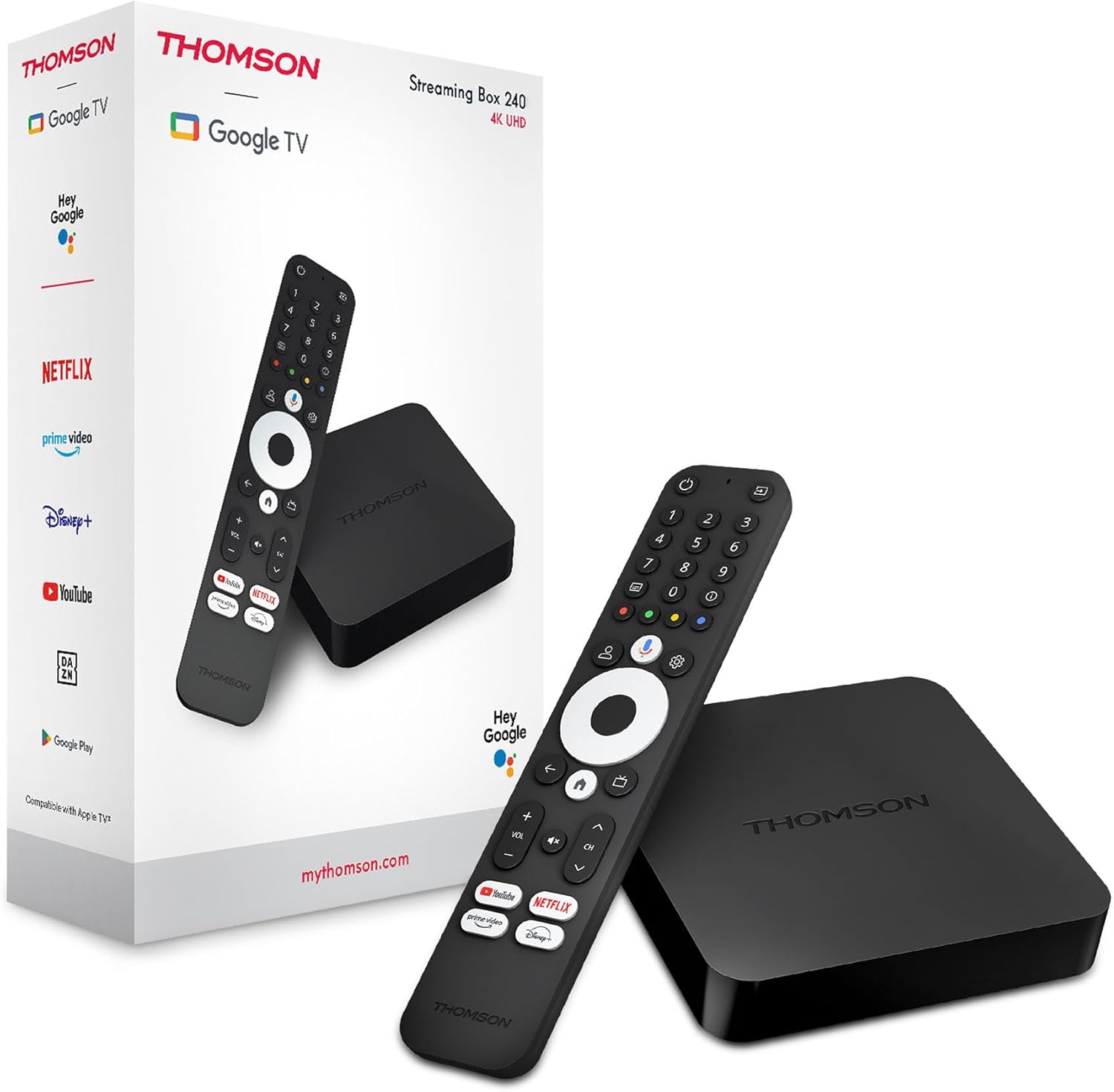
Image 1.1: THOMSON Google TV Streaming Box 240 and its remote control.
2. Ohun ti o wa ninu Apoti
Jọwọ ṣayẹwo awọn akoonu package lati rii daju pe gbogbo awọn ohun kan wa:
- THOMSON Streaming Box 240
- Iṣakoso Latọna jijin pẹlu Oluranlọwọ Google
- Adapter agbara
- Okun HDMI
- Afowoyi Olumulo (iwe-ipamọ yii)
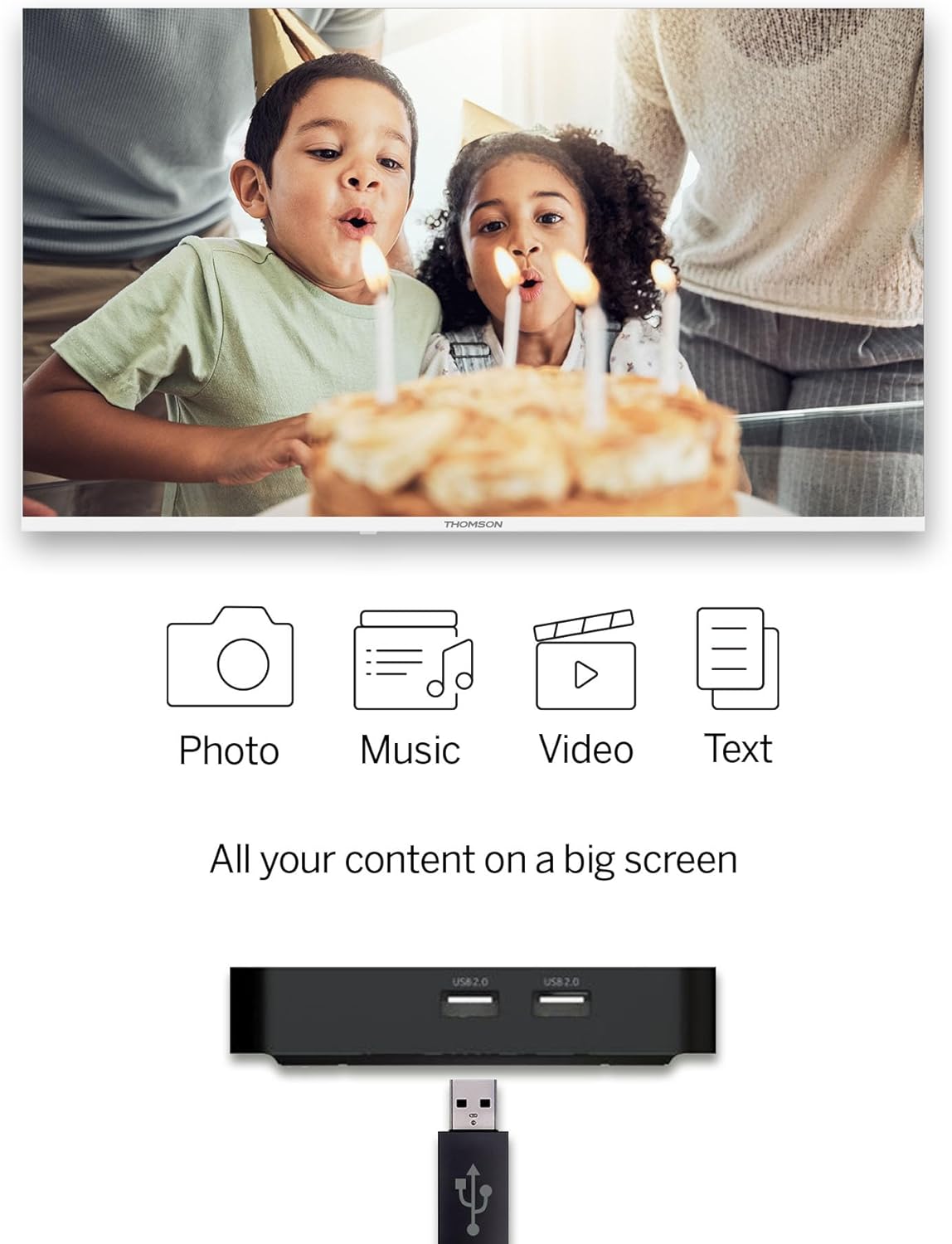
Image 2.1: The THOMSON Streaming Box 240 and its accompanying remote control.
3. Eto Itọsọna
Follow these steps to set up your THOMSON Google TV Streaming Box 240:
- Sopọ si TV: Connect one end of the HDMI cable to the HDMI port on the Streaming Box and the other end to an available HDMI input on your television.
- So agbara: Plug the power adapter into the DC IN port on the Streaming Box, then plug the adapter into a wall power outlet.
- Agbara Tan: Turn on your television and select the correct HDMI input source using your TV remote. The Streaming Box should power on automatically.
- Iṣeto akọkọ: Follow the on-screen instructions to complete the initial setup. This includes selecting your language, connecting to your network (Wi-Fi or Ethernet), and logging in with your Google account.
- Latọna meji: If prompted, pair your remote control by following the on-screen instructions. Typically, this involves holding down specific buttons on the remote near the device.

Aworan 3.1: Ẹyin view of the Streaming Box 240, highlighting its connectivity ports.
4. Awọn ilana Iṣiṣẹ
4.1 Iṣakoso latọna jijin Loriview
The ergonomic Bluetooth remote control provides easy navigation and access to features.

Image 4.1: Key features of the THOMSON Streaming Box 240 remote control.
- Bọtini agbara: Tan ẹrọ naa si tan tabi pa.
- Awọn bọtini nọmba (0-9): Easily switch between available channels within supported applications.
- Bọtini Iranlọwọ Google: Mu iṣakoso ohun ṣiṣẹ.
- Paadi Lilọ kiri: For menu navigation (Up, Down, Left, Right, OK).
- Bọtini Pada: Pada si iboju ti tẹlẹ.
- Bọtini Ile: Pada si iboju ile Google TV.
- Awọn bọtini iwọn didun: Ṣe atunṣe iwọn didun.
- Awọn bọtini ikanni: Changes channels within supported applications.
- Awọn bọtini Iwọle taara: One-click access to Netflix, Prime Video, YouTube, and Disney+.
- Profile Bọtini Yipada: Allows switching between different user profiles.
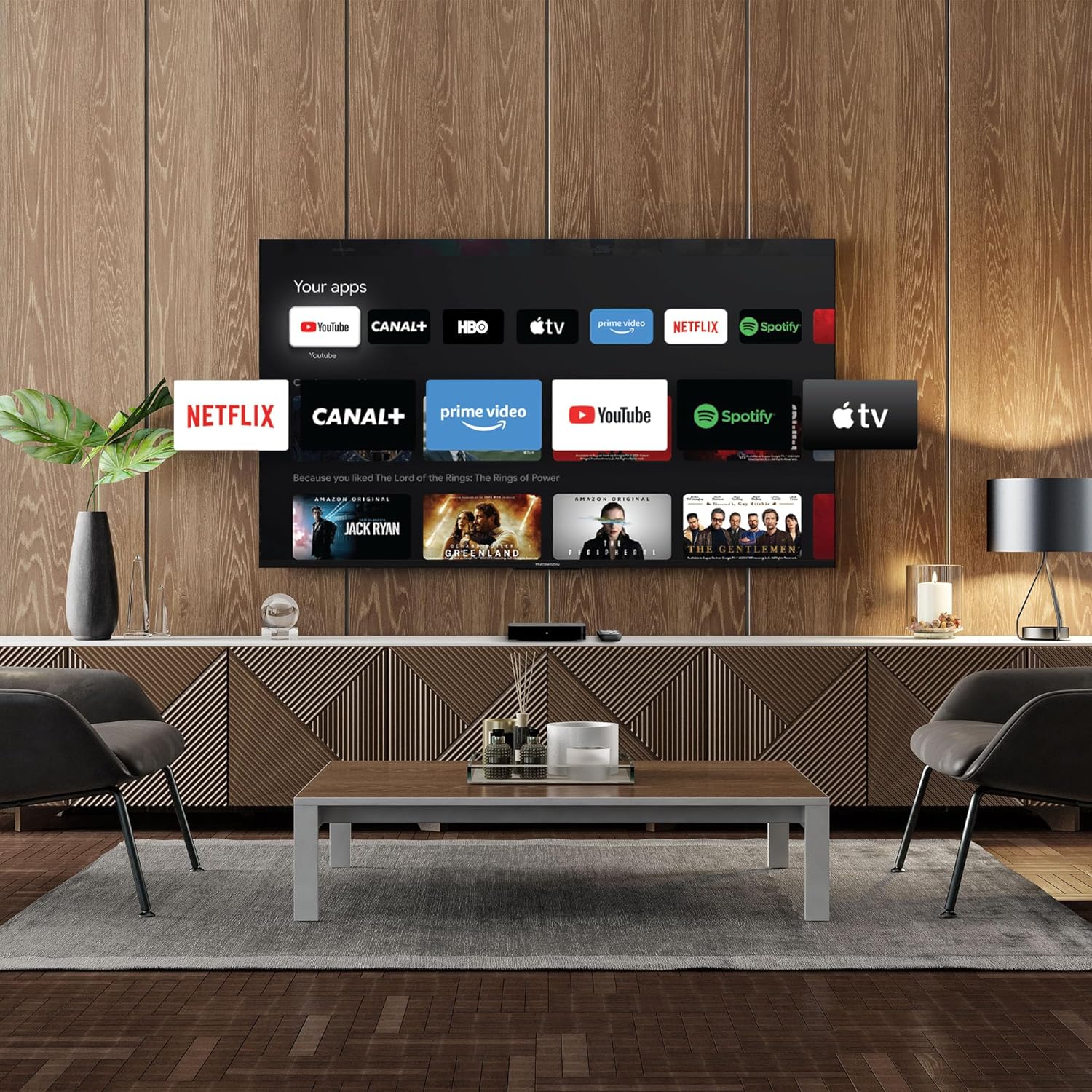
Image 4.2: Using numeric buttons on the remote for in-app channel switching.
4.2 Google TV Interface
Google TV combines content from various streaming services onto a single home screen, providing personalized recommendations. You can create multiple user profiles to tailor content suggestions for each family member.

Image 4.3: The Google TV interface with integrated streaming services.
4.3 Iranlọwọ Google
Use the built-in Google Assistant for voice control. Press the Google Assistant button on your remote and speak your commands. You can search for content, open apps, get information, and control smart home devices.

Image 4.4: Activating Google Assistant via the remote control.
4.4 Google Simẹnti
With Google Cast built-in, you can wirelessly stream movies, music, and photos from your compatible smartphone, tablet, or computer directly to your TV screen.
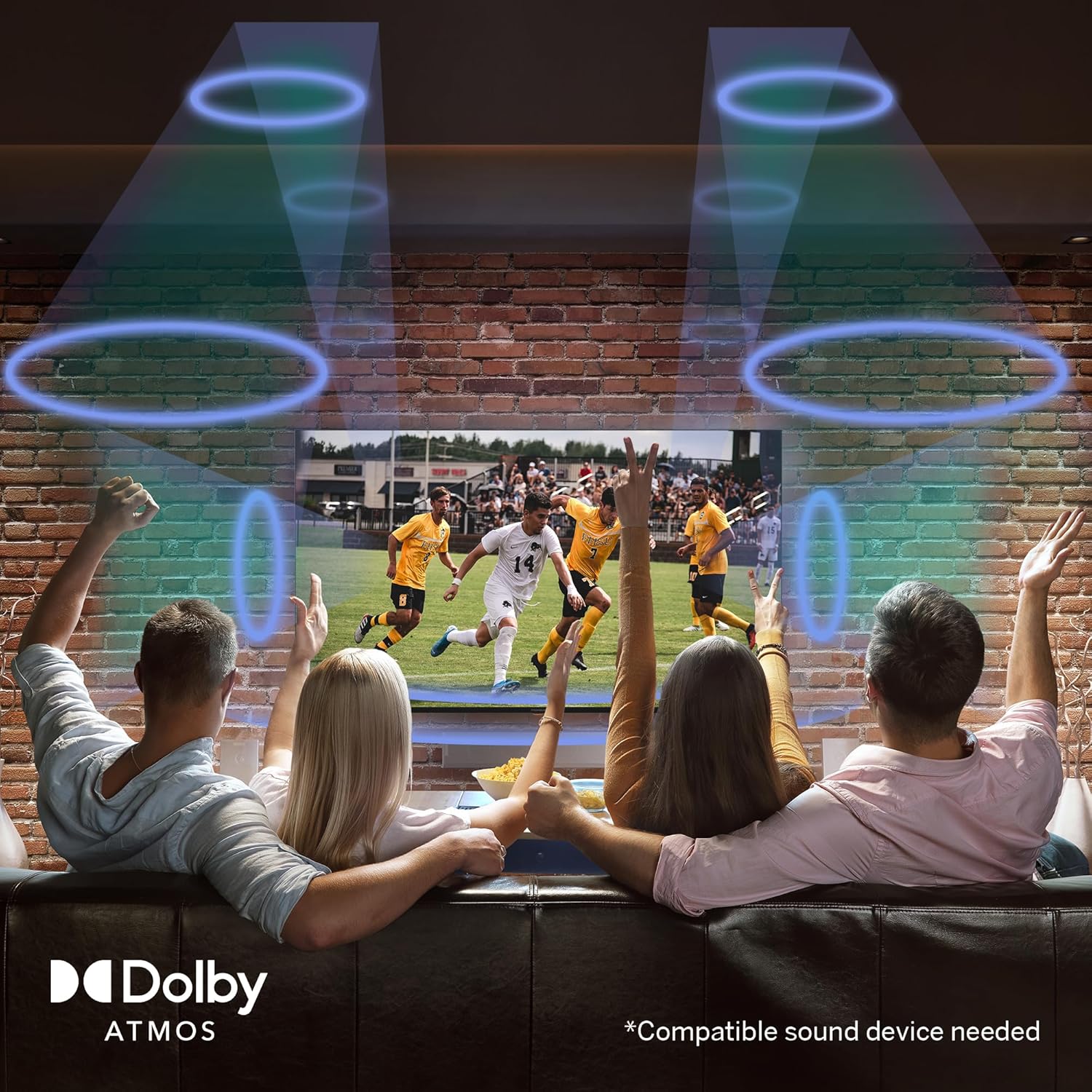
Image 4.5: Demonstrating the Google Cast functionality.
4.5 USB Media Sisisẹsẹhin
Connect a USB storage device to one of the USB 2.0 ports to view your personal photos and videos on your television.
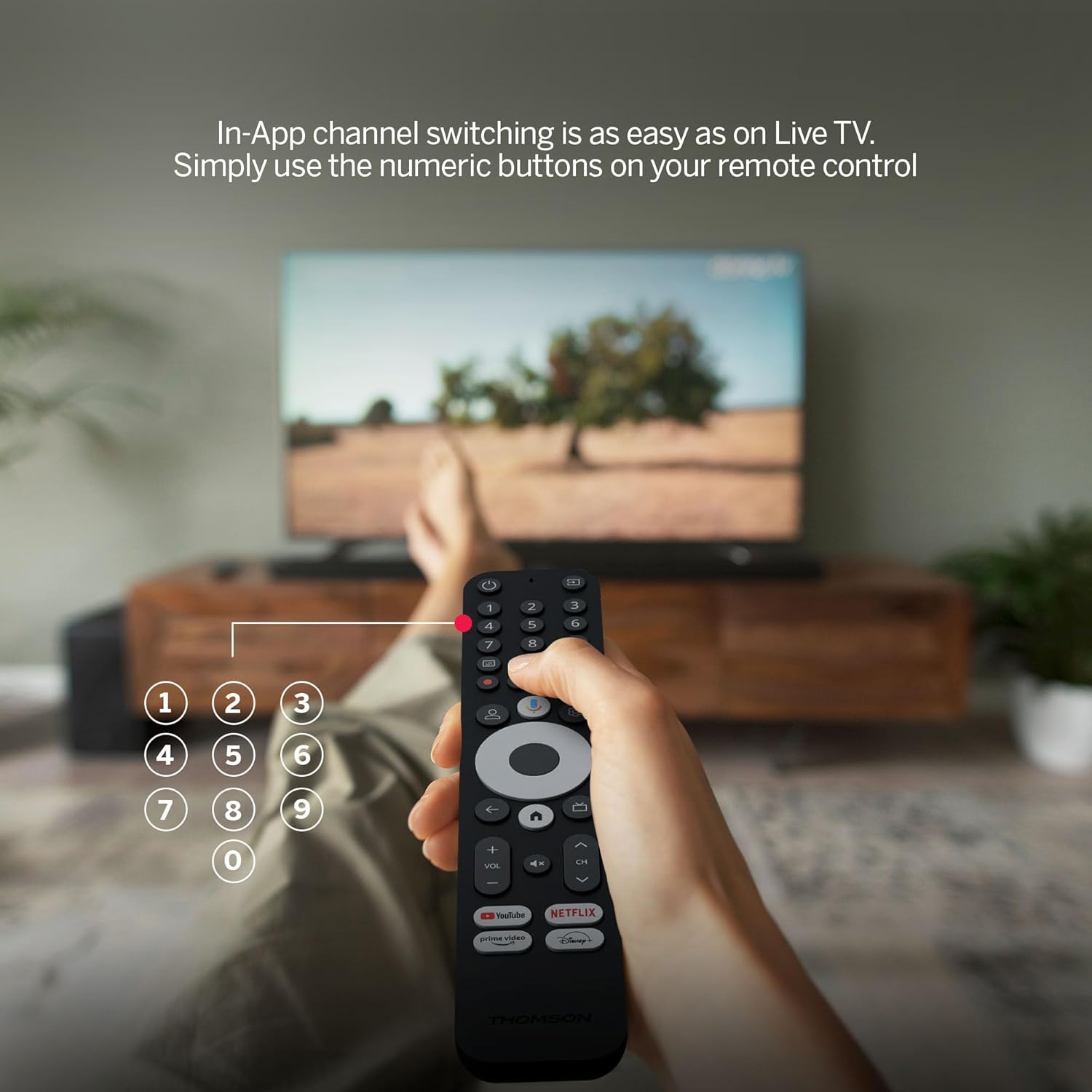
Image 4.6: USB media playback for various content types.
5. Key Awọn ẹya ara ẹrọ
- Ipinu UHD 4K: Experience stunningly sharp and vivid images with 4x the precision of Full HD.
- Google TV (Android 12): Enjoy personalized content recommendations and multiple user profiles for a customized Smart TV experience. Access popular streaming services like Netflix, Prime Video, YouTube, Disney+, and more.
- Oluranlọwọ Google: Control your TV and search for content using voice commands.
- Chromecast ti a ṣe sinu: Wirelessly cast movies, music, and photos from compatible devices to your TV.
- Powerful Quad-Core Processor: Ensures smooth and fluid performance without lag.
- Media Player: Play your favorite photos and videos directly from a USB drive on the big screen.
- Awọn bọtini Iwọle taara: Quickly launch Netflix, Prime Video, YouTube, and Disney+ with dedicated buttons on the remote.
- Dolby Atmos: Delivers an immersive audio experience (requires a compatible sound device).
- Asopọmọra pipe: Equipped with HDMI, 2x USB, optical digital audio, and LAN ports.
- Convenient Network Access: Choose between Wi-Fi or Ethernet LAN for stable internet connection.
- Bluetooth 5.0: Easily connect gamepads, speakers, or other external devices wirelessly.

Image 5.1: Visual comparison of different display resolutions, highlighting 4K UHD.
6. Asopọmọra
The THOMSON Streaming Box 240 offers a variety of connection options:
- HDMI2.1: For high-definition video and audio output to your television.
- USB 2.0 (x2): For connecting external storage devices like USB drives.
- Àjọlò (LAN): Fun asopọ intanẹẹti onirin iduroṣinṣin.
- Ohun Opitika Jade: For connecting to external audio systems with digital input.
- Wi-Fi: Fun Asopọmọra intanẹẹti alailowaya.
- Bluetooth 5.0: For pairing wireless peripherals such as game controllers, headphones, or speakers.
7. Itọju
To ensure the longevity and optimal performance of your Streaming Box 240, follow these maintenance guidelines:
- Ninu: Gently wipe the device with a soft, dry cloth. Do not use liquid cleaners or abrasive materials.
- Afẹfẹ: Rii daju pe awọn šiši fentilesonu ko ni idinamọ lati ṣe idiwọ igbona.
- Ayika: Avoid exposing the device to extreme temperatures, direct sunlight, high humidity, or dusty environments.
- Ge asopọ agbara: Disconnect the power adapter during electrical storms or if the device will be unused for an extended period.
8. Laasigbotitusita
If you encounter issues with your THOMSON Streaming Box 240, refer to the following common solutions:
| Isoro | Owun to le Fa | Ojutu |
|---|---|---|
| Ko si agbara/Ẹrọ ti ko tan | Adapter agbara ko sopọ mọ; Iho agbara ko ṣiṣẹ | Ṣàyẹ̀wò ìsopọ̀ okùn agbára; Gbìyànjú ọ̀nà agbára míràn. |
| Ko si ifihan agbara loju iboju TV | Incorrect HDMI input selected; Loose HDMI cable | Select the correct HDMI input on your TV; Ensure HDMI cable is securely connected. |
| No network connection (Wi-Fi/Ethernet) | Incorrect Wi-Fi password; Router issue; Loose Ethernet cable | Verify Wi-Fi password; Restart your router; Check Ethernet cable connection. |
| Isakoṣo latọna jijin ko dahun | Low battery; Remote not paired | Replace batteries; Re-pair the remote control as per initial setup instructions. |
| Applications freezing or slow performance | Too many apps running; Software glitch | Close unused applications; Restart the Streaming Box; Clear app cache in settings. |
9. Awọn pato
Detailed technical specifications for the THOMSON Google TV Streaming Box 240:
| Ẹya ara ẹrọ | Sipesifikesonu |
|---|---|
| Brand | THỌMSON |
| Orukọ awoṣe | Apoti ṣiṣanwọle 240 |
| Àwọ̀ | Dudu |
| Ipinnu | 4K UHD (3840x2160) |
| Eto isesise | Google TV (Android 12) |
| Àgbo | 2 GB |
| Ti abẹnu Memory | 8 GB |
| Asopọmọra | HDMI 2.1, 2x USB 2.0, Ethernet, Optical Audio Out, Wi-Fi, Bluetooth 5.0 |
| Pataki Awọn ẹya ara ẹrọ | Google Assistant, Chromecast, Dolby Atmos, HDR10 |
| Awọn iwọn (L x W x H) | 112 mm x 112 mm x 23 mm |

Image 9.1: Dimensions of the Streaming Box 240 and its remote control.
10. Atilẹyin ọja ati Support
Your THOMSON Google TV Streaming Box 240 comes with a comprehensive 3-odun olupese ká atilẹyin ọja, aridaju igbẹkẹle ati alaafia ti okan.
For further assistance, technical support, or warranty claims, please visit the official THOMSON webojula tabi kan si wọn onibara iṣẹ Eka. Jeki ẹri rira rẹ fun ijẹrisi atilẹyin ọja.