
1. Ifihan
Thank you for choosing the GEEKOM Mechanical Keyboard and Mouse Set. This manual provides detailed instructions for setting up, operating, and maintaining your new peripheral devices. Please read this manual thoroughly before use to ensure optimal performance and longevity of your product.
2. Package Awọn akoonu
Please check the package contents upon unboxing. If any items are missing or damaged, please contact GEEKOM customer support.
- GEEKOM Mechanical Keyboard
- GEEKOM Mouse
- USB Receiver (for wireless connection, if applicable)
- USB-C Charging Cable (for keyboard/mouse, if rechargeable)
- Afowoyi Olumulo (iwe-ipamọ yii)
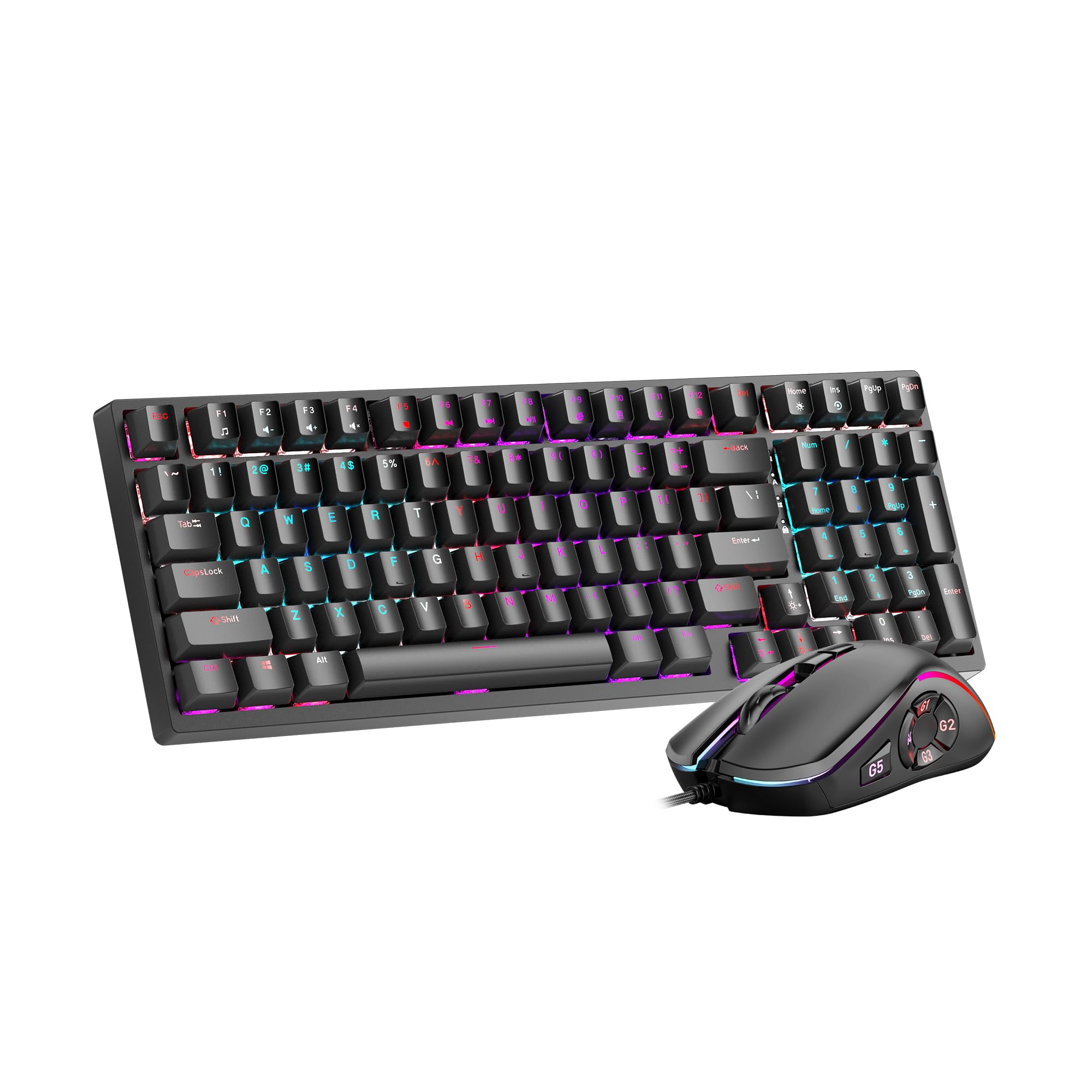
Image 1: GEEKOM Mechanical Keyboard and Mouse Set components.
3. Eto
3.1 So keyboard ati Asin pọ
The GEEKOM Mechanical Keyboard and Mouse Set can be connected via a 2.4GHz wireless USB receiver or a wired USB connection, depending on the model variant. Please refer to your specific product's connection type.
3.1.1 Wireless Connection (2.4GHz USB Receiver)
- Locate the USB receiver, usually stored in a compartment on the mouse or keyboard.
- Pulọọgi olugba USB sinu ibudo USB ti o wa lori kọnputa rẹ.
- Turn on the keyboard and mouse using their respective power switches. The devices should automatically connect to the receiver.
- If connection fails, press the pairing button (if available) on the keyboard/mouse and the receiver simultaneously.
3.1.2 Wired Connection (USB Cable)
- Connect the USB-C end of the provided cable to the keyboard/mouse.
- So opin okun USB-A pọ si ibudo USB ti o wa lori kọnputa rẹ.
- The devices will be recognized by your operating system automatically.
3.2 Driver fifi sori
The GEEKOM Mechanical Keyboard and Mouse Set is typically plug-and-play, requiring no additional driver installation for basic functionality. For advanced features or customization, please visit the official GEEKOM website to download any optional software or drivers.
4. Awọn ilana Iṣiṣẹ
4.1 Keyboard Awọn iṣẹ
The mechanical keyboard offers a responsive typing experience. Specific functions may vary by model, but common features include:
- Awọn bọtini boṣewa: All standard alphanumeric and symbol keys.
- Awọn bọtini iṣẹ (F1-F12): Often combined with the Fn key for multimedia controls (volume, play/pause, etc.) or system shortcuts. Refer to the keycap legends for specific functions.
- Imọlẹ afẹyinti: Many mechanical keyboards feature adjustable backlighting. Use Fn + [Kọ́kọ́rọ́] combinations (e.g., Fn + Arrow keys, Fn + Ins/Del/Home/End) to change brightness, mode, or color.
- N-Key Rollover (NKRO): Allows multiple key presses to be registered simultaneously, crucial for fast typing and gaming.
4.2 Mouse Awọn iṣẹ
The mouse provides precise tracking and comfortable use. Key features typically include:
- Osi/Ọtun Tẹ: Awọn iṣẹ tẹ bọtini akọkọ ati keji boṣewa.
- Yi lọ Kẹkẹ: For vertical scrolling and often acts as a middle click button.
- Bọtini DPI: (Dots Per Inch) Allows adjustment of mouse sensitivity on the fly. Press to cycle through different DPI settings.
- Awọn bọtini ẹgbẹ: Often programmable for forward/backward navigation in web browsers or custom functions in software.
5. Itọju
Proper maintenance ensures the longevity and performance of your GEEKOM Mechanical Keyboard and Mouse Set.
5.1 Ninu
- Àtẹ bọ́tìnnì
- Ge asopọ keyboard kuro lati kọmputa rẹ.
- Use a can of compressed air to blow out dust and debris from between the keycaps.
- Wipe the keycaps and surface with a soft, slightly damp, lint-free asọ. Yago fun ọrinrin pupọ.
- For deeper cleaning, keycaps can often be carefully removed using a keycap puller (not included) and cleaned separately. Ensure they are completely dry before reattaching.
- Asin:
- Ge asopọ Asin lati kọmputa rẹ.
- Pa dada nu pẹlu asọ, die-die damp, lint-free asọ.
- Clean the optical sensor on the underside with a dry cotton swab to ensure accurate tracking.
5.2 Ibi ipamọ
When not in use for extended periods, store the keyboard and mouse in a dry, cool place away from direct sunlight and extreme temperatures.
6. Laasigbotitusita
If you encounter issues with your GEEKOM Mechanical Keyboard and Mouse Set, please refer to the following common solutions:
| Isoro | Owun to le Fa | Ojutu |
|---|---|---|
| Keyboard/Mouse not responding (Wireless) | Batiri kekere; olugba USB ko sopọ mọ; Iṣoro sisopọ. | Charge devices; Ensure receiver is firmly plugged in; Re-pair devices (refer to Section 3.1.1). |
| Keyboard/Mouse not responding (Wired) | Loose cable connection; Faulty USB port. | Ensure cable is firmly connected; Try a different USB port; Test with a different cable if possible. |
| Awọn bọtini kii ṣe iforukọsilẹ tabi titẹ-meji | Dust/debris under keycap; Switch malfunction. | Clean under keycaps with compressed air (refer to Section 5.1); If issue persists, contact support. |
| Asin kọsọ asise tabi ko gbigbe | Sensọ opiti idọti; Ilẹ ti ko yẹ; Batiri kekere. | Clean optical sensor (refer to Section 5.1); Use on a clean, opaque mouse pad; Charge mouse. |
| Imọlẹ afẹyinti ko ṣiṣẹ | Backlight turned off; Software issue. | Adjust backlight settings using Fn key combinations; Check for software updates. |
7. Awọn pato
The following are general specifications for the GEEKOM Mechanical Keyboard and Mouse Set. Specific details may vary slightly by production batch.
- Brand: GEEKOM
- Awoṣe: Keyboard Mekanical ati Asin Ṣeto
- Asopọmọra: 2.4GHz Wireless (via USB Receiver) / Wired USB
- Iru Àtẹ bọ́tìnnì: Ẹ̀rọ
- Sensọ Asin: Opitika
- DPI Settings (Mouse): Adjustable (e.g., 800/1200/1600/2400 DPI)
- Batiri: Rechargeable Lithium-ion (for wireless models)
- Ibamu Eto Iṣiṣẹ: Windows, macOS, Linux (iṣẹ ipilẹ)
- Awọn iwọn idii: 50 x 15 x 5 cm
- Ìwúwo Apo: 1 kg
- ASIN: B0CTSVD82J
- UPC/GTIN: 850055043657
8. Atilẹyin ọja ati Support
GEEKOM products are designed for reliability and performance. This product comes with a standard manufacturer's warranty. For detailed warranty terms and conditions, please refer to the warranty card included in your package or visit the official GEEKOM webojula.
Fun atilẹyin imọ-ẹrọ, iranlọwọ fun iṣoro, tabi awọn ibeere atilẹyin ọja, jọwọ kan si iṣẹ alabara GEEKOM nipasẹ oṣiṣẹ wọn webaaye tabi alaye olubasọrọ ti a pese ninu iwe ọja rẹ.
Official GEEKOM Webojula: www.geekom.nl (Akiyesi: Eyi jẹ aaye ibi URL. Please refer to your product packaging for the correct support webojula.)