
1. Ifihan
This manual provides comprehensive instructions for the setup, operation, and maintenance of your Lecoo WS208 Wireless Mouse. Please read this manual carefully before using the product to ensure proper function and longevity. Keep this manual for future reference.
2. Ọja Ipariview
The Lecoo WS208 is a wireless optical mouse designed for comfort and efficiency. It features a 1200 DPI sensor for precise tracking and a silent click mechanism for a quiet user experience.
Awọn ẹya pataki:
- Sensọ Opitiki 1200 DPI: Provides accurate and responsive cursor control.
- Apẹrẹ Bọ́tìnì 3: Standard left, right, and scroll wheel buttons for essential functions.
- Tẹ ipalọlọ: Reduces click noise for a quieter working environment.
- Asopọ Alailowaya: Operates via a 2.4GHz USB receiver, offering a range of up to 10 meters.
- Ergonomic ati Apẹrẹ Iwapọ: Lightweight (54g) and shaped for comfortable use over extended periods.
- Igbesi aye batiri gigun: Powered by one AA battery, providing up to 6 months of usage depending on conditions.
- Ibamu Agbaye: Supports Windows XP/7/8/10/11, Mac OS X 10.4+, Linux Kernel 2.6+, and Android devices.
Awọn akoonu idii:
- Lecoo WS208 Wireless Mouse
- USB Mini Receiver
- Itọsọna olumulo
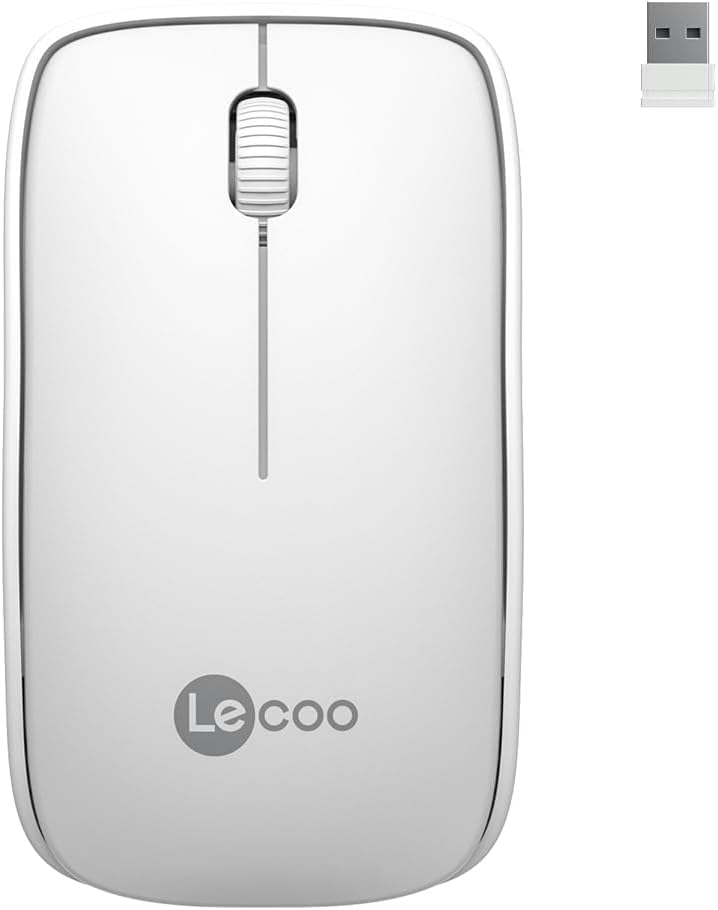
Image: Lecoo WS208 Wireless Mouse and its USB receiver.

Image: Diagram illustrating the components of the Lecoo WS208 mouse. Key features include the scroll wheel, left and right buttons, optical sensor, and USB dongle storage slot.
3. Eto
3.1 Fifi sori batiri
- Wa ideri ibi ipamọ batiri naa ni isalẹ Asin naa.
- Rọra rọra tabi gbe ideri soke lati ṣii iyẹwu naa.
- Insert one AA battery (not included) into the compartment, ensuring the positive (+) and negative (-) terminals align correctly with the indicators.
- Rọpo ideri iyẹwu batiri titi ti o fi tẹ ni aabo sinu aaye.
3.2 Sisopọ olugba USB
- Remove the USB mini receiver from its storage slot, usually located inside the battery compartment or on the bottom of the mouse.
- Plug the USB receiver into an available USB port on your computer (PC, Mac, Laptop) or compatible device.
- Ẹrọ iṣẹ rẹ yẹ ki o ṣawari laifọwọyi ati fi awọn awakọ pataki sii. Eyi le gba awọn iṣẹju diẹ.
3.3 Powering On the Mouse
After installing the battery and plugging in the receiver, the mouse should automatically power on. Some models may have a power switch on the bottom; ensure it is in the 'ON' position if present.
4. Awọn ilana Iṣiṣẹ
4.1 Ipilẹ Awọn iṣẹ
- Bọtini osi: Primary click function (e.g., select items, open links).
- Bọtini Ọtun: Secondary click function (e.g., open context menus).
- Yi lọ Kẹkẹ: Yi lọ si oke tabi isalẹ nipasẹ awọn iwe aṣẹ ati web awọn oju-iwe. Kẹkẹ yiyi tun n ṣiṣẹ bi bọtini aarin nigbati o ba tẹ.
4.2 DPI Sensitivity
The Lecoo WS208 operates at a fixed 1200 DPI (Dots Per Inch) sensitivity, providing a balanced speed and precision for most daily tasks. No manual DPI adjustment is available on this model.
4.3 Ibiti nṣiṣẹ
The mouse maintains a stable connection within a 10-meter range from the USB receiver. Performance may vary depending on environmental factors and obstacles.

Image: Icons representing universal compatibility with Android, Apple (macOS), Windows, Linux, and ChromeOS.
5. Itọju
5.1 Ninu
- Rii daju pe asin naa wa ni pipa ṣaaju ṣiṣe mimọ.
- Lo asọ rirọ, gbẹ, asọ ti ko ni lint lati nu dada ti Asin naa.
- Fun idoti alagidi, die-die dampen asọ pẹlu omi tabi a ìwọnba, ti kii-abrasive regede. Yago fun ọrinrin pupọ.
- Do not use harsh chemicals, solvents, or abrasive materials, as these can damage the mouse's finish.
5.2 Batiri Rirọpo
Nigbati iṣẹ asin ba dinku tabi ti o da idahun duro, o le jẹ akoko lati ropo batiri AA naa. Tẹle awọn igbesẹ fifi sori batiri ni Abala 3.1.
6. Laasigbotitusita
Awọn oran ti o wọpọ ati Awọn ojutu:
- Asin ko dahun:
- Rii daju pe batiri ti fi sori ẹrọ daradara ati pe o ni idiyele ti o to. Rọpo ti o ba wulo.
- Rii daju pe olugba USB ti wa ni edidi ni aabo sinu ibudo USB ti n ṣiṣẹ. Gbiyanju ibudo USB ti o yatọ.
- Rí i dájú pé àsín náà wà láàárín ibi tí ó ti ń ṣiṣẹ́ ní mítà mẹ́wàá ti olugba náà.
- Tun kọmputa rẹ bẹrẹ.
- Erratic or jumpy cursor movement:
- Nu sensọ opitika ni isalẹ ti Asin pẹlu asọ ti o gbẹ.
- Rii daju pe o nlo asin lori aaye ti o dara. Yago fun gíga afihan tabi sihin roboto.
- Ṣayẹwo fun kikọlu lati awọn ẹrọ alailowaya miiran.
- Awọn iṣoro asopọ:
- Unplug and re-plug the USB receiver.
- Gbe eku sunmo si olugba USB.
7. Awọn pato
| Brand | Lekoo |
| Awoṣe | WS208 |
| Asopọmọra Technology | Wireless (2.4GHz USB Receiver) |
| Aṣayan Iṣipopada | Opitika |
| DPI ifamọ | 1200 DPI |
| Nọmba ti Awọn bọtini | 3 (Osi, Ọtun, Yipo kẹkẹ/Aarin) |
| Ibiti nṣiṣẹ | Ti o to awọn mita 10 |
| Batiri Iru | 1 x AA Batiri (ko si) |
| Igbesi aye batiri | Titi di oṣu 6 (da lori lilo) |
| Awọn iwọn (L x W x H) | 95mm x 54mm x 31mm |
| Iwọn | 54g (mouse only) |
| Ibamu | Windows XP/7/8/10/11, Mac OS X 10.4+, Linux Kernel 2.6+, Android |

Image: Visual representation of the Lecoo WS208 mouse dimensions (95mm length, 54mm width, 31mm height) and weight (54g).
8. Atilẹyin ọja ati Support
Lecoo products are designed for reliability and performance. For warranty information or technical support, please refer to the warranty card included with your product or visit the official Lecoo webojula. Tọju iwe-ẹri rira rẹ bi ẹri rira fun awọn iṣeduro atilẹyin ọja.