
SHREYANS M_SRS710UB
SHREYANS Mini Barcode Scanner M_SRS710UB User Manual
Wireless and Bluetooth Connectivity for 1D & 2D Barcode Reading
1. Ifihan
This manual provides instructions for the SHREYANS Mini Barcode Scanner, model M_SRS710UB. This device is designed for efficient scanning of both 1D and 2D barcodes, offering versatile connectivity options including 2.4G wireless, Bluetooth, and USB wired connections. It is compatible with a wide range of operating systems and devices, making it suitable for various applications.
2. Package Awọn akoonu
Jọwọ rii daju pe gbogbo awọn nkan wa ninu package:
- SHREYANS Mini Barcode Scanner
- 2.4G USB Alailowaya Dongle
- USB-C Ngba agbara Cable
- USB-A Adapter
- Ọwọ Lanyard
- Afowoyi Olumulo (iwe-ipamọ yii)
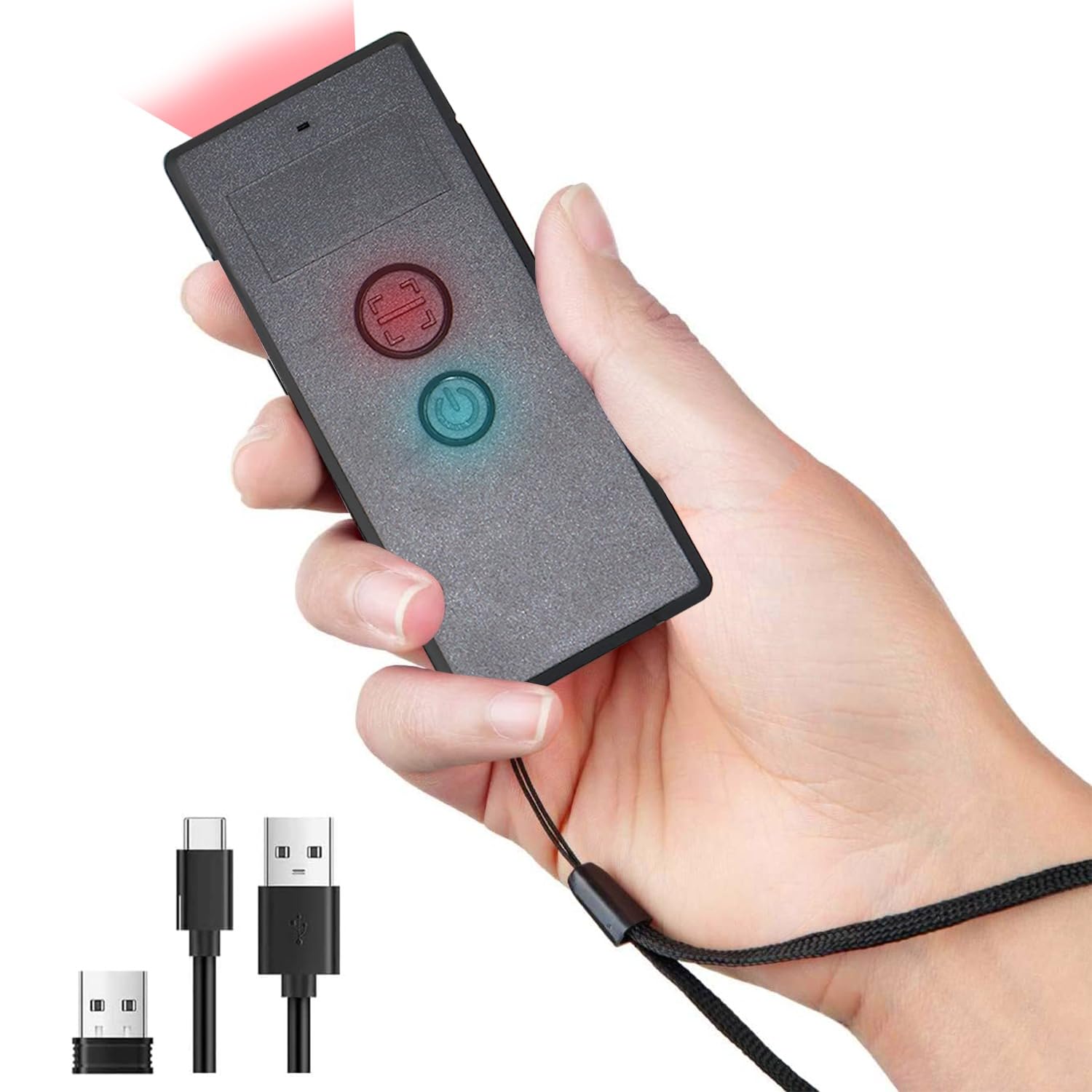
Image: The SHREYANS Mini Barcode Scanner held in a hand, alongside its 2.4G wireless USB dongle, USB-C charging cable, and USB-A adapter.
3. Ọja Ipariview
The SHREYANS Mini Barcode Scanner features a compact design with intuitive controls.
- Bọtini Ṣiṣayẹwo: Pilẹṣẹ kooduopo ọlọjẹ.
- Bọtini agbara: Turns the device on/off and controls Bluetooth pairing.
- Atọka LED: Provides status feedback (e.g., power, connection, scan success).
- Ibudo gbigba agbara: USB-C port for charging the internal battery.

Image: A close-up of the SHREYANS Mini Barcode Scanner held in a hand, highlighting its small, portable design.
4. Setup and Connection Modes
The scanner supports three connection modes: 2.4G Wireless, Bluetooth, and USB Wired.
4.1. 2.4G Alailowaya Asopọ
- Insert the 2.4G wireless USB dongle into an available USB port on your computer (Desktop, Laptop).
- Power on the barcode scanner by pressing and holding the Power button until the LED indicator lights up.
- The scanner will automatically connect to the dongle. A successful connection is indicated by a specific LED pattern (refer to the LED indicator section for details).

Image: An illustration showing the three available connection modes: Bluetooth, 2.4G Wireless via USB dongle, and direct USB Wired connection.
4.2. Asopọ Bluetooth
- Rí i dájú pé ẹ̀rọ ìṣiṣẹ́ náà ti ṣiṣẹ́.
- Activate Bluetooth pairing mode on the scanner (usually by holding the Power button for an extended period or scanning a specific configuration barcode). Refer to the quick start guide for the exact barcode.
- On your device (Android, iOS, Windows, macOS, Linux), go to Bluetooth settings and search for available devices.
- Select "SHREYANS Scanner" or a similar name from the list to pair.
- Once paired, the LED indicator will confirm the successful connection.
4.3. USB ti firanṣẹ Asopọ
- Connect the USB-C end of the charging cable to the scanner's charging port.
- Connect the USB-A end of the cable (or use the USB-A adapter if needed) to an available USB port on your computer.
- The scanner will function as a wired device and also charge its internal battery. No additional drivers are typically required.
5. Awọn ilana Iṣiṣẹ
5.1. Antivirus Barcodes
- Ensure the scanner is connected to your device via one of the methods described above.
- Open a text editor, spreadsheet, or any application where you want the scanned data to appear.
- Point the scanner's laser at the barcode you wish to scan.
- Press the Scan button. A successful scan will be indicated by an audible beep and/or a change in the LED indicator.
- Àwọn dátà tí a ti ṣàyẹ̀wò náà yóò hàn ní pápá ìtẹ̀síwájú tí ń ṣiṣẹ́ lórí ẹ̀rọ tí a so pọ̀ mọ́ ọn.

Image: A visual representation of the scanning process, where the scanner reads a barcode from a package and the data is synchronously uploaded to a laptop.
5.2. Àwọn Irú Àkójọpọ̀ Àkójọpọ̀ Tí A Tẹ̀lé
The SHREYANS Mini Barcode Scanner supports a variety of 1D and 2D barcode symbologies, including:
- 1D Barcodes: UPC/EAN, Code 128, Code 39, Code 93, Code 11, Interleaved 2 of 5, Industrial 2 of 5, Matrix 2 of 5, Standard 2 of 5, Codabar, MSI, GS1 DataBar, etc.
- 2D Barcodes: QR Code, Data Matrix, PDF417, Aztec Code, Micro PDF417, etc.

Image: Various 1D and 2D barcode types such as QR Code, Data Matrix, PDF417, Aztec Code, and Micro PDF417, demonstrating the scanner's comprehensive readability.
6. Ibamu
The scanner is designed for broad compatibility with various devices and operating systems:
- Awọn ọna ṣiṣe: Windows (7/8/10/XP), Android, iOS/macOS, Linux.
- Awọn ẹrọ: PC, POS systems, Laptops, Tablets, iPads, Smartphones.

Image: A graphic illustrating the scanner's high compatibility with Windows, Android, iOS/macOS, Linux, and Mac OS, connecting to PCs, laptops, tablets, and smartphones.
7. Itọju
To ensure optimal performance and longevity of your SHREYANS Mini Barcode Scanner, follow these maintenance guidelines:
- Ninu: Use a soft, dry, lint-free cloth to clean the scanner's exterior. For the scanning window, use a lens cleaning cloth and a mild cleaning solution if necessary. Avoid abrasive materials or harsh chemicals.
- Ibi ipamọ: Tọ́jú ẹ̀rọ ìwádìí náà sí ibi tí ó tutù tí ó sì gbẹ, tí kò sí ìmọ́lẹ̀ oòrùn tààrà àti igbóná tó le koko.
- Batiri: For prolonged storage, ensure the battery is charged to approximately 50%. Recharge the battery periodically if not in use for extended periods to prevent deep discharge.
- Mimu: Avoid dropping the scanner or subjecting it to strong impacts.
8. Laasigbotitusita
Ti o ba pade awọn ọran pẹlu ẹrọ iwoye rẹ, tọka si awọn iṣoro ti o wọpọ ati awọn ojutu wọnyi:
| Isoro | Owun to le Fa | Ojutu |
|---|---|---|
| Scanner ko ni agbara lori. | Batiri kekere. | Charge the scanner using the provided USB-C cable. |
| Cannot connect via 2.4G wireless. | Dongle not properly inserted or scanner not in 2.4G mode. | Ensure the dongle is fully inserted. Verify the scanner is in 2.4G wireless mode (refer to quick start guide for mode switching). |
| Ko le sopọ nipasẹ Bluetooth. | Scanner not in pairing mode, Bluetooth off on host device, or already paired with another device. | Put the scanner into Bluetooth pairing mode. Enable Bluetooth on your device. Forget previous pairings if necessary and re-pair. |
| Scanner ko kika barcodes. | Barcode damaged, incorrect angle, or scanner not configured for barcode type. | Ensure the barcode is clear and undamaged. Adjust scanning angle and distance. Check if the barcode type is enabled in the scanner's configuration (scan specific setup barcodes). |
| Scanned data appears incorrectly. | Keyboard layout mismatch or scanner configuration issue. | Ensure your computer's keyboard layout matches the scanner's default or configure the scanner to match your layout. Reset scanner to factory defaults if needed. |
9. Awọn pato
- Awoṣe: M_SRS710UB
- Awọn iwọn: 3 x 8 x 5 cm (isunmọ. 3.07 x 1.50 x 0.47 inches)
- Ìwúwo: 50 g (tó tó 1.23 oz)
- Asopọmọra: 2.4G Wireless, Bluetooth 4.1, USB Wired
- Awọn koodu bar ti o ni atilẹyin: 1D (UPC/EAN, Code 128, Code 39, etc.), 2D (QR Code, Data Matrix, PDF417, Aztec Code, etc.)
- Ibamu: Windows, Android, iOS/macOS, Linux (PC, POS, Laptop, Tablet, Smartphone)
- Olupese: Shreyans
10. Atilẹyin ọja ati Support
For warranty information and technical support, please contact SHREYANS customer service. Details can typically be found on the product packaging or the official SHREYANS webojula.
Olupese Olubasọrọ: 9324776246
Fun iranlọwọ siwaju sii, ṣabẹwo si SHREYANS Store on Amazon.
Ask a question about this manual
Ask about setup, troubleshooting, compatibility, parts, safety, or missing instructions. Manuals+ will review the question and use this page’s manual context to help answer it.