
Vandlion V22-64GB
Vandlion V22-64GB Voice Recorder User Manual
Model: V22-64GB
1. Ifihan
Thank you for choosing the Vandlion V22-64GB Voice Recorder. This manual provides detailed instructions on how to set up, operate, and maintain your device to ensure optimal performance. Please read this manual thoroughly before using the product.
The Vandlion V22-64GB is a compact and powerful digital voice recorder designed for clear audio capture in various environments. Key features include:
- Agbara Ibi ipamọ: 64GB of internal storage for extended recording sessions.
- Idinku Ariwo Ipele 7: Enhances audio clarity by minimizing background noise.
- Voice-Activated Recording (VAR): Automatically starts recording when sound is detected, conserving memory and battery.
- Isẹ-Kọtini Kan: Simple and quick recording activation.
- Akokoamped Recordings: Easy organization and retrieval of audio files.
2. Package Awọn akoonu
Jọwọ ṣayẹwo package fun awọn nkan wọnyi:
- Vandlion V22-64GB Voice Recorder
- Okun data
- Awọn agbekọri
- OTG adapters
- Afowoyi Olumulo (iwe-ipamọ yii)
3. Ọja Ipariview
The Vandlion V22-64GB Voice Recorder is designed for portability and ease of use. Its compact metal casing ensures durability while providing a sleek appearance.

Image 3.1: Vandlion V22-64GB Voice Recorder in use. This image shows the compact size of the recorder, suitable for various recording environments like meetings or lectures.
The device features a simple ON/OFF/SAVE toggle switch for intuitive operation and a built-in microphone for 360-degree panoramic sound capture.

Image 3.2: The ON/REC and OFF/SAVE switch on the Vandlion V22-64GB Voice Recorder. This switch allows for quick initiation and saving of recordings.
4. Eto
4.1 Ngba agbara si Ẹrọ
Before first use, fully charge the voice recorder. Connect the device to a computer's USB port or a USB wall adapter (not included) using the provided data cable. The indicator light will show charging status and turn off when fully charged.
- Connect the small end of the data cable to the recorder's charging port.
- Connect the standard USB end to a power source.
- Gbigba agbara gba deede to awọn wakati 2-3.
4.2 Ibẹrẹ Agbara Lori
To power on the device, slide the ON/REC switch to the 'ON' position. The device will vibrate briefly or an indicator light will illuminate, indicating it is ready for operation.
5. Awọn ilana Iṣiṣẹ
5.1 Ipilẹ Gbigbasilẹ
The Vandlion V22-64GB features a simple one-key recording function:
- To start recording, slide the switch to the 'ON/REC' position. The device will begin recording within approximately 5 seconds.
- Lati da gbigbasilẹ duro ati fipamọ file, slide the switch to the 'OFF/SAVE' position. The recording will be saved automatically.
Ohun kọọkan file is automatically timestamped for easy organization and retrieval when connected to a computer.
5.2 Voice-Activated Recording (VAR)
The voice-activated recording feature helps conserve battery life and memory by only recording when sound is detected. To enable and adjust VAR:
- Connect the recorder to a computer.
- Access the device's settings file (usually a configuration file or through dedicated software, refer to device's internal documentation if available).
- Adjust the sensitivity level for voice activation (typically 7 levels available). A higher sensitivity will trigger recording with softer sounds, while lower sensitivity requires louder sounds.
- Save the settings and disconnect the device. The VAR function will now be active.
5.3 Ariwo Idinku
The recorder features 7-level noise reduction to improve audio clarity. This function is typically automatic, but its effectiveness can be influenced by recording environment and microphone placement.

Image 5.1: Illustration of the noise reduction capability of the Vandlion V22-64GB Voice Recorder. The image depicts how unwanted noise (red waves) is reduced, resulting in clearer audio (blue waves).
5.4 Sisisẹsẹhin
You can play back recordings directly from the device using the included headphones:
- Rii daju pe ẹrọ ti wa ni titan.
- Connect the included headphones to the recorder's headphone jack.
- Use the controls on the headphone cable (if available) or the device's internal controls (if applicable, refer to specific model's internal documentation) to navigate and play audio files.

Image 5.2: The Vandlion V22-64GB Voice Recorder connected to earphones for direct audio playback. This feature allows listening to recordings without needing a computer.
Alternatively, connect the recorder to a computer to play back files lilo ẹrọ orin media kọmputa rẹ.
5.5 File Isakoso
To manage your recorded files:
- Connect the voice recorder to your computer using the provided data cable.
- Ẹ̀rọ náà yóò farahàn gẹ́gẹ́ bí awakọ̀ díìsìkì tí a lè yọ kúrò.
- Open the drive to access your recorded audio files (typically in a folder like 'RECORD' or 'VOICE').
- You can copy, move, delete, or rename files as you would with any other files lori kọmputa rẹ.
- Always safely eject the device from your computer before disconnecting.
The included OTG adapters allow you to connect the recorder to compatible Android smartphones for file isakoso.
6. Itọju
- Ninu: Lo aṣọ rírọrùn tí ó gbẹ láti nu ẹ̀rọ náà. Má ṣe lo àwọn ohun ìfọṣọ omi tàbí àwọn ohun èlò ìfọṣọ.
- Ibi ipamọ: Store the recorder in a cool, dry place away from direct sunlight, extreme temperatures, and humidity.
- Itọju Batiri: Lati pẹ aye batiri, yago fun gbigba agbara si batiri ni kikun nigbagbogbo. Gba agbara si ẹrọ nigbagbogbo, paapaa ti ko ba wa ni lilo fun awọn akoko ti o gbooro sii.
- Afẹyinti data: Regularly back up important recordings to your computer to prevent data loss.
7. Laasigbotitusita
| Isoro | Owun to le Fa | Ojutu |
|---|---|---|
| Ẹrọ naa ko ṣiṣẹ. | Batiri tabi ẹrọ kekere ti wa ni pipa. | Charge the device fully. Ensure the ON/REC switch is in the 'ON' position. |
| Ko le ṣe igbasilẹ. | Insufficient storage space or device not in recording mode. | Check available memory and delete unnecessary files. Ensure the switch is in the 'ON/REC' position. |
| Poor sound quality during recording. | Microphone obstructed, noisy environment, or incorrect VAR sensitivity. | Ensure the microphone is clear. Record in a quieter environment. Adjust VAR sensitivity if enabled. |
| Ẹrọ ko ṣe idanimọ nipasẹ kọnputa. | Faulty USB cable, incorrect port, or driver issue. | Try a different USB cable or port. Restart your computer. Ensure the device is powered on when connecting. |
| Cannot hear playback through headphones. | Headphones not properly connected, volume too low, or corrupted file. | Ensure headphones are fully plugged in. Adjust volume. Try playing the file lori kọmputa. |
8. Awọn pato
| Brand | Vandlion |
| Awoṣe | V22-64GB |
| Agbara Ibi ipamọ Iranti | 64 GB |
| Ọja Mefa | 0.76 x 2.21 x 7.37 cm; 150 g (or 8 x 22 x 74 Millimeters) |
| Ni wiwo Hardware | USB 2.0 |
| Awọn ẹrọ ibaramu | Agbohunsoke |
| Gbohungbo Fọọmù ifosiwewe | Ti a ṣe sinu |
| Awọn agbekọri Jack | 3.5 milimita |
| Awọn batiri To wa | Bẹẹni (Litiumu polima) |
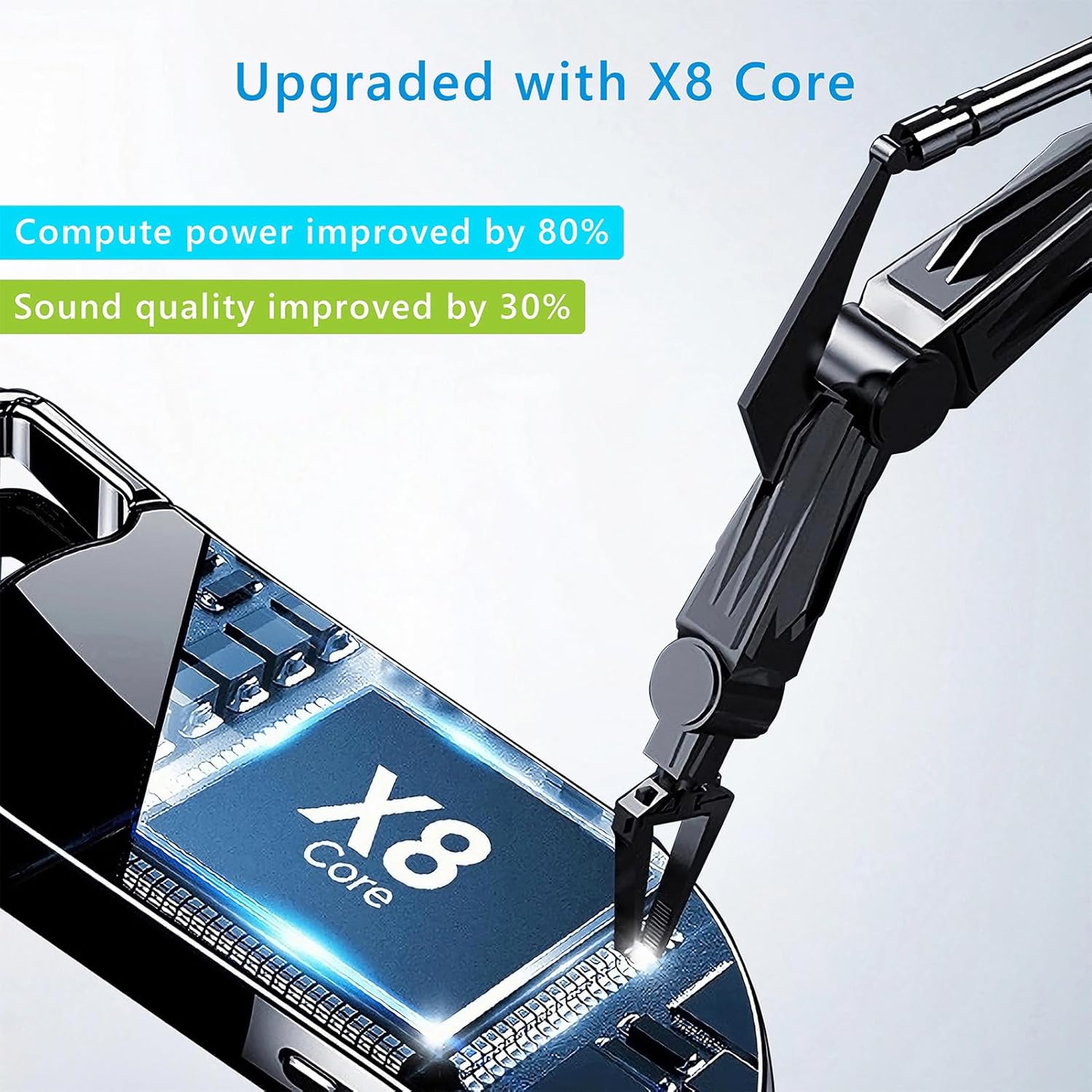
Image 8.1: Internal component view of the Vandlion V22-64GB Voice Recorder, showcasing the X8 Core. This illustrates the advanced processing unit within the device.
9. Atilẹyin ọja ati Support
For warranty information and technical support, please refer to the documentation provided with your purchase or contact Vandlion customer service through their official webojula tabi alagbata ti o ti ra ọja naa.
Tọju iwe-ẹri rira rẹ bi ẹri rira fun awọn iṣeduro atilẹyin ọja.
Ask a question about this manual
Ask about setup, troubleshooting, compatibility, parts, safety, or missing instructions. Manuals+ will review the question and use this page’s manual context to help answer it.