
AUN AUN M98 Y9
AUN 4K Android TV Stick User Manual
Model: AUN M98 Y9
Brand: AUN
Ọrọ Iṣaaju
This user manual provides comprehensive instructions for the AUN 4K Android TV Stick (Model: M98 Y9). It covers product features, setup, operation, maintenance, and troubleshooting to ensure optimal performance and user experience. The AUN TV Stick transforms any compatible display into a smart TV, offering access to a vast array of streaming content and applications.
Ohun ti o wa ninu Apoti
Nígbà tí o bá ti yọ àpótí kúrò, jọ̀wọ́ rí i dájú pé gbogbo àwọn nǹkan wọ̀nyí wà nínú rẹ̀:
- 1 x 4K Android TV Stick (AUN M98 Y9)
- 1 x Isakoṣo latọna jijin
- 1 x Agbara Adapter
- 1 x Iru C USB
- 1 x IR Cable
- 1 x Okun Afikun HDMI
- 1 x Itọsọna olumulo

Image: All components included in the AUN 4K Android TV Stick package, laid out for clear viewing. This includes the TV stick, its remote control, power adapter, Type-C cable, IR cable, HDMI extender cable, and the user manual.
Ọja Pariview
The AUN M98 Y9 Android TV Stick is a compact device designed to provide smart TV functionalities to any display with an HDMI input. It features a sleek design and intuitive controls.
Ohun elo ẹrọ
- HDMI Asopọ: Plugs directly into your TV's HDMI port.
- Atokun USB: For connecting external storage devices or peripherals.
- Power Hole (Type-C): Fun sisopọ ohun ti nmu badọgba agbara.
- Pilot Lamp: Tọkasi ipo ẹrọ.

Image: The AUN 4K Android TV Stick and its accompanying remote control. The stick is a compact, black rectangular device, and the remote is an ergonomic black controller with various buttons for navigation and voice control.
Isakoṣo latọna jijin
The included remote control allows for easy navigation and interaction with the TV Stick. It supports voice search for quick content discovery.
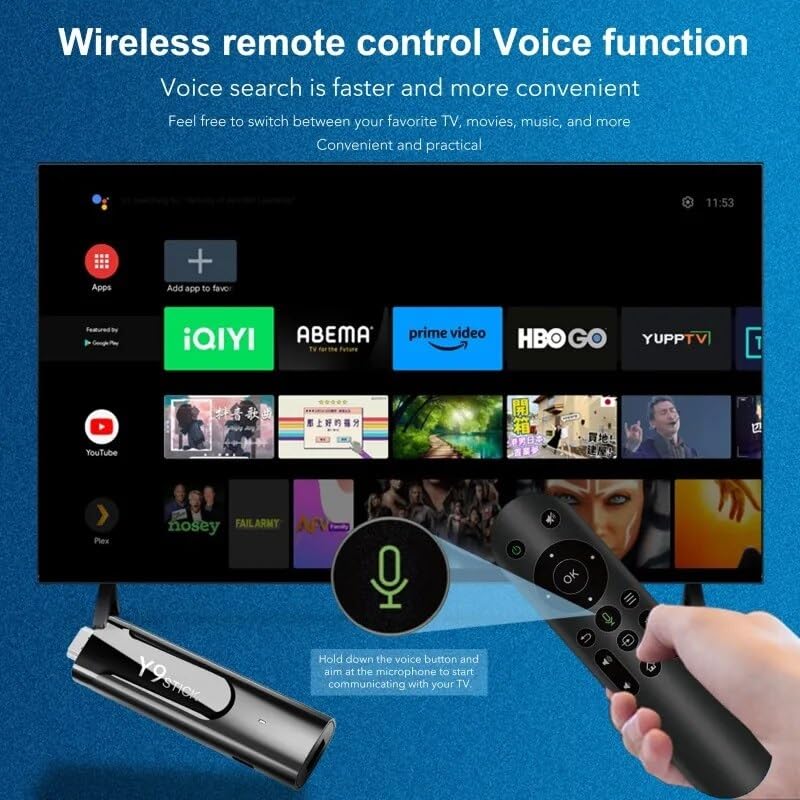
Image: A hand holding the AUN TV Stick remote control, with a visual overlay indicating the voice search button and microphone icon. The image illustrates the ease of using voice commands to interact with the TV stick's interface, which is displayed on a television screen in the background.
Eto Itọsọna
Follow these steps to set up your AUN 4K Android TV Stick:
- Connect the TV Stick: Plug the AUN TV Stick directly into an available HDMI port on your television or projector. If space is limited, use the provided HDMI extender cable.
- So agbara: Connect the Type-C cable to the "Power Hole" on the TV Stick and the other end to the provided power adapter. Plug the power adapter into a wall outlet.
- Connect IR Cable (Optional): If the TV Stick is hidden behind the TV or in a cabinet, connect the IR cable to the TV Stick and position the IR receiver in a location where it has a clear line of sight to your remote control.
- Yan Iṣawọle HDMI: Turn on your TV or projector and select the corresponding HDMI input source to which the TV Stick is connected.
- Iṣeto akọkọ: Tẹ̀lé àwọn ìlànà tó wà lójú ìbòjú láti parí ìṣètò àkọ́kọ́, títí bí àṣàyàn èdè, ìsopọ̀ Wi-Fi nẹ́tíwọ́ọ̀kì, àti wíwọlé àkọọ́lẹ̀ Google.
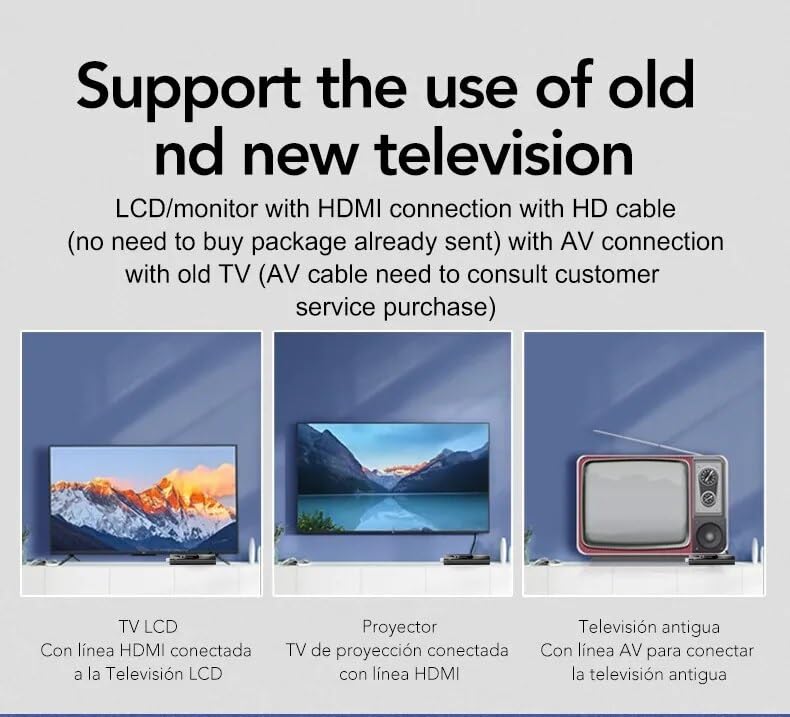
Image: This diagram illustrates the versatility of the AUN TV Stick, showing its compatibility with modern LCD TVs and projectors via HDMI, and older televisions using an AV connection (AV cable sold separately). It highlights the ease of connecting the device to various display types.
Awọn ilana Iṣiṣẹ
Lilọ kiri ni Interface
Use the directional pad and "OK" button on the remote control to navigate through the Android TV interface. The "Back" button returns to the previous screen, and the "Home" button takes you to the main home screen.
Nsopọ si Wi-Fi
- Lati iboju ile, lilö kiri si Eto.
- Yan Nẹtiwọọki & Intanẹẹti.
- Yan nẹtiwọki Wi-Fi ti o fẹ lati atokọ naa.
- Enter the Wi-Fi password using the on-screen keyboard and select Sopọ.
The AUN TV Stick supports dual-band Wi-Fi (2.4G/5G) for stable and fast wireless connectivity.

Image: This visual demonstrates the AUN TV Stick's support for both 2.4G and 5G dual-band Wi-Fi, ensuring smooth high-speed graphics and streaming. It also shows the capability to mirror content from a mobile phone to the TV screen, enhancing the viewiriri iriri.
Fifi Awọn ohun elo
Access the Google Play Store from the home screen to download and install your favorite streaming apps (e.g., Netflix, Prime Video, Disney+ Hotstar) and games. A Google account is required for Play Store access.
Using Voice Search
Press the dedicated voice button on your remote control and speak into the microphone to search for content, open apps, or get information. Voice search is faster and more convenient.
Key Awọn ẹya ara ẹrọ
- 4K Ultra HD Ipinnu: Supports stunning 4K resolution for crisp, clear visuals and an immersive viewiriri iriri.
- HDR 10+ Support: Enhanced dynamic range for vibrant colors and greater contrast.
- Widevine L1 ti ni ifọwọsi: Enables streaming of high-definition content from premium services like Netflix and Prime Video.
- Ètò Ìṣiṣẹ́ Android 13: Provides a smooth, user-friendly interface with access to a vast ecosystem of apps.
- Amlogic S905Y4 Quad A35 CPU: High-performance processor for seamless streaming and gaming.
- 2GB RAM & 16GB Storage: Sufficient memory for smooth operation and ample aaye fun apps ati media.
- Dual-Band Wi-Fi (2.4G/5G): Ensures stable and fast internet connectivity.
- Bluetooth 5: For connecting wireless headphones, game controllers, and other Bluetooth accessories.
- Dolby Audio & DTS Digital Support: Pese ọlọrọ, didara ohun immersive.
- USB & Memory Card Ports: Allows for external storage expansion and media playback.
- Atilẹyin Miracast: Enables screen mirroring from compatible devices.

Image: This image highlights the superior image quality of the AUN TV Stick, emphasizing its 4K Ultra HD and HDR capabilities. The vibrant colors and sharp details demonstrate the immersive visual experience provided by the device.

Image: This image emphasizes the generous memory configuration of the AUN TV Stick, featuring 2GB of DDR3 RAM and 16GB of eMMC storage. This combination ensures smooth operation and ample space for applications and media content.
Laasigbotitusita
If you encounter issues with your AUN 4K Android TV Stick, refer to the following common problems and solutions:
- Ko si Agbara/Ẹrọ ti Ko Tii:
- Ensure the power adapter is securely connected to the TV Stick and a working power outlet.
- Gbiyanju iṣan agbara ti o yatọ.
- No Signal on TV Screen:
- Verify the TV Stick is firmly plugged into the HDMI port.
- Ṣàyẹ̀wò pé a ṣètò TV rẹ sí orísun ìtẹ̀wọlé HDMI tó tọ́.
- Gbiyanju ibudo HDMI ti o yatọ lori TV rẹ.
- If using the HDMI extender, ensure it is properly connected.
- Iṣakoso Latọna jijin Ko Dahun:
- Ensure there are no obstructions between the remote and the TV Stick (or IR receiver).
- Ṣàyẹ̀wò bóyá àwọn bátìrì ìṣàkóso latọna jijin nílò àyípadà.
- If using the IR cable, ensure it is properly connected and positioned.
- Awọn ọran Isopọ Wi-Fi:
- Tun olulana Wi-Fi rẹ bẹrẹ.
- Ensure the TV Stick is within range of your Wi-Fi router.
- Re-enter the Wi-Fi password to ensure it is correct.
- Try connecting to the 2.4GHz band if you are on 5GHz, or vice-versa.
- App Crashing/Slow Performance:
- Pade awọn ohun elo abẹlẹ.
- Clear the cache of the problematic app via Settings > Apps.
- Restart the TV Stick by unplugging and re-plugging the power.
- Rii daju pe o ni aaye ibi-itọju ọfẹ ti o to.
Awọn pato
| Ẹya ara ẹrọ | Ẹ̀kúnrẹ́rẹ́ |
|---|---|
| Brand | AUN |
| Awoṣe | AUN M98 Y9 |
| Eto isesise | Android 13 |
| isise | Amlogic S905Y4 Kẹkẹ ẹlẹsẹ mẹrin A35 |
| Àgbo | 2 GB |
| Ibi ipamọ | 16 GB |
| Ipinnu | 4K |
| Pataki Awọn ẹya ara ẹrọ | Widevine L1, HDR 10+, AV1, Dolby Audio, DTS Digital, Miracast |
| Asopọmọra | 2.4G/5G Dual WiFi, Bluetooth 5 |
| Awọn ibudo | USB, Memory Card, HDMI, Type-C Power |
| Awọn ẹrọ ibaramu | Television, Projectors |
| Ọja Mefa | 8 x 3 x 2 cm |
| Iwọn Nkan | 300 g |

Image: This graphic illustrates the core technical specifications of the AUN TV Stick, highlighting its Amlogic S905Y4 Quad A35 CPU, OpenGL ES 3.2 GPU, H.265 video decoder supporting up to 4K@60fps, and HDMI 2.0 output for 4K@60fps display.
Itoju
To ensure the longevity and optimal performance of your AUN 4K Android TV Stick, follow these maintenance guidelines:
- Ninu: Lo asọ asọ ti o gbẹ lati nu ẹrọ naa. Maṣe lo awọn olutọpa olomi tabi awọn aerosols.
- Afẹfẹ: Ensure the device is placed in a well-ventilated area to prevent overheating. Do not cover ventilation openings.
- Ibi ipamọ: Nigbati o ko ba wa ni lilo fun awọn akoko ti o gbooro sii, tọju ẹrọ naa ni itura, aye gbigbẹ kuro lati orun taara ati awọn iwọn otutu to gaju.
- Awọn imudojuiwọn sọfitiwia: Regularly check for and install system updates to ensure the device has the latest features and security patches.
Atilẹyin ọja ati Support
The AUN 4K Android TV Stick comes with a 6-osu atilẹyin ọja from the date of purchase. This warranty covers manufacturing defects and malfunctions under normal use. Please retain your purchase receipt as proof of purchase.
For technical support, warranty claims, or any other inquiries, please contact Megaa Electronics using the following details:
- Imeeli: support@megaaelectronics.com or megaaelectronics@gmail.com
- WhatsApp: 8328671337
Please provide your product model (AUN M98 Y9) and a detailed description of the issue when contacting support.
Ask a question about this manual
Ask about setup, troubleshooting, compatibility, parts, safety, or missing instructions. Manuals+ will review the question and use this page’s manual context to help answer it.