
1. Ifihan
The STRONG Leap-S3+ Google TV Box is a powerful media streaming adapter designed to enhance your entertainment experience. It provides easy access to applications, games, and streaming services via Google Play, transforming your television into a comprehensive entertainment hub. This device supports advanced audio and video technologies, ensuring a high-quality viewing ati gbigbọ iriri.
2. Package Awọn akoonu
Jẹrisi pe gbogbo awọn ohun kan wa ninu package:
- STRONG Leap-S3+ Android TV Box
- Iṣakoso Latọna jijin (pẹlu awọn batiri AA 2 ti o wa pẹlu)
- Adapter Agbara (DC 12V/1A)
- Okun HDMI
- Afowoyi Olumulo (iwe-ipamọ yii)

Image: The retail packaging of the STRONG Leap-S3+ Android TV Box, showing the device, remote control, and branding.
3. Eto Itọsọna
- Sopọ si TV: Connect one end of the HDMI cable to the HDMI port on the STRONG Leap-S3+ box and the other end to an available HDMI input on your television.
- So agbara: Plug the power adapter into the DC 12V/1A port on the box and then into a power outlet.
- Asopọ Nẹtiwọọki (Aṣayan): For a wired connection, connect an Ethernet cable from your router to the LAN port on the box. For Wi-Fi, you will configure this during the initial setup on screen.
- Fi awọn batiri sii: Open the battery compartment of the remote control and insert the two AA batteries, ensuring correct polarity.
- Agbara Tan: Turn on your television and select the correct HDMI input source using your TV remote. The STRONG Leap-S3+ box should power on automatically.
- Iṣeto akọkọ: Follow the on-screen instructions to complete the initial setup, including language selection, Wi-Fi connection (if not using Ethernet), and Google account login. Manual setup is recommended if automatic setup via Google Home encounters issues.

Image: Rear panel of the device illustrating the various connection ports including S/PDIF, HDMI, LAN, DC power input, and USB.
4. Awọn ilana Iṣiṣẹ
4.1. Awọn iṣẹ Iṣakoso latọna jijin
The included remote control allows navigation through the Google TV interface. Key functions include:
- Paadi Lilọ kiri: Lo awọn bọtini itọsọna lati gbe nipasẹ awọn akojọ aṣayan ki o yan awọn ohun kan.
- Bọtini O dara: Jẹrisi awọn aṣayan.
- Bọtini Pada: Pada si iboju ti tẹlẹ.
- Bọtini Ile: Pada si iboju ile Google TV.
- Bọtini Iranlọwọ Google: Activates voice control for searching content or controlling the device.
- Awọn bọtini iwọn didun: Ṣe atunṣe iwọn didun ohun.
- Awọn bọtini ohun elo ti o yasọtọ: Quick access to popular streaming services like Netflix, YouTube, Disney+, and Prime Video.

Image: The remote control demonstrating the Google Assistant voice command feature, with a TV screen displaying search results.
4.2. Wíwọlé sí Àwọn Iṣẹ́ àti Àwọn Àpù Ṣíṣíkiri
Once connected to the internet and logged into your Google account, you can access a wide range of content:
- Google Play itaja: Download and install additional applications and games.
- Awọn ohun elo ti a ti fi sii tẹlẹ: Utilize dedicated buttons or navigate to pre-installed apps like Netflix, YouTube, Disney+, and Prime Video.
- Chromecast ti a ṣe sinu: Cast content directly from your mobile phone or other compatible devices to your TV screen.

Image: A smartphone screen mirroring content to a large television, demonstrating the Chromecast built-in feature.

Image: A television screen showing the Google TV interface with icons for various streaming applications, alongside the STRONG Leap-S3+ box and remote.
5. Key Awọn ẹya ara ẹrọ
- Ipinu UHD 4K: Supports Ultra High Definition (UHD) 2160p resolution for crisp and detailed visuals.
- Dolby Vision: Provides enhanced HDR (High Dynamic Range) for superior brightness, contrast, and color accuracy.
- Dolby Atmos: Delivers immersive, multi-dimensional audio that moves around you, creating a realistic sound experience.
- Chromecast ti a ṣe sinu: Seamlessly cast movies, shows, photos, and more from your mobile device to your TV.
- Oluranlọwọ Google: Use voice commands via the remote control to search for content, control playback, and manage smart home devices.
- Asopọmọra gbooro: Includes S/PDIF, HDMI, USB 2.0, LAN/Internet, Wi-Fi, and Bluetooth for versatile device connections and data transfer.

Image: Visual representation of 4K UHD 2160p resolution, highlighting fine detail.

Image: The Dolby Vision logo, indicating enhanced visual quality.

Image: The Dolby Atmos logo, representing immersive audio technology.
6. Itọju
- Ninu: Lo aṣọ rírọrùn tí ó gbẹ láti nu ẹ̀rọ náà. Má ṣe lo àwọn ohun èlò ìfọmọ́ omi tàbí àwọn ohun èlò ìpara.
- Afẹfẹ: Ensure the device is placed in a well-ventilated area to prevent overheating. Do not block ventilation openings.
- Awọn imudojuiwọn sọfitiwia: The device may receive automatic software updates. Ensure it is connected to the internet to receive these updates, which can improve performance and add new features.
- Ibi ipamọ: Tí o kò bá lò ó fún ìgbà pípẹ́, yọ ohun tí ń gbé agbára náà kúrò kí o sì fi ẹ̀rọ náà pamọ́ sí ibi tí ó tutù tí ó sì gbẹ.
7. Laasigbotitusita
| Isoro | Owun to le Fa | Ojutu |
|---|---|---|
| Ko si agbara/Ẹrọ ti ko tan | Adaparọ agbara ko sopọ tabi aṣiṣe. | Ensure the power adapter is securely connected to the device and a working power outlet. Check if the outlet is functional. |
| Ko si aworan lori TV | Incorrect HDMI input selected on TV; HDMI cable loose or faulty. | Verify your TV is set to the correct HDMI input. Check HDMI cable connections at both ends. Try a different HDMI port or cable. |
| Ko si ohun | TV volume muted or too low; audio settings incorrect. | Increase TV volume. Check audio output settings on the STRONG Leap-S3+ box. Ensure Dolby Atmos is correctly configured if used. |
| Isakoṣo latọna jijin ko ṣiṣẹ | Batteries depleted or incorrectly inserted; remote not paired. | Replace batteries, ensuring correct polarity. Re-pair the remote control with the device if necessary (refer to on-screen instructions during initial setup or device settings). |
| O lọra išẹ tabi didi | Poor internet connection; too many apps running in background; insufficient storage. | Check your internet connection speed. Close unused applications. Clear cache or uninstall unnecessary apps to free up storage. Restart the device. |
| Automatic setup via Google Home fails | Connectivity issues or software glitch. | Proceed with manual setup directly on the TV screen using the remote control. This often resolves such issues. |
8. Awọn pato
| Ẹya ara ẹrọ | Ẹ̀kúnrẹ́rẹ́ |
|---|---|
| Brand | Alagbara |
| Orukọ awoṣe | LEAP-S3 plus |
| Àwọ̀ | Funfun |
| Ọja Iru | Box form factor |
| Asopọmọra Technology | Bluetooth, Ethernet, HDMI, USB, Wi-Fi |
| Asopọmọra Iru | HDMI |
| Pataki Awọn ẹya ara ẹrọ | 4K UHD, Chromecast, Browser |
| Ipinnu | 4K (2160p) |
| Awọn iṣẹ Intanẹẹti atilẹyin | Apple TV, Disney, Free Sat/Free View, Freesat/Freeview, Google TV, Magenta TV, Browser, Netflix, Prime Video, RTL, Wow, YouTube |
| Adarí Iru | Isakoṣo latọna jijin |
| Awọn ẹrọ ibaramu | Smartphone, Television, Screen |
| Ibi ti ina elekitiriki ti nwa | DC 12V/1A |
| Awọn iwọn (Itosi.) | 9.6 cm x 9.6 cm x 2.3 cm (from image) |
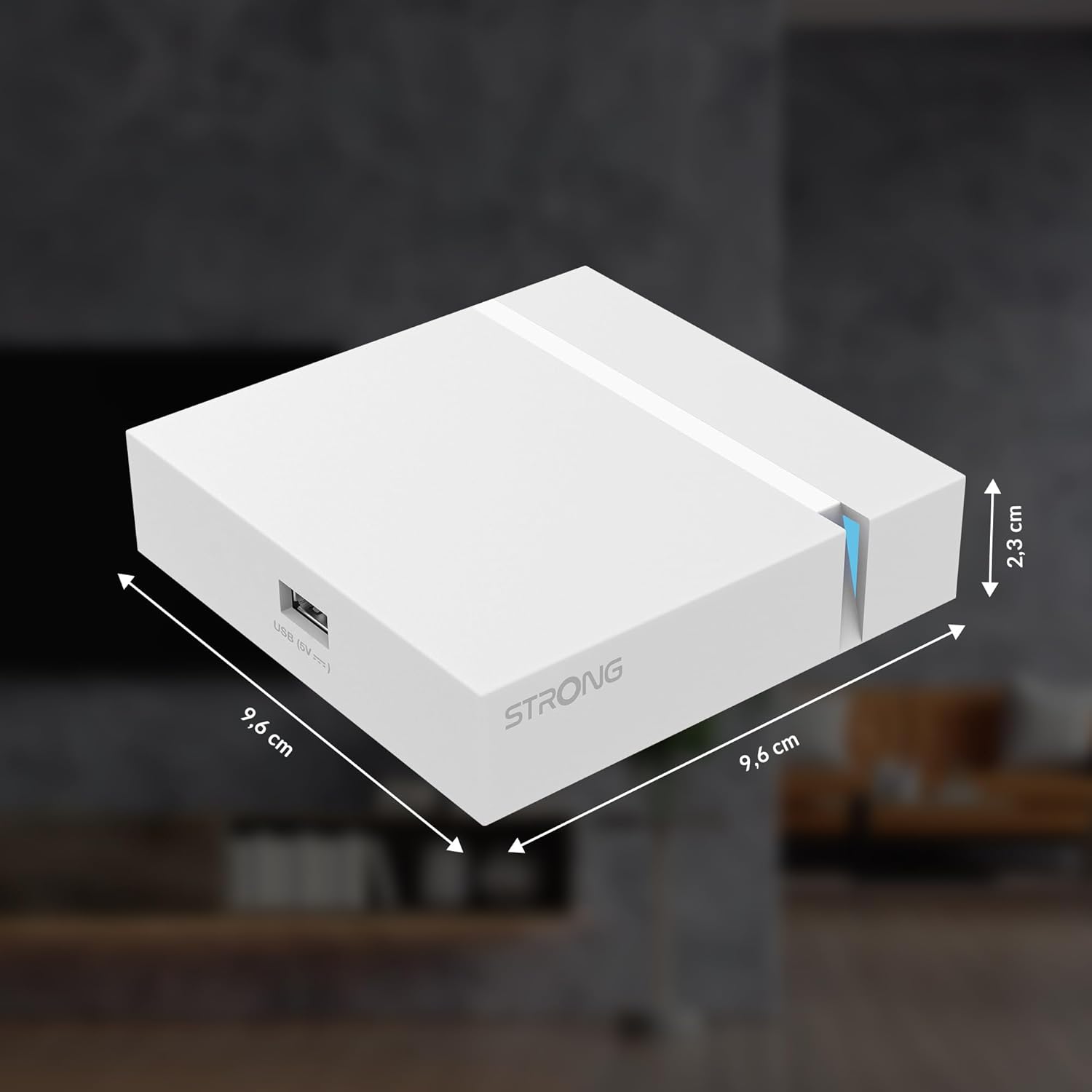
Image: The physical dimensions of the STRONG Leap-S3+ Android TV Box.
9. Atilẹyin ọja ati Support
For warranty information and technical support, please refer to the documentation provided with your purchase or visit the official Strong website. Information regarding spare parts availability and software update guarantees is not available in this manual.