
1. Ifihan
The Darmoshark M2 Wireless Gaming Mouse is engineered for high-performance gaming, offering versatile connectivity options, a high-precision sensor, and a lightweight, ergonomic design. This manual provides essential information for setup, operation, and maintenance to ensure optimal performance.
2. Key Awọn ẹya ara ẹrọ
2.1 Mẹta-Mode Asopọ
The Darmoshark M2 supports three connection modes: 2.4G wireless, USB-C wired, and Bluetooth. This versatility allows seamless switching between devices and setups, providing flexibility for various gaming and work environments. The 4K mode enhances responsiveness and battery life during gaming sessions.

Image: Darmoshark M2 showcasing its tri-mode connectivity features.
Fidio: Ipariview of the Darmoshark M2 Wireless Gaming Mouse, demonstrating its various features and connectivity options.
2.2 PAW3395 Optical Sensor
Equipped with the top-tier PAW3395 optical sensor, the M2 mouse delivers exceptional precision with up to 26,000 DPI resolution, 650 IPS tracking speed, and a response rate of 1000-4000Hz (up to 8000Hz with a 4K receiver). This ensures faster and more accurate tracking for a superior gaming experience.

Image: Close-up of the Darmoshark M2's internal components, featuring the high-end PAW3395 flagship sensor.
2.3 Lightweight Magnesium Alloy Design
The M2 features a pure right-handed ergonomic design crafted from magnesium alloy, making it incredibly durable and lightweight at approximately 39g. This design minimizes wrist strain and palm sweating during extended use, enhancing comfort and reducing fatigue.
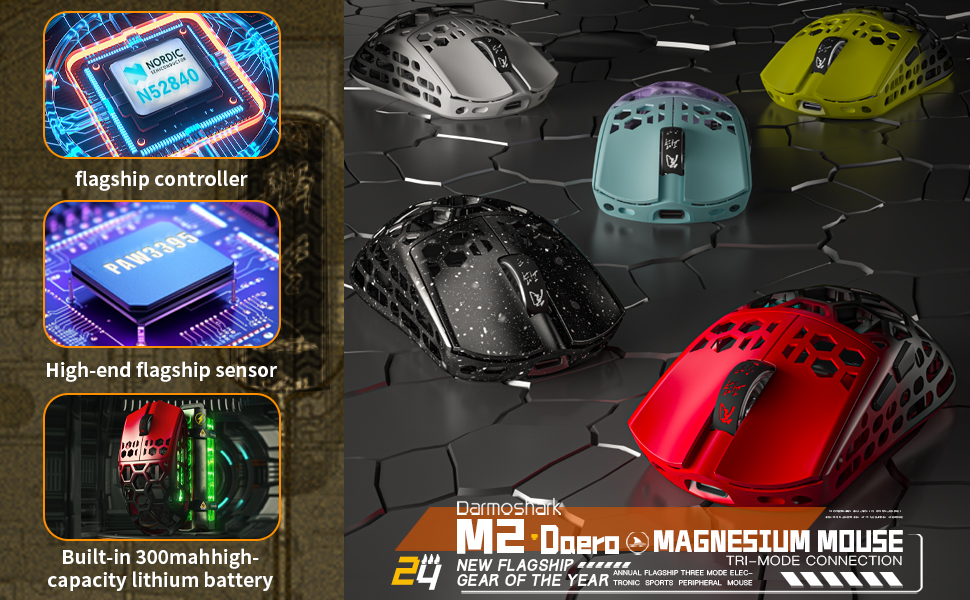
Image: The Darmoshark M2 mouse showcasing its magnesium alloy exoskeleton structure.
Video: The Darmoshark M2 Magnesium aluminum alloy Wireless Gaming Mouse, highlighting its lightweight construction and material.
2.4 Awọn bọtini siseto
The mouse features 5 programmable buttons, allowing users to customize DPI settings, key functions, and macro assignments through dedicated software. This level of customization provides a competitive edge and adapts the mouse to individual gaming styles.

Image: A visual representation of the Darmoshark M2 mouse's customizable settings via its software interface.
3. Eto
3.1 Nsopọ Asin
- Ipo Alailowaya 2.4G:
- Fi olugba USB 2.4G sinu ibudo USB ti o wa lori kọnputa rẹ.
- Switch the mode selector on the bottom of the mouse to the 2.4G position.
- Asin yẹ ki o sopọ laifọwọyi.
- Ipo Bluetooth:
- Switch the mode selector on the bottom of the mouse to the Bluetooth position.
- Lori kọmputa rẹ tabi ẹrọ, lilö kiri si awọn eto Bluetooth ki o wa awọn ẹrọ titun.
- Select "Darmoshark M2" from the list to pair.
- Ipo Firanṣẹ:
- Connect the provided USB-C cable to the mouse and the other end to your computer.
- Asin yoo yipada laifọwọyi si ipo ti firanṣẹ ati bẹrẹ gbigba agbara.
3.2 Gbigba agbara si Asin
Connect the mouse to your computer using the supplied USB-C cable. The mouse will charge while in wired mode or when connected to a power source. The 500mAh battery provides extended usage time.

Image: The Darmoshark M2 mouse connected to a computer via its USB-C charging cable.
4. Awọn ilana Iṣiṣẹ
4.1 DPI Atunṣe
The DPI (Dots Per Inch) can be adjusted to change the mouse's sensitivity. Use the dedicated DPI button (refer to the product diagram for location) or the accompanying software to cycle through preset DPI levels or customize your own.
4.2 Awọn bọtini siseto
Utilize the Darmoshark software to assign custom functions, macros, or hotkeys to the 5 programmable buttons. This allows for personalized control and optimized gameplay.
4.3 Idibo Oṣuwọn
The mouse supports polling rates from 1000Hz to 4000Hz, with an option for 8000Hz when using the 4K receiver. Higher polling rates provide more frequent updates to your computer, resulting in smoother and more responsive cursor movement.
5. Itọju
5.1 Ninu
To clean your Darmoshark M2 mouse, use a soft, dry, lint-free cloth. Avoid using harsh chemicals, cleaning solvents, or abrasive materials, as these may damage the mouse's finish or internal components.
5.2 batiri Itọju
To prolong battery life, avoid exposing the mouse to extreme temperatures. Charge the mouse regularly, especially if it will not be used for an extended period. Do not attempt to replace the internal battery yourself.
6. Laasigbotitusita
6.1 Asin Ko fesi
- Ṣayẹwo ipele batiri ki o gba agbara si Asin ti o ba jẹ dandan.
- Ensure the mouse is correctly connected in your chosen mode (2.4G, Bluetooth, or Wired).
- Fún ipò 2.4G, rí i dájú pé a ti so olugba USB mọ́ ọn dáadáa.
- For Bluetooth mode, ensure Bluetooth is enabled on your device and the mouse is paired.
- Gbìyànjú láti so àsín mọ́ ibudo USB tàbí kọ̀ǹpútà mìíràn láti yọ àwọn ìṣòro ibudo/kọ̀ǹpútà kúrò.
6.2 Lag or Stuttering Cursor
- Ensure there are no obstructions or sources of interference (e.g., other wireless devices) between the mouse and the receiver (2.4G mode).
- Update your mouse drivers and firmware to the latest version using the Darmoshark software.
- Reduce the polling rate if your system experiences performance issues.
6.3 DPI Kò Yípadà
- Rii daju pe asin naa ti tan ati ti sopọ.
- Check if the DPI button is functioning correctly.
- Open the Darmoshark software to verify and adjust DPI settings.
7. Awọn pato
| Ẹya ara ẹrọ | Ẹ̀kúnrẹ́rẹ́ |
|---|---|
| Awoṣe | Darmoshark M2 |
| Asopọmọra Technology | Tri-Mode (2.4G Wireless, USB-C Wired, Bluetooth) |
| Imọ-ẹrọ Iwari išipopada | Ojú (PAW3395 Sensọ) |
| Ipinnu DPI | Titi di 26,000 DPI |
| Iyara Ipasẹ | Ọdun 650 IPS |
| Isare | 50G |
| Idibo Oṣuwọn | 1000-4000Hz (up to 8000Hz with 4K receiver) |
| Awọn bọtini eto | 5 |
| Iwọn Nkan | 1.48 iwon (isunmọ 42g) |
| Batiri | 500mAh Litiumu Ion (pẹlu) |
| Package Mefa | 6.34 x 4.45 x 3.03 inches |
| Àwọ̀ | Pupa (iyàtọ̀) |
8. Atilẹyin ọja ati Support
The Darmoshark M2 Wireless Gaming Mouse comes with a manufacturer's warranty. For detailed warranty information, product support, or technical assistance, please visit the official Darmoshark webojula tabi kan si wọn onibara iṣẹ. Tọju iwe-ẹri rira rẹ fun awọn ẹtọ atilẹyin ọja.