
1. Ifihan
This manual provides detailed instructions for the safe and efficient operation of your HPRT Mini Photo Printer CP2100. Please read this manual thoroughly before using the product to ensure optimal performance and longevity.
2. Ohun ti o wa ninu Apoti
Nigbati o ba ṣii, jọwọ rii daju pe gbogbo awọn nkan ti o wa ni isalẹ wa ati ni ipo to dara:
- HPRT Mini Photo Printer
- Printer USB Cable
- Ìwé Ìtọ́sọ́nà Ọjà (ìwé yìí)
- 10 sheets 2x3 inch Photo Paper (consumable)

Image: The HPRT Mini Photo Printer CP2100, USB cable, product manual, and a pack of 10 photo sheets.
3. Ọja irinše
Familiarize yourself with the various parts of your HPRT Mini Photo Printer CP2100:
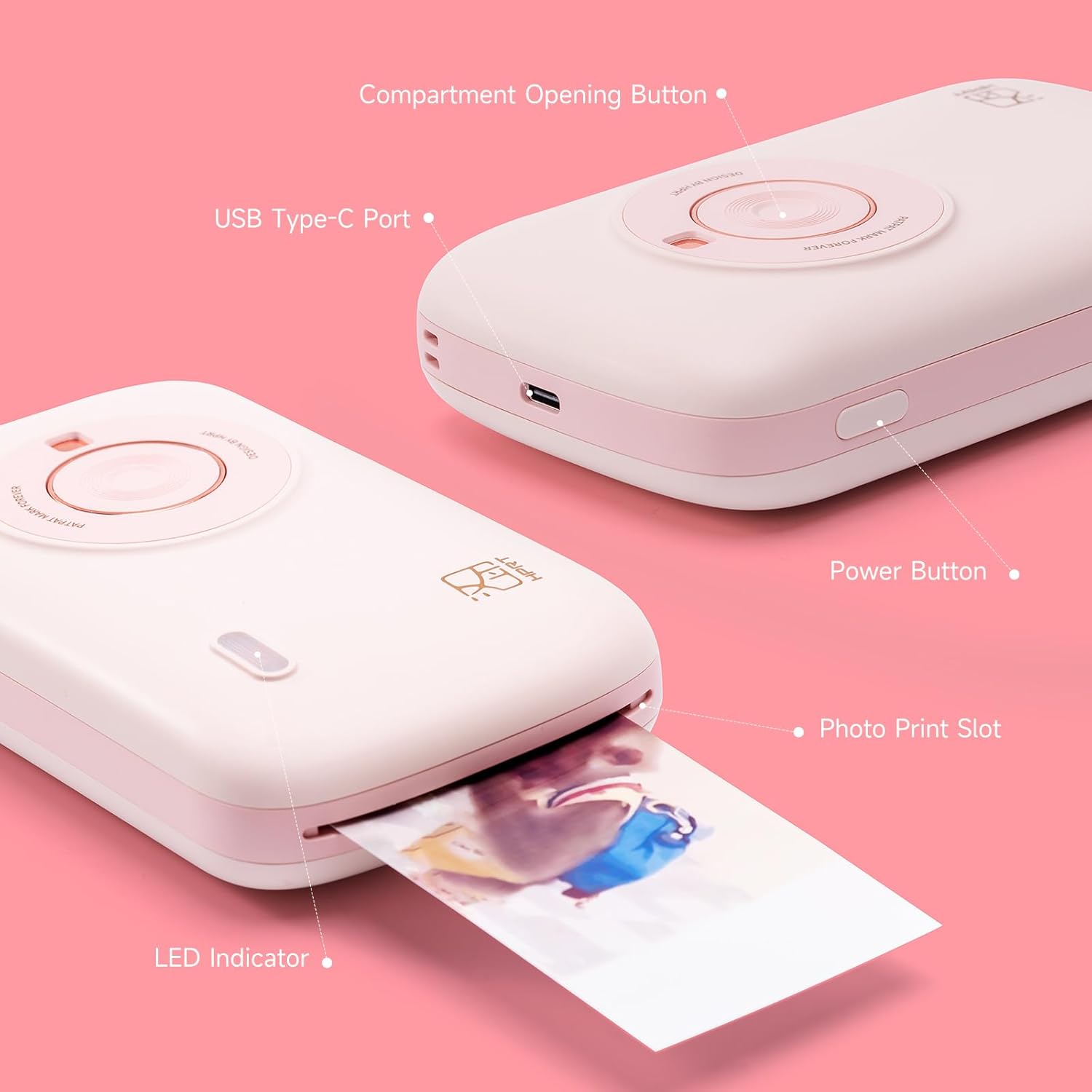
Aworan: A alaye view of the printer highlighting key components such as the Compartment Opening Button, USB Type-C Port, Power Button, Photo Print Slot, and LED Indicator.
- Compartment Opening Button: Used to open the consumable compartment.
- Ibudo Iru-C USB: For charging the printer.
- Bọtini agbara: To turn the printer on/off.
- Photo Print Slot: Ibi ti awọn fọto ti a tẹjade ba jade kuro ninu ẹrọ naa.
- Atọka LED: Displays printer status (e.g., charging, ready, printing).
4. Eto
4.1 Ngba agbara si itẹwe
Before initial use, fully charge the printer using the provided USB cable. Connect the USB Type-C end to the printer's port and the other end to a compatible USB power source (e.g., computer, wall adapter).

Image: The printer being charged via its USB Type-C port.
4.2 Loading Photo Paper and Ribbon
The CP2100 uses thermal dye sublimation technology, requiring both photo paper and a ribbon cartridge. Ensure you use official HPRT consumables for best results.
- Press the Compartment Opening Button to open the consumable compartment.
- Insert the ribbon cartridge into the designated slot until it clicks into place.
- Place the 2x3 inch photo paper into the paper tray, glossy side up.
- Pa ideri iyẹwu naa ni aabo.
Pataki: Do not touch the color bar of consumables with your hands during installation to avoid affecting printing quality.
4.3 App Installation and Bluetooth Connection
The HPRT Mini Photo Printer CP2100 operates wirelessly via Bluetooth using the HEYPHOTO app.
- Gba awọn HEYPHOTO àpù láti inú ilé ìtajà àpù fóònù rẹ (ó wà fún iOS àti Android).
Download HEYPHOTO App - Turn on the printer by pressing and holding the Power Button for 3 seconds until the blue light flashes quickly.
- Open the HEYPHOTO app, click "Add Device", and then "Connect" with "CP2100-XXXX" (where XXXX are the last four digits of your printer's Bluetooth address).
- Confirm the connection within your phone's Bluetooth settings if prompted.

Image: The HEYPHOTO app interface on a smartphone, demonstrating various features and connectivity with the printer.
5. Awọn ilana Iṣiṣẹ
5.1 Títẹ̀ fọ́tò kan
- Ensure the printer is turned on and connected to your smartphone via the HEYPHOTO app.
- Select the desired photo from your phone's gallery within the HEYPHOTO app.
- Use the app's editing features to adjust the photo (e.g., add borders, filters, crop, create collages, make ID photos, print AR photos).
- Tap the "Print" button in the app. The printer will begin the thermal dye sublimation process, printing each color layer sequentially.
- Wait for the photo to fully exit the Photo Print Slot. Do not pull out the photo paper or exit the app during transfer to avoid paper jams or data transfer failure.

Aworan: Examples of photos printed with the HPRT CP2100, used in scrapbooks and mini albums.
5.2 App Awọn ẹya ara ẹrọ
The HEYPHOTO app offers various features to enhance your printing experience:
- Filters & Borders: Apply creative filters and decorative borders to your photos.
- ID Photos: Create ID photos in various standard sizes.
- AR Photos: Print photos with augmented reality capabilities for interactive experiences.
- Collages: Combine multiple photos into a single print.
- Awọn atunṣe: Fine-tune brightness, contrast, saturation, and other image properties.

Image: The HEYPHOTO app's editing interface, showing options for filters, frames, and stickers.
6. Itọju
6.1 Consumables
The HPRT CP2100 uses thermal dye sublimation paper and ribbon cartridges. Replace these consumables when depleted. You can find photo paper refills or bundles in our store.
6.2 Ninu
Regularly clean the exterior of the printer with a soft, dry cloth. Avoid using harsh chemicals or abrasive materials. For internal cleaning, refer to the detailed instructions in the full product manual.
7. Laasigbotitusita
If you encounter issues with your HPRT Mini Photo Printer CP2100, please refer to the following common solutions:
- Ẹ̀rọ ìtẹ̀wé kò tan: Ensure the printer is fully charged.
- Ko le sopọ nipasẹ Bluetooth: Verify Bluetooth is enabled on your smartphone and the printer. Restart both devices and try connecting again through the HEYPHOTO app.
- Didara titẹ ti ko dara: Ensure you are using official HPRT photo paper and ribbon. Do not touch the color bar of consumables. Run a calibration sheet if available in the app.
- Jam iwe: Do not pull out the photo paper or exit the app during printing. If a jam occurs, gently open the compartment and carefully remove any jammed paper.
- Printer is hot: If the ambient temperature is too high, the printer may be affected. After printing multiple photos in a row, the device has overtemperature protection, which is normal. Printing will continue after cooling.
For more detailed troubleshooting steps, please consult the comprehensive product manual or contact customer support.
8. Awọn pato
| Ẹya ara ẹrọ | Ẹ̀kúnrẹ́rẹ́ |
|---|---|
| Orukọ awoṣe | CP2100 |
| Imọ-ẹrọ titẹ sita | Dye Sublimation |
| Asopọmọra Technology | Bluetooth 5 |
| O pọju Awọ Print Resolution | 300 x 300 DPI |
| Iwon dì | 2x3 Inches (53x86mm) |
| O pọju Input dì Agbara | 10 iwe |
| Ọja Mefa | 4.4"D x 2.4"W x 6.88"H |
| Iwọn Nkan | 14.4 iwon |
| Orisun agbara | Batiri litiumu 1 nilo |
9. Atilẹyin ọja ati Support
Your HPRT Mini Photo Printer CP2100 comes with a limited warranty. For specific terms and conditions, please refer to the warranty information included with your product packaging.
If you have any questions about the use of the machine, require technical assistance, or need to claim warranty service, please feel free to contact us at any time via Email. Our customer service team is ready to assist you.
10. Awọn fidio ọja osise
10.1 CP2100 Unboxing & User Guide
Video: A detailed unboxing and user guide for the HPRT Mini Photo Printer CP2100, demonstrating initial setup and basic functions.
10.2 HPRT Portable Photo Printer Overview
Fidio: Ipariview of the HPRT Portable Photo Printer, showcasing awọn ẹya ara ẹrọ rẹ ati gbigbe.


