
Ọrọ Iṣaaju
This manual provides detailed instructions for setting up and operating your Majority Frameo Snap10 WiFi Digital Picture Frame. This 10.1-inch digital frame allows you to display photos and videos shared via the Frameo app, offering a convenient way to share memories with family and friends. It features a touchscreen, 32GB of internal storage, auto-rotate functionality, and a motion sensor for efficient use.

The Majority Frameo Snap10 Digital Picture Frame, showcasing a family photo on its 10.1-inch screen.
Ohun ti o wa ninu Apoti
Jọwọ ṣayẹwo awọn akoonu package lati rii daju pe gbogbo awọn ohun kan wa:
- Majority Frameo Snap10 Digital Picture Frame
- Ifẹsẹtẹ
- Adapter agbara
- Isakoṣo latọna jijin
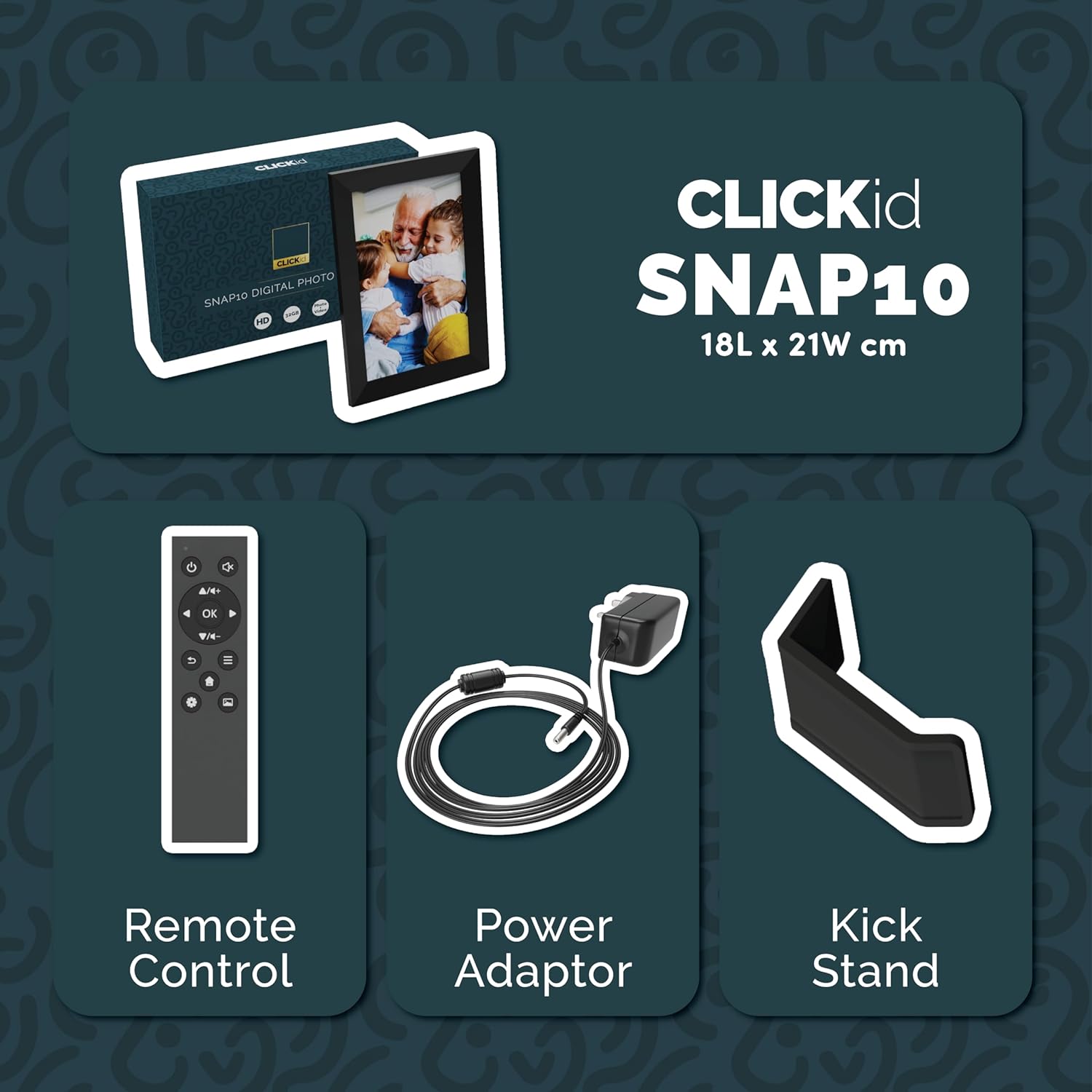
Included accessories: Remote Control, Power Adapter, and Kickstand.
Eto Itọsọna
- Unpack the Frame: Carefully remove the digital picture frame and all accessories from the packaging.
- Attach the Kickstand: Insert the kickstand into the designated slot on the back of the frame. The frame supports both horizontal and vertical orientations.
- So agbara: Plug the power adapter into the DC port on the back of the frame, then connect it to a power outlet. The frame will automatically power on.
- Iṣeto akọkọ: Tẹ̀lé àwọn ìlànà tó wà lójú ìbòjú láti yan èdè rẹ, agbègbè àkókò, kí o sì so pọ̀ mọ́ nẹ́tíwọ́ọ̀kì Wi-Fi kan.
- Install Frameo App: Download the "Frameo" app from your smartphone's app store (available for iOS and Android).
- Connect Frame to App: Open the Frameo app and create an account. On your digital frame, tap "Add Friend" to get a unique code. Enter this code into the Frameo app on your smartphone to link the devices.

The back of the frame features essential ports for power, USB, and Micro SD card.
Awọn ilana Iṣiṣẹ
Sending Photos and Videos
Once your frame is connected to the Frameo app, you can easily send photos and short videos from your smartphone.
- Open the Frameo app on your smartphone.
- Select the photos or videos you wish to send.
- Choose the connected digital frame as the recipient.
- Add a caption if desired, then tap "Send."

The Frameo app simplifies photo and video uploads from your smartphone.
Lilo awọn Touchscreen
The 10.1-inch LCD touchscreen allows for intuitive navigation. Swipe left or right to browse photos, tap to view options, and pinch to zoom.
Awọn iṣẹ iṣakoso latọna jijin
The included remote control provides convenient access to various frame functions from a distance.
- Lilọ kiri: Use arrow keys to move through menus and photos.
- O DARA/Tẹ sii: Jẹrisi awọn aṣayan.
- Pada: Pada si iboju ti tẹlẹ.
- Ṣiṣẹ/Daduro: Control slideshows or video playback.
- Iwọn didun: Adjust audio for videos.

The included remote control for convenient operation.
Sensọ išipopada
The integrated motion sensor can be enabled to automatically turn the display on when movement is detected and off when the area is vacant, conserving energy. This setting can be adjusted in the frame's system settings.
Iṣe Yiyi Aifọwọyi
The frame automatically adjusts the photo orientation (portrait or landscape) based on how the frame is positioned. Ensure the auto-rotate feature is enabled in the settings for optimal display.

The auto-rotate feature adjusts display based on frame orientation.
Awọn ẹya Loriview
- 10.1-inch LCD Touchscreen: Provides a clear display and interactive control.
- Ibi ipamọ inu 32GB: Ample space to store thousands of photos and videos.
- Wi-Fi Asopọmọra: Enables seamless photo and video sharing from anywhere via the Frameo app.
- Frameo App Integration: Manage your frame, send media, and invite friends/family to share their moments.
- Sensọ išipopada: Automatically turns the screen on/off to save energy.
- Yiyi Aifọwọyi: Adjusts photo orientation automatically.
- Weather and Calendar Display: Integrated widgets provide current weather and calendar information.
- Iho kaadi iranti: Supports Micro SD cards for additional storage or direct media import.
Itoju
- Ninu: Lo aṣọ rírọrùn tí ó gbẹ láti nu ibojú àti férémù náà. Yẹra fún fífi àwọn ohun ìfọṣọ tàbí fífọ́ tààrà lórí ibojú náà.
- Awọn imudojuiwọn sọfitiwia: The frame may receive automatic software updates via Wi-Fi. Ensure your frame is connected to the internet to receive the latest features and improvements.
- Isakoso Ibi ipamọ: Lorekore tunview your stored photos and videos. You can delete unwanted media directly from the frame or through the Frameo app to free up space.
Laasigbotitusita
- Fireemu ko ṣiṣẹ lori:
- Ensure the power adapter is securely connected to both the frame and a working power outlet.
- Ko le sopọ si Wi-Fi:
- Verify your Wi-Fi password. Ensure the frame is within range of your Wi-Fi router. Try restarting your router and the frame.
- Photos not appearing on the frame:
- Confirm that the frame is connected to Wi-Fi and linked to your Frameo app account. Check the Frameo app to ensure photos were successfully sent. Allow some time for photos to download, especially large batches.
- Frame is stuck on a white screen with a loading bar:
- This may indicate a software issue. Try performing a soft reset by disconnecting the power for 30 seconds and then reconnecting. If the issue persists, a factory reset might be necessary (refer to the frame's settings for this option, noting it will erase all data).
- Iṣakoso latọna jijin ko ṣiṣẹ:
- Check if the batteries in the remote control need replacement. Ensure there are no obstructions between the remote and the frame's IR receiver.
Awọn pato
| Brand | Pupọ |
| Nọmba awoṣe | Snap10 |
| Àwọ̀ | Dudu |
| Iwon iboju | 10.1 inches |
| Ipinnu | 800*1280 |
| Apakan Ipin | 2.10:1 |
| Agbara Ibi ipamọ Iranti | 32 GB |
| Asopọmọra Technology | Wi-Fi |
| Ọna Iṣakoso | App, Touchscreen, Remote |
| Orisun agbara | Okun Itanna |
| Iwọn Nkan | 491 giramu |
| Awọn Iwọn Nkan (L x W) | 7.08"L x 8.26"W |
Atilẹyin ọja ati Support
The Majority Frameo Snap10 Digital Picture Frame comes with a Atilẹyin ọja ti o gbooro si ọdun 2. Registration is required to activate the extended warranty. Please refer to the product packaging or the manufacturer's website for details on how to register your product.
For technical support, troubleshooting assistance, or warranty claims, please contact Majority customer service through their official webaaye tabi alaye olubasọrọ ti a pese ninu iwe ọja rẹ.
Fidio ọja
This video demonstrates the ease of sharing photos and videos with the Frameo app and viewing them on the digital picture frame, highlighting its use for connecting family members.