
Ọrọ Iṣaaju
This manual provides comprehensive instructions for the ASWEE P4 Smart Watch, a versatile fitness tracker with call capabilities, a 1.85" TFT display, and various health monitoring features. Please read this manual thoroughly before using your device.
Ohun ti o wa ninu Apoti
- ASWEE P4 Smart Watch
- Ngba agbara USB
- Itọsọna olumulo
Ọja Pariview
The ASWEE P4 Smart Watch features a rectangular 1.85-inch TFT-LCD display with a 240x280 resolution. It includes a physical button on the side for navigation and interaction. The watch is designed for comfortable wear and easy access to its functions.
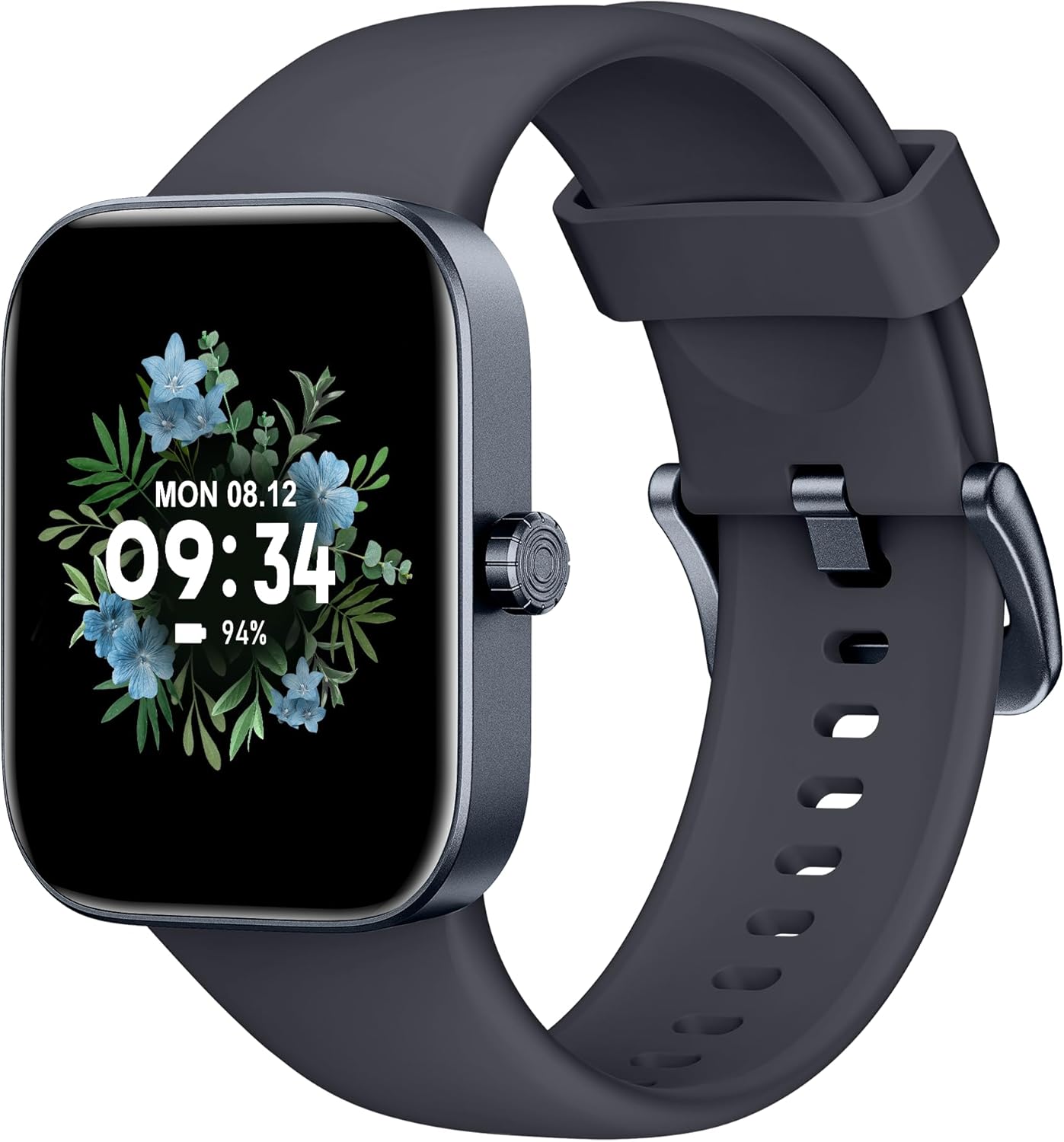
Iwaju view of the ASWEE P4 Smart Watch, displaying time and date with a floral background.
Ṣeto
Ngba agbara si Ẹrọ
The ASWEE P4 Smart Watch comes with a magnetic charging cable. Align the magnetic end of the cable with the charging contacts on the back of the watch. The watch will indicate when it is charging. A full charge typically takes approximately 2 hours and provides up to 7 days of active use or 15 days on standby.

Illustration showing the magnetic charging cable connected to the back of the ASWEE P4 Smart Watch, highlighting battery life indicators.
Fifi sori App ati Sisopọ
To utilize all features of your ASWEE P4 Smart Watch, you need to download and install the "FitPro" application on your smartphone. Scan the QR code provided in the watch's packaging or search for "FitPro" in your device's app store.
Sopọ pẹlu iPhone
Follow these steps to pair your watch with an iPhone:
- Rii daju pe Bluetooth ti ṣiṣẹ lori iPhone rẹ.
- Open the "FitPro" app.
- Navigate to "Setting" and then "Bind device".
- Select your watch (e.g., KM13Pro) from the scan results.
- Confirm the pairing request by clicking "Pair" and then "Allow" for notifications.
- Go to your iPhone's Bluetooth settings and connect to "KM13Pro Audio" for call functionality.
Video tutorial demonstrating how to bind the ASWEE P4 Smart Watch to an iPhone and how to unbind it.
Pairing with Android Phone
Follow these steps to pair your watch with an Android phone:
- Rii daju pe Bluetooth ti ṣiṣẹ lori foonu Android rẹ.
- Open the "FitPro" app.
- Navigate to "Set" and then "Bind device".
- Select your watch (e.g., KM13Pro) from the scan results.
- Confirm the pairing request by clicking "Pair".
Video tutorial demonstrating how to bind the ASWEE P4 Smart Watch to an Android phone and how to unbind it.
Awọn ilana Iṣiṣẹ
Ipilẹ Lilọ kiri
The watch features a touch-sensitive screen for navigation. Swipe left/right or up/down to access different functions and menus. The side button typically serves as a home or back button.
Call and Text Functionality
With its built-in speaker and microphone, the ASWEE P4 allows you to answer/dial calls directly from your wrist when connected via Bluetooth. You can also receive SMS text and SNS messages (Facebook, Twitter, WhatsApp, etc.) with vibration alerts.

Image showing the ASWEE P4 Smart Watch on a wrist, with notification icons for various messaging apps, indicating Bluetooth 5.0 connectivity for calls and texts.
Itoju ilera
Aago naa n pese abojuto ilera pipe:
- Oṣuwọn Ọkàn: 24-hour tracking with a high-precision PPG sensor. Stores 7 days of resting heart rate data.
- Atẹgun ẹjẹ: Measures SpO2 levels using a reflective-light based sensor.
- Abojuto oorun: Tracks sleep quality through Awake, Light, and Deep sleep stages, helping to improve sleep duration and quality.
- Abojuto Wahala: Provides insights into stress levels.

Image illustrating the ASWEE P4 Smart Watch's 24-hour data tracking capabilities, including heart rate, stress level, and blood oxygen monitoring.

Image depicting the ASWEE P4 Smart Watch's sleep health assistant feature, showing sleep duration and patterns.
Awọn ọna Amọdaju
The ASWEE P4 supports multiple workout modes, including running, bike riding, basketball, and tennis. It accurately monitors data points like heart rate, time, and calories burned to enhance workout efficiency.

Aworan ifihanasing the ASWEE P4 Smart Watch's various sports modes, including running, bike riding, basketball, and jumping jack, with activity data like steps, distance, and calories.
Isọdi
Choose from over 100 stylish watch faces or create your own using photos from your phone gallery.
Itoju
Ninu
Ṣe nu aago rẹ nigbagbogbo ati okun pẹlu asọ, damp asọ. Yago fun lilo awọn kẹmika lile tabi awọn ohun elo abrasive.
Ibi ipamọ
Tọju aago naa ni itura, aye gbigbẹ nigbati o ko ba lo.
Laasigbotitusita
Agogo naa ko tan-an
- Rii daju pe aago naa ti gba agbara ni kikun. Sopọ mọ okun gbigba agbara ati orisun agbara fun o kere ju ọgbọn išẹju 30.
Awọn Ọrọ Isopọpọ
- Rí i dájú pé Bluetooth ti ṣiṣẹ́ lórí fóònù rẹ àti pé aago náà wà láàrín ibi tí a lè dé.
- Tun foonu rẹ ati aago bẹrẹ mejeeji.
- If previously paired, try "forgetting" the device in your phone's Bluetooth settings and re-pairing through the FitPro app.
- Ensure the FitPro app has necessary permissions (Bluetooth, location).
Dáta Ìlera Tí Kò Péye
- Rii daju pe aago naa ti wọ snugly lori ọwọ ọwọ rẹ, kii ṣe ju tabi alaimuṣinṣin pupọ.
- Nu sensọ lori ẹhin aago naa.
- Environmental factors and individual physiology can affect readings.
Awọn iwifunni ko han
- Check app permissions for FitPro to ensure it can access notifications.
- Verify that notification push settings are enabled within the FitPro app for desired applications.
- Rii daju pe aago naa ti sopọ si foonu rẹ nipasẹ Bluetooth.
Awọn pato
| Ẹya ara ẹrọ | Ẹ̀kúnrẹ́rẹ́ |
|---|---|
| Orukọ awoṣe | P4 |
| Brand | ASWE |
| Iwon iboju | 1.85 inches |
| Ifihan ọna ẹrọ | TFT-LCD |
| Ipinnu | 240 x 280 PPI |
| Eto isesise | Wọ OS |
| Asopọmọra | Bluetooth 5.3 |
| Omi Resistance | IP68, 5 ATM |
| Igbesi aye batiri (Lilo Aṣoju) | Titi di ọjọ mẹwa 7 |
| Akoko Iduro | Titi di ọjọ mẹwa 15 |
| Akoko gbigba agbara | Isunmọ. wakati meji 2 |
| Pataki Awọn ẹya ara ẹrọ | Fitness Tracker, Sleep Monitor, Reminders, Multimedia control, Answer/Dial Call, Heart Rate Monitor, Blood Oxygen Monitor, Stress Monitor |
| Iwọn Nkan | 2.89 iwon |
Akiyesi: Awọn pato jẹ koko ọrọ si iyipada laisi akiyesi iṣaaju.
Atilẹyin ọja ati Support
For warranty information and technical support, please refer to the official ASWEE webojula tabi kan si wọn onibara iṣẹ. Tọju iwe-ẹri rira rẹ bi ẹri rira.