
MageGee Moon104
MageGee Moon104 Wireless Mechanical Keyboard User Manual
Model: Moon104
Ọrọ Iṣaaju
This manual provides comprehensive instructions for the setup, operation, maintenance, and troubleshooting of your MageGee Moon104 Wireless Mechanical Keyboard. Please read this manual thoroughly to ensure optimal performance and longevity of your device.

Image: The MageGee Moon104 Wireless Mechanical Keyboard, showcasing its full layout and the included USB receiver.
Package Awọn akoonu
Nigbati o ba ṣii package, rii daju pe gbogbo awọn nkan wa:
- MageGee Moon104 Wireless Mechanical Keyboard
- USB-C si okun USB-A
- 2.4GHz USB olugba
- Afowoyi Olumulo (iwe-ipamọ yii)
Awọn pato
| Ẹya ara ẹrọ | Ẹ̀kúnrẹ́rẹ́ |
|---|---|
| Awoṣe | Moon104 |
| Awọn iwọn (L x W x H) | 16.73" x 16.73" x 0.98" (42.49 cm x 42.49 cm x 2.49 cm) |
| Iwọn Nkan | 2.33 poun (1.06 kg) |
| Asopọmọra | USB-C Alailowaya, 2.4GHz Alailowaya, Bluetooth 3.0/5.0 |
| Keyboard Iru | Mechanical, Low Profile |
| Yipada | Awọn iyipada ẹrọ brown |
| Imọlẹ afẹyinti | RGB Backlit (Seven-color breathing system) |
| Ibamu | Windows, macOS |
| Iṣeduro Lilo | Ọfiisi |

Aworan: An loriview of the MageGee Moon104 keyboard's key features, including its tri-mode connectivity, low-profile switches, RGB backlighting, and ergonomic design.
Ṣeto
1. Ngba agbara si Keyboard
Kí a tó lò ó fún ìgbà àkọ́kọ́, a gbani nímọ̀ràn láti gba agbára kííbọọ̀dù náà ní kíkún nípa lílo okùn USB-C tí a pèsè. So ìpẹ̀kun USB-C mọ́ kííbọọ̀dù náà, kí o sì so ìpẹ̀kun USB-A mọ́ ìbúdó USB tí ó ní agbára lórí kọ̀ǹpútà rẹ tàbí adapter ògiri.

Aworan: A sunmọ-soke view of the MageGee Moon104 keyboard showing the detachable USB-C cable connected to its port.
2. Nsopọ Keyboard
The MageGee Moon104 supports three connection modes: USB-C Wired, 2.4GHz Wireless, and Bluetooth.

Image: The MageGee Moon104 keyboard demonstrating its tri-mode connection capabilities, showing both wired USB-C and the 2.4GHz receiver in use.
2.1. USB-C ti firanṣẹ Asopọ
- So opin USB-C ti okun pọ si ibudo keyboard.
- So opin USB-A pọ si ibudo USB ti o wa lori kọnputa rẹ.
- Awọn bọtini itẹwe yoo jẹ idanimọ laifọwọyi ati ṣetan fun lilo.
2.2. 2.4GHz Asopọ Alailowaya
- Wa olugba USB 2.4GHz (a maa n tọju rẹ sinu yara kan lori keyboard tabi ki o fi sii lọtọ).
- Pulọọgi olugba USB sinu ibudo USB ti o wa lori kọnputa rẹ.
- Lori keyboard, tẹ Fn + Q lati yipada si ipo alailowaya 2.4GHz. Ina Atọka yoo jẹrisi asopọ naa.
2.3. Asopọ Bluetooth
- Lori keyboard, tẹ Fn + W or Fn + E to select a Bluetooth channel (BT1 or BT2). The indicator light will flash, indicating pairing mode.
- On your device (computer, laptop, smart TV), enable Bluetooth and search for new devices.
- Select "MageGee Moon104" from the list of available devices to pair.
- Once paired, the indicator light on the keyboard will become solid.
Awọn ilana Iṣiṣẹ
1. Switching Between Connection Modes
To switch between the three connection modes, use the following key combinations:
- Fn + TAB: Switch to USB-C Wired Mode
- Fn + Q: Yipada si 2.4GHz Alailowaya Ipo
- Fn + W: Switch to Bluetooth Channel 1 (BT1)
- Fn + E: Switch to Bluetooth Channel 2 (BT2)
2. RGB Backlight Iṣakoso
The keyboard features an RGB backlight system with multiple effects and brightness levels.

Image: The MageGee Moon104 keyboard displaying its vibrant RGB backlighting across the keys.
- Ṣiṣatunṣe Imọlẹ: Lo Fn + ↑ (increase brightness) and Fn + ↓ (decrease brightness).
- Iyipada Awọn ọna Imọlẹ: Lo Fn + → or Fn + ← to cycle through different RGB effects.
- Iyara Ṣatunṣe: Lo Fn + - (dinku iyara) ati Fn + = (increase speed) for dynamic lighting effects.
3. Windows/macOS Compatibility Switch
The keyboard includes a physical switch to toggle between Windows and macOS layouts for optimal key mapping.

Image: A close-up of the MageGee Moon104 keyboard highlighting the physical switch to select between Windows and Mac operating system compatibility.
- Wa awọn WIN/MAC switch on the side or back of the keyboard.
- Slide the switch to the appropriate operating system setting.
4. Àwọn Kọ́kọ́rọ́ Iṣẹ́ (F1-F12)
The F-keys often have secondary functions accessible by pressing them in combination with the Fn key. Refer to the keycaps for specific icons indicating these functions (e.g., media control, volume, brightness).
Apẹrẹ Ergonomic
The MageGee Moon104 is designed with ergonomics in mind to reduce wrist strain during extended use. It features low-profile mechanical switches and adjustable tilt feet.

Image: The MageGee Moon104 keyboard positioned on a desk, showcasing its ergonomic profile and comfortable typing angle.
- Adjustable Tilt Feet: Extend the feet on the underside of the keyboard to adjust the typing angle to your preference.
- Pro kekerefile Awọn iyipada: Awọn kekere-profile design of the mechanical switches contributes to a flatter keyboard, reducing the need for excessive wrist extension.
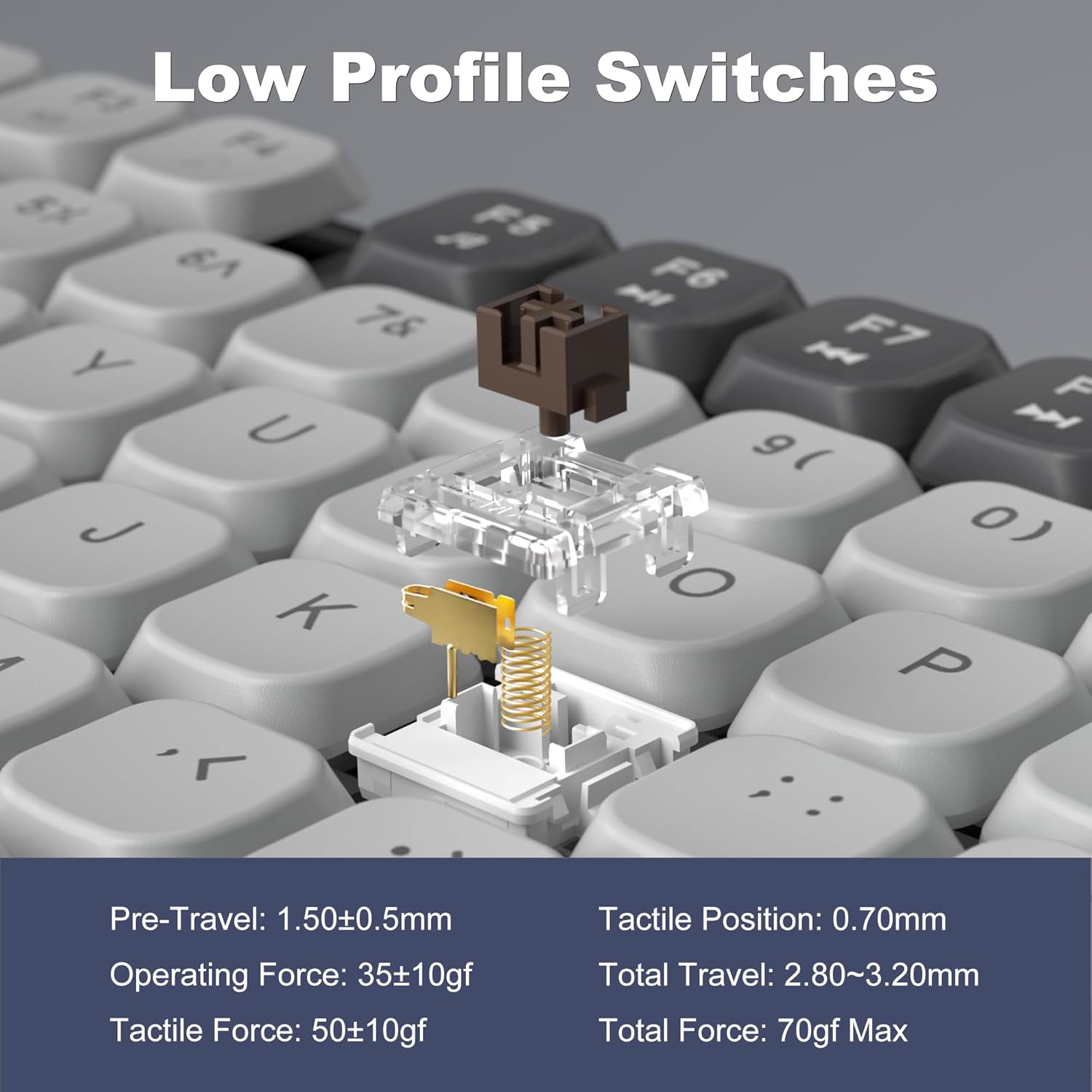
Image: A detailed diagram illustrating the internal structure and operational specifications of the low-profile mechanical switches used in the MageGee Moon104 keyboard.
Itoju
Lati rii daju igbesi aye gigun ati iṣẹ to dara julọ ti keyboard rẹ, tẹle awọn itọnisọna itọju wọnyi:
- Ninu: Use a soft, dry cloth to wipe the surface of the keyboard. For deeper cleaning, use compressed air to remove dust and debris from between the keycaps. Avoid using harsh chemicals or abrasive materials.
- Ibi ipamọ: Nigbati o ko ba wa ni lilo fun awọn akoko ti o gbooro sii, tọju bọtini itẹwe si ibi ti o tutu, ibi gbigbẹ kuro lati orun taara ati awọn iwọn otutu to gaju.
- Itọju Batiri: Má ṣe jẹ́ kí batiri náà máa jáde dáadáa nígbà gbogbo. Gba agbára lórí keyboard déédéé láti lè máa rí i dájú pé batiri náà wà ní ìlera tó dára.
Laasigbotitusita
If you encounter issues with your MageGee Moon104 keyboard, refer to the following common solutions:
- Keyboard Ko Dahun:
- Rii daju pe o ti gba agbara fun keyboard.
- Verify the correct connection mode is selected (Wired, 2.4GHz, or Bluetooth).
- Fún 2.4GHz, rí i dájú pé a ti so olugba USB mọ́ ọn dáadáa.
- For Bluetooth, ensure the keyboard is paired and within range of your device. Try re-pairing if necessary.
- If using wired mode, try a different USB port or cable.
- Imọlẹ ẹhin Ko Ṣiṣẹ tabi Ti ko tọ:
- Check backlight brightness settings using Fn + ↑.
- Yiyipo nipasẹ awọn ipo ina ni lilo Fn + → or Fn + ←.
- Rí i dájú pé bátìrì kìíbọọ̀dù náà ní agbára tó tó.
- Awọn bọtini ti ko forukọsilẹ tabi titẹ lẹẹmeji:
- Mọ bọtini ti o kan pẹlu afẹfẹ fisinuirindigbindigbin lati yọkuro eyikeyi idoti.
- Rí i dájú pé keyboard ti gba agbára tán pátápátá.
- If the issue persists, try connecting the keyboard to a different device to rule out software or driver issues on your primary computer.
- Function Keys (F1-F12) Not Working:
- Rii daju pe o tẹ bọtini naa Fn key in combination with the desired F-key for secondary functions.
- Verify the keyboard is set to the correct operating system (Windows/Mac) using the physical switch.
Atilẹyin ọja ati Support
MageGee provides a 1-year warranty for the Moon104 Wireless Mechanical Keyboard. If you encounter any product issues or have questions, please contact MageGee customer support via Amazon email. They aim to reply within 24 hours and provide a satisfactory solution.
Fun atilẹyin, jọwọ ṣabẹwo si MageGee Store on Amazon or contact their customer service directly through your Amazon order details.