
Ọrọ Iṣaaju
This manual provides detailed instructions for the GAMFAMI TERIOS Wireless Controller. Please read this manual carefully before using the product to ensure proper operation and to maximize your gaming experience. This controller is designed for use with PlayStation 4, PS4 Pro, and PS4 Slim consoles.
Ọja Awọn ẹya ara ẹrọ
- Awọn Joysticks Ipa Hall: Equipped with Hall joysticks to prevent drift and ensure a longer lifespan with smooth, precise control.
- Eto Makiro: Two programmable back buttons (M1, M2) allow mapping of various inputs (X, O, Triangle, Square, Up, Down, Left, Right, L3, R3, L1, R1, L2, R2) for enhanced gameplay.
- Asopọ Alailowaya: Enjoy a seamless wireless gaming experience with Bluetooth technology.
- Dual Shock Vibration: Enhanced dual shock motors provide immersive haptic feedback for a realistic gaming experience.
- Iṣẹ Turbo: Activate the Turbo feature for rapid, repeated button presses, offering a competitive advantage.
- Batiri pipẹ: Features a 1000mAh rechargeable battery for extended play sessions.
- Apẹrẹ Ergonomic: Lightweight and durable ABS construction with textured grips for comfortable handling.
- Built-in Speaker & 3.5mm Audio Jack: Provides high-quality audio directly from the controller and supports headset connection.
Package Awọn akoonu
Jọwọ ṣayẹwo awọn akoonu ti package lori unboxing:
- GAMFAMI TERIOS Wireless Controller
- Okun Ngba agbara USB
- Ilana itọnisọna
Adarí Ìfilélẹ
Familiarize yourself with the buttons and features of your GAMFAMI TERIOS Wireless Controller.
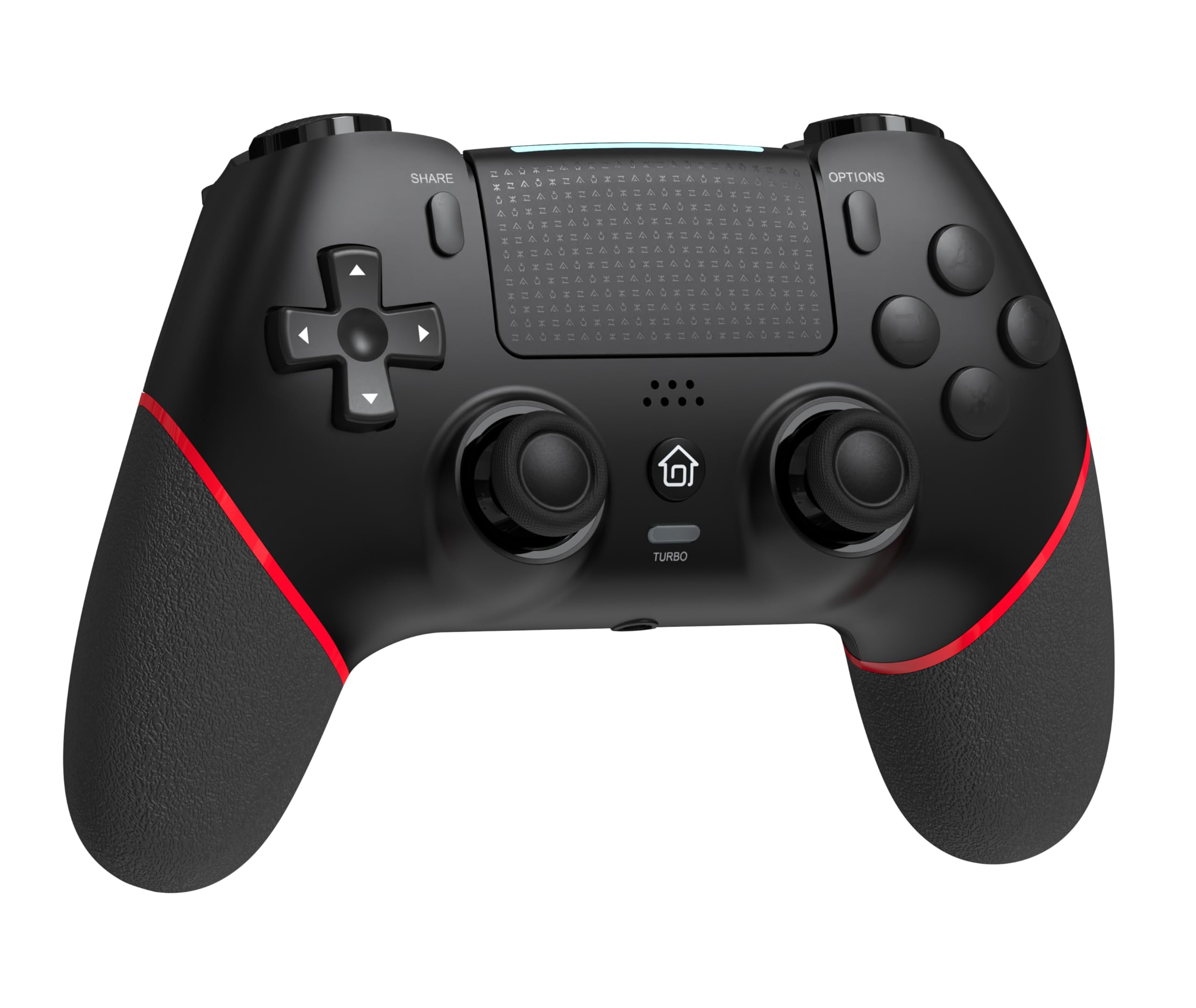
Iwaju view of the GAMFAMI TERIOS Wireless Controller, showing the joysticks, D-pad, action buttons, Share, Options, Home, and Turbo buttons, and the touchpad.
- Paadi itọsọna (D-paadi): Fun titẹ sii itọsọna.
- Awọn bọtini iṣe (Igun mẹta, Circle, Cross, Square): Standard PlayStation action buttons.
- Osi/Ọtun Analog Sticks: For precise movement and camera control. Features Hall Effect technology.
- Bọtini PIN: Fun pinpin akoonu ere.
- Bọtini Aṣayan: For in-game menus and options.
- PS Button (Home Button): To access the PS4 system menu.
- Awọn bọtini L1/R1: Awọn bọtini ejika.
- L2/R2 Triggers: Analog okunfa.
- Paadi ọwọ: Multi-touch input area.
- Awọn bọtini M1/M2: Awọn bọtini ẹhin ti a le ṣeto.
- Bọtini TURBO: Ó ń mú iṣẹ́ turbo ṣiṣẹ́/ó ń pa iṣẹ́ náà.
- Jack agbekọri 3.5mm: For connecting a compatible headset.
- Ibudo USB-C: Fun gbigba agbara ati asopọ waya.

Pada view of the controller, highlighting the M1 and M2 programmable buttons and product information.
Eto ati Asopọmọra
Pairing with PS4/PS4 Pro/PS4 Slim
- Rii daju pe console PS4 rẹ ti wa ni titan.
- Connect the controller to your PS4 console using the included USB charging cable.
- Press the PS button on the controller. The light bar will flash, indicating it is pairing.
- Once the light bar turns solid, the controller is successfully paired and ready for use.
- You can now disconnect the USB cable for wireless play.
Reconnecting to PS4
After initial pairing, simply press the PS button on the controller to reconnect wirelessly to your PS4 console.
Awọn ilana Iṣiṣẹ
Lilo iṣẹ Turbo
- Tẹ mọlẹ TURBO bọtini.
- Nigba dani TURBO, press the action button (e.g., Cross, Circle, Square, Triangle, L1, R1, L2, R2) you wish to apply the turbo function to.
- Release both buttons. The selected action button will now rapidly repeat its input when held down.
- To disable turbo for a specific button, repeat the process: hold TURBO and press the turbo-enabled action button.
- To disable turbo for all buttons, press and hold the TURBO bọtini fun 5 aaya.
Macro Programming (M1/M2 Buttons)
The M1 and M2 buttons on the back of the controller can be programmed to replicate other button inputs.
- Tẹ mọlẹ Pinpin bọtini ati awọn M1 or M2 button simultaneously for 3 seconds until the light bar flashes rapidly. This indicates macro programming mode.
- Press the button(s) you wish to map to M1 or M2 (e.g., X, O, Triangle, Square, Up, Down, Left, Right, L3, R3, L1, R1, L2, R2). You can map a single button or a sequence of buttons.
- Tẹ awọn M1 or M2 button again to save the macro. The light bar will stop flashing rapidly and return to its normal state.
- To clear a macro, repeat step 1, then press the M1 or M2 button twice without pressing any other buttons.

Illustration of the advanced buttons and their programming capabilities.
Gbigba agbara ati batiri Management
A ti pese oludari naa pẹlu batiri gbigba agbara 1000mAh kan.
Gbigba agbara Alakoso
- Connect the included USB charging cable to the USB-C port on the controller.
- Connect the other end of the cable to a USB port on your PS4 console (when powered on or in rest mode) or a compatible USB wall adapter (5V/1A recommended).
- The light bar on the controller will slowly pulse orange while charging.
- Once fully charged, the light bar will turn off.
Atọka Ipele Batiri
The controller's light bar will indicate battery status. A low battery will cause the light bar to flash red. It is recommended to charge the controller when this occurs.
Itoju
- Ninu: Lo aṣọ rírọrùn tí ó gbẹ láti nu ohun èlò ìdarí náà. Má ṣe lo àwọn kẹ́míkà líle tàbí àwọn ohun èlò ìpalára.
- Ibi ipamọ: Tọju olutọju naa ni itura, aye gbigbẹ kuro lati orun taara ati awọn iwọn otutu to gaju.
- Yago fun awọn isọ silẹ: Dáàbò bo olùdarí náà kúrò lọ́wọ́ àwọn ìṣàn àti àwọn ìkọlù, èyí tí ó lè ba àwọn ẹ̀yà ara inú jẹ́.
Laasigbotitusita
| Isoro | Ojutu |
|---|---|
| Olùdarí kò so/sopọ̀ mọ́ ara wọn. |
|
| Controller experiences input lag or disconnection. |
|
| Joysticks exhibit drift. |

Illustration of Hall Effect joystick technology, designed to prevent drift. |
| Controller does not charge. |
|
Awọn pato
| Orukọ awoṣe | TORIOS |
| Brand | GAMFAMI |
| Awọn ẹrọ ibaramu | PS4, PS4 Pro, PS4 Slim |
| Adarí Iru | Gamepad |
| Asopọmọra Technology | Bluetooth (Ailowaya) |
| Orisun agbara | Agbara Batiri |
| Agbara Batiri | 1000mAh |
| Iwọn Nkan | 0.37 kilo |
| Àwọ̀ | Pupa Dudu |
Atilẹyin ọja ati Support
For warranty information and technical support, please refer to the documentation included with your purchase or visit the official GAMFAMI webojula. Tọju iwe-ẹri rira rẹ bi ẹri rira fun eyikeyi awọn ibeere atilẹyin ọja.
For further assistance, please contact GAMFAMI customer service through their official channels.