
1. Ifihan
This manual provides essential information for the installation, operation, and maintenance of your FSP Champ Tower 1K Double-Conversion Uninterruptible Power Supply (UPS). The FSP Champ Tower 1K UPS is designed to provide reliable power protection for critical electronic equipment, ensuring continuous operation during power outages and protecting against various power disturbances. Please read this manual thoroughly before installation and operation to ensure proper use and maximize the lifespan of your unit.
2. Awọn ilana aabo
Please adhere to the following safety precautions to prevent injury and damage to the UPS or connected equipment:
- Aabo Itanna: The UPS contains hazardous voltages. Do not attempt to disassemble the unit. Servicing should only be performed by qualified personnel.
- Ilẹ: Always connect the UPS to a grounded AC power outlet.
- Ayika: Install the UPS in a well-ventilated area, free from excessive dust, humidity, and extreme temperatures. Avoid direct sunlight.
- Ifihan Olomi: Do not expose the UPS to rain or moisture. Do not place containers with liquids on or near the UPS.
- Apọju: Do not overload the UPS. Ensure the total power consumption of connected equipment does not exceed the UPS'ss rated capacity.
- Mimu Batiri: Awọn batiri le ṣafihan eewu ti mọnamọna itanna ati lọwọlọwọ kukuru kukuru giga. Ṣe akiyesi awọn iṣọra to dara nigbati o ba n ṣiṣẹ pẹlu awọn batiri.
- Tiipa pajawiri: Familiarize yourself with the location of the power button and the procedure for emergency shutdown.
3. Package Awọn akoonu
Upon unpacking, please verify that all items listed below are included and undamaged. If any items are missing or damaged, contact your dealer immediately.
- FSP Champ Tower 1K UPS Unit
- Afowoyi Olumulo (iwe-ipamọ yii)
- Okun Ibaraẹnisọrọ USB
- RS232 Cable Ibaraẹnisọrọ
- Okun Input Agbara
- Output Power Cables (quantity may vary by region)
4. Ọja Ipariview
4.1 Igbimọ iwaju

olusin 4.1: Iwaju view of the FSP Champ Tower 1K UPS. This image displays the front of the UPS unit, featuring a prominent blue LCD screen that shows real-time status information such as input/output voltage, load level, and battery status. Below the screen are control buttons labeled 'ON/MUTE', 'SELECT', and 'OFF/ENTER' for managing the UPS functions and navigating the display. The lower section of the front panel has ventilation grilles.
The front panel features an LCD display and control buttons for monitoring and managing the UPS. The LCD provides real-time information on input/output voltage, load level, battery status, and operational mode. The buttons allow for power control, menu navigation, and alarm muting.
4.2 ru Panel
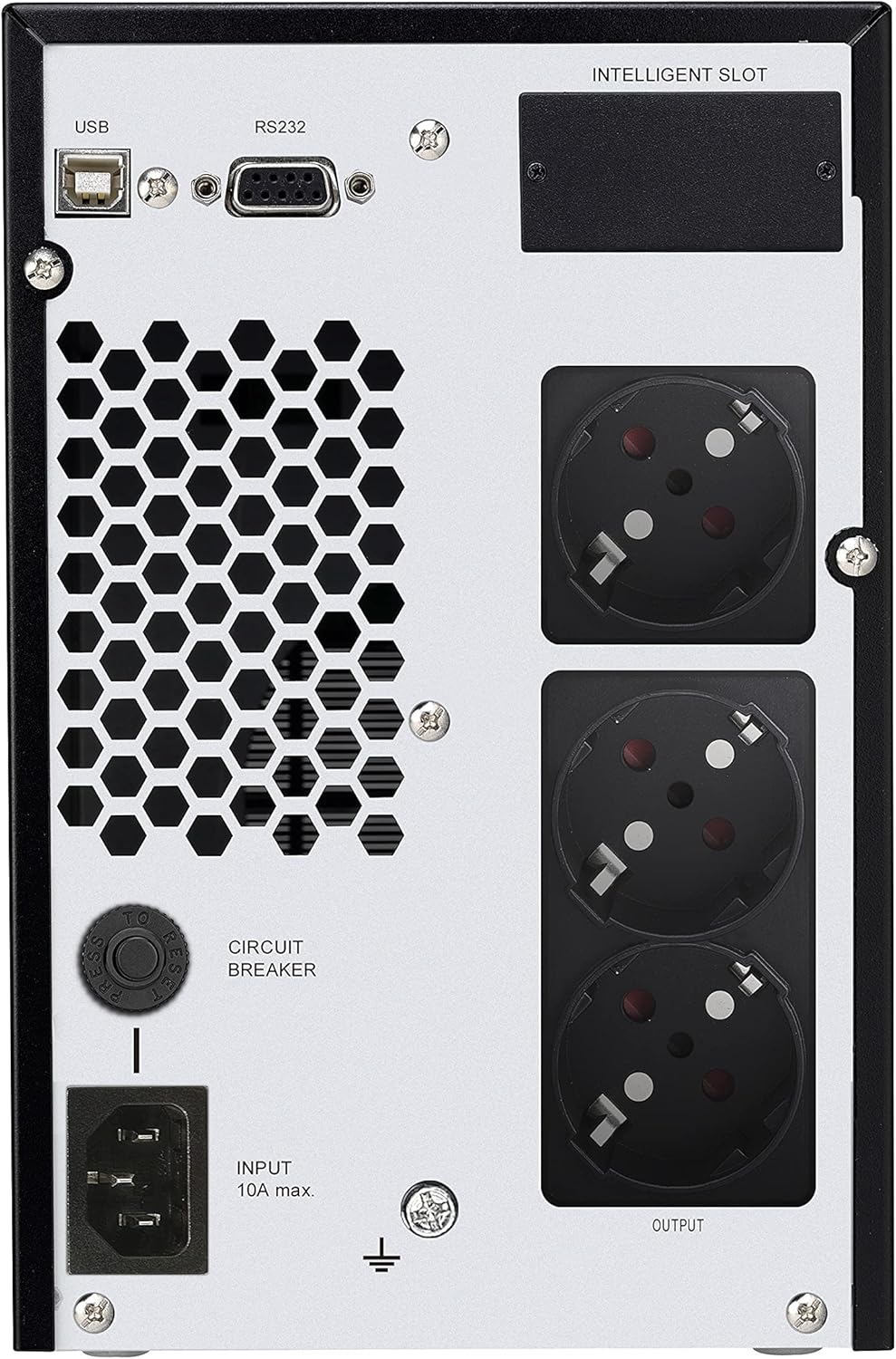
olusin 4.2: Ẹyìn view of the FSP Champ Tower 1K UPS. This image shows the back panel of the UPS, which includes several key connections. On the left, there is an 'INPUT' power connector (IEC C14) with a 'CIRCUIT BREAKER' button above it. To the right, there are three 'OUTPUT' power receptacles (IEC C13) for connecting protected devices. Above these, communication ports are visible: a USB port, an RS232 port, and an 'INTELLIGENT SLOT' for optional network management cards.
The rear panel provides all necessary connections for power input, protected power output, and communication interfaces:
- Input Agbara Asopọ: Connects the UPS to the utility power source.
- Awọn gbigba Agbejade: Provide battery-backed and surge-protected power to connected equipment.
- Opin Iyika monamona: Provides overload protection for the UPS.
- Ibudo USB: For connecting to a computer for monitoring and shutdown software.
- Ibudo RS232: Serial communication port for monitoring and control.
- Intelligent Slot: For optional SNMP or relay cards to enhance network management capabilities.
5. fifi sori
- Ṣii silẹ: Carefully unpack the UPS and inspect for any shipping damage.
- Ibi: Place the UPS on a flat, stable surface in a clean, well-ventilated area. Ensure adequate clearance around the unit for airflow.
- Gbigba agbara akọkọ: Before initial use, connect the UPS to a grounded AC outlet and allow it to charge for at least 8 hours without any load connected. This ensures optimal battery performance.
- Ohun elo Asopọmọra:
- Connect your critical equipment (computers, monitors, network devices) to the UPS output receptacles.
- Do not connect laser printers or strip heaters to the UPS output, as their high power draw can overload the unit.
- Awọn isopọ ibaraẹnisọrọ: Connect the USB or RS232 cable from the UPS to your computer for monitoring and automatic shutdown capabilities. Install the provided monitoring software (if applicable) on your computer.
6. Isẹ
6.1 Agbara Lori Soke
- Ensure the UPS is connected to a utility power source and has completed its initial charge.
- Press and hold the 'ON/MUTE' button on the front panel for approximately 2 seconds until you hear a beep. The UPS will start and the LCD display will illuminate.
- The UPS will perform a self-test and then enter online mode, providing power to connected equipment.
6.2 Powering Off the UPS
- If the UPS is supplying power from the battery (during a power outage), first shut down all connected equipment gracefully.
- Press and hold the 'OFF/ENTER' button on the front panel for approximately 2 seconds until you hear a beep. The UPS will shut down.
- To completely remove power, disconnect the UPS from the AC utility outlet.
6.3 Ifihan LCD ati Awọn bọtini Iṣakoso
The LCD display provides critical status information. Use the 'SELECT' button to cycle through different display parameters (e.g., input voltage, iwọn didun ti o wujadetage, battery capacity, load percentage). The 'ON/MUTE' button can also be used to mute audible alarms during certain events.
7. Itọju
- Itọju Batiri: To maintain optimal battery life, ensure the UPS is connected to AC power continuously. Avoid frequent deep discharges. Perform a battery calibration test (if available via software) periodically.
- Ninu: Keep the UPS clean and free of dust. Use a dry cloth to wipe the exterior. Do not use liquid cleaners or solvents. Ensure ventilation openings are clear.
- Rirọpo Batiri: Batteries are consumable items and will eventually require replacement. Refer to the manufacturer's guidelines for battery replacement procedures. This should only be performed by qualified service personnel.
- Ibi ipamọ: If storing the UPS for an extended period, ensure it is fully charged, then disconnect it from AC power. Recharge the UPS every 3-6 months to prevent battery degradation.
8. Laasigbotitusita
This section addresses common issues you might encounter with your UPS. If the problem persists after attempting these solutions, contact technical support.
| Isoro | Owun to le Fa | Ojutu |
|---|---|---|
| UPS ko ni tan. | No AC input power; Low battery; UPS fault. | Check AC power connection and outlet. Allow UPS to charge for several hours. If problem persists, contact support. |
| UPS beeps nigbagbogbo. | On battery mode; Overload; Battery fault. | Check AC input. Reduce connected load. Check battery status on LCD. |
| Connected equipment loses power during outage. | UPS overloaded; Battery depleted; UPS fault. | Ensure total load is within UPS capacity. Allow battery to fully charge. Contact support if issue persists. |
| Communication software not working. | Incorrect cable; Driver issue; Software settings. | Verify USB/RS232 cable connection. Reinstall drivers/software. Check software communication settings. |
9. Awọn pato
| Ẹya ara ẹrọ | Ẹ̀kúnrẹ́rẹ́ |
|---|---|
| Brand | FSP |
| Nọmba awoṣe | PPF8001328 |
| Iru | Double-Conversion (Online) UPS |
| Agbara | 1 kVA / 900 W |
| Àwọ̀ | Dudu |
| Olupese | FSP |
| ASIN | B0D22RGTJP |
| Ọjọ Akọkọ Wa | Oṣu Keje 15, Ọdun 2024 |
10. Atilẹyin ọja ati Support
FSP products are designed for reliability and performance. For specific warranty terms and conditions, please refer to the warranty card included with your product or visit the official FSP webojula. Jeki ẹri rira rẹ fun awọn iṣeduro atilẹyin ọja.
For technical support, troubleshooting assistance beyond this manual, or service inquiries, please contact FSP customer support through their official channels. Contact information can typically be found on the FSP webaaye tabi ni apoti ọja.
Awọn orisun Ayelujara: For additional information, software downloads, and FAQs, please visit the FSP Official Store on Amazon or the main FSP webojula.