
Ọrọ Iṣaaju
Welcome to your new THOMSON 55-inch QLED Plus Google Smart TV. This manual provides essential information for setting up, operating, and maintaining your television. Enjoy stunning 4K Ultra HD resolution, vibrant QLED colors, immersive Dolby Vision and Dolby Atmos audio, and the smart features of Google TV.
Ọja Pariview
Key Awọn ẹya ara ẹrọ
- Imọ-ẹrọ QLED: Quantum Dot nanocrystals deliver vibrant, realistic colors and balanced brightness.
- Ipinu UHD 4K: Experience crystal-clear images with four times the detail of Full HD (3840 x 2160).
- Google TV: Access over 400,000 movies and shows from various apps, personalized content recommendations, Google Assistant voice control, and built-in Chromecast for wireless streaming.
- Dolby Vision & Dolby Atmos: Enhanced brightness and contrast with Dolby Vision, and immersive, room-filling sound with Dolby Atmos.
- Integrated Front Speaker: Designed for clear and dynamic audio output.
- Tuner Meta: Supports reception via satellite (DVB-S2), terrestrial antenna (DVB-T2), or cable (DVB-C).
- Asopọmọra: Built-in Wi-Fi and Bluetooth 5.1 for seamless wireless connections.
- Atilẹyin ọja Ọdun 3: Provides extended assurance of product reliability.
Design Ifojusi
- Sleek, frameless design on three sides for an immersive viewiriri iriri.
- Swivel stand allows for flexible viewing angles to suit your room layout.
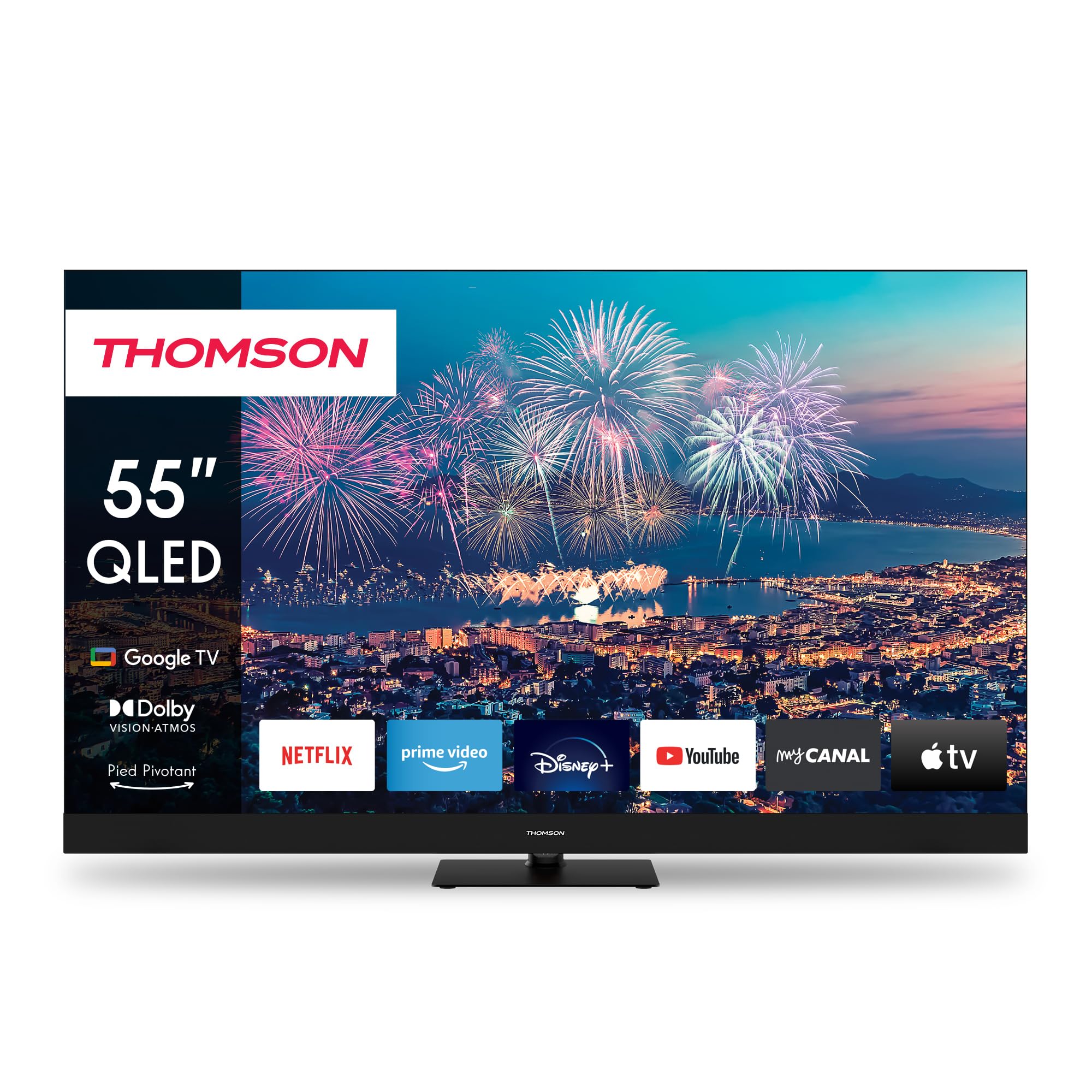
olusin 1: Iwaju view of the THOMSON 55-inch QLED Google TV, showcasing its vibrant display and integrated smart features.
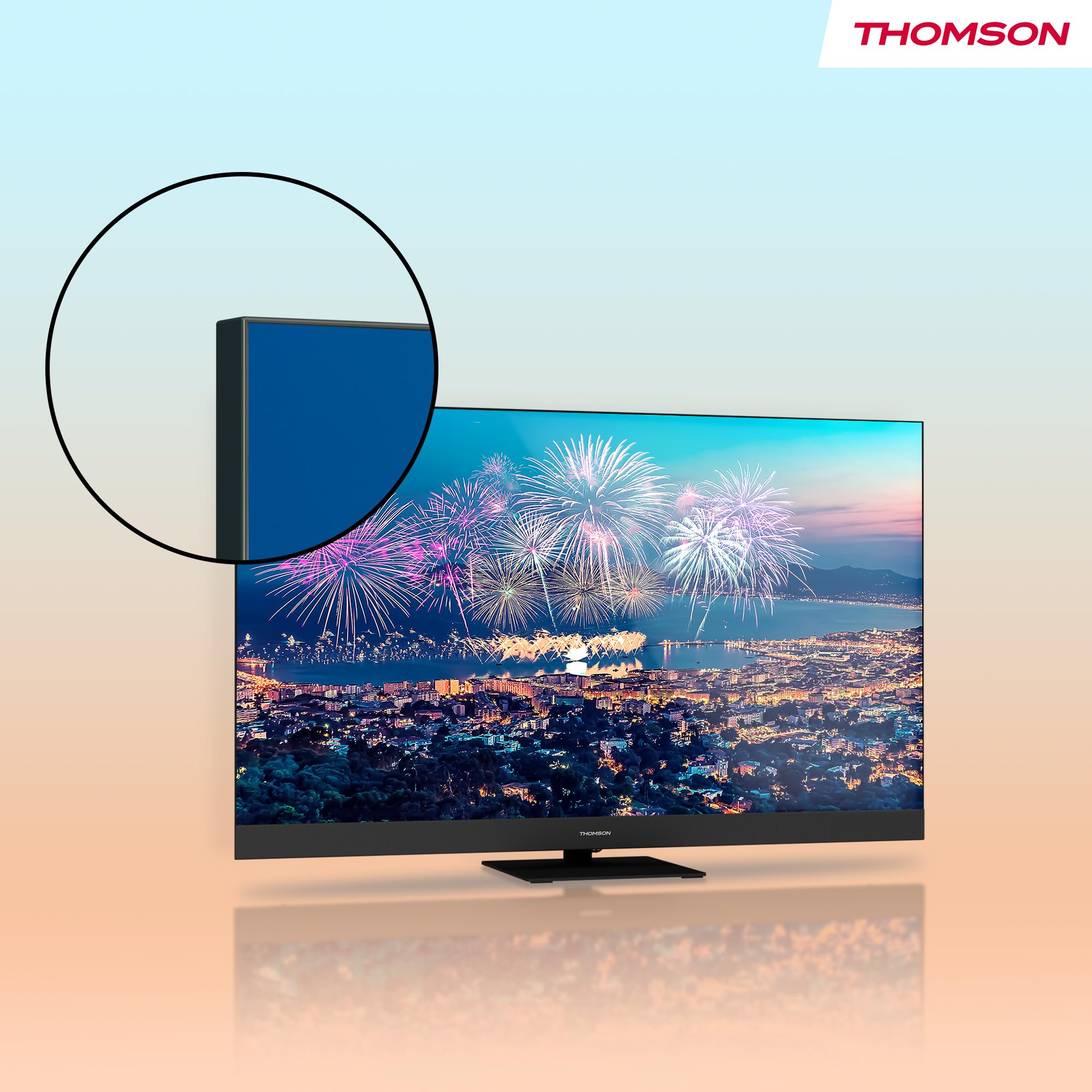
olusin 2: A sunmọ-soke view highlighting the TV's ultra-thin bezel, providing a more expansive screen area.
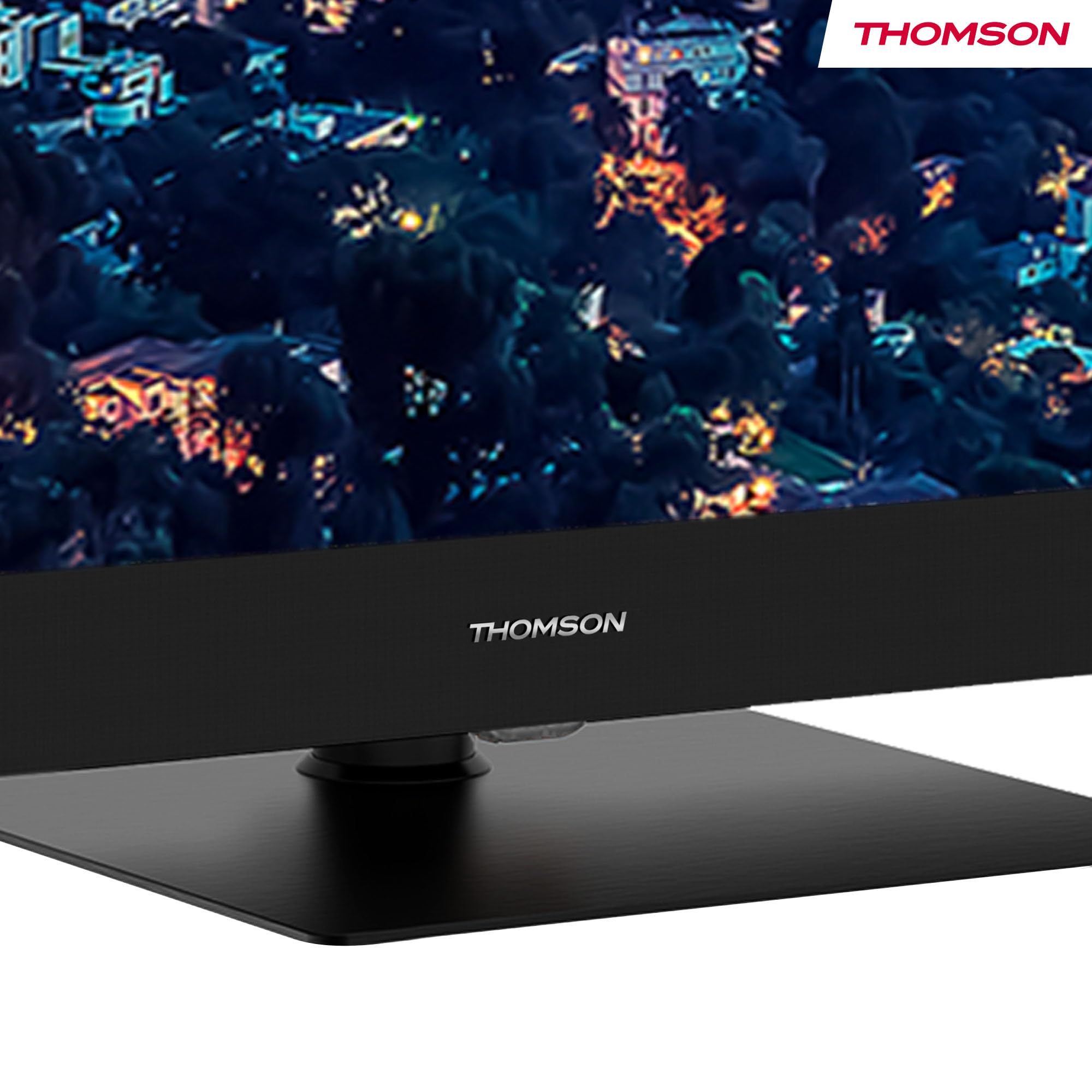
Figure 3: The elegant stand featuring the THOMSON brand logo, ensuring stable support for the television.
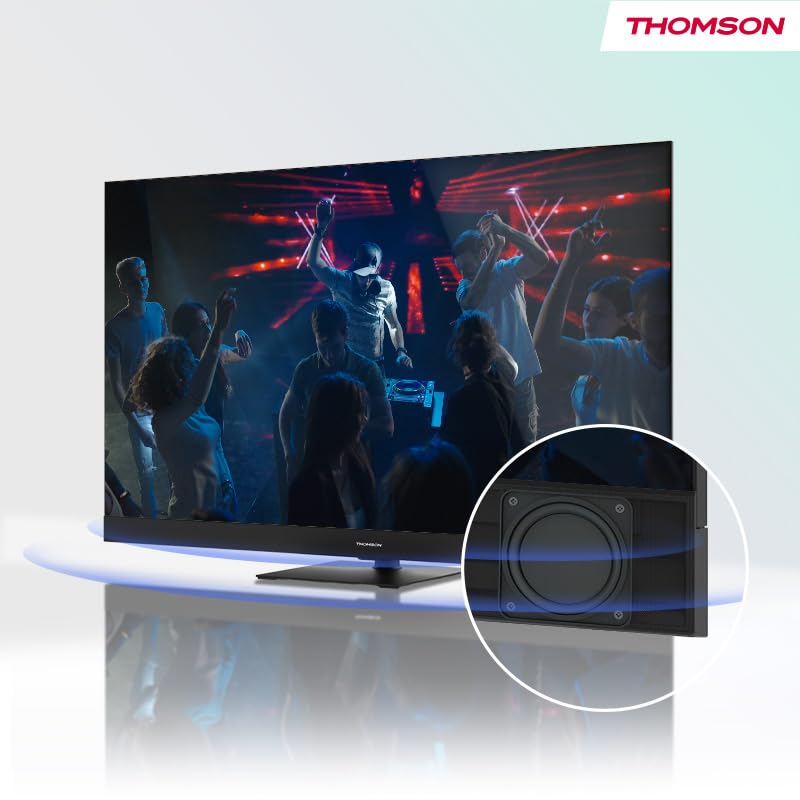
Figure 4: Illustration of the TV's integrated front speaker, designed to deliver clear and direct audio.

Figure 5: A diagram demonstrating the swivel functionality of the TV stand, allowing for flexible screen positioning.
Eto Itọsọna
1. Unpacking
Carefully remove the TV from its packaging. It is recommended to have two people for this process due to the size and weight of the unit. Retain all packaging materials for future transport or service needs.
2. Duro sori
Attach the table stand to the bottom of the TV using the provided screws. Ensure the stand is securely fastened before placing the TV on a stable, flat surface. Refer to the included quick start guide for detailed visual instructions on stand assembly.
3. Nsopọ Awọn ẹrọ
Before connecting any cables, ensure the TV and all external devices are powered off.
- Agbara: So okun agbara pọ si titẹ agbara TV ati lẹhinna si iṣan ogiri.
- Antenna/Cable: Connect your terrestrial antenna, cable, or satellite dish to the appropriate input ports (DVB-T2/C/S2) on the back of the TV.
- Awọn ẹrọ HDMI: Connect Blu-ray players, game consoles, or other HDMI devices to the HDMI ports. This model features 2x HDMI 2.1 (including eARC) and 2x HDMI 2.0 ports.
- Awọn ẹrọ USB: Connect USB drives for media playback or software updates to the USB ports (2x USB 2.0, 1x USB 3.0).
- Lan: For a stable internet connection, connect an Ethernet cable from your router to the LAN port.
- Digital Optical Audio Out: Sopọ̀ mọ́ ibi ìró ohùn tàbí ohun tí a gbà láti gbọ́ ohùn fún ìró tí a mú sunwọ̀n síi.
- AV NI: Fun awọn ẹrọ agbalagba nipa lilo fidio akojọpọ ati ohun sitẹrio.
- CI + Iho: Insert your CI+ module for encrypted digital channels.
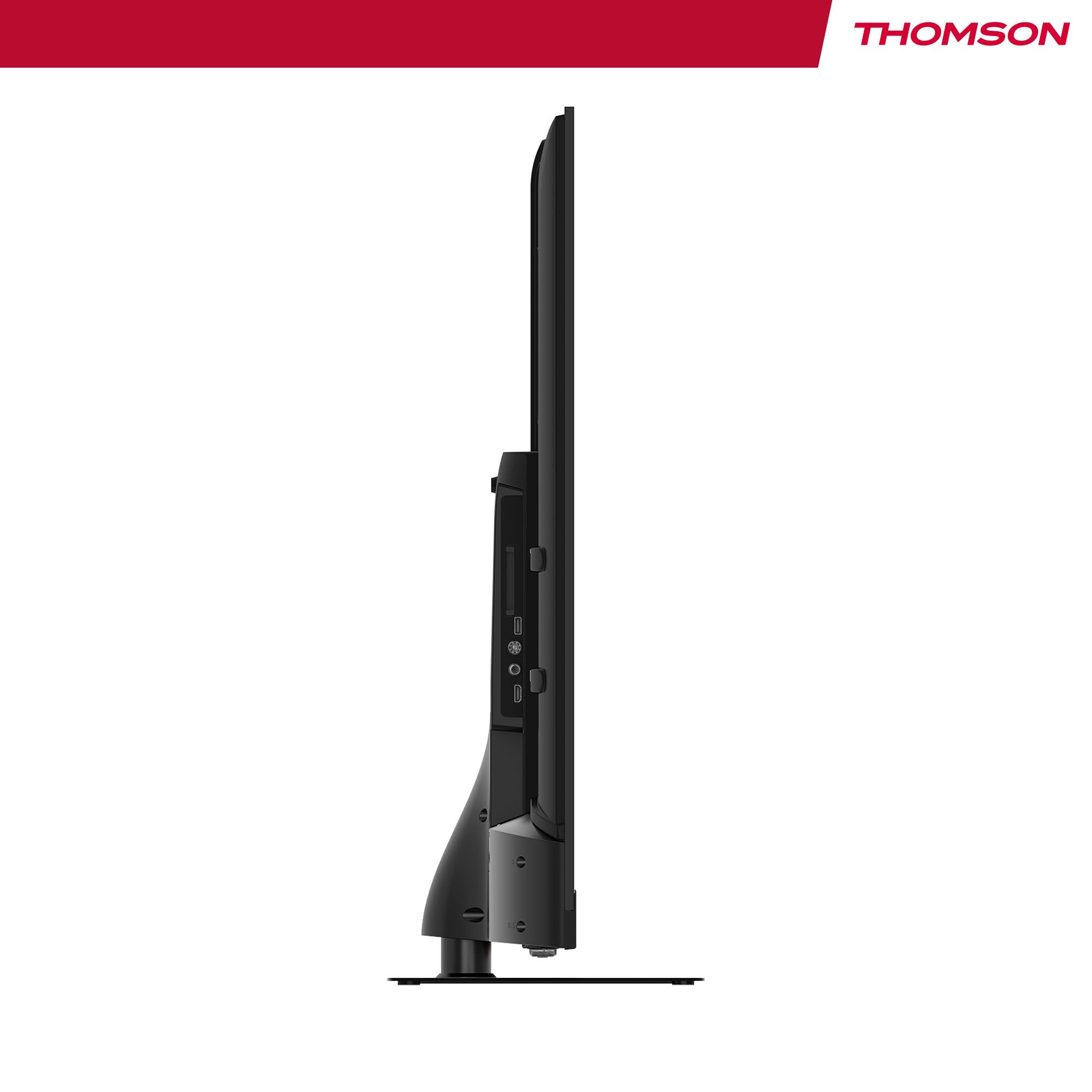
olusin 6: Ẹgbẹ profile of the television, illustrating its slim design and the depth required for connections.
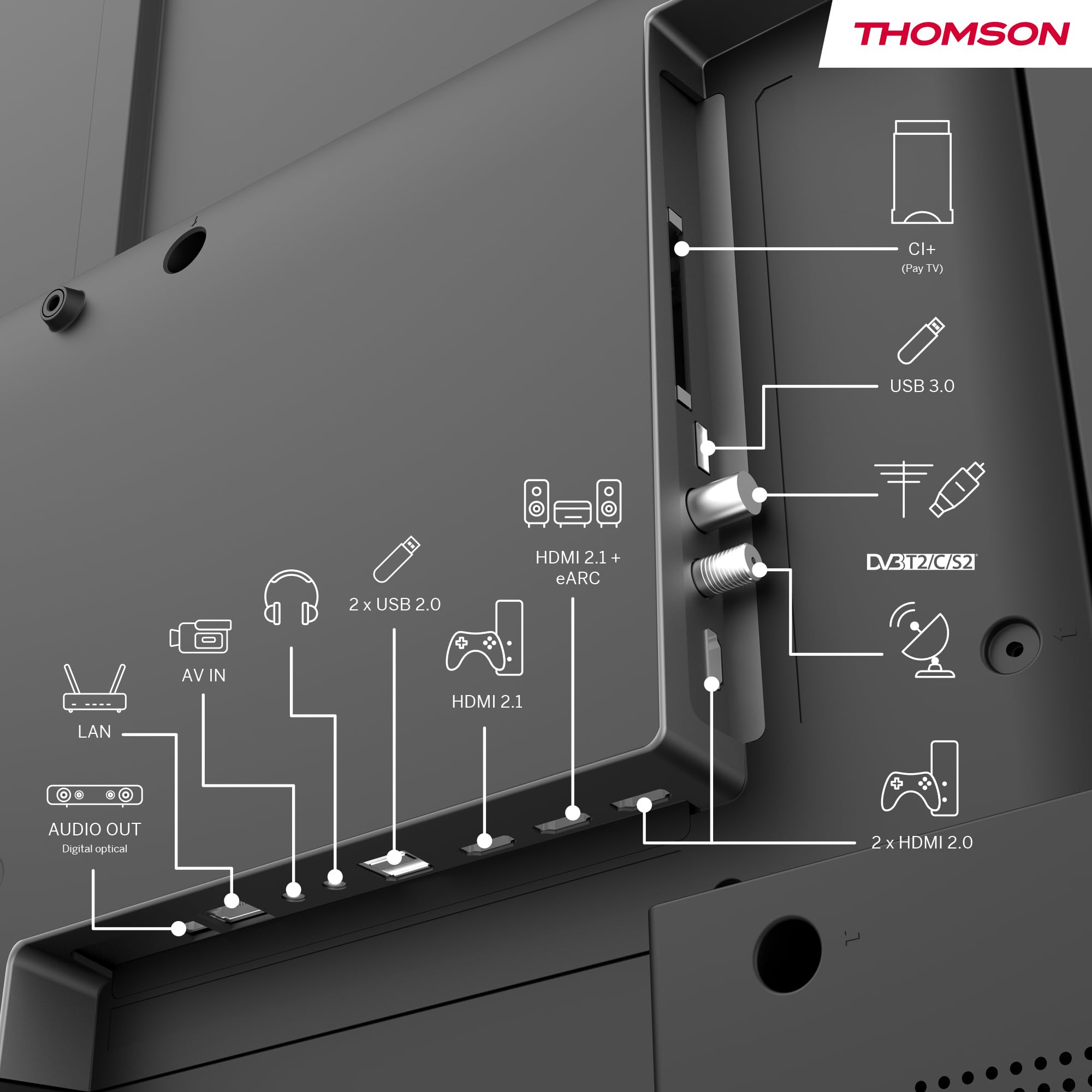
olusin 7: Alaye ru view of the TV, clearly labeling all input and output ports for easy connection of external devices.
Awọn ilana Iṣiṣẹ
1. Agbára Àkọ́kọ́ àti Ṣíṣeto Google TV
After connecting all necessary cables, plug in the TV and press the power button on the remote control. Follow the on-screen instructions to complete the initial setup, which includes selecting your language, connecting to your Wi-Fi network, and logging into your Google account. This process will personalize your Google TV experience.
2. Lilọ kiri lori Google TV
Google TV organizes content from your apps and subscriptions. Use the directional buttons on your remote to navigate through the home screen, discover new content, and access your favorite streaming services such as Netflix, Prime Video, YouTube, Disney+, and Canal+.

Figure 8: The intuitive Google TV home screen, showcasing a wide array of available streaming applications.
3. Iṣakoso Ohùn pẹlu Oluranlọwọ Google
Your TV comes with Google Assistant built-in. Press the Google Assistant button on your remote and speak into the microphone to control your TV, search for content, get recommendations, and even control compatible smart home devices.

Figure 9: A user demonstrating the voice control feature using the TV remote, powered by Google Assistant.
4. Chromecast ti a ṣe sinu rẹ
Easily cast movies, music, and videos from your compatible smartphone, tablet, or computer directly to your TV using the built-in Chromecast feature. Ensure your device and TV are connected to the same Wi-Fi network.
5. Triple Tuner Usage
To switch between different input sources (Antenna, Cable, Satellite), use the 'Source' button on your remote control. The TV will automatically scan for available channels during the initial setup. You can also manually scan for channels in the TV settings menu.
6. Audio & Video Settings
Access the TV's settings menu to adjust picture modes (e.g., Standard, Vivid, Movie), sound profiles (e.g., Standard, Music, Movie), and enable or disable Dolby Vision and Dolby Atmos for an optimized viewing ati gbigbọ iriri.
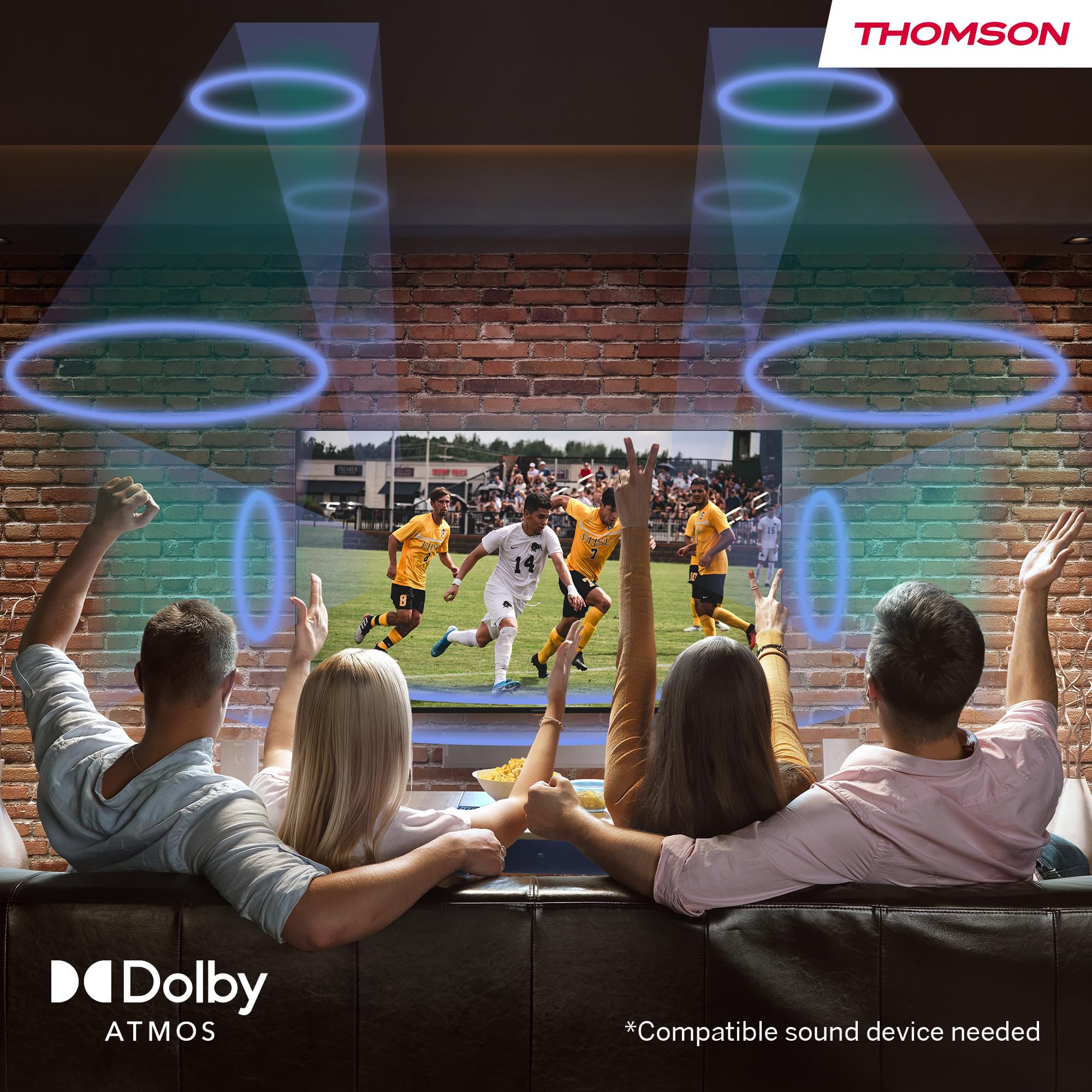
Figure 10: Visual representation of the immersive Dolby Atmos sound experience, surrounding viewers with dynamic audio.
Itoju
1. Ninu iboju
Rọra mu ese iboju naa pẹlu asọ, asọ microfiber gbẹ. Fun agidi smudges, sere dampen awọn asọ pẹlu omi tabi kan iboju-kan pato ninu ojutu. Maṣe fun omi sokiri taara sori iboju.
2. Ninu awọn Minisita
Wipe the TV cabinet and stand with a soft, damp cloth. Avoid using abrasive cleaners, waxes, or solvents as they can damage the finish.
3. Gbogbogbo Itọju
- Yọ TV kuro ni iṣan agbara nigba iji manamana tabi nigba ti yoo wa ni aibikita fun awọn akoko pipẹ.
- Yago fun ṣiṣafihan TV si imọlẹ orun taara, awọn iwọn otutu ti o ga, tabi ọriniinitutu giga.
- Ma ṣe dina awọn ṣiṣi atẹgun lori ẹhin TV.
Laasigbotitusita
If you encounter any issues with your TV, please refer to the following common problems and solutions before contacting customer support.
| Isoro | Owun to le Fa | Ojutu |
|---|---|---|
| Ko si Agbara | Okun agbara ti ge asopọ; Agbara iṣan oro. | Rii daju pe okun agbara ti sopọ ni aabo. Ṣe idanwo iṣan jade pẹlu ẹrọ miiran. |
| No Picture / Poor Picture | Incorrect input source; Loose cable connection; Resolution settings. | Select correct input source. Check HDMI/antenna cable connections. Adjust picture settings. |
| No Sound / Poor Sound | Volume too low or muted; External audio system issues. | Increase volume, check mute status. Verify external audio connections and settings. |
| Latọna jijin Ko Dahun | Àwọn bátìrì tí ó ti kú; Ìdènà láàrín remote àti TV. | Rọpo awọn batiri. Rí i dájú pé ìlà ojú tí ó mọ́ tónítóní sí olugba IR ti TV. |
| Awọn oran Asopọ nẹtiwọki | Incorrect Wi-Fi password; Router issues. | Re-enter Wi-Fi password. Restart your router. Try a wired LAN connection if possible. |
Awọn pato
Below are the detailed technical specifications for the THOMSON 55QG6C14 QLED Plus Google Smart TV.
| Ẹya ara ẹrọ | Sipesifikesonu |
|---|---|
| Brand | Thomson |
| Nọmba awoṣe | 55QG6C14 |
| Iwon iboju | 55 inches (139 Centimeters) |
| Ifihan ọna ẹrọ | QLED |
| Ipinnu | 3840 x 2160 (4K Ultra HD) |
| Oṣuwọn sọtun | 60 Hz |
| Iṣeto ohun | 5.1 Surround (Dolby Audio, Dolby Atmos) |
| Asopọmọra | Wi-Fi, Bluetooth 5.1, HDMI (2x 2.1, 2x 2.0), USB (2x 2.0, 1x 3.0), LAN, Digital Optical Out, AV In, CI+ |
| Awọn iwọn (L x W x H) | 8 x 123 x 78 cm |
| Iwọn | 15 kilo |
| Iru fifi sori ẹrọ | Table Mount |
| Apakan Ipin | 16:9 |
| Agbara Agbara Kilasi | F |

Figure 11: Official product data sheet providing detailed technical specifications and compliance information.
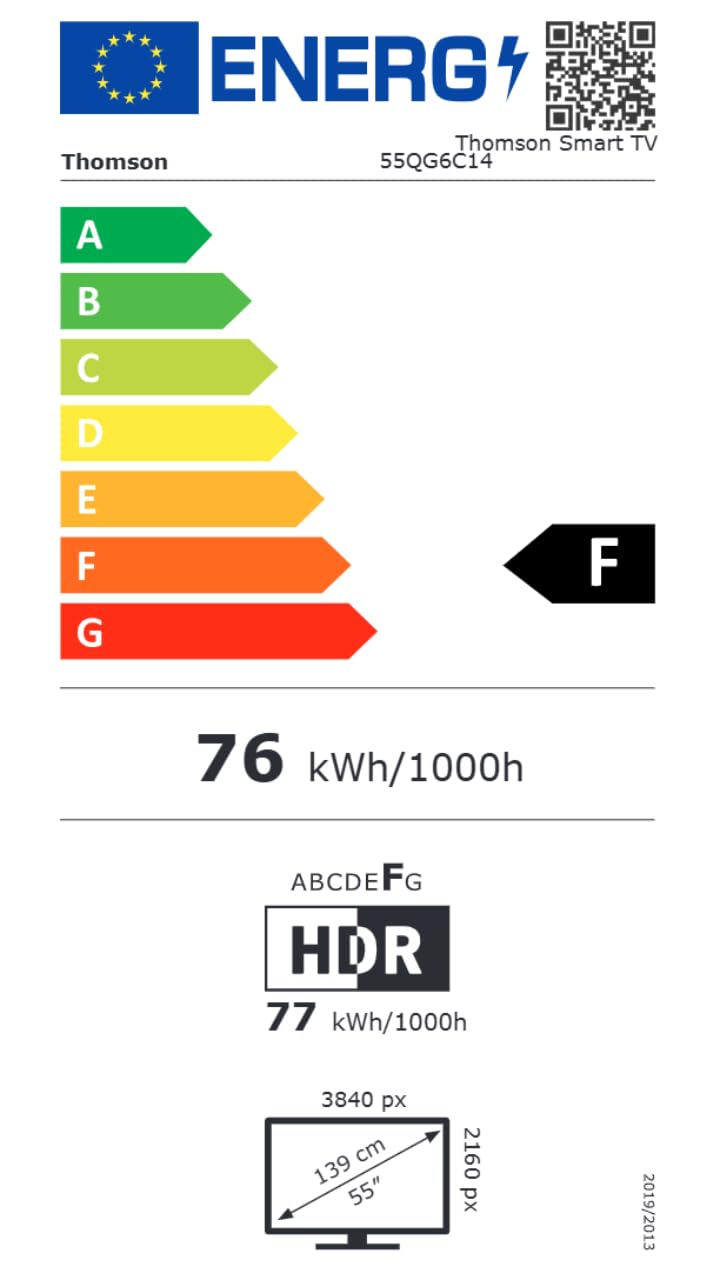
Figure 12: The energy efficiency label for the THOMSON 55QG6C14, indicating its energy consumption rating.
Fun alaye ọja diẹ sii, jọwọ ṣabẹwo si aaye data EPREL osise: EPREL ọja Alaye
Atilẹyin ọja ati Support
Alaye atilẹyin ọja
Your THOMSON 55-inch QLED Plus Google Smart TV is covered by a comprehensive 3-year manufacturer warranty. This warranty covers defects in materials and workmanship under normal use. Please retain your proof of purchase for warranty claims.
Onibara Support
If you require further assistance, have questions not covered in this manual, or need to make a warranty claim, please contact THOMSON customer support. Refer to the contact information provided with your product packaging or visit the official THOMSON webojula fun support awọn alaye.