
1. Ifihan
Thank you for choosing the Vikye Computer Temperature Monitor. This 5-inch display provides real-time monitoring of your PC's CPU, GPU, RAM usage, and temperature. It also supports displaying internet speed, date, time, volume, fan speed, and weather forecasts. With its customizable theme editor and easy USB connection, this monitor enhances your desktop gaming and computing experience. This manual provides detailed instructions for setup, operation, and troubleshooting.
2. Alaye Aabo
- Jeki ẹrọ naa kuro ni omi ati awọn agbegbe ọriniinitutu giga.
- Yago fun ṣiṣafihan ẹrọ naa si imọlẹ orun taara tabi awọn iwọn otutu to gaju.
- Ma ṣe gbiyanju lati tunto tabi tun ẹrọ naa funrararẹ. Tọkasi awọn oṣiṣẹ iṣẹ ti o peye.
- Use only the provided USB cable for connection to prevent damage.
- Rii daju pe fentilesonu to dara ni ayika ẹrọ naa.
3. Package Awọn akoonu
Jọwọ ṣayẹwo package fun awọn nkan wọnyi:
- Vikye Computer Temperature Monitor (5-inch display)
- Okun USB
- Dimu iboju

Image: The monitor, its stand, and the USB connection cable.
4. Eto
4.1 Nsopọ Atẹle
- Place the monitor on the provided screen holder.
- Connect the Micro USB end of the provided USB cable to the monitor.
- So opin okun USB pọ si ibudo USB ti o wa lori kọnputa rẹ.

Image: The monitor connected to a computer using the USB cable, illustrating the simple connection process.
4.2 Software fifi sori
- After connecting the monitor, launch the custom software provided by Vikye. This software is essential for the monitor's functionality.
- No additional software like AIDA64 is required for basic operation.
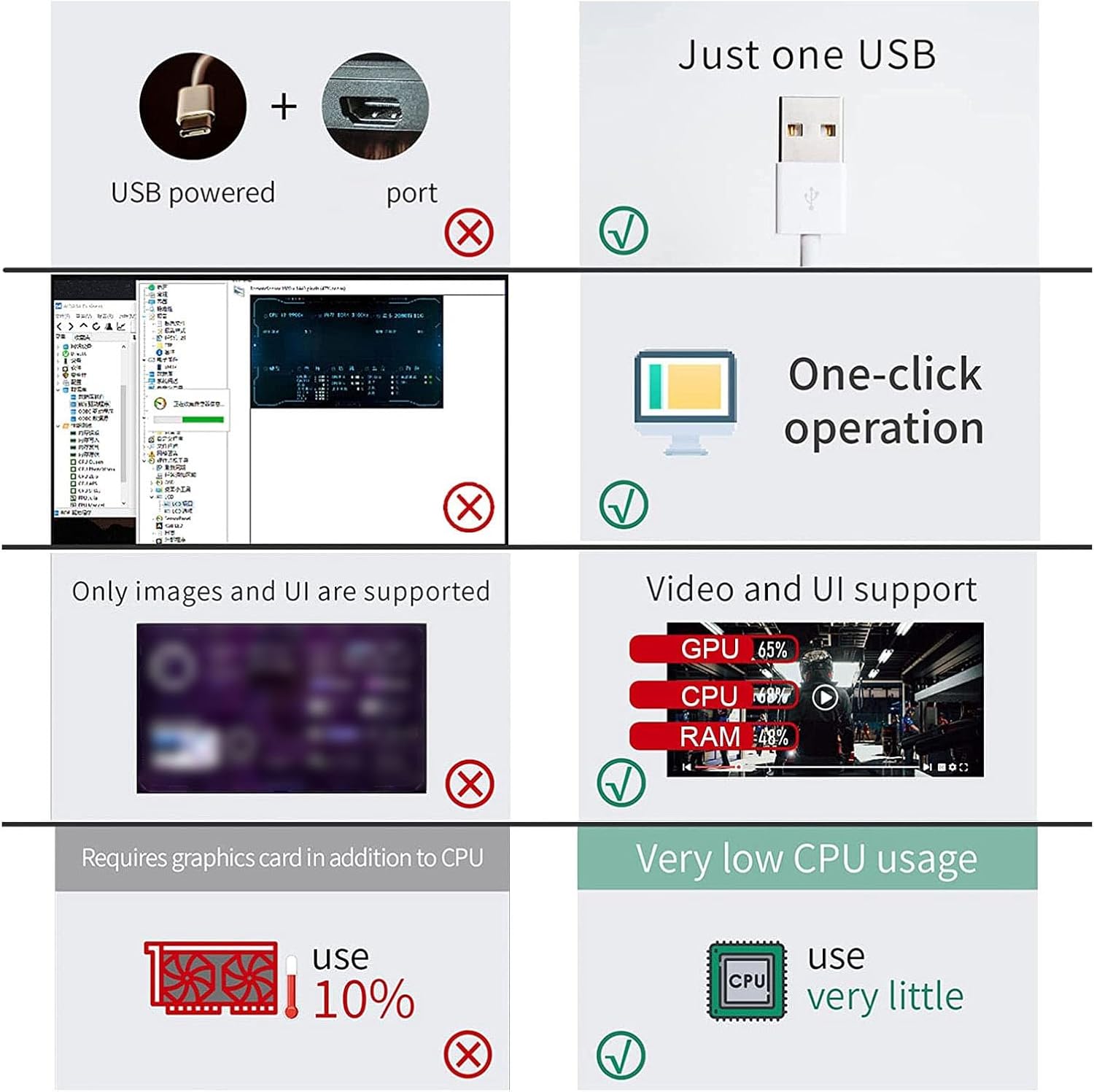
Image: A visual representation highlighting the ease of 'one-click operation' for the software and its minimal CPU resource consumption.
5. Awọn ilana Iṣiṣẹ
5.1 ifihan Awọn iṣẹ
The monitor can display a variety of system data:
- CPU Data: Usage rate and temperature.
- GPU Data: Usage rate and temperature.
- RAM Data: Usage rate.
- Nẹtiwọọki: Internet speed (upload/download).
- Alaye eto: Date, time, volume, fan speed.
- Àfojúsùn ojú ọjọ: Customizable city display.

Image: The monitor in a vertical orientation, clearly showing real-time CPU, GPU, RAM, and network statistics.

Image: The monitor in a horizontal orientation, showcasing the same detailed system information as the vertical view.
5.2 Screen Orientation and Brightness
- The display supports both horizontal and vertical screen orientations. You can rotate the screen 360 degrees to suit your preference.
- The screen brightness can be continuously adjusted to protect your eyes and optimize visibility in different lighting conditions.
5.3 Theme Editor
The monitor features a visual theme editor. This allows you to customize the display's appearance by dragging and dropping elements to create your own unique themes. Refer to the custom software for detailed instructions on using the theme editor.
5.4 Ifipamọ Agbara
The monitor is designed with energy-saving features, including an automatic shutdown display function to conserve power when not in active use.
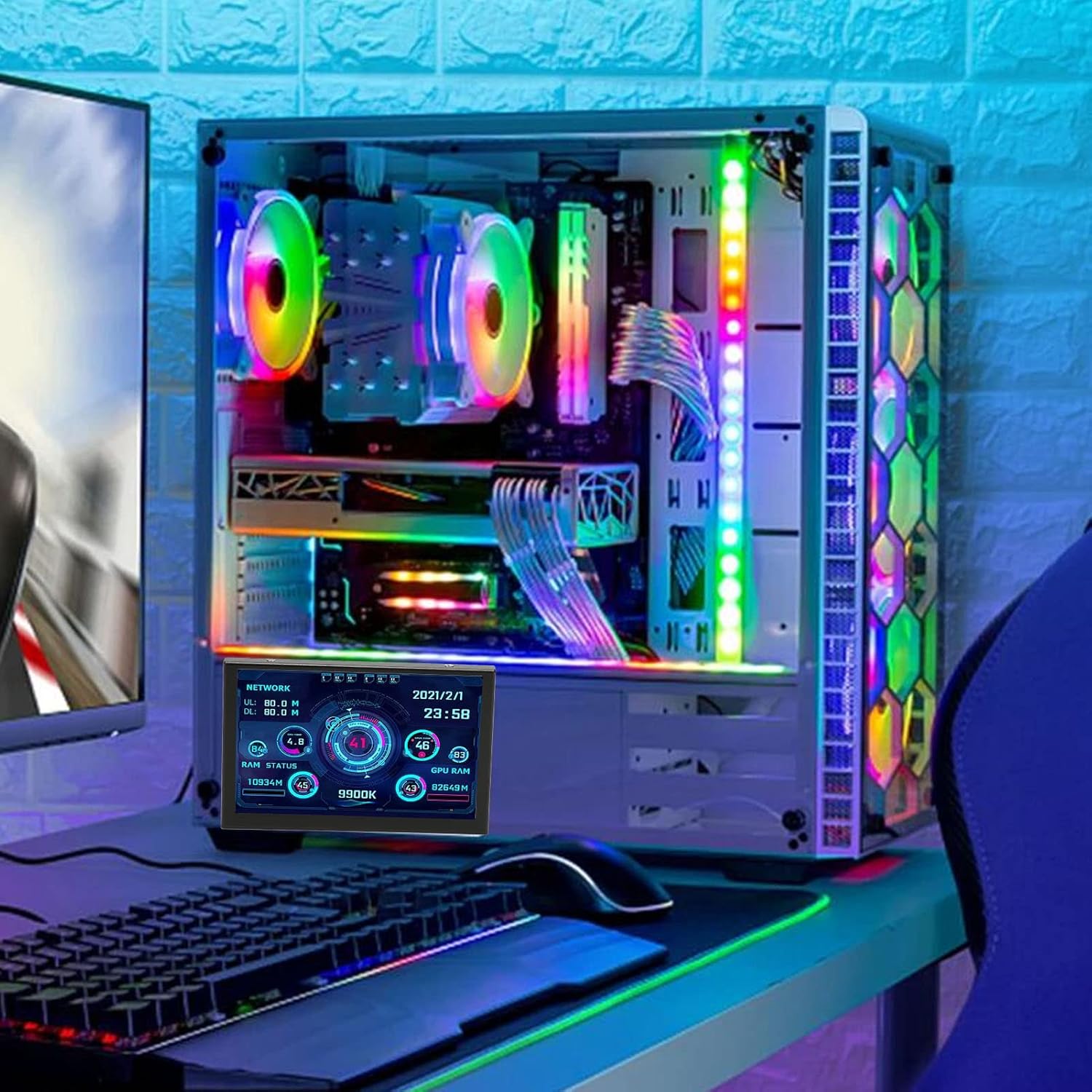
Image: The Vikye monitor seamlessly integrated into a desktop computer setup, demonstrating its compact size and placement flexibility.
6. Itọju
- To clean the screen, gently wipe it with a soft, dry, lint-free cloth.
- Do not use liquid cleaners or aerosol sprays directly on the screen.
- Keep the device free from dust and debris to ensure optimal performance.
7. Laasigbotitusita
7.1 Graphics Card Data Not Changing
Oro: The graphics card data displayed on the monitor remains unchanged.
Ojutu: For many laptop users, the discrete graphics card often operates in standby mode to conserve energy, with the integrated graphics handling most display tasks. The secondary display primarily monitors the most active independent graphics card. If your discrete GPU is in standby, its monitoring data will naturally remain static. This is normal behavior and not an indication of a fault.
7.2 Monitor Not Displaying
- Ensure the USB cable is securely connected to both the monitor and your computer.
- Try connecting the monitor to a different USB port on your computer.
- Verify that the Vikye custom software is running on your computer.
- Restart your computer and the monitor.
7.3 Software Not Starting
- Ensure your operating system is compatible (Windows, Linux, RasPi).
- Reinstall the custom software if necessary.
- Check for any antivirus or firewall software that might be blocking the application.
8. Awọn pato
| Nkan Iru | Computer Temperature Monitor |
| Ohun elo | LCD, Electronic Components, Iron |
| View | All Sight |
| Ni wiwo | Micro USB |
| Sisanra | 10 mm / 0.39 inches |
| Iwon iboju | 5 inches |
| Ipinnu | 800 x 480 |
| Ibamu | RasPi, Linux, Windows |
| Iwọn Ọja (Atẹle) | Approx. 122 x 78 mm / 4.80 x 3.07 inches |
| Awọn iwọn Ọja lapapọ | 7.48 x 4.33 x 1.97 inches |
| Iwọn Nkan | 7.5 iwon |
| Nọmba awoṣe | Vikyea5em6g9ouf |

Image: Detailed dimensions of the monitor, showing its length as 122mm (4.80in) and width as 78mm (3.07in).
9. atilẹyin ọja Information
This product is covered by a manufacturer's warranty. For specific details regarding warranty duration, coverage, and claims process, please refer to the documentation included with your purchase or visit the official Vikye webojula. Jeki ẹri rira rẹ fun ijẹrisi atilẹyin ọja.
10. Atilẹyin
If you encounter any issues or have questions not covered in this manual, please contact Vikye customer support. Refer to the product packaging or the official Vikye website for contact information, including email and phone support.