
1. Ifihan
The Yesido TV12 Gaming TV Box is a versatile device designed to transform your television into a smart entertainment hub. It combines 4K media streaming capabilities with extensive gaming emulation, offering a comprehensive entertainment experience. This manual provides essential information for setting up, operating, maintaining, and troubleshooting your device.
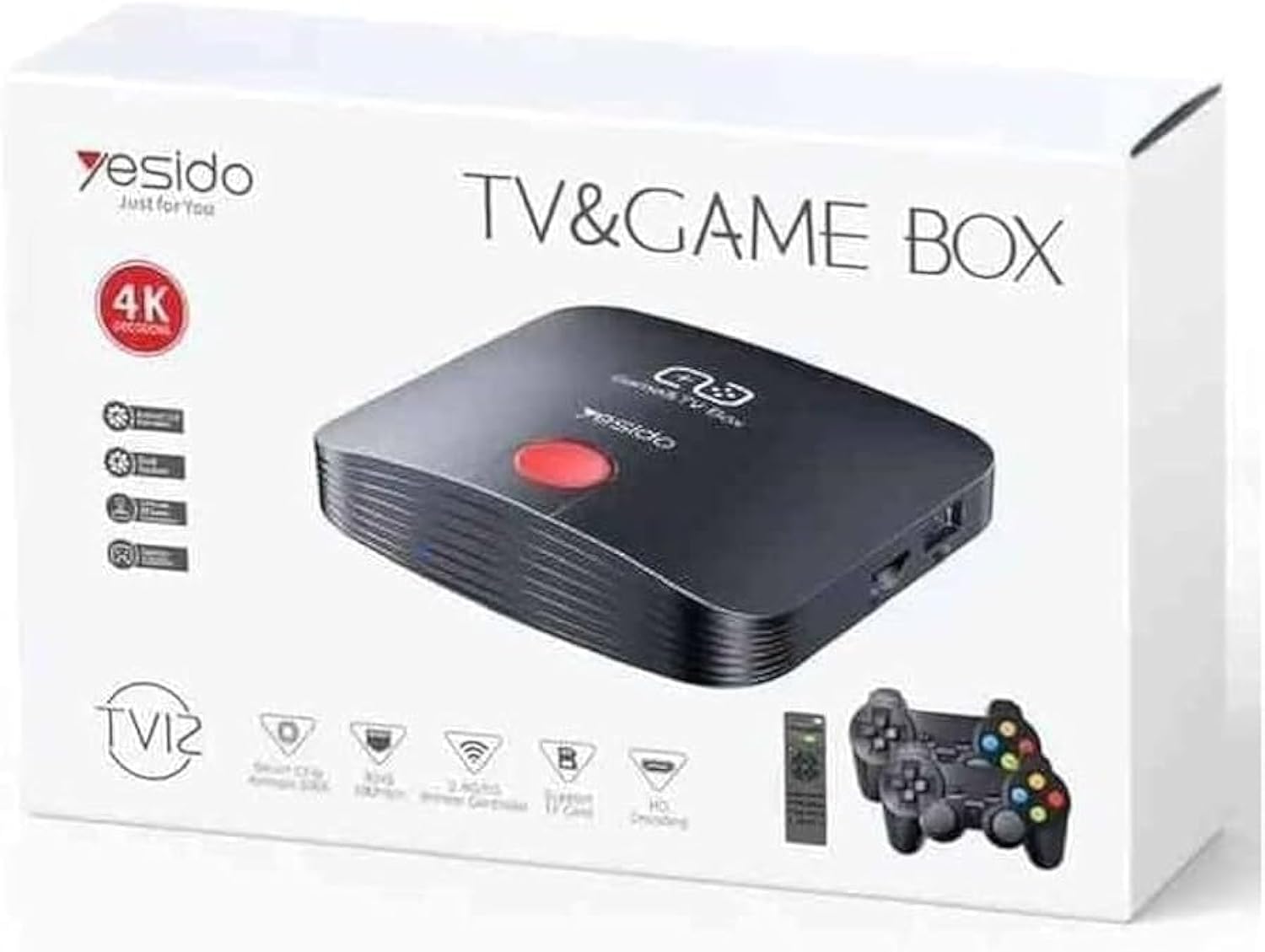
Image 1.1: The Yesido TV12 Gaming TV Box and included game controllers.
2. Ọja Ipariview
The Yesido TV12 is a high-tech smart TV box that supports high-definition 4K resolution, allowing you to enjoy movies and TV shows with stunning clarity. It features an Amlogic S905 smart chip and runs on an Android 12.0 dual system. The device is equipped with 2GB RAM and 16GB internal storage, facilitating multitasking and storage of your favorite media and games. A powerful Mali-G31 MP2 GPU ensures smooth performance for demanding games.
Awọn ẹya pataki:
- 4K HD Resolution Support (1080P to 4K)
- Android 12.0 Dual System
- Amlogic S905 Smart Chip
- Mali-G31 MP2 GPU
- 2GB RAM and 16GB Storage
- Supports over 10,000 game emulations (14 types)
- Integrated 2.4G/5G Wi-Fi and 100Mbps RJ45 Ethernet
- Compatible with popular streaming services (Netflix, Hulu, Amazon Prime Video, Disney+)
- Voice-controlled remote for easy navigation
- Compatible with two game controllers
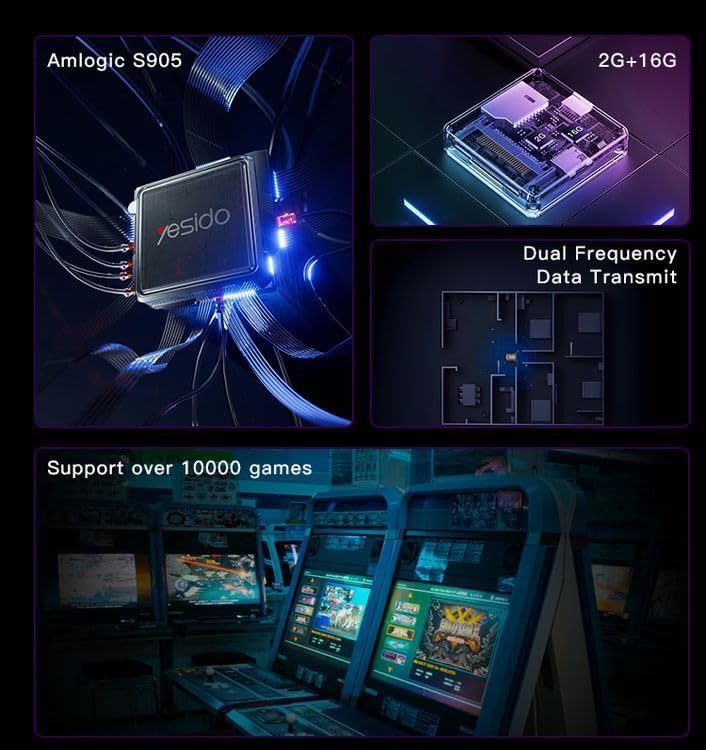
Image 2.1: Internal architecture highlighting the Amlogic S905 chip, memory, and data transmission capabilities.
3. Eto Itọsọna
3.1 Unboxing ati irinše
Fi ìṣọ́ra yọ gbogbo àwọn ohun èlò kúrò nínú àpótí náà. Rí i dájú pé àwọn ohun èlò wọ̀nyí wà níbẹ̀:
- Yesido TV12 Gaming TV Box
- Adapter agbara
- Okun HDMI
- Isakoṣo latọna jijin
- Game Controllers (quantity may vary)
- Afowoyi Olumulo (iwe-ipamọ yii)
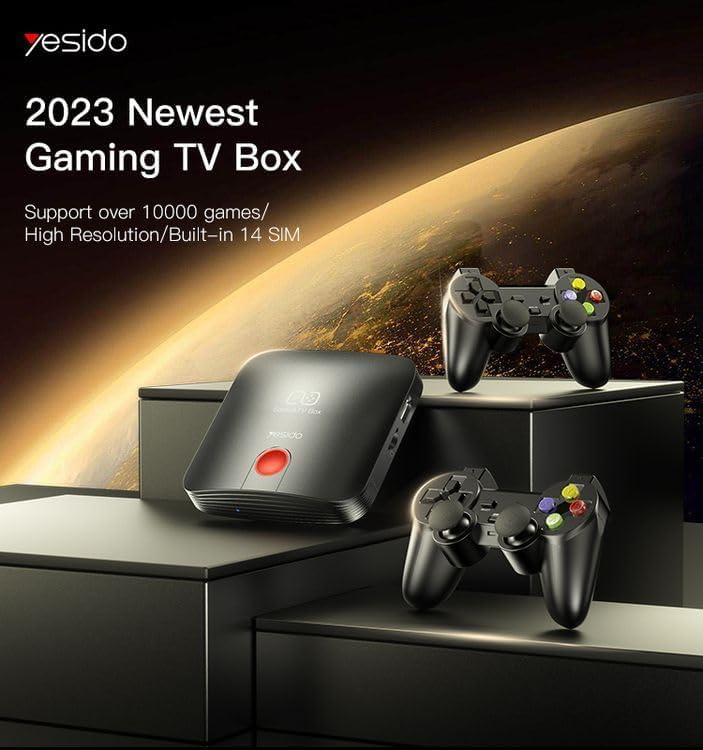
Image 3.1: The TV Box and game controllers, ready for setup.
3.2 Nsopọ si TV rẹ
- Connect one end of the HDMI cable to the HDMI port on the Yesido TV12.
- Connect the other end of the HDMI cable to an available HDMI input port on your television. Note the HDMI input number (e.g., HDMI 1, HDMI 2).
3.3 Agbara Lori
- Connect the power adapter to the DC IN port on the TV Box.
- Pulọọgi ohun ti nmu badọgba agbara sinu iṣan ogiri kan.
- Turn on your television and select the corresponding HDMI input using your TV remote.
- The TV Box will automatically power on and display the boot-up screen.
3.4 Asopọ Nẹtiwọọki
For internet access, you can connect via Wi-Fi or Ethernet.
- Wi-Fi: Navigate to Settings > Network > Wi-Fi. Select your network from the list, enter the password, and connect.
- Àjọlò: Connect an Ethernet cable from your router to the RJ45 port on the TV Box. The connection should be established automatically.
3.5 Remote Control and Gamepad Pairing
The included remote control is typically pre-paired. If not, or if pairing gamepads:
- Ensure batteries are inserted correctly into the remote/gamepad.
- For Bluetooth gamepads, go to Settings > Connected Devices > Pair new device and follow the on-screen instructions.
4. Awọn ilana Iṣiṣẹ
4.1 Lilọ kiri ni wiwo
Use the remote control to navigate the Android 12.0 interface. The directional buttons move the cursor, the OK button selects, and the Back button returns to the previous screen. The Home button returns to the main launcher screen.
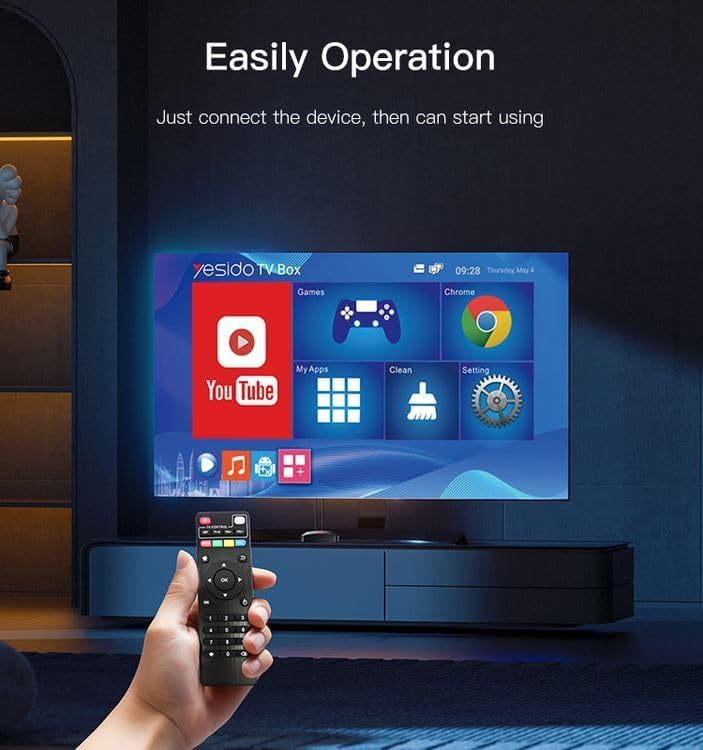
Image 4.1: Navigating the Yesido TV Box interface with the remote control.
4.2 Streaming Media
The TV Box supports various streaming applications. Pre-installed apps like YouTube are available, and you can download more from the app store (e.g., Netflix, Hulu, Amazon Prime Video, Disney+).
- Select the desired streaming app from the home screen or 'My Apps' section.
- Wọle pẹlu awọn iwe-ẹri akọọlẹ rẹ.
- Browse and select content to watch.
4.3 Awọn ere
The Yesido TV12 is designed for gaming, supporting over 10,000 game emulations. Connect your game controllers as described in Section 3.5.
- Access the 'Games' or 'Emulator' section from the home screen.
- Select your desired game or emulator.
- Use the connected game controllers for an immersive gaming experience.

Image 4.2: The wireless gamepads compatible with the TV Box.
4.4 Iṣakoso ohun
If your remote control supports voice input, press the voice button and speak your commands or search queries. This allows for hands-free content search and device control.
5. Itọju
5.1 Ninu ẹrọ naa
To maintain optimal performance and appearance, regularly clean the TV Box:
- Yọọ ẹrọ naa kuro ni iṣan agbara ṣaaju ṣiṣe mimọ.
- Lo asọ ti o tutu, ti o gbẹ lati nu awọn ita ita.
- Do not use liquid cleaners, aerosols, or abrasive materials, as they may damage the device.
5.2 Software imudojuiwọn
Keep your device's software updated to ensure the best performance and access to new features:
- Connect the TV Box to the internet.
- Navigate to Settings > About > System Update.
- Tẹle awọn ilana loju iboju lati ṣayẹwo fun ati fi sori ẹrọ eyikeyi awọn imudojuiwọn ti o wa.
5.3 Ibi Management
With 16GB of internal storage, managing your space is important:
- Lọ sí Ètò > Ìpamọ́ sí view ipamọ lilo.
- Uninstall unused applications or delete unnecessary files lati laaye aaye.
- The device supports TF cards for expandable storage.
6. Laasigbotitusita
6.1 Ko si Agbara
- Rii daju pe ohun ti nmu badọgba agbara ti sopọ ni aabo si Apoti TV ati iṣan agbara ṣiṣẹ.
- Gbiyanju iṣan agbara ti o yatọ.
6.2 No Signal / No Display
- Rii daju pe okun HDMI ti sopọ ni aabo si apoti TV mejeeji ati TV naa.
- Rii daju pe a ṣeto TV rẹ si orisun titẹ sii HDMI to tọ.
- Gbiyanju okun HDMI ti o yatọ tabi ibudo HDMI lori TV rẹ.
6.3 Network Asopọ oran
- Wi-Fi: Check if your Wi-Fi router is working correctly. Re-enter the Wi-Fi password in Settings > Network.
- Àjọlò: Ensure the Ethernet cable is properly connected to both the TV Box and the router.
- Tun olulana rẹ bẹrẹ ati apoti TV.
6.4 Isakoṣo latọna jijin Ko fesi
- Ṣayẹwo ki o rọpo awọn batiri ni isakoṣo latọna jijin.
- Rii daju pe ko si awọn idena laarin isakoṣo latọna jijin ati apoti TV.
- Re-pair the remote control if necessary (refer to Section 3.5).
6.5 Game Performance Issues
- Close any background applications to free up RAM.
- Rii daju pe aaye ipamọ to wa.
- For online games, check your internet connection stability.
7. Awọn pato
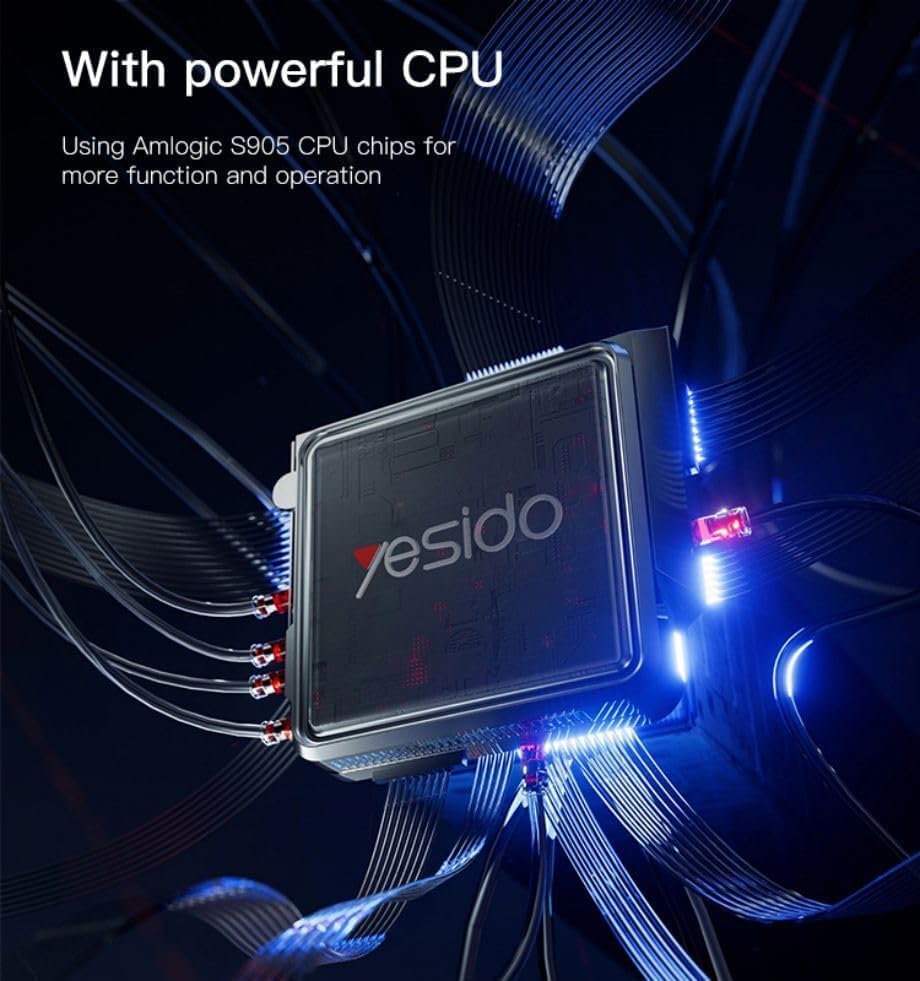
Image 7.1: The powerful Amlogic S905 CPU at the core of the TV Box.
| Ẹya ara ẹrọ | Apejuwe |
|---|---|
| Orukọ Brand | Bẹẹni mo ni |
| Orukọ awoṣe | TV12 |
| Eto isesise | Android 12.0 Dual System |
| Sipiyu | Amlogic S905 |
| GPU | Mali-G31 MP2 |
| Ramu ti fi sori ẹrọ | 2 GB |
| Agbara Ibi ipamọ Iranti | 16 GB |
| Ifihan fidio Ti o ṣeeṣe | 1080P to 4K |
| Asopọmọra Technology | HDMI, Wi-Fi (2.4G/5G), RJ45 (100Mbps) |
| Asopọmọra Iru | HDMI |
| Awọn iṣẹ Intanẹẹti atilẹyin | Netflix, Hulu, Amazon Prime Video, Disney+ |
| Awọn ẹrọ ibaramu | Tẹlifisiọnu |
| Awọn irinše to wa | TV Box, Controllers |
| Àwọ̀ | Dudu |
| Iwọn Nkan | 1200 giramu |
| Awọn iwọn Ọja (L x W x H) | 20 x 5 x 10 cm |
8. Atilẹyin ọja ati Support
8.1 atilẹyin ọja Alaye
The Yesido TV12 Gaming TV Box comes with a standard manufacturer's warranty. Please refer to the warranty card included in your product packaging for specific terms, conditions, and duration. Keep your proof of purchase for warranty claims.
8.2 Onibara Support
If you encounter any issues not covered in this manual or require further assistance, please contact Yesido customer support. Contact details can typically be found on the product packaging, the official Yesido webojú-òpó wẹ́ẹ̀bù, tàbí ojú-ìwé ìrànlọ́wọ́ olùtajà rẹ.