
1. Ifihan
Thank you for choosing the UHURU UM2S Gaming USB Microphone. This manual provides detailed instructions for setting up, operating, and maintaining your microphone to ensure optimal performance. The UM2S is designed for gamers, streamers, and podcasters, offering features like noise cancellation, RGB lighting, and broad compatibility.
2. Package Awọn akoonu
Jọwọ rii daju pe gbogbo awọn nkan ti a ṣe akojọ rẹ si isalẹ wa ninu package rẹ:
- UHURU UM2S Gaming Microphone
- Ariwo Arm Imurasilẹ
- Mọnamọna Oke
- Agbejade Agbejade
- 5.9ft USB A&C to USB-C 2-in-1 Cable
- Afowoyi Olumulo (iwe-ipamọ yii)

Image: All components included in the UHURU UM2S microphone package, laid out neatly.
3. Awọn ilana iṣeto
Follow these steps to set up your UHURU UM2S Gaming USB Microphone:
- Attach the Boom Arm Stand: Ni aabo clamp the boom arm stand to your desk. Ensure the desk thickness is less than 2 inches for proper fit.
- Fi sori ẹrọ Shock Mount: Gbe mọnamọna gbe soke si apa ariwo.
- Fi Gbohungbohun sii: Carefully place the UHURU UM2S microphone into the shock mount.
- So Àlẹ̀mọ́ Pọ́pù pọ̀ mọ́: Connect the pop filter to the boom arm or microphone stand to reduce plosive sounds.
- So okun USB pọ: Use the provided 5.9ft USB A&C to USB-C 2-in-1 Cable. Connect the USB-C end to the microphone and the USB-A or USB-C end to an available port on your computer (PC/Laptop), PS4, or PS5.
- Pulọọgi ati Ṣiṣẹ: The microphone is plug-and-play, requiring no additional drivers for Windows, macOS, PS4, or PS5. (Note: Not compatible with Xbox).

Image: The UHURU UM2S microphone mounted on its boom arm stand, ready for connection.

Image: Diagram illustrating the boom arm's reach and the maximum desk thickness for clamping.

Image: Visual representation of the microphone connected to a PC, highlighting compatibility with Windows, macOS, PS4/PS5, and PC/Laptop, and incompatibility with Xbox.
Video: Demonstrates the plug-and-play setup and connection of the UHURU UM2S microphone to a computer.
4. Awọn ilana Iṣiṣẹ
The UHURU UM2S microphone offers several features for enhanced audio control and user experience:
4.1. Ariwo Ifagile
The microphone features a professional chipset for Environmental Noise Cancellation (ENC). To activate noise reduction, simply tap the dedicated noise reduction button on the microphone. This will isolate ambient noise, providing a clearer sound.

Image: Visual representation of the noise cancellation feature, showing sound waves before and after activation, with the noise reduction button highlighted.
4.2. RGB Lighting Iṣakoso
The microphone includes 3 RGB lighting modes:
- 7 solid color static
- Mix-color breathing
- Mix-color gradient
Tap the lighting icon to cycle through the modes. To turn off the lighting, long-press the lighting icon.

Image: The UHURU UM2S microphone displaying various RGB lighting modes, with a diagram showing the different patterns.
4.3. Tap-to-Mute Function
Tap the top of the microphone to instantly mute or unmute. An LED indicator shows the microphone's status:
- Imọlẹ alawọ ewe: Gbohungbohun ti nṣiṣe lọwọ.
- Imọlẹ pupa: Gbohungbohun ti dakẹ.

Image: Close-up of the microphone's top, showing the tap-to-mute button and the LED indicator displaying red for muted and green for active.
4.4. Gain Control and Real-time Monitoring
Adjust the microphone's gain by turning the dial located at the bottom of the unit. This allows you to control the input sensitivity for optimal voice capture. The integrated 3.5mm headphone jack enables real-time audio monitoring, allowing you to hear your output directly.

Aworan: Alaye view of the microphone's bottom, showing the gain control knob and the 3.5mm headphone jack for real-time monitoring.
4.5. Cardioid Polar Pattern
The UM2S features a cardioid polar pattern, which primarily captures sound from the front of the microphone while suppressing unwanted background noise from the sides and rear. For best results, position the microphone 6-12 inches from your mouth.
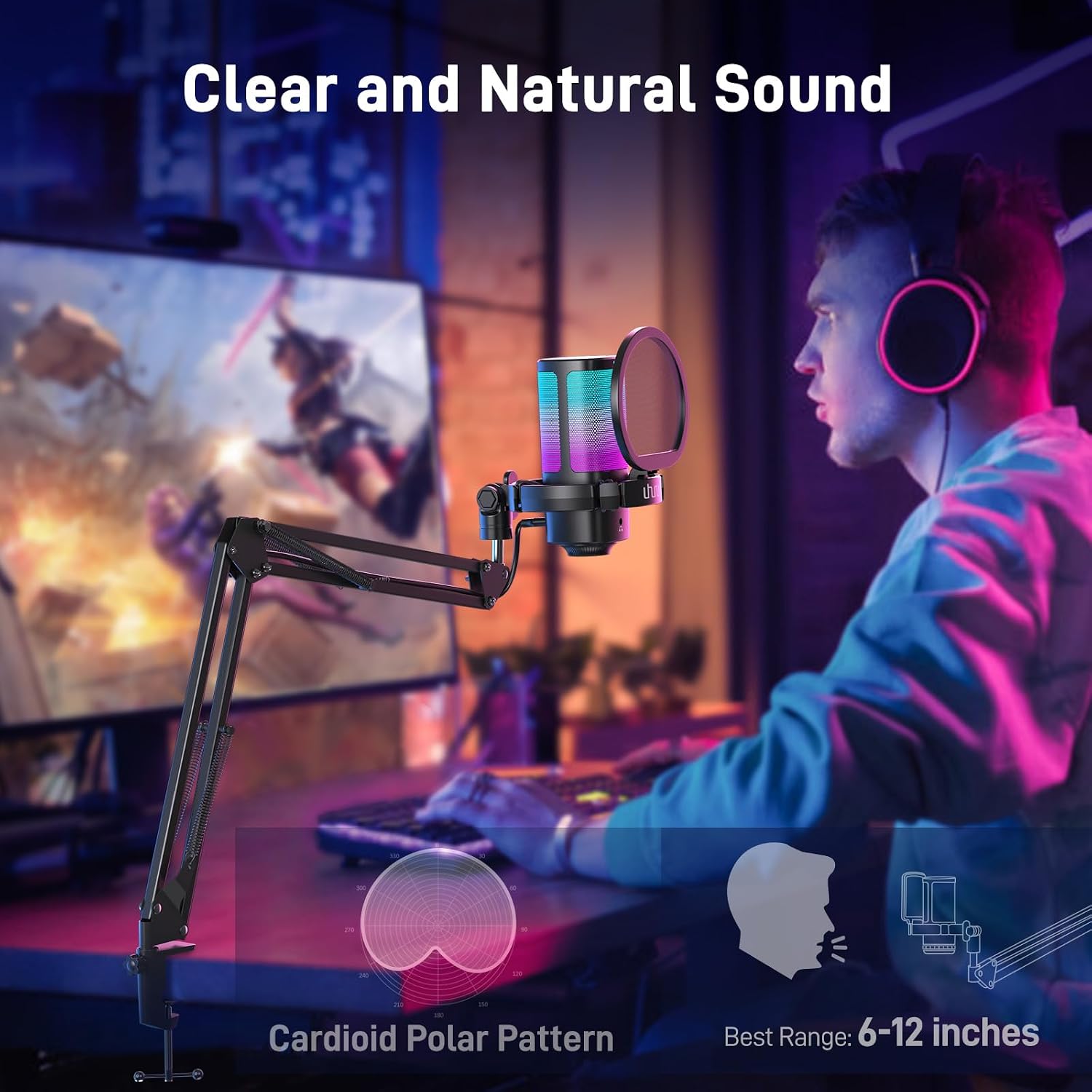
Image: Diagram illustrating the cardioid polar pattern of the microphone, showing its directional sound pickup, along with the recommended best range of 6-12 inches.
5. Itọju
To ensure the longevity and optimal performance of your UHURU UM2S microphone, follow these maintenance guidelines:
- Ninu: Use a soft, dry cloth to wipe the microphone body and stand. Avoid using liquid cleaners or abrasive materials, as they may damage the finish or internal components.
- Ibi ipamọ: Nigbati o ko ba si ni lilo, tọju gbohungbohun sinu mimọ, agbegbe gbigbẹ kuro ni iwọn otutu ati ọriniinitutu.
- Itọju USB: Avoid sharp bends or kinks in the USB cable. Always grasp the plug, not the cable, when disconnecting.
6. Laasigbotitusita
If you encounter issues with your UHURU UM2S microphone, please refer to the following common solutions:
- Kò sí Ìjáde/Ìbáwọlé Ohùn:
- Rí i dájú pé okùn USB náà so mọ́ gbohungbohun àti ẹ̀rọ rẹ dáadáa.
- Check your device's sound settings to confirm the UHURU UM2S is selected as the input and output device.
- Verify the microphone is not muted (red LED indicator).
- Adjust the gain knob on the microphone.
- Didara Ohun Ko dara:
- Ensure the microphone is positioned 6-12 inches from your mouth.
- Activate noise cancellation if you are in a noisy environment.
- Check for any obstructions between you and the microphone.
- Adjust the gain knob to prevent clipping or low volume.
- Awọn imọlẹ RGB Ko Ṣiṣẹ:
- Rii daju pe gbohungbohun ti wa ni titan.
- Tap the lighting icon to cycle through modes. If off, long-press to turn on.
If the problem persists, please contact UHURU customer support for further assistance.
7. Awọn pato
| Ẹya ara ẹrọ | Ẹ̀kúnrẹ́rẹ́ |
|---|---|
| Brand | UHURU |
| Orukọ awoṣe | UM2S |
| Asopọmọra Technology | USB |
| Asopọmọra Iru | USB Iru-C |
| Pataki Awọn ẹya ara ẹrọ | Controllable RGB, Mute Function, Noise Reduction, Plug and Play, Volume Control |
| Awọn ẹrọ ibaramu | MAC OS, PS4/PS5, Personal Computer, Tablet, WINDOWS (Xbox not included) |
| Àwọ̀ | Dudu |
| Pola Àpẹẹrẹ | Alaiṣedeede (Cardioid) |
| Gbohungbo Fọọmù ifosiwewe | Gooseneck (with Boom Arm) |
| Orisun agbara | Okun Itanna (USB) |
| Ifihan Ibuwọlu-si-Noise | 78 dB |
| Hardware Platform | PC |
| Ohun elo apade | Irin |
8. Atilẹyin ọja ati Support
8.1. atilẹyin ọja Information
The UHURU UM2S Gaming USB Microphone comes with a 12-osu atilẹyin ọja from the date of purchase. This warranty covers manufacturing defects and issues arising from normal use. It does not cover damage caused by misuse, accidents, unauthorized modifications, or improper installation. Please retain your proof of purchase for warranty claims.
8.2. Onibara Support
For any questions, technical assistance, or warranty claims, please contact UHURU customer support. You can typically find contact information on the official UHURU webaaye tabi nipasẹ alagbata ti o ti ra ọja naa.
- Atilẹyin Ayelujara: Visit the official UHURU webaaye fun FAQs ati awọn orisun atilẹyin.
- Imeeli Atilẹyin: Refer to your product packaging or the UHURU webojula fun awọn onibara iṣẹ adirẹsi imeeli.
- Akoko Idahun: UHURU aims to reply to inquiries within 24 hours.