
1. Ifihan
This manual provides instructions for the Akozon HBVW202012HD 1MP HD USB Camera Module. This module is designed for various applications requiring high-definition imaging and broad operating system compatibility.
Awọn ẹya pataki:
- 1MP High-Definition Imaging: Equipped with a 1-megapixel lens, providing clear images with a 50° field of view.
- OV9726 Chip: Utilizes the OV9726 photosensitive chip for consistent performance.
- Ibamu Agbaye: Supports Windows XP, Windows 10, OS X, and Linux operating systems.
- OTG & UVC Protocol Support: Features a USB 2.0 interface for plug-and-play functionality without requiring additional drivers.
- Awọn ohun elo to pọ: Suitable for consumer electronics, security systems, industrial applications, QR scanning, and face recognition.

olusin 1: Iwaju view of the Akozon HBVW202012HD 1MP HD USB Camera Module, showing the lens and circuit board.
2. Eto
Follow these steps to set up your camera module:
- So okun USB pọ: Attach the provided USB cable to the camera module's connector. Ensure a secure connection.
- Sopọ si Ẹrọ Gbalejo: Plug the USB connector into an available USB 2.0 port on your computer or compatible host device.
- Fifi sori Awakọ: The module supports the UVC protocol, enabling plug-and-play functionality on most compatible operating systems (Windows XP, Windows 10, OS X, Linux). No manual driver installation is typically required. The system should automatically detect and configure the device.
- Jẹrisi Asopọmọra: After connecting, check your device manager or system settings to confirm that the camera module is recognized as a USB camera device.

Figure 2: The camera module connected to its USB cable, ready for integration.
3. Awọn ilana Iṣiṣẹ
Once the camera module is successfully connected and recognized by your system, you can begin using it with compatible software applications.
Isẹ ipilẹ:
- Ibamu sọfitiwia: Use any standard webcam or camera application compatible with your operating system to access the video feed from the module.
- Iṣafihan iṣẹ: The module supports functions such as QR code scanning and face recognition, depending on the capabilities of the software application used.
- Idojukọ Afowoyi: The lens features manual adjustment for focusing. Rotate the lens barrel to achieve optimal image clarity for your specific application distance.

Olusin 3: Examples of diverse applications for the HBVW202012HD camera module.
4. Itọju
Proper maintenance ensures the longevity and optimal performance of your camera module.
- Ninu: Use a soft, dry cloth to gently clean the lens and module surface. Avoid abrasive materials or harsh chemicals. For stubborn smudges on the lens, a lens cleaning solution designed for optical surfaces can be applied to a microfiber cloth.
- Ibi ipamọ: Store the module in a cool, dry place away from direct sunlight and extreme temperatures. Protect it from dust and moisture when not in use.
- Mimu: Handle the module by its edges to avoid touching the lens or electronic components. Avoid dropping or subjecting the module to strong impacts.
5. Laasigbotitusita
Tí o bá ní ìṣòro pẹ̀lú module kámẹ́rà rẹ, wo àwọn ìṣòro àti ìdáhùn tó wọ́pọ̀ wọ̀nyí:
Awọn oran ti o wọpọ ati Awọn ojutu:
- Kamẹra Ko Ri:
- Ensure the USB cable is securely connected to both the module and the host device.
- Try connecting to a different USB port on your device.
- Tun kọmputa rẹ tabi ẹrọ alejo rẹ bẹrẹ.
- Verify that the operating system recognizes the device in Device Manager (Windows) or System Information (OS X/Linux).
- Didara Aworan Ko dara:
- Adjust the manual focus of the lens by rotating the lens barrel until the image is clear.
- Rí i dájú pé ìmọ́lẹ̀ tó péye wà ní àyíká.
- Clean the lens surface if it appears dirty or smudged.
- Check the resolution settings in your camera application; ensure it is set to 1280x720 for optimal quality.
- Ko si Ifunni Fidio:
- Confirm that the camera application you are using is correctly configured to select the Akozon HBVW202012HD module as the video source.
- Close any other applications that might be using the camera.
- Update your operating system and USB drivers if available.
6. Awọn pato
Detailed technical specifications for the Akozon HBVW202012HD 1MP HD USB Camera Module:
| Ẹya ara ẹrọ | Sipesifikesonu |
|---|---|
| Awoṣe ọja | HBV-W202012HD |
| Ipinnu | 1MP (1280x720) |
| Chip Photosensitive | OV9726 (1/6 inch) |
| Aaye ti View (FOV) | 50° |
| Ifojusi Gigun | 3.2mm |
| O wu kika | MJPG/YUY2 |
| Ipo idojukọ | Manual (Adjustable Lens) |
| O wu Interface | USB 2.0 |
| Awọn ọna ṣiṣe atilẹyin | Windows XP, Windows 10, OS X, Linux |
| Waya Ipari | Isunmọ. 50cm / 19.7ni |
| Awọn iwọn otutu ṣiṣẹ | -30 ℃ si 70 ℃ |
| Module Mefa | Nǹkan bíi 30 x 25 x 14mm / 1.2 x 1 x 0.6in |
| Afikun Awọn ẹya ara ẹrọ | Supports external LED infrared fill light connection |
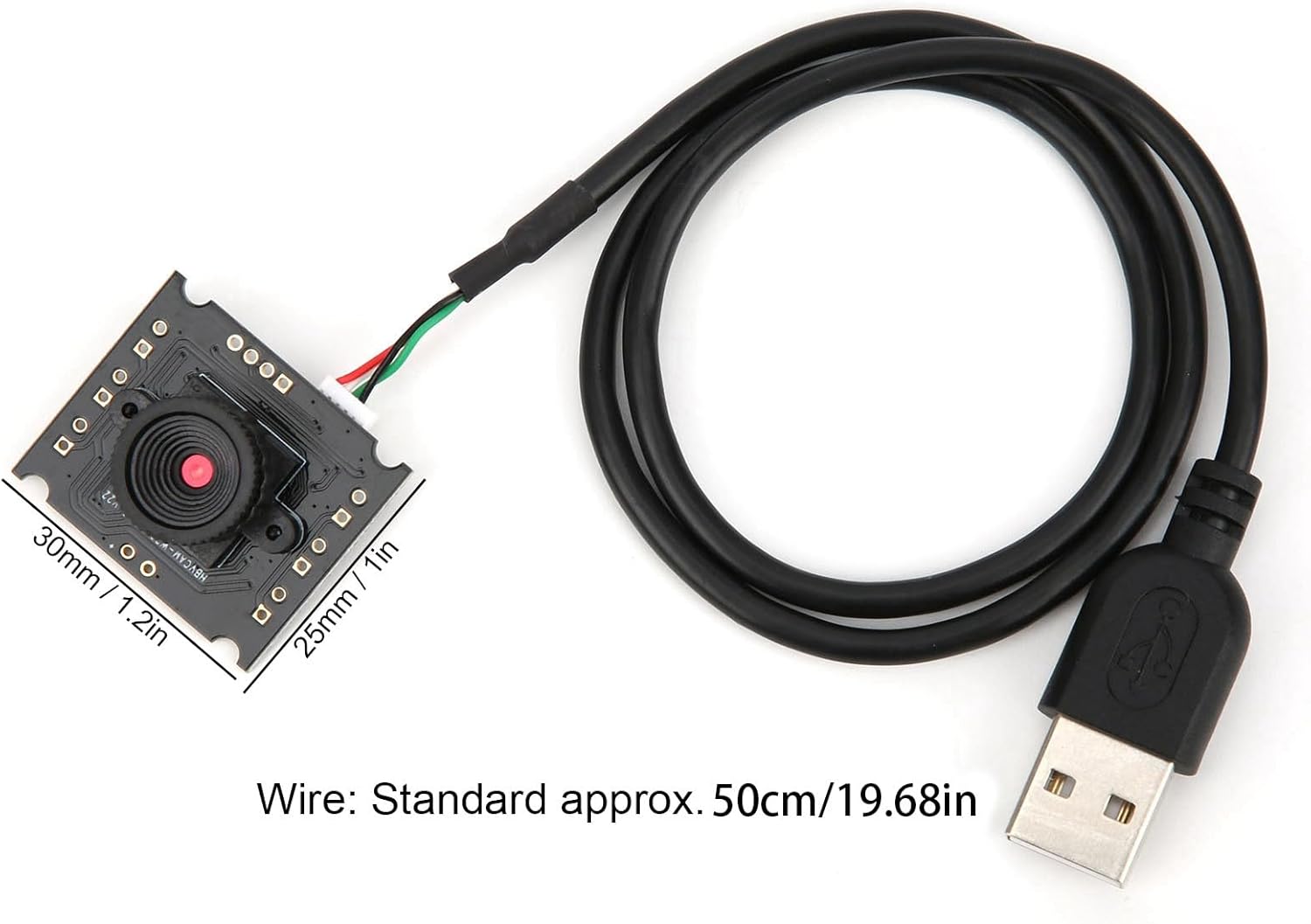
Figure 4: Dimensions of the camera module and standard cable length.

Figure 5: Visual comparison of normal pixel versus 1 megapixel high definition image clarity.
7. Atilẹyin ọja ati Support
For warranty information, technical support, or service inquiries, please refer to the documentation provided with your purchase or contact Akozon customer service through their official channels. Keep your purchase receipt as proof of purchase.