
Cello C2224WSF TRAV
Cello C2224WSF Traveller Smart/DVD TV User Manual
Model: C2224WSF TRAV
Ọja Pariview
The Cello C2224WSF Traveller Smart/DVD TV is a versatile entertainment solution designed for travel, including caravans, motorhomes, boats, and trucks. It combines a Full HD Smart TV powered by LG's WebOS Hub with an integrated DVD player, offering entertainment options even without a stable internet connection. This model features Pitch Perfect Sound technology for enhanced audio and flexible power options (12V DC and mains AC).
Its lightweight and frameless design makes it ideal for space-constrained environments and wall mounting.

Figure 1: Cello C2224WSF Traveller Smart/DVD TV with WebOS Hub interface and integrated DVD player.
Key Awọn ẹya ara ẹrọ
- Integrated Smart TV & DVD Player: Combines LG WebOS Hub for streaming apps (Netflix, Prime Video, Disney+, YouTube, BBC iPlayer, ITVX) with a built-in DVD player for offline entertainment.
- Pitch Perfect Sound: Patented Cello technology with a speaker enclosure below the TV for enhanced bass, clearer mids, and defined highs, providing an immersive audio experience.

Figure 2: Illustration of Cello's Pitch Perfect Sound technology, highlighting the speaker enclosure for improved audio.
- Tuner Meta: Built-in DVB-C/-S2/-T2 tuner for crystal-clear HD resolution and access to digital channels. Supports USB recording (DVR) and media playback.
- Ibamu Agbaye: Designed for 12V operation in caravans, motorhomes, boats, and trucks, with an integrated regulator for 10V to 27V DC input. Also operates on mains AC power.
- Asopọmọra Bluetooth: Allows easy connection to Bluetooth soundbars for enhanced audio without cables.
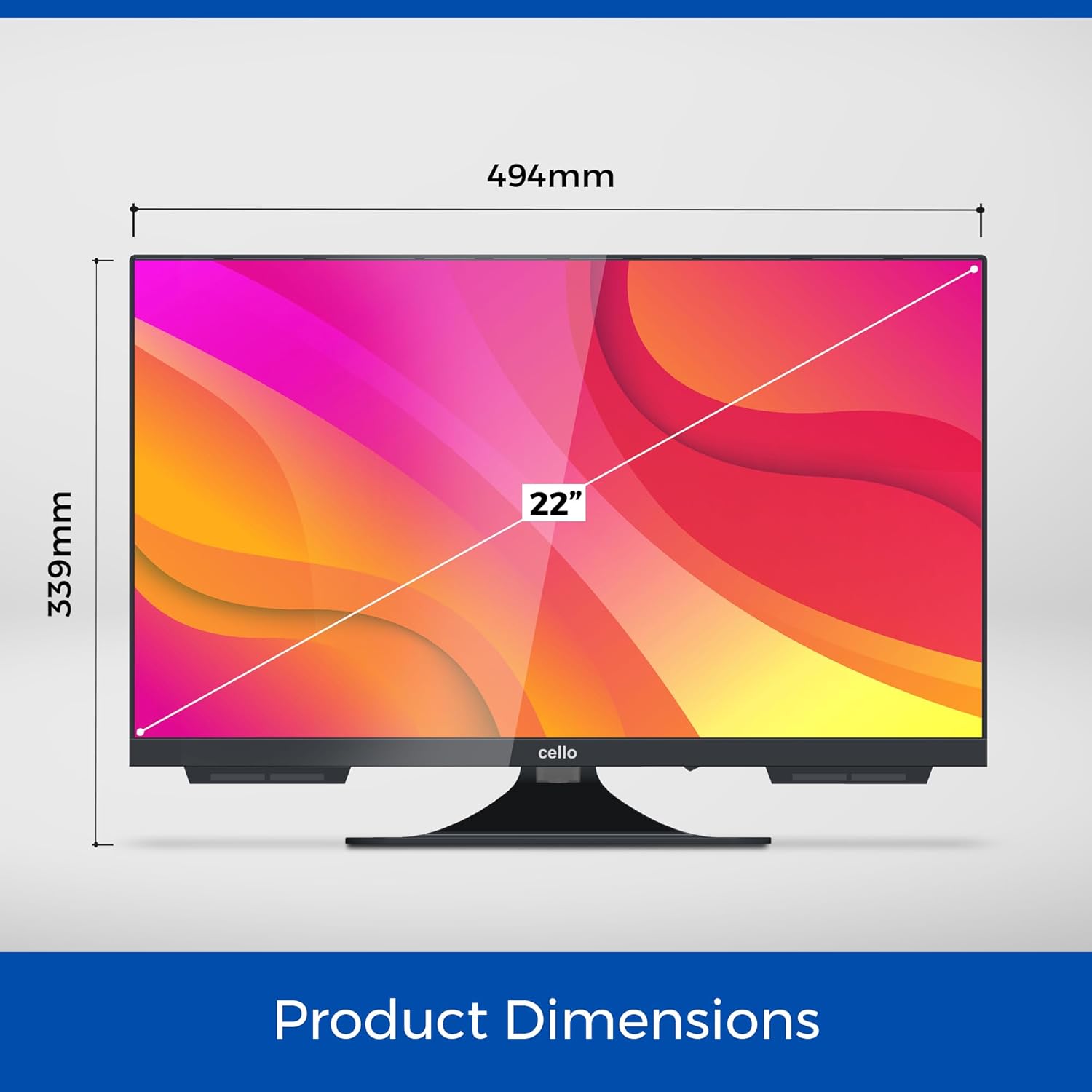
- Lightweight and Frameless Design: Compact dimensions (49 x 30 x 8 cm, 2.4 kg) and ultra-thin bezel for seamless integration and wall mounting in small spaces.

Figure 3: The Cello C2224WSF TV seamlessly integrated into a small living space, highlighting its compact design.
Eto Itọsọna
1. Unpacking ati Ibẹrẹ Ayewo
Carefully remove the TV and all accessories from the packaging. Check for any signs of damage. Retain the packaging for future transport or service.
2. iṣagbesori Aw
The TV can be placed on its included stand or wall-mounted. Ensure the mounting surface is stable and can support the TV's weight (2.4 kg).
- Fifi sori imurasilẹ: Attach the stand securely to the base of the TV using the provided screws.
- Iṣagbede ogiri: Use a VESA-compatible wall mount (not included). Refer to the wall mount's instructions for proper installation. Ensure adequate ventilation around the TV.
3. Asopọ agbara
The TV supports both 12V DC and mains AC power.
- Agbara DC 12V: Connect the supplied 12V power adapter cable to the TV's 12V input port and to your vehicle's 12V power source. The integrated regulator handles voltage fluctuations (10V to 27V DC).
- Mains AC Power: Connect the supplied AC power cable to the TV's AC input and then to a standard wall outlet.
4. Antenna/Cable Connection
Connect your antenna or cable source to the RF input port on the TV for digital terrestrial (DVB-T2), satellite (DVB-S2), or cable (DVB-C) reception.
5. Oṣo oluṣeto akọkọ
Lori agbara akọkọ, TV yoo ṣe itọsọna fun ọ nipasẹ oluṣeto iṣeto akọkọ. Eyi pẹlu:
- Aṣayan ede
- Asopọ nẹtiwọki (Wi-Fi tabi Ethernet)
- Channel scanning for DVB-T2/S2/C
- Awọn eto akoko ati ọjọ
Awọn ilana Iṣiṣẹ
1. Awọn iṣẹ Iṣakoso latọna jijin
Familiarize yourself with the provided remote control. Key buttons include Power, Volume Up/Down, Channel Up/Down, Source, Home (for WebOS), Navigation (arrows, OK), and specific app buttons.
2. Smart TV (WebOS Hub) Usage
Tẹ awọn Ile button on the remote to access the WebOS Hub. This interface provides quick access to:
- Awọn ohun elo ṣiṣanwọle: Netflix, Prime Video, Disney+, YouTube, etc. (requires internet connection).
- Catch-up TV: BBC iPlayer, ITVX (UK specific, requires internet connection).
- Web Aṣàwákiri: For general internet browsing.
- Aṣayan igbewọle: Switch between TV, HDMI, USB, and DVD inputs.
- Eto: Ṣe atunto aworan, ohun, nẹtiwọọki, ati awọn eto eto.
olusin 4: Awọn WebOS Hub interface, showcasing available streaming applications and smart features.
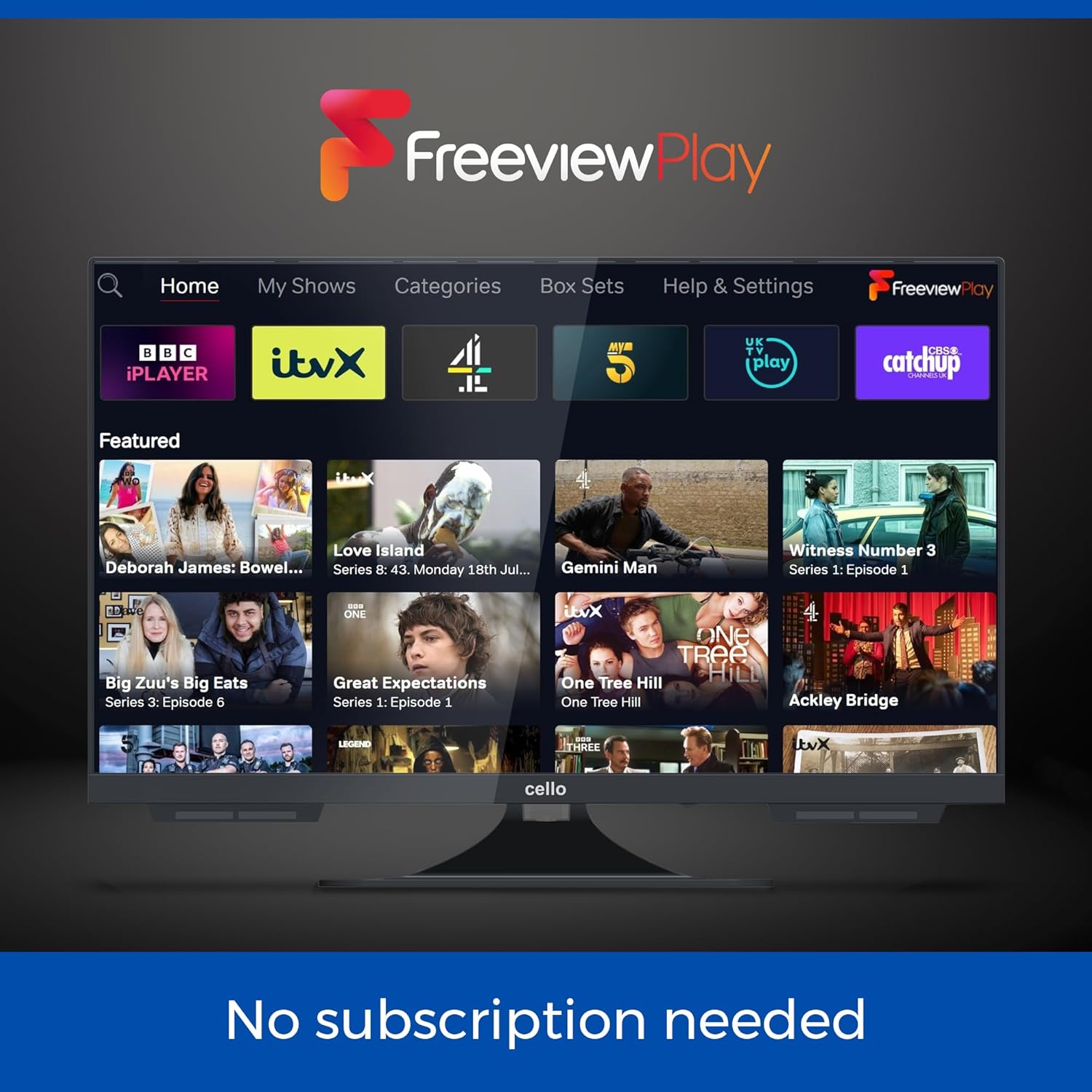
Figure 5: The Freeview Play interface, providing access to catch-up TV services without subscription.
3. Iṣẹ́ Ẹ̀rọ DVD
Insert a DVD disc into the slot on the side of the TV. The TV will automatically switch to the DVD input or prompt you to do so. Use the remote control for playback functions (Play, Pause, Stop, Skip, Fast Forward/Rewind).
4. Nsopọ Ita Awọn ẹrọ
The TV is equipped with multiple ports:
- HDMI: 1 port for connecting devices like gaming consoles, set-top boxes, or laptops.
- USB: 2 ports for media playback (photos, videos, music) or USB recording (DVR).
- Ojú: 1 port for digital audio output to a sound system.
- RF: Fún ìsopọ̀ eriali/okùn.
- Àjọlò: Fun isopọ Ayelujara ti a firanṣẹ.
To switch inputs, press the Orisun button on the remote and select the desired input.
5. Bluetooth Audio
To connect a Bluetooth soundbar or headphones:
- Lọ si Eto > Ohun > Bluetooth.
- Enable Bluetooth and put your audio device into pairing mode.
- Yan ẹrọ rẹ lati inu akojọ lati so pọ.
Itoju
1. Ninu TV
Use a soft, dry cloth to clean the screen and cabinet. For stubborn marks, slightly dampen the cloth with water or a mild, non-abrasive screen cleaner. Do not use alcohol, benzene, thinners, or other volatile substances.
2. Software imudojuiwọn
Awọn WebOS system may receive software updates. It is recommended to keep the TV connected to the internet to receive these updates, which can improve performance and add new features. You can check for updates in the Eto akojọ aṣayan.
3. DVD Player Care
Only insert clean, undamaged discs into the DVD player. Avoid touching the disc's playback surface. If the player experiences issues, try cleaning the disc or using a dedicated DVD lens cleaner disc.
Laasigbotitusita
| Isoro | Owun to le Fa | Ojutu |
|---|---|---|
| Ko si agbara | Power cable not connected; no power from outlet/12V source. | Check power connections. Ensure outlet/12V source is active. |
| No picture/sound from TV channels | Antenna/cable not connected; incorrect input selected; no channels scanned. | Check antenna/cable connection. Select correct input. Perform channel scan. |
| Ko si isopọ Ayelujara | Wi-Fi signal weak; incorrect Wi-Fi password; router issue. | Ṣàyẹ̀wò agbára àmì Wi-Fi. Tún tẹ ọ̀rọ̀ìpamọ́ sí i. Tún bẹ̀rẹ̀ ráútà. Gbìyànjú ìsopọ̀ Ethernet onírin. |
| DVD ko dun | Disc dirty/damaged; incorrect input selected. | Clean disc. Try another disc. Select DVD input. |
| Didara ohun ko dara | Volume too low; sound settings incorrect; external speakers not connected properly. | Adjust volume. Check sound settings (e.g., EQ, balance). Ensure external speakers/soundbar are connected and selected. |
| Isakoṣo latọna jijin ko ṣiṣẹ | Batteries dead/incorrectly inserted; obstruction between remote and TV. | Replace batteries. Remove obstructions. Point remote directly at TV. |
Awọn pato
- Awoṣe: C2224WSF TRAV
- Iwọn iboju: 22 inches
- Imọ-ẹrọ Ifihan: LED
- Ipinnu: 1080p (HD ni kikun)
- Oṣuwọn isọdọtun: 60 Hz
- Eto isesise: WebOS Hub (by LG)
- Awọn ẹya ara ẹrọ Iṣọkan: DVD Player, Triple Tuner (DVB-C/-S2/-T2)
- Ohun: Pitch Perfect Sound, Integrated Speaker
- Asopọmọra:
- 1 x HDMI Port
- 2 x Awọn ibudo USB
- 1 x Optical Port
- 1 x RF Port (Antenna/Cable)
- Àjọlò
- Bluetooth
- Wi-Fi
- Iṣagbewọle agbara: 12V DC (10V-27V range) / Mains AC
- Awọn iwọn (W x H x D): Approximately 49 cm x 30 cm x 8 cm (excluding stand)
- Ìwúwo: O to 2.4 kg
- Awọn ẹya pataki: Frameless Design, USB Recording (DVR), Miracast, Web Aṣàwákiri
- Ilu isenbale: apapọ ijọba gẹẹsi

Figure 6: Product dimensions of the Cello C2224WSF TV.
Atilẹyin ọja ati Support
This product comes with a standard manufacturer's warranty. For specific warranty terms and conditions, please refer to the warranty card included with your product or visit the official Cello webojula.
For technical support, troubleshooting assistance beyond this manual, or warranty claims, please contact Cello customer service. Contact details can typically be found on the manufacturer's webaaye tabi ni apoti ọja.
Please have your model number (C2224WSF TRAV) and purchase date available when contacting support.
Ask a question about this manual
Ask about setup, troubleshooting, compatibility, parts, safety, or missing instructions. Manuals+ will review the question and use this page’s manual context to help answer it.