
MACALLY BTZKEY
MACALLY BTZKEY Bluetooth Full-size Keyboard User Manual
Model: BTZKEY
1. Ifihan
This manual provides detailed instructions for the MACALLY BTZKEY Bluetooth Full-size Keyboard, designed for seamless integration with Apple devices. It features a Japanese layout, a numeric keypad, and multi-pairing capabilities for up to three devices. Please read this manual thoroughly before using the product to ensure proper operation and longevity.

Figure 1: MACALLY BTZKEY Bluetooth Full-size Keyboard
2. Package Awọn akoonu
Jọwọ ṣayẹwo awọn akoonu package lati rii daju pe gbogbo awọn ohun kan wa:
- MACALLY BTZKEY Bluetooth Full-size Keyboard
- USB-C Ngba agbara Cable
- Itọsọna olumulo
3. Eto
3.1 Ngba agbara si Keyboard
The keyboard comes with a built-in 780mAh rechargeable battery. Before initial use, it is recommended to fully charge the keyboard.
- Connect the included USB-C cable to the charging port on the keyboard.
- Connect the other end of the USB-C cable to a USB power adapter (not included) or a powered USB port on your computer.
- Ina Atọka gbigba agbara yoo tan imọlẹ lakoko gbigba agbara ati pipa nigbati o ba gba agbara ni kikun.
Akiyesi: The USB-C cable provided is for charging only and does not support data transfer.

Figure 2: Charging the MACALLY BTZKEY Keyboard
3.2 Sisopọ pẹlu Awọn ẹrọ
The MACALLY BTZKEY keyboard supports pairing with up to three Bluetooth-enabled devices (MacBook, iMac, iPhone, iPad). You can easily switch between these devices.
- Rii daju pe o ti gba agbara ati ki o ṣiṣẹ lori keyboard.
- Enable Bluetooth on your device (Mac, iPad, iPhone).
- On the keyboard, press and hold one of the dedicated device keys (B1, B2, or B3) for 3-5 seconds until the corresponding indicator light above the key flashes rapidly. This indicates the keyboard is in pairing mode.
- On your device, go to Bluetooth settings and select "BTZKEY" from the list of available devices.
- Once connected, the indicator light will stop flashing and remain solid for a few seconds, then turn off.
- To switch between paired devices, simply press the corresponding device key (B1, B2, or B3). The keyboard will automatically connect to the last paired device on that channel.
Imọran Laasigbotitusita: If pairing fails, it is recommended to delete all existing pairing records for the keyboard on your device and attempt to reconnect.

Figure 3: Multi-Sync Bluetooth Functionality
4. Awọn ilana Iṣiṣẹ
4.1 Mac-Specific Layout and Shortcut Keys
This keyboard is designed with a 111-key macOS-specific layout, providing a familiar and efficient typing experience for Apple users. It includes 14 dedicated shortcut keys for quick access to common Mac functions.
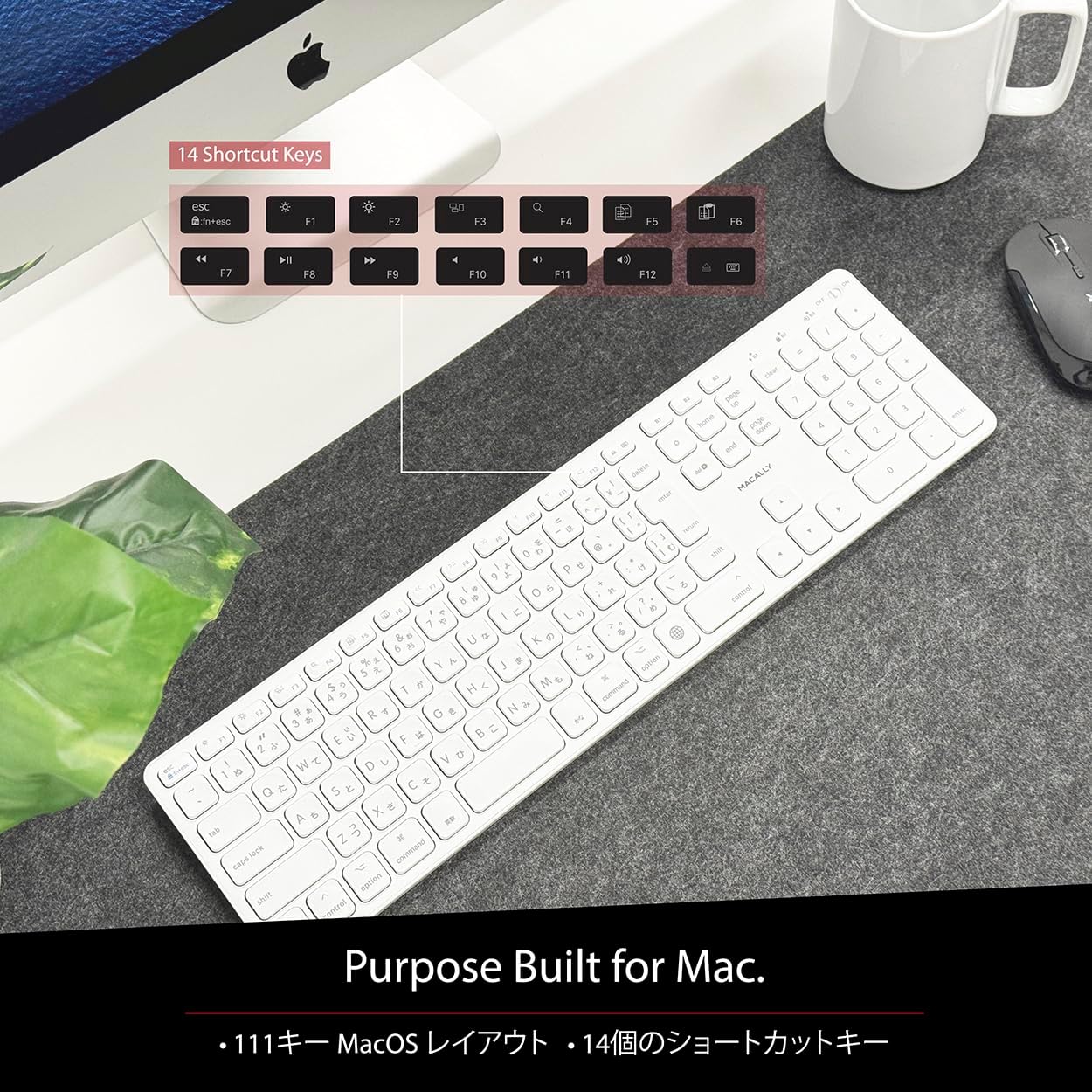
Figure 4: Mac-Specific Layout and Shortcut Keys
4.2 Scissor-Switch Keycaps
The keyboard utilizes quiet scissor-switch keys, offering a smooth, tactile, and quiet typing experience. This design ensures comfortable and efficient typing, whether for extended periods or quick tasks.
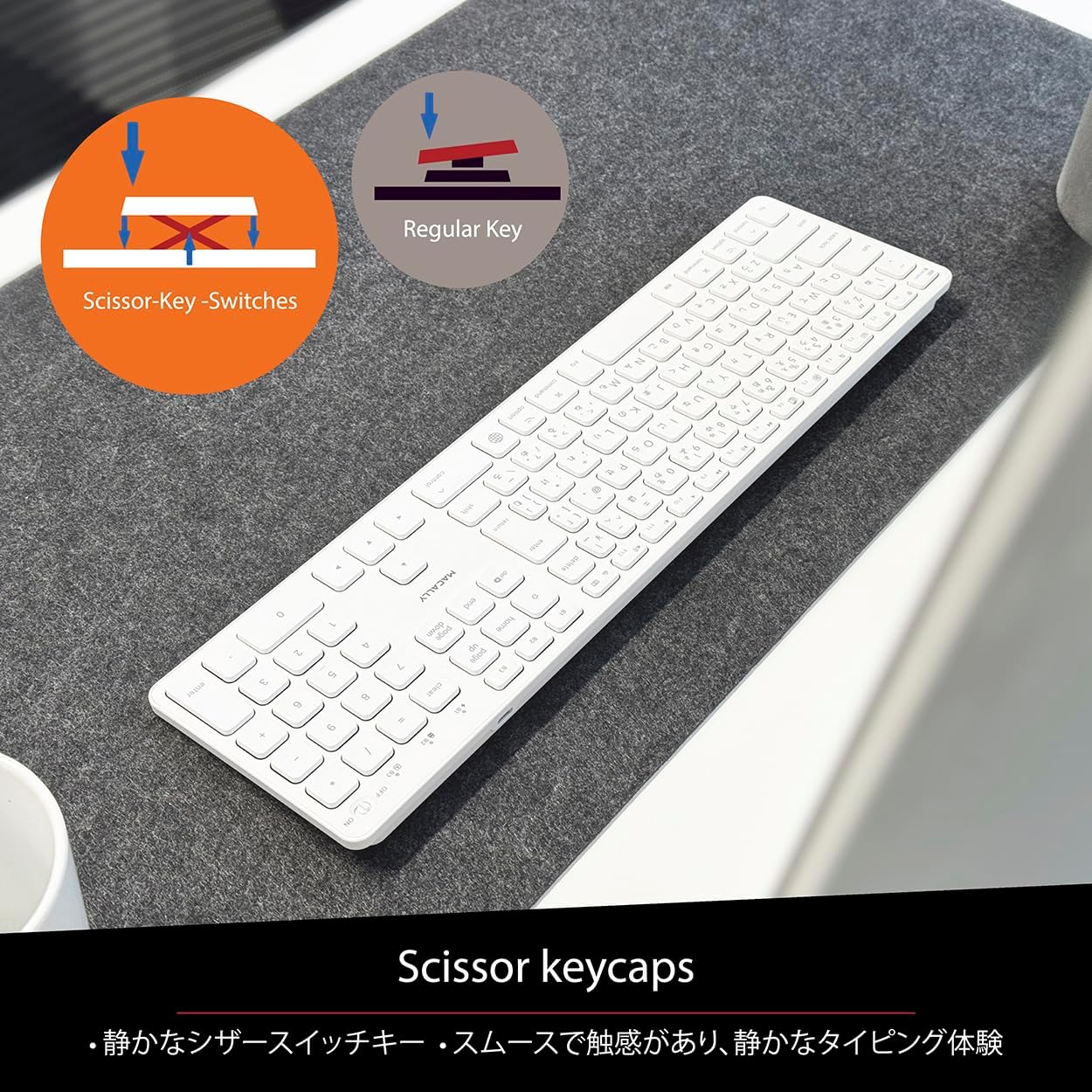
Figure 5: Scissor-Key-Switches Mechanism
4.3 Ergonomics and Design
The keyboard features an integrated kickstand for comfortable typing angles, reducing strain during use. Its slim profile, approximately 0.8 inches (2cm) thick, ensures portability and ergonomic use, complementing any workspace.
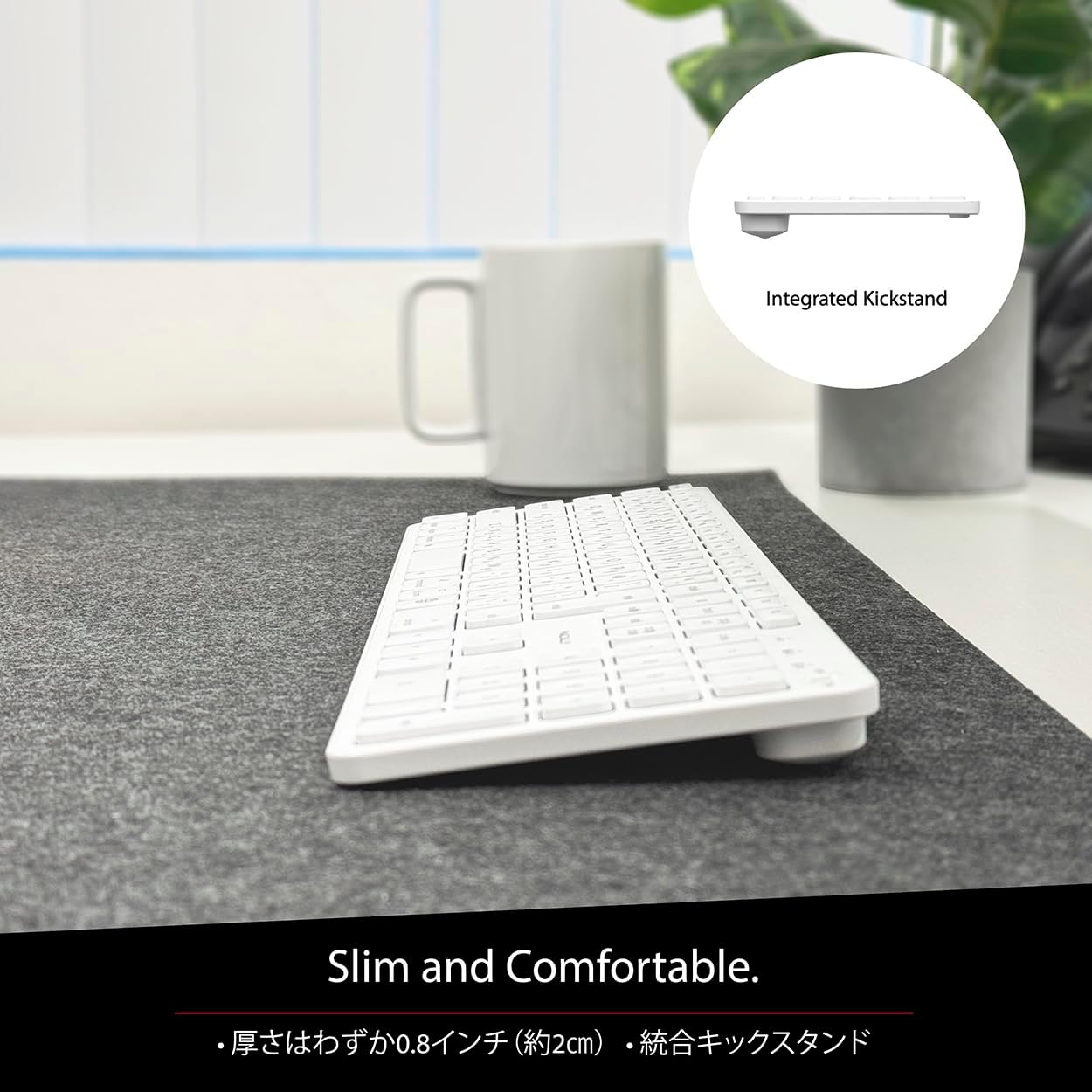
Figure 6: Slim Design with Integrated Kickstand
5. Itọju
Lati rii daju igbesi aye gigun ati iṣẹ to dara julọ ti keyboard rẹ, tẹle awọn itọnisọna itọju wọnyi:
- Ninu: Lo asọ asọ, ti ko ni lint die-die dampfi omi tàbí omi ìwẹ̀nùmọ́ díẹ̀ pa ojú kọ̀ǹpútà náà. Yẹra fún àwọn kẹ́míkà líle tàbí àwọn ohun èlò ìfọ́mọ́ra.
- Yiyọ eruku kuro: Lo afẹfẹ fisinuirindigbindigbin lati yọ eruku ati idoti kuro laarin awọn bọtini.
- Itọju Batiri: Avoid exposing the keyboard to extreme temperatures. Charge the keyboard regularly, even if not in frequent use, to maintain battery health.
- Ibi ipamọ: Tí o kò bá lò ó fún ìgbà pípẹ́, tọ́jú keyboard náà sí ibi gbígbẹ tí ó tutù tí kò sì sí ìmọ́lẹ̀ oòrùn tààrà.
6. Laasigbotitusita
If you encounter issues with your MACALLY BTZKEY keyboard, please refer to the following common problems and solutions:
| Isoro | Owun to le Fa | Ojutu |
|---|---|---|
| Keyboard ko so/so pọ | Bluetooth off, low battery, pairing conflict | Ensure Bluetooth is enabled on device. Charge keyboard. Delete existing pairing records on device and re-pair. |
| Keys unresponsive or repeating characters | Low battery, software glitch, interference | Charge keyboard. Restart device. Re-pair keyboard. Minimize interference from other wireless devices. |
| Kò le yípadà láàrín àwọn ẹ̀rọ | Device not properly paired to channel | Ensure each device is paired to a unique channel (B1, B2, B3). Re-pair if necessary. |
| Aye batiri kukuru | Frequent use, aging battery | Ensure full charge before use. Reduce backlight usage if applicable (not on this model). Battery life may decrease over time. |
Ti iṣoro naa ba wa lẹhin igbiyanju awọn solusan wọnyi, jọwọ kan si atilẹyin alabara.
7. Awọn pato
| Ẹya ara ẹrọ | Apejuwe |
|---|---|
| Brand | Macally |
| Olupese | AGBARA |
| jara | BTZKEY |
| Awọn iwọn Ọja (L x W x H) | 42 x 14 x 2 cm |
| Nọmba awoṣe Ọja | BTZKEY |
| Àwọ̀ | Funfun |
| Awọn batiri To wa | Bẹẹni |
| Litiumu Batiri Pack | Awọn batiri ti o wa ninu ẹrọ |
| Iwọn Batiri Litiumu | 2 g |
| Iwọn Nkan | 610 g |
| Awọn ẹrọ ibaramu | Laptop (MacBook Pro/Air, iMac, Mac Mini, Mac Pro, iPad, iPhone) |
| Asopọmọra Technology | Bluetooth |
| Apejuwe Keyboard | Keyboard Office |
| Niyanju Lilo Fun Ọja | Iṣowo |
| Pataki Ẹya | Gbigba agbara |
| Nọmba ti Awọn bọtini | 111 |
| Awọn irinše to wa | Okun USB |
8. Atilẹyin ọja ati Support
For detailed warranty information, technical support, and customer service, please refer to the official MACALLY website or contact their support channels directly. It is recommended to keep your purchase receipt as proof of purchase for any warranty claims.
9. Awọn fidio ọja osise
Official product videos, if available and relevant, would be embedded here to provide visual guidance on setup, features, or troubleshooting. Please note that video content is subject to availability and may require an internet connection to view.
(No official seller videos were available in the provided product data to embed at this time.)
Ask a question about this manual
Ask about setup, troubleshooting, compatibility, parts, safety, or missing instructions. Manuals+ will review the question and use this page’s manual context to help answer it.