
Ọrọ Iṣaaju
This manual provides detailed instructions for the TECPHILE iPad Keyboard Case, Model T5509D. It covers setup, operation, maintenance, and troubleshooting to ensure optimal use of your device. Please read this manual thoroughly before using the product.
Ibamu
The TECPHILE iPad Keyboard Case (Model T5509D) is specifically designed for the following iPad Pro 12.9-inch models:
- iPad Pro 12.9-inch (6th Generation, 2022): Àwọn àpẹẹrẹ A2436, A2764, A2437, A2766
- iPad Pro 12.9-inch (5th Generation, 2021): Àwọn àpẹẹrẹ A2378, A2379, A2461, A2462
- iPad Pro 12.9-inch (4th Generation, 2020): Àwọn àpẹẹrẹ A2233, A2229, A2069, A2232
- iPad Pro 12.9-inch (3rd Generation, 2018): Àwọn àpẹẹrẹ A1876, A2014, A1895, A1983
This case is not compatible with any other iPad models.

Image: Compatibility chart for TECPHILE iPad Keyboard Case. Please verify your iPad model number on the back of your device to ensure compatibility.
Package Awọn akoonu
Ni ṣiṣi package, jọwọ rii daju pe gbogbo awọn nkan wa:
- TECPHILE iPad Keyboard Case (with integrated kickstand and pencil holder)
- Detachable Wireless Backlit Keyboard
- USB-C Ngba agbara Cable
- Afowoyi Olumulo (iwe-ipamọ yii)
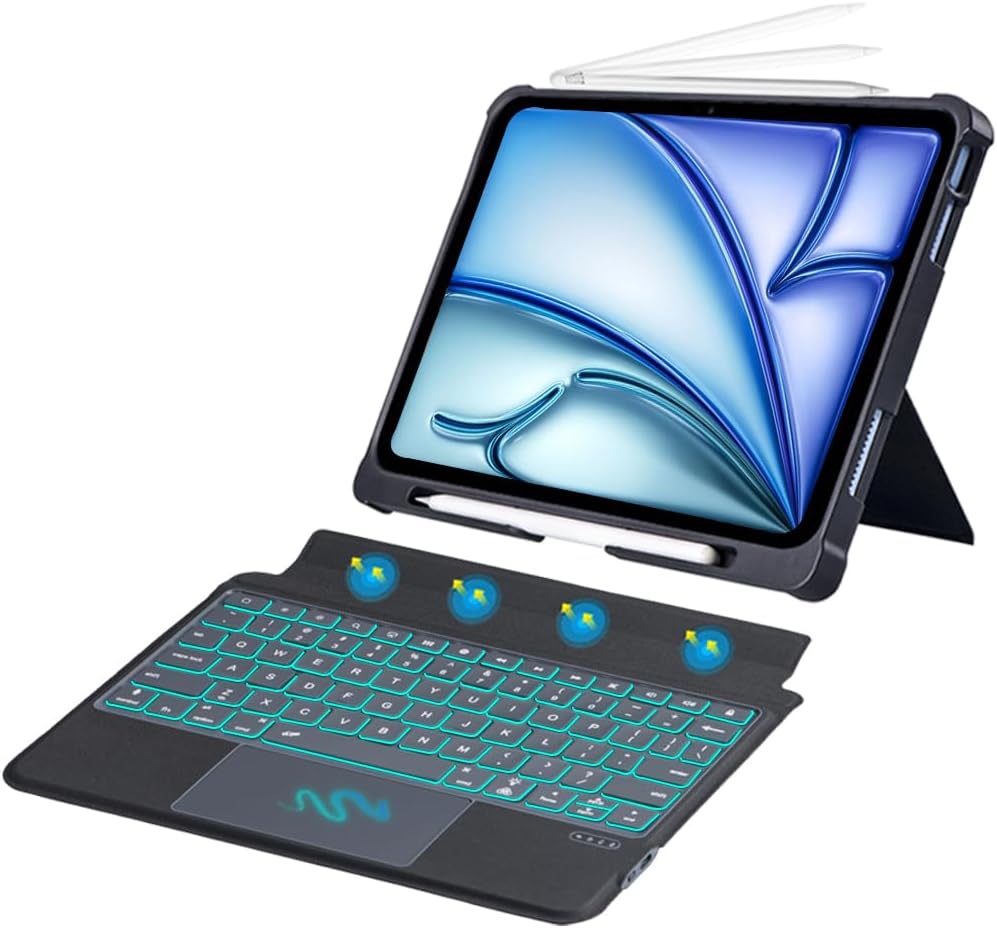
Aworan: Pariview of the TECPHILE iPad Keyboard Case components, including the case with an iPad and the detached wireless keyboard.
Eto Itọsọna
1. So iPad rẹ pọ̀ mọ́ àpótí náà
- Gently align your iPad Pro 12.9-inch with the case.
- Insert the iPad into the protective shell, ensuring all corners are securely fitted. The case provides full protection and features honeycomb heat release design.
- The case includes a dedicated pencil holder and supports wireless charging for your Apple Pencil.
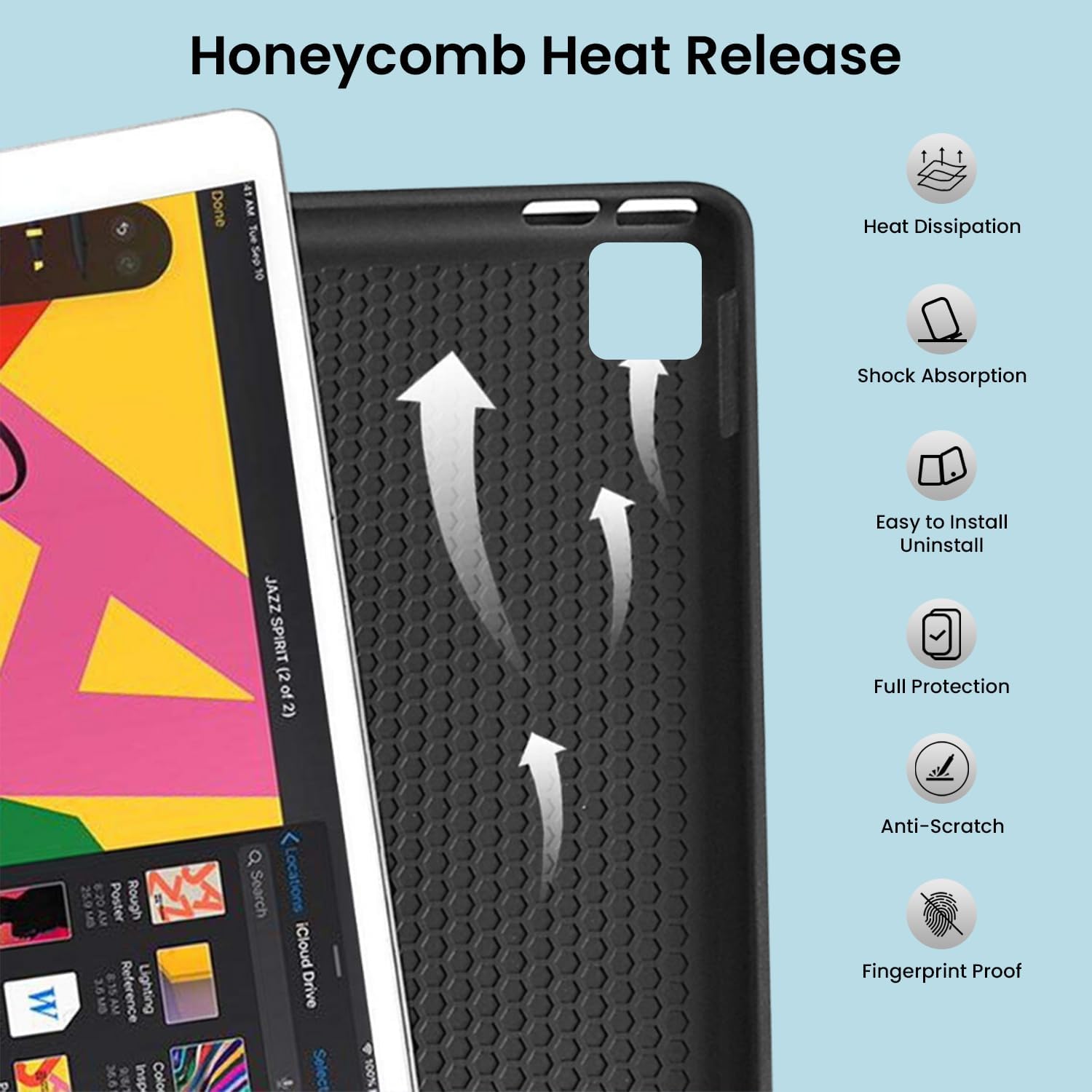
Image: Detail of the case's honeycomb structure for heat dissipation and protective features.

Image: Illustrates the wireless charging capability for the Apple Pencil and the integrated pencil holder.
2. Ngba agbara si Keyboard
Before initial use, fully charge the keyboard. The keyboard has a 500mAh battery capacity.
- Wa ibudo gbigba agbara USB-C ni ẹgbẹ ti keyboard naa.
- Connect the provided USB-C cable to the keyboard and a power source (e.g., USB wall adapter, computer USB port).
- The charging indicator light will illuminate. Once fully charged, the light may change or turn off.
A full charge provides approximately 80 hours of use without backlight or 5 hours with backlight enabled.

Image: Keyboard charging port and battery performance details.
3. So keyboard pọ nipasẹ Bluetooth
The keyboard connects wirelessly to your iPad via Bluetooth.
- Rii daju pe o ti gba agbara ati ki o ṣiṣẹ lori keyboard.
- Lori awọn keyboard, tẹ awọn Fn+Z keys simultaneously. The Bluetooth indicator light will start blinking, indicating it's in pairing mode.
- Lori iPad rẹ, lọ si Eto > Bluetooth.
- Tan Bluetooth. iPad rẹ yoo wa awọn ẹrọ ti o wa.
- Locate and tap "Bluetooth Keyboard" (or similar name) in the list of devices to connect.
- Once connected, the Bluetooth indicator light on the keyboard will stop blinking.

Image: Visual guide for Bluetooth pairing process.
Awọn ilana Iṣiṣẹ
Awọn iṣẹ Keyboard
The detachable keyboard features a QWERTY layout with additional function keys for iPad control.
- Iṣakoso ina Back: Tẹ Fn + 💡 (light bulb icon) to turn on/off the backlight and cycle through 7 different colors. Press Fn + ☀️ (sun icon) to adjust the 3 levels of brightness.
- Full Shortcut Row: Access common iPad functions directly from the top row of keys.
- Intelligent Voice Input Function: Utilize the dedicated key for voice input.

Aworan: Alaye view of the keyboard's backlit keys and function controls.
Smart Multi-Gesture Trackpad
The integrated large trackpad supports multi-touch gestures for enhanced navigation.
- Lilọ kiri ipilẹ: Gbe kọsọ naa nipa gbigbe ika rẹ kọja paadi orin.
- Click Functions: Supports right and left click functions.
- Multi-Finger Gestures: Utilize native iPad multi-finger gestures for scrolling, swiping, and other actions. Refer to your iPad's settings for a full list of supported gestures.
- Turn On/Off Trackpad: Tẹ Fn + 🖱️ (trackpad icon) to enable or disable the trackpad.
Adjustable Kickstand and Usage Modes
The case features an adjustable kickstand that allows for multiple viewing angles and usage modes.
- Iru Ipo: Position the iPad upright with the keyboard attached for a laptop-like experience.
- View Ipo: Adjust the kickstand to a comfortable angle for watching videos or presentations without the keyboard.
- Ka Ipo: Fold the keyboard behind the iPad for a tablet-like reading experience.
- Ipo Aworan: Lower the angle for drawing or writing with the Apple Pencil.
The kickstand offers a seamless range of angles, smoothly reclining from 30° to 160° while maintaining stability.

Image: Various usage modes enabled by the adjustable kickstand and detachable keyboard.
Auto Ji / Orun Išė
The keyboard case includes an auto wake/sleep function to conserve battery life. Closing the case will put your iPad to sleep, and opening it will wake it up.
Itoju
- Ninu: Lo asọ, damp asọ lati mu ese awọn ode ti awọn nla ati keyboard. Yago fun awọn kẹmika lile tabi awọn ohun elo abrasive.
- Ibi ipamọ: When not in use for extended periods, store the keyboard case in a cool, dry place. Ensure the keyboard is turned off to preserve battery life.
- Itọju Batiri: Láti mú kí batiri pẹ́ sí i, má ṣe jẹ́ kí keyboard náà máa jáde dáadáa nígbà gbogbo.
Laasigbotitusita
Keyboard Ko Sopọ
- Ṣayẹwo Agbara: Rí i dájú pé keyboard náà ti ń ṣiṣẹ́, ó sì ní agbára tó láti fi gba agbára.
- Tun Bluetooth so pọ:
- Lori iPad rẹ, lọ si Eto > Bluetooth.
- Forget or unpair the "Bluetooth Keyboard" if it appears in "My Devices".
- Tun iPad rẹ bẹrẹ.
- Put the keyboard into pairing mode (press Fn+Z).
- Wa fun and connect to the keyboard again on your iPad.
- Ìjánu: Lọ kuro ni awọn ẹrọ alailowaya miiran ti o le fa kikọlu.
Awọn bọtini Ko Fesi
- Ipele Batiri: Gba agbara si keyboard ni kikun.
- Asopọ Bluetooth: Rí i dájú pé keyboard náà so pọ̀ dáadáa nípasẹ̀ Bluetooth.
- Tun bẹrẹ: Pa bọtini itẹwe naa ati tan lẹẹkansi.
Trackpad Ko Ṣiṣẹ
- Enable Trackpad: Rí i dájú pé trackpad náà ṣiṣẹ́ nípa títẹ̀ Fn + 🖱️ (trackpad icon).
- Awọn Eto iPad: Check iPad accessibility settings for pointer control.
- Páádì Ìtọ́pasẹ̀ Mímọ́: Rí i dájú pé ojú trackpad náà mọ́ tónítóní, kò sì ní ìdọ̀tí kankan.
Awọn pato
| Orukọ awoṣe | T5509D |
| Ibamu | iPad Pro 12.9" (6th, 5th, 4th, 3rd Gen) |
| Asopọmọra | Bluetooth |
| Ifilelẹ bọtini itẹwe | QWERTY |
| Imọlẹ ẹhin | Àwọ̀ 7, Ìpele Ìmọ́lẹ̀ 3 |
| Paadi orin | Large Multi-Gesture Trackpad |
| Agbara Batiri | 500mAh (Litiumu Ion) |
| Battery Life (Non-backlight) | Titi di wakati 80 |
| Battery Life (Backlight) | Titi di wakati 5 |
| Gbigba agbara Port | USB-C |
| Ọja Mefa | 29 x 24 x 2 cm |
| Iwọn Nkan | 735 g |
| Ohun elo | Leatherite and ABS Plastic |
| Pataki Awọn ẹya ara ẹrọ | Adjustable Kickstand (30°-160°), Detachable Keyboard, Pencil Holder, Wireless Pencil Charging Support, Auto Wake/Sleep, Honeycomb Heat Release |
Atilẹyin ọja ati Support
For warranty information or technical support, please refer to the documentation included with your purchase or contact TECPHILE customer service through the retailer where the product was purchased. Please have your model number (T5509D) and purchase details ready when contacting support.