
1. Ifihan
This manual provides essential information for the safe and efficient operation of your THOMSON 32HG2S14 32-inch LED HD Google TV. Please read this manual thoroughly before using your television and retain it for future reference.
Your new television features Google TV for personalized entertainment, integrated Wi-Fi, Dolby Audio for enhanced sound, HDR10 support for improved picture quality, Bluetooth 5.1 connectivity, and a versatile Triple-Tuner for various reception methods.
2. Alaye Aabo
Awọn Itọsọna Aabo pataki:
- Ka gbogbo awọn ilana ṣaaju ki o to ṣiṣẹ tẹlifisiọnu.
- Keep the television away from heat sources, direct sunlight, and moisture.
- Rii daju pe fentilesonu to dara ni ayika tẹlifisiọnu. Ma ṣe dina awọn ṣiṣi atẹgun.
- Lo awọn asomọ/awọn ẹya ara ẹrọ ti a sọ pato nipasẹ olupese.
- Yọ tẹlifíṣọ̀n náà kúrò nígbà tí mànàmáná bá ń jà tàbí nígbà tí a kò bá lò ó fún ìgbà pípẹ́.
- Tọkasi gbogbo iṣẹ si awọn oṣiṣẹ iṣẹ ti o peye.
3. Package Awọn akoonu
Daju pe gbogbo awọn nkan wa ninu apoti:
- THOMSON 32HG2S14 32-inch LED HD Google TV
- Iṣakoso latọna jijin (pẹlu awọn batiri)
- Okun agbara
- TV Stands (2x)
- Awọn skru fun Awọn iduro TV
- Quick Bẹrẹ Itọsọna
- Afowoyi Olumulo (iwe-ipamọ yii)
4. Ti ara Oṣo
4.1. So awọn TV Imurasilẹ
To attach the included TV stands:
- Fi iṣọra gbe TV ni oju-isalẹ lori rirọ, dada alapin lati ṣe idiwọ ibajẹ iboju.
- Sopọ kọọkan imurasilẹ pẹlu awọn ti o baamu dabaru ihò lori isalẹ ti TV.
- Ṣe aabo iduro kọọkan nipa lilo awọn skru ti a pese. Rii daju pe wọn ti di ṣinṣin.
The TV offers two stand positions for different furniture sizes.
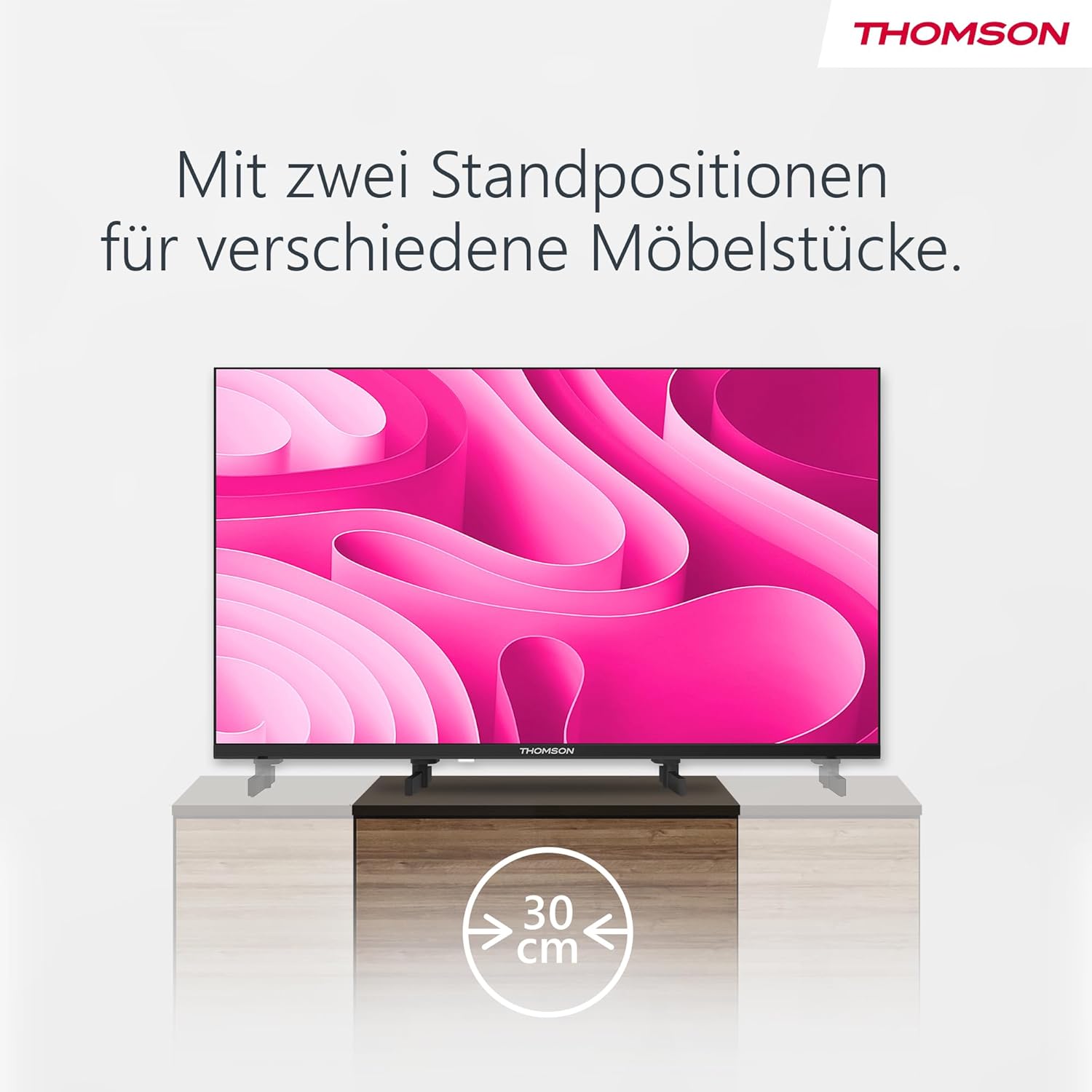
Image: The THOMSON 32HG2S14 television demonstrating its two possible stand positions for varied furniture widths.
4.2. Iṣagbesori Odi
This television supports VESA-compliant wall mounts. Refer to the wall mount manufacturer's instructions for installation. Ensure the wall mount is suitable for the TV's weight and size.
5. Awọn isopọ
Your THOMSON 32HG2S14 TV provides various ports for connecting external devices.

Image: Rear panel of the television displaying the layout of all available connection ports.

Aworan: Apa view of the television, highlighting the conveniently accessible side-mounted ports.
5.1. Ibudo Overview
- HDMI (3x): Connect Blu-ray players, game consoles, set-top boxes, etc.
- USB (1x): So awọn ẹrọ ibi ipamọ USB pọ fun ṣiṣiṣẹsẹhin media.
- LAN (ayelujara): Fun isopọ Ayelujara ti a firanṣẹ.
- Antenna (RF): Connect a terrestrial antenna for DVB-T2 reception.
- Satellite (LNB): Connect a satellite dish for DVB-S2 reception.
- CI + Iho: Insert a Conditional Access Module (CAM) for encrypted channels.
- Ohun Jade (Opiti): Connect to an external audio system.
- AV Ninu: So awọn ẹrọ agbalagba pọ nipa lilo fidio apapo ati awọn kebulu ohun sitẹrio.
6. Ni ibẹrẹ Oṣo
6.1. Agbara akọkọ Lori
- After connecting all necessary cables, plug the power cable into an electrical outlet.
- Tẹ bọtini agbara lori isakoṣo latọna jijin tabi lori TV.
- The TV will guide you through the initial setup process, including language selection, network connection, and Google account login.
6.2. Google TV Configuration
During initial setup, you will be prompted to set up Google TV:
- Isopọ nẹtiwọki: Connect to your home Wi-Fi network or use an Ethernet cable.
- Akọọlẹ Google: Sign in with your Google account to access personalized recommendations, apps, and Google Assistant.
- Olumulo Profiles: Ṣẹda ọpọ olumulo profiles for personalized content recommendations for each family member.

Image: The Google TV home screen interface, showing various streaming applications and content recommendations.
7. Ṣiṣẹ TV rẹ
7.1. Isakoṣo latọna jijin
The premium backlit remote control allows for easy navigation, even in low-light conditions.

Image: The remote control for the THOMSON 32HG2S14, illustrating its key features such as profile switching, favorite app button, backlit keys, and voice control.
- Bọtini agbara: Tan TV si tan tabi paa.
- Paadi Lilọ kiri: Use the directional buttons and OK button to navigate menus.
- Bọtini Iranlọwọ Google: Mu iṣakoso ohun ṣiṣẹ.
- Favorite Button (Star Icon): Customize to quickly access your preferred application.
- Awọn bọtini Afẹyinti: Buttons illuminate for visibility in dark environments.
7.2. Google Iranlọwọ
Use your voice to control your TV, search for content, get answers, and manage smart home devices.
- Tẹ bọtini Google Assistant lori isakoṣo latọna jijin rẹ.
- Speak clearly into the microphone on the remote.
- Example commands: "Hey Google, open Netflix," "Find action movies," "What's the weather?"

Image: A user interacting with the television's Google Assistant feature via voice command through the remote control.
7.3. Triple Tuner (DVB-T2/C/S2)
The integrated triple tuner allows you to receive television signals via antenna (DVB-T2), cable (DVB-C), or satellite (DVB-S2) without additional external receivers.
- Access the TV's settings menu to perform a channel scan for your chosen reception method.
- For encrypted channels, insert a CI+ module into the CI+ slot.
7.4. Google Simẹnti
Google Cast allows you to wirelessly stream movies, music, and videos from compatible devices (smartphones, tablets, laptops) directly to your TV.
- Ensure your mobile device and TV are connected to the same Wi-Fi network.
- Open a compatible app (e.g., YouTube, Netflix) on your mobile device.
- Tẹ àmì Simẹnti (
 ) laarin app.
 - Select your THOMSON TV from the list of available devices.

Image: Illustration of Google Cast, showing content being streamed from various devices (phone, tablet, laptop) to the THOMSON television.
8. Awọn ẹya ara ẹrọ Loriview
8.1. Dolby Audio
Experience dynamic sound with Dolby Audio technology, providing clear dialogue and immersive surround sound.

Image: Two individuals enjoying content on the THOMSON 32HG2S14, with a visual representation of Dolby Audio's immersive sound waves.
8.2. HDR10
HDR10 (High Dynamic Range) enhances contrast and color accuracy, delivering a more vibrant and lifelike picture with greater detail in both bright and dark scenes.
8.3. Bluetooth 5.1
Connect compatible Bluetooth devices such as headphones, soundbars, or game controllers wirelessly to your TV for an enhanced entertainment experience.
9. Awọn pato
Technical specifications for the THOMSON 32HG2S14 LED HD Google TV:
| Ẹya ara ẹrọ | Sipesifikesonu |
|---|---|
| Nọmba awoṣe | 32HG2S14 |
| Iwon iboju | 32 inches (81 cm) |
| Ifihan ọna ẹrọ | LED HD |
| Ipinnu | 1366 x 768 awọn piksẹli |
| Oṣuwọn sọtun | 60 Hz |
| Eto isesise | Google TV |
| Ohun Technology | Dolby Audio |
| HDR atilẹyin | HDR10 |
| Alailowaya Asopọmọra | Wi-Fi, Bluetooth 5.1 |
| Tuners | DVB-T2 (Ayé), DVB-C (Káàbù), DVB-S2 (Sátẹ́ẹ̀lì) |
| Awọn ibudo HDMI | 3 |
| Awọn ibudo USB | 1 |
| Awọn iwọn (W x H x D) | 71.92 x 45.6 x 15.05 cm (pẹlu iduro) |
| Iwọn | 3.35 kg |
| Agbara Agbara Kilasi | E |
For detailed energy information, please refer to the EU EPREL database:
https://eprel.ec.europa.eu/qr/1732976

Image: The EU energy efficiency label for the THOMSON 32HG2S14 television, indicating its energy class and consumption.
10. Itọju
10.1. Ninu iboju
Lati nu iboju naa, rọra nu rẹ pẹlu asọ ti ko ni lint. Fun awọn ami alagidi, fẹẹrẹ dampen awọn asọ pẹlu omi tabi a specialized iboju regede. Maṣe fun sokiri regede taara sori iboju.
10.2. Ninu awọn Minisita
Pa minisita TV nu pẹlu asọ ti o gbẹ. Yago fun lilo abrasive ose tabi epo.
11. Laasigbotitusita
If you encounter issues with your TV, consult the following table for common problems and solutions.
| Isoro | Owun to le Solusan |
|---|---|
| Ko si agbara | Ṣayẹwo boya okun agbara ti wa ni edidi ni aabo sinu TV ati iṣan ogiri. Gbiyanju iṣan ti o yatọ. |
| Ko si aworan, ṣugbọn ohun wa | Rii daju pe orisun titẹ sii to pe ti yan. Ṣayẹwo awọn asopọ okun si awọn ẹrọ ita. |
| Ko si ohun, ṣugbọn aworan wa | Ṣàyẹ̀wò ìpele ìgbóhùn àti ipò ìdákẹ́jẹ́ẹ́. Ṣàyẹ̀wò àwọn ìsopọ̀ okùn ohùn. Ṣàyẹ̀wò àwọn ètò ìjáde ohùn TV. |
| Isakoṣo latọna jijin ko ṣiṣẹ | Rọpo awọn batiri. Rii daju pe ko si awọn idena laarin isakoṣo latọna jijin ati sensọ IR ti TV. |
| Ko le sopọ si Wi-Fi | Ensure Wi-Fi is enabled on the TV. Check your router and network settings. Try restarting your router. |
| Google TV apps are slow or unresponsive | Check your internet connection speed. Close unused apps. Restart the TV. |
Ti iṣoro naa ba wa lẹhin igbiyanju awọn solusan wọnyi, jọwọ kan si atilẹyin alabara.
12. Atilẹyin ọja ati Support
THOMSON products are designed for reliability and performance. This product comes with a 3-year warranty, ensuring quality and peace of mind.
For technical support, warranty claims, or further assistance, please refer to the contact information provided in your product packaging or visit the official THOMSON support webojula.
Manufacturer: STREAMVIEW GMBH