
1. Ifihan
Thank you for choosing the THOMSON 24-inch HD Google TV (Model 24HG2S14CW). This manual provides essential information for setting up, operating, and maintaining your new television. Please read these instructions carefully before using the product to ensure safe and optimal performance.
Experience complete entertainment for the whole family with the Thomson 24-inch HD Google TV. Google TV simplifies your entertainment experience by organizing content from your apps and subscriptions per user. Create multiple user profiles and benefit from organized recommendations. Enjoy a wide range of smart features, including access to over 400,000 movies and TV shows from numerous available apps, smart voice control with Google Assistant, and integrated Google Cast for wireless streaming of movies, music, and videos from compatible devices. Its elegant design with a 3-sided bezel-less frame allows you to fully concentrate on the on-screen action. Dolby Audio technology creates a dynamic sound experience. The integrated triple tuner allows reception via satellite antenna, terrestrial antenna, or cable, meaning you can receive all available channels without additional equipment. The ergonomic remote control with backlighting allows you to keep track of everything, even in dim lighting, and a dedicated 'Favorite' button provides quick access to your preferred app.
2. Alaye Aabo
Nigbagbogbo tẹle awọn iṣọra aabo ipilẹ nigba lilo ọja yii lati dinku eewu ina, mọnamọna, ati ipalara.
- Orisun Agbara: Ensure the TV is connected to a power supply that matches the voltage specified on the rating label. For 12V operation, use only the provided 12V adapter.
- Afẹfẹ: Ma ṣe dina awọn ṣiṣi atẹgun. Gba aaye to peye ni ayika TV fun sisan afẹfẹ to dara lati ṣe idiwọ igbona.
- Ibi: Place the TV on a stable, level surface. Avoid placing it in direct sunlight, near heat sources, or in environments with high humidity or dust.
- Omi ati Ọrinrin: Ma ṣe fi TV han si ojo tabi ọrinrin. Ma ṣe gbe awọn nkan ti o kun fun awọn olomi, gẹgẹbi awọn ikoko, lori TV.
- Ninu: Yọ TV kuro ṣaaju ki o to di mimọ. Lo asọ asọ ti o gbẹ. Maṣe lo awọn olutọpa olomi tabi awọn ẹrọ aerosol.
- Ṣiṣẹ: Maṣe gbiyanju lati ṣiṣẹ ọja yi funrararẹ. Tọkasi gbogbo iṣẹ si oṣiṣẹ oṣiṣẹ ti o peye.
3. Package Awọn akoonu
Jọwọ ṣayẹwo pe gbogbo awọn ohun kan wa ninu apo rẹ:
- THOMSON 24-inch HD Google TV
- Iṣakoso latọna jijin (pẹlu awọn batiri)
- Power Adapter (for standard AC outlet)
- 12V Power Cable (for camping/caravan use)
- Awọn iduro TV (awọn ege 2)
- Awọn skru fun Awọn iduro TV
- Quick Bẹrẹ Itọsọna
- Ilana Afowoyi (iwe yii)
4. Eto
4.1 Fifi sori ti ara
Attaching the Stands:
- Farabalẹ gbe oju TV si isalẹ lori rirọ, dada mimọ lati ṣe idiwọ ibajẹ iboju.
- Mú àwọn ìdúró náà tò pẹ̀lú àwọn ihò ìdè tí ó wà ní ìsàlẹ̀ TV náà.
- Ṣe aabo awọn iduro nipa lilo awọn skru ti a pese. Rii daju pe wọn ti wa ni ṣinṣin.
The TV offers two stand positions to fit various furniture widths. Refer to the image below for guidance.

Iṣagbesori Odi (Aṣayan):
If you plan to wall mount your TV, please consult a professional installer. Ensure the wall mount is compatible with the TV's VESA mounting pattern and weight.
4.2 Nsopọ Agbara
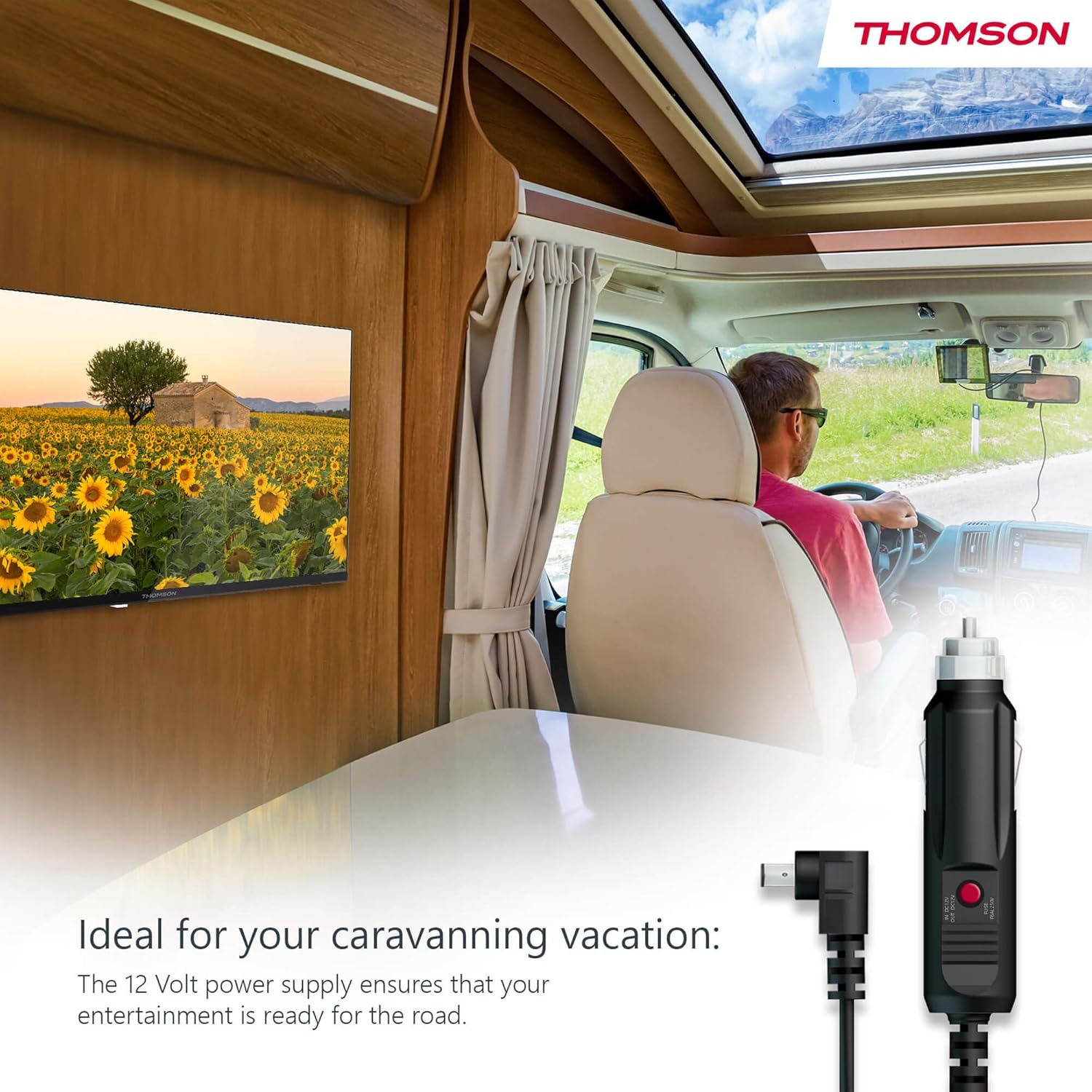
Your THOMSON TV supports both standard AC power and 12V DC power, making it ideal for camping or caravan use.
- Standard AC Power: Connect the provided power adapter to the TV's power input and then plug it into a standard wall outlet.
- 12V DC Power (Camporo): For mobile use, connect the 12V power cable to the TV's power input and then to a compatible 12V power source in your vehicle or caravan.
4.3 Connecting Antennas/Cables
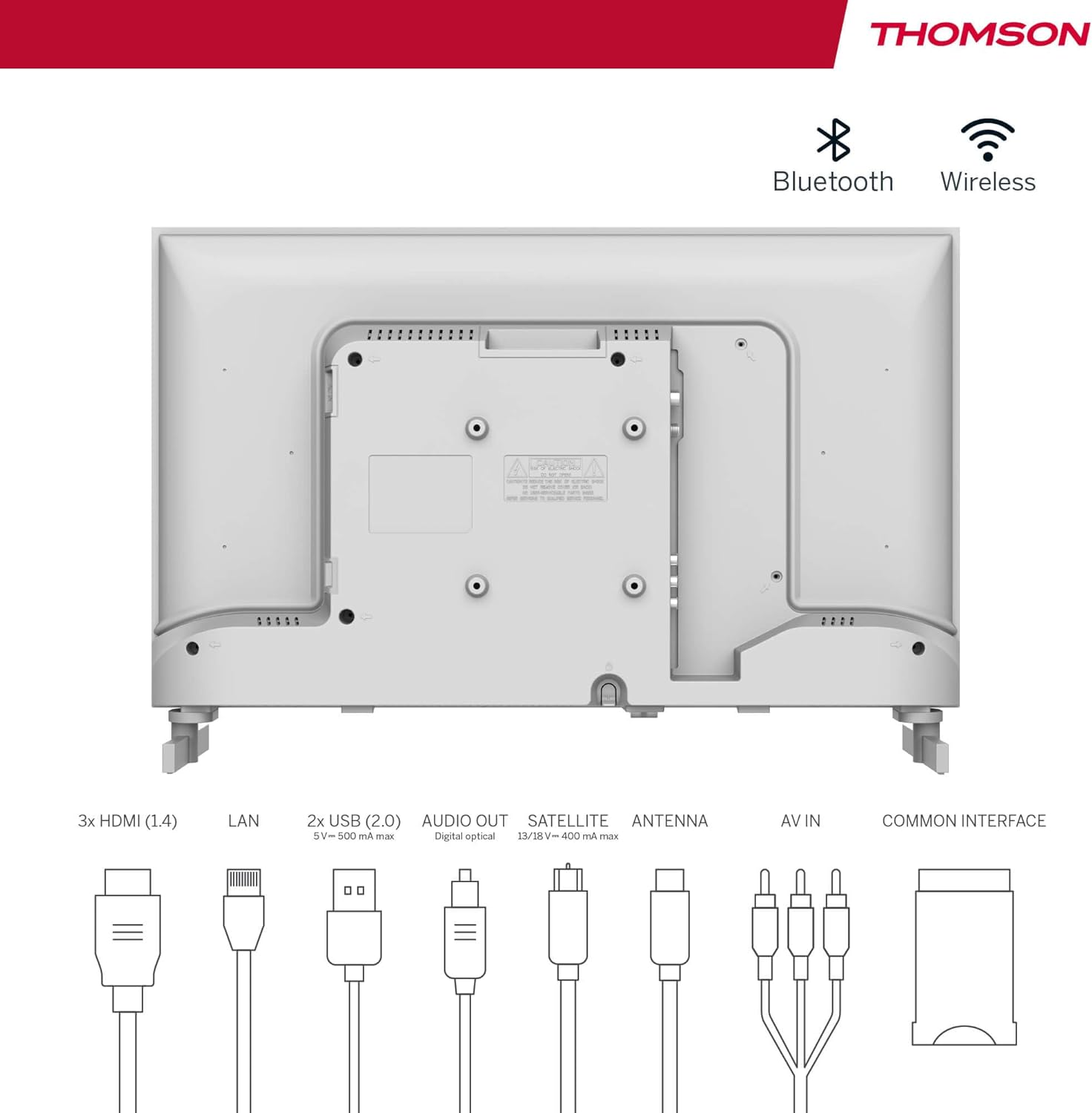
The integrated triple tuner allows reception via DVB-T (terrestrial antenna), cable, or satellite antenna.
- Terrestrial Antenna: Connect a DVB-T/T2 antenna cable to the 'ANTENNA' input on the TV.
- Cable TV: Connect your cable TV coaxial cable to the 'ANTENNA' input on the TV.
- Satẹlaiti Satelaiti: Connect your satellite dish cable to the 'SATELLITE' input on the TV.
4.4 Nsopọ Awọn ẹrọ ita
- Awọn ẹrọ HDMI: Connect Blu-ray players, game consoles, or other HDMI devices to the HDMI ports (3 available).
- Awọn ẹrọ USB: Connect USB drives for media playback or software updates to the USB ports (2 available).
- Ohun Jade: Use the digital optical audio output to connect to a soundbar or home theater system.
- AV Ninu: For older devices, use the AV In ports.
- Lan: Fún ìsopọ̀ ìkànnì aláwọ̀, so okùn Ethernet pọ̀ mọ́ ibudo LAN.
- CI+ Module: Insert a CI+ module and smart card (if required by your service provider) into the Common Interface slot.
4.5 Eto Ibẹrẹ (Google TV)
- Power on the TV. The initial setup wizard will guide you through the process.
- Yan ede ti o fẹ.
- Connect to a Wi-Fi network or use a wired LAN connection.
- Wọlé pẹlu akọọlẹ Google rẹ lati wọle si awọn ẹya Google TV, awọn ohun elo, ati awọn iṣeduro ti ara ẹni.
- Follow the on-screen prompts to set up Google Assistant and tune channels (for antenna/cable/satellite).
5. Ṣiṣẹ TV rẹ
5.1 Iṣakoso latọna jijin
The included remote control is designed for intuitive navigation of your Google TV.

- Awọn bọtini Afẹyinti: The remote features backlighting for easy use in dark environments.
- Iṣakoso ohun: Press the Google Assistant button and speak into the remote to control your TV, search for content, or ask questions.
- Bọ́tìnì Ohun èlò Àyànfẹ́: Use the star button to quickly access your most frequently used application.
- Profile Yipada: Easily switch between different user profiles set up on your Google TV.

5.2 Google TV Interface
Google TV organizes content from your streaming services and apps into a single, easy-to-navigate interface.

- Àwọn Ìmọ̀ràn Tí A Yàn fún Ẹni: The 'For You' tab provides content suggestions based on your viewing habits across all your streaming services.
- Awọn ohun elo: Access a wide range of applications from the Google Play Store, including popular streaming platforms.
- Ile-ikawe: Find your purchased movies and shows from Google Play.
- Profiles: Ṣẹda lọtọ olumulo profiles for each family member to get personalized content and recommendations.
5.3 Google Simẹnti
Integrated Google Cast allows you to wirelessly stream movies, music, and videos from compatible devices (smartphones, tablets, computers) directly to your TV screen.
- Ensure your device and TV are connected to the same Wi-Fi network.
- Open a Cast-enabled app on your device (e.g., YouTube, Netflix).
- Tẹ àmì Simẹnti (▶) within the app and select your THOMSON TV.
5.4 Dolby Audio
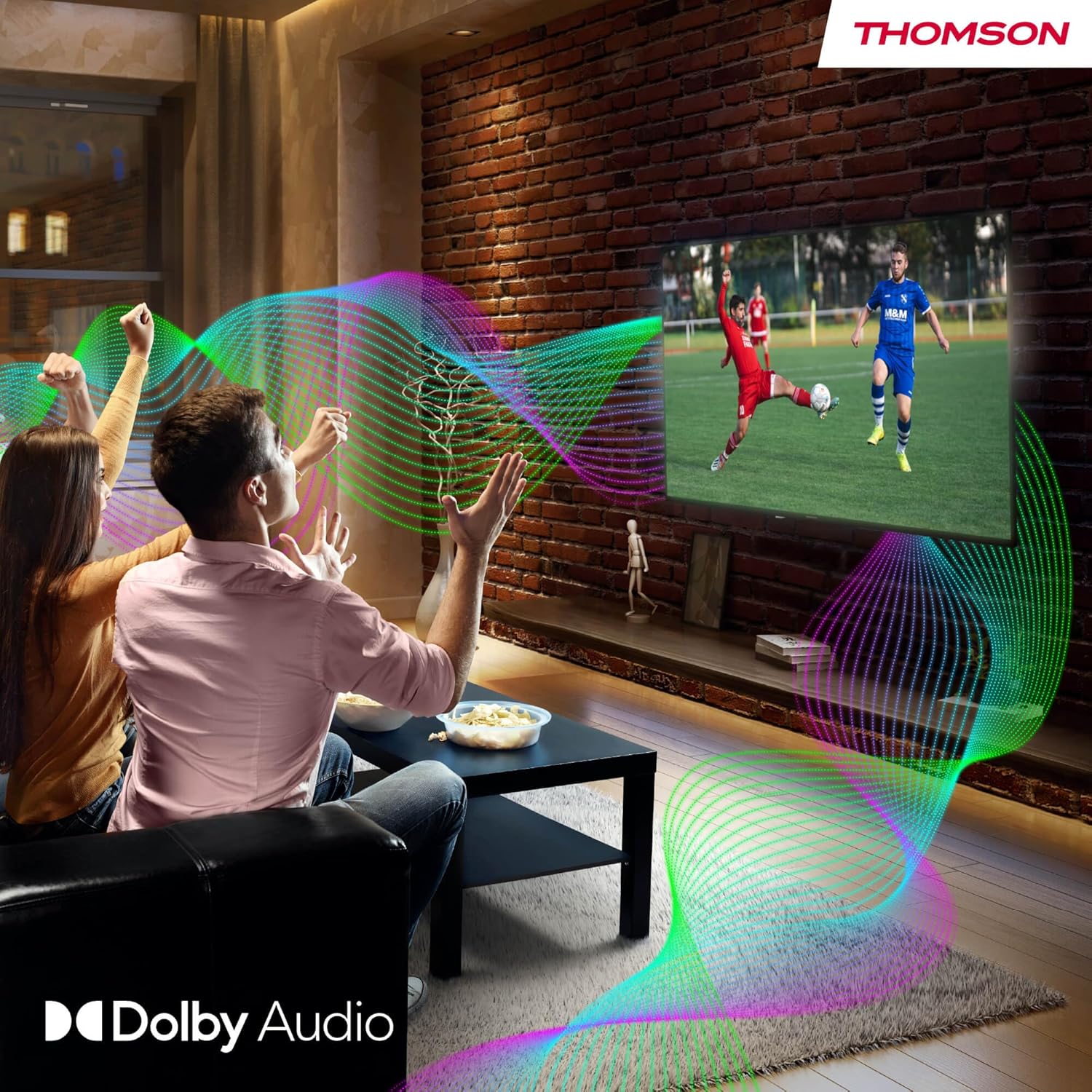
Your TV features Dolby Audio technology for an enhanced sound experience, delivering clear dialogue and immersive audio.
6. Itọju
- Ninu iboju: Rọra nu iboju naa pẹlu asọ ti ko ni lint. Fun awọn ami alagidi, die-die dampen the cloth with water or a specialized screen cleaner (ensure it's safe for LED screens). Never spray liquid directly onto the screen.
- Mimọ ara TV: Use a soft, dry cloth to wipe the exterior of the TV.
- Awọn imudojuiwọn sọfitiwia: Your Google TV will periodically check for and install software updates. Ensure your TV is connected to the internet for these updates.
- Iṣakoso USB: Keep cables tidy and organized to prevent damage and ensure proper ventilation.
7. Laasigbotitusita
Ti o ba pade awọn ọran eyikeyi pẹlu TV rẹ, tọka si awọn iṣoro ati awọn solusan ti o wọpọ wọnyi:
| Isoro | Owun to le Solusan |
|---|---|
| Ko si agbara | Check if the power cable is securely connected to the TV and the power outlet. Ensure the outlet is working. Try a different power source. |
| Ko si aworan, ṣugbọn ohun wa | Ṣayẹwo orisun titẹ sii. Rii daju pe awọn ẹrọ ita ti wa ni asopọ daradara ati titan. |
| Ko si ohun, ṣugbọn aworan wa | Check the volume level. Ensure mute is not activated. Check audio output settings and external audio device connections. |
| Isakoṣo latọna jijin ko ṣiṣẹ | Check and replace batteries. Ensure there are no obstructions between the remote and the TV. |
| Ko le sopọ si Wi-Fi | Rii daju pe olulana rẹ wa ni titan ati ṣiṣẹ. Tun-tẹ ọrọ igbaniwọle Wi-Fi sii. Gbiyanju tun TV ati olulana bẹrẹ. |
| Didara aworan ti ko dara | Check antenna/cable connections. Adjust picture settings. For streaming content, check internet speed. |
8. Awọn pato
| Ẹya ara ẹrọ | Ẹ̀kúnrẹ́rẹ́ |
|---|---|
| Brand | Thomson |
| Nọmba awoṣe | 24HG2S14CW |
| Iwon iboju | 24 inches (60 cm) |
| Ipinnu | HD (1366 x 768) |
| Ifihan ọna ẹrọ | LED |
| Oṣuwọn sọtun | 60 Hz |
| Eto isesise | Google TV |
| Iṣakoso ohun | Google Iranlọwọ |
| Ohun Technology | Dolby Audio |
| HDR atilẹyin | HDR10 |
| Asopọmọra | Wi-Fi, Bluetooth 5.1, HDMI (3 ports), USB (2 ports), LAN, Digital Optical Audio Out, AV In, CI+ |
| Tuner Iru | Triple Tuner (DVB-T/T2, DVB-C, DVB-S/S2) |
| Ibi ti ina elekitiriki ti nwa | 12V DC / Standard AC |
| Àwọ̀ | Funfun |
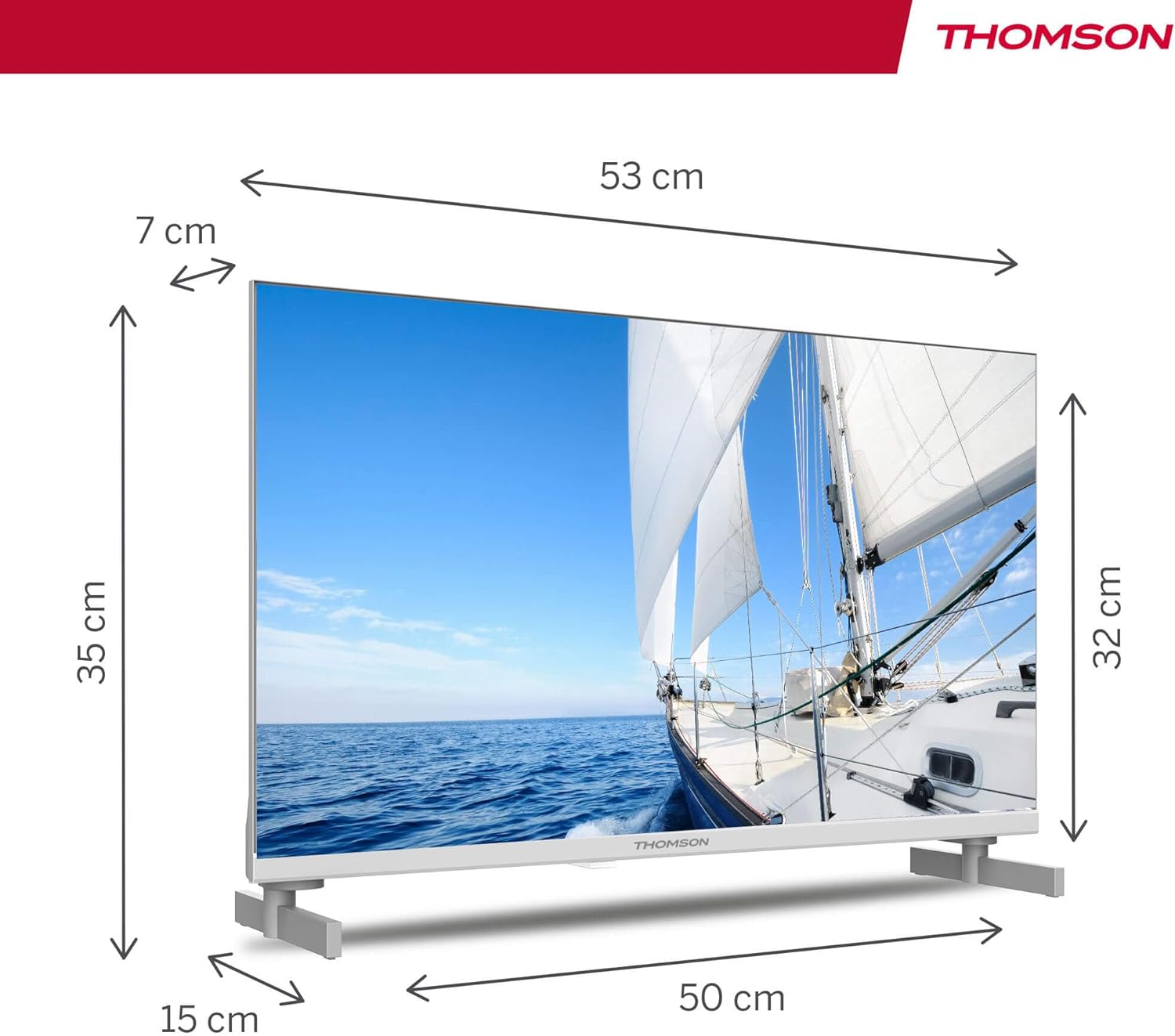
| Awọn iwọn Ọja (L x W x H) | 53.48 x 15.05 x 35.32 cm |
| Iwọn | 3.5 kg |
| Agbara Agbara Kilasi | E |
| Power Consumption (1000h) | 18 kWh |

9. Atilẹyin ọja ati Support
THOMSON products are designed and manufactured to the highest quality standards. This product is covered by a manufacturer's warranty. Please refer to the warranty card included in your package for specific terms and conditions, including the warranty period and coverage details.
For technical support, troubleshooting assistance, or warranty claims, please contact THOMSON customer service through their official webaaye tabi alaye olubasọrọ ti a pese ninu iwe atilẹyin ọja rẹ.