
1. Ọja Ipariview
The PHOINIKAS G2000 Gaming Headset is designed to provide an immersive audio experience across multiple gaming platforms. Featuring 50mm audio drivers for surround sound and deep bass, a noise-cancelling microphone, and comfortable over-ear design, it is suitable for extended gaming sessions.

Image 1: PHOINIKAS G2000 Gaming Headset, showcasing its design and blue/red color scheme.
2. Ohun ti o wa ninu Apoti
- PHOINIKAS G2000 Gaming Headset
- Itọsọna olumulo
- 3.5mm Y-splitter cable (for PC use)
3. Awọn pato
| Ẹya ara ẹrọ | Ẹ̀kúnrẹ́rẹ́ |
|---|---|
| Orukọ awoṣe | G2000 |
| Asopọmọra Technology | Wired (3.5mm Jack, USB for LED) |
| Audio Driver Iwon | 50mm |
| Ariwo Iṣakoso | Iyasọtọ ohun |
| Gbohungbohun | Noise-Cancelling, Adjustable |
| Ibamu | PC, PS5, PS4, Xbox Series X/S, Switch, Laptops, Tablets, Phones |
| Iṣakoso Iru | Volume Control, Mic On/Off |
| Gbigbe Eti | Lori Eti |
| Ohun elo | Ṣiṣu |
| Iwọn Nkan | 1.06 iwon |
4. Awọn ilana iṣeto
The PHOINIKAS G2000 headset offers multi-platform compatibility. Follow the instructions below for your specific device.

Image 2: Connection diagram for various gaming platforms.
4.1 PC/Laptop Connection
- Connect the 3.5mm audio cable from the headset to the 3.5mm Y-splitter.
- Plug the green connector of the Y-splitter into your PC's headphone jack and the pink connector into the microphone jack.
- For LED lighting, connect the USB cable to an available USB port on your PC or laptop.
4.2 PS4/PS5/Switch/Tablet/Phone Connection
- Connect the 3.5mm audio cable directly into the controller (PS4/PS5) or the device's 3.5mm audio jack (Switch, Tablet, Phone).
- The USB connection is only for LED lighting and is not required for audio or microphone functionality on these devices.
4.3 Xbox One Connection
- For older versions of Xbox One controllers without a 3.5mm jack, an additional Microsoft adapter (not included) is required.
- Connect the 3.5mm audio cable from the headset into the controller (or adapter).
- The USB connection is only for LED lighting.

Image 3: Detailed compatibility chart showing audio, mic, mute, and LED functionality per device.
5. Awọn ilana Iṣiṣẹ
The PHOINIKAS G2000 headset features convenient in-line controls for easy management of audio and microphone functions.
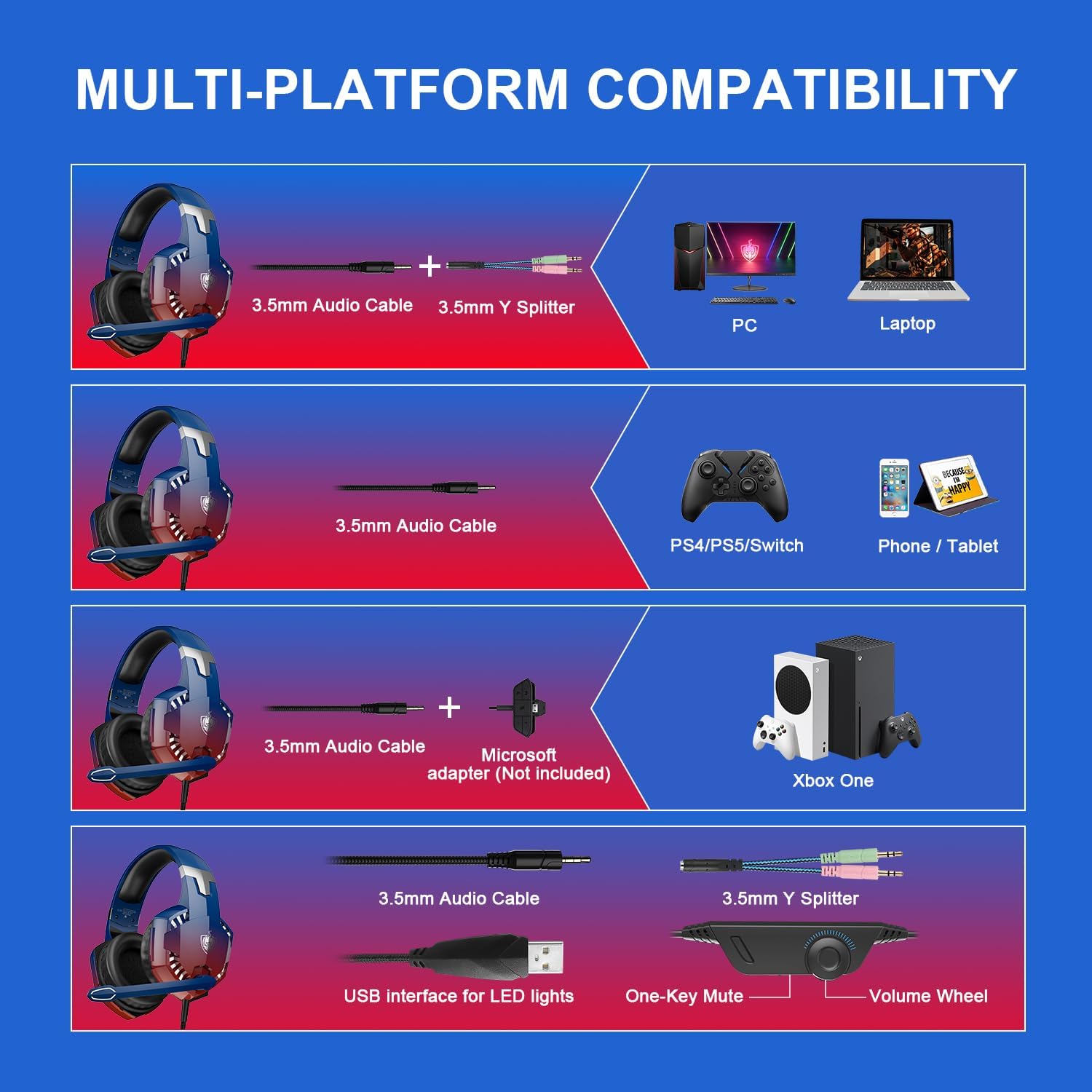
Image 4: In-line control unit with volume wheel and microphone switch.
5.1 Iṣakoso iwọn didun
Adjust the volume using the scroll wheel located on the in-line control unit. Rotate the wheel up to increase volume and down to decrease it.
5.2 Gbohungbohun Parẹ
To mute or unmute the microphone, use the switch on the in-line control unit. Slide the switch to the microphone icon to unmute, and away from it to mute.
5.3 Gbohungbohun Fagilee Ariwo
The headset features an omnidirectional, 360° flexible, noise-cancelling microphone designed for clear communication by reducing external noise.

Image 5: The noise-cancelling microphone in use.
5.4 Imọlẹ LED
The headset's LED lights are powered via the USB connection. Plug the USB cable into an available USB port to activate the lighting. Note that the USB connection is solely for lighting and does not transmit audio.
6. Comfort and Ergonomics
The PHOINIKAS G2000 headset is designed for comfort during prolonged use.
- Akọkọ ti o le ṣatunṣe: The headband can be adjusted to fit various head sizes, ensuring a secure and comfortable fit.
- Soft Ear Pads: The over-ear cups are equipped with soft, breathable ear pads to reduce pressure and prevent discomfort during long gaming sessions.

Image 6: Soft and comfortable ear pads for extended wear.

Image 7: Telescopic adjustment design for a personalized fit.
7. Itọju
To ensure the longevity and optimal performance of your PHOINIKAS G2000 Gaming Headset, follow these maintenance guidelines:
- Ninu: Lo aṣọ rírọrùn tí ó gbẹ láti nu agbekọri naa. Fún awọn paadi etí, a gbọ́dọ̀ fi díẹ̀ nu agbekọri naa.amp A le lo aṣọ, ṣugbọn rii daju pe o gbẹ patapata ṣaaju lilo. Yẹra fun awọn kemikali lile tabi awọn afọmọ fifọ.
- Ibi ipamọ: Tọ́jú agbekọri naa si ibi gbigbẹ ti o tutu, kuro ni oorun taara ati iwọn otutu ti o ga julọ. Maṣe gbe awọn ohun ti o wuwo si ori agbekọri naa.
- Itọju USB: Má ṣe fa àwọn okùn náà pẹ̀lú agbára. Máa di pulọọgi náà mú nígbà gbogbo nígbà tí o bá ń yọ ọ́ kúrò. Yẹra fún àwọn ìtẹ̀sí tàbí ìtẹ̀sí nínú okùn náà.
8. Laasigbotitusita
Tí o bá ní ìṣòro pẹ̀lú agbekọri rẹ, wo àwọn ìdáhùn tí ó wọ́pọ̀ wọ̀nyí:
- Ko si Ohun:
- Rí i dájú pé o ti fi jaketi ohùn 3.5mm sínú ẹ̀rọ náà pátápátá.
- Check the in-line volume control and ensure it is not set to minimum.
- Verify your device's audio output settings are configured to use the headset.
- For PC, ensure the Y-splitter is correctly connected to both headphone and microphone jacks.
- Gbohungbohun Ko Ṣiṣẹ:
- Ensure the microphone mute switch on the in-line control is in the 'unmute' position.
- Check your device's microphone input settings to ensure the headset is selected.
- For PC, confirm the Y-splitter's microphone connector is correctly plugged in.
- For Xbox One, confirm if an adapter is needed and correctly connected.
- Awọn Imọlẹ LED Ko Tan:
- Rí i dájú pé okùn USB náà so mọ́ ibudo USB tó lágbára dáadáa.
- Note that LED lights are only active when the USB is connected.
If these steps do not resolve the issue, please contact PHOINIKAS customer support.
9. Official ọja Video
Wo fidio yii fun wiwo loriview of the PHOINIKAS G2000 Gaming Headset.
Video 1: PHOINIKAS G2000 Gaming Headset product demonstration. This video provides a visual guide to the headset's features and design.
10. Atilẹyin ọja ati Support
PHOINIKAS products are subject to quality inspection and after-sales service. For specific warranty details or technical support, please refer to the warranty card included with your product or visit the official PHOINIKAS webojula.
For frequently asked questions, you may find answers to common queries:
- Q: What is the difference between 2.4G wireless technology and Bluetooth wireless technology?
A: 2.4G wireless with low-latency chip is compatible with PS4/PS5/PC/Switch and other devices through the transmitter. Bluetooth matching can be connected, but is not compatible with gaming devices. This G2000 model is wired. - Q: How is it compatible with Xbox One devices?
A: 2.4G wireless/Bluetooth is not compatible. Non-3.5mm connector Xbox One versions require an additional adapter.