
1. Ọja Ipariview
The Phezer P16-1 is a portable intelligent inkjet printer designed for various coding and marking applications. It features a 4.3-inch LCD capacitive touchscreen and operates independently without requiring external applications or computers.
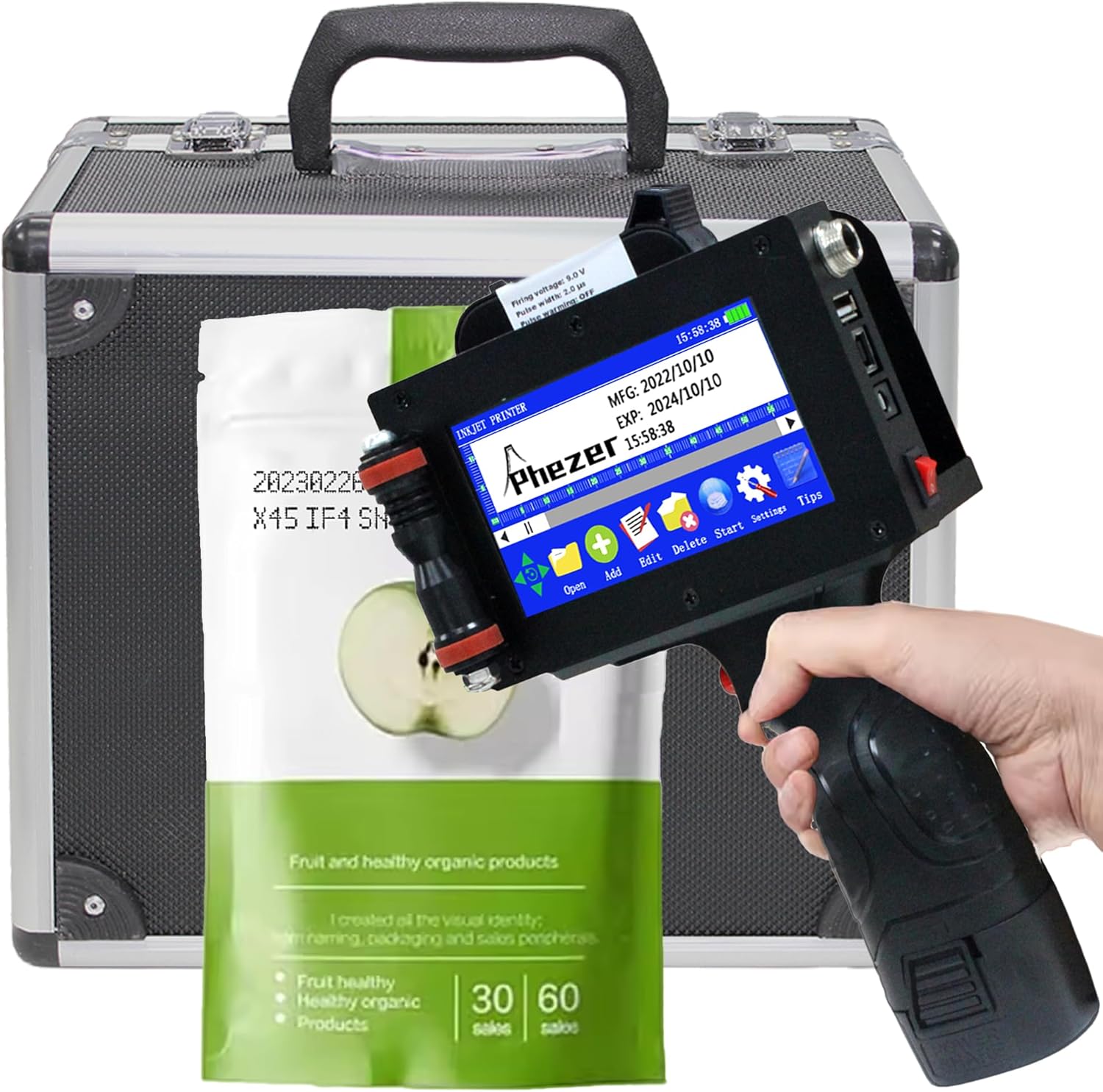
Image 1.1: Phezer P16-1 Handheld Inkjet Printer and accessories.
Awọn ẹya pataki:
- No External Connection Required: Operates with an upgraded Cortex-A9 quad-core CPU and independent system.
- Fúyẹ́ àti Agbégbé: Weighs 1.54 lbs (0.7 kg) with a built-in 2600mAh rechargeable battery.
- Titẹ sita lọpọlọpọ: Supports text, labels, digits, QR codes, barcodes, production dates, times, and logos.
- Wide Surface Compatibility: Prints on paper, boards, carton, stone, pipe, cable, metal, glass, plastic, and cloth.
- Adjustable Print Height: From 2mm to 25.4mm (1 inch), with unlimited length.
- Multi-directional Printing: Supports 360-degree all-round printing.
- Ọ̀pọ̀ Èdè: 22 languages available.
- Quick-Drying Ink: Includes a 42ml black high-definition solvent ink cartridge. Other ink colors available include white, yellow, red, blue, green, invisible, and UV.
2. Awọn ilana iṣeto
2.1. Unpacking ati Ibẹrẹ Ayewo
Carefully remove all components from the packaging. Verify that all items listed in the product manual are present and undamaged.
2.2. Inki Katiriji fifi sori
- Open the ink cartridge compartment on the printer.
- Remove the protective cap from the new ink cartridge.
- Insert the ink cartridge into the compartment, ensuring it is seated correctly.
- Pa yara naa ni aabo.
Video 2.1: Demonstrates ink cartridge installation and initial cleaning for clear printing.
2.3. Agbara Lori
Press and hold the power button until the screen illuminates and the system starts. The device is ready for operation once the main interface is displayed.
3. Awọn ilana Iṣiṣẹ
3.1. Interface Navigation
The printer features a 4.3-inch LCD capacitive touchscreen. Navigate through menus and options using the stylus or your finger.
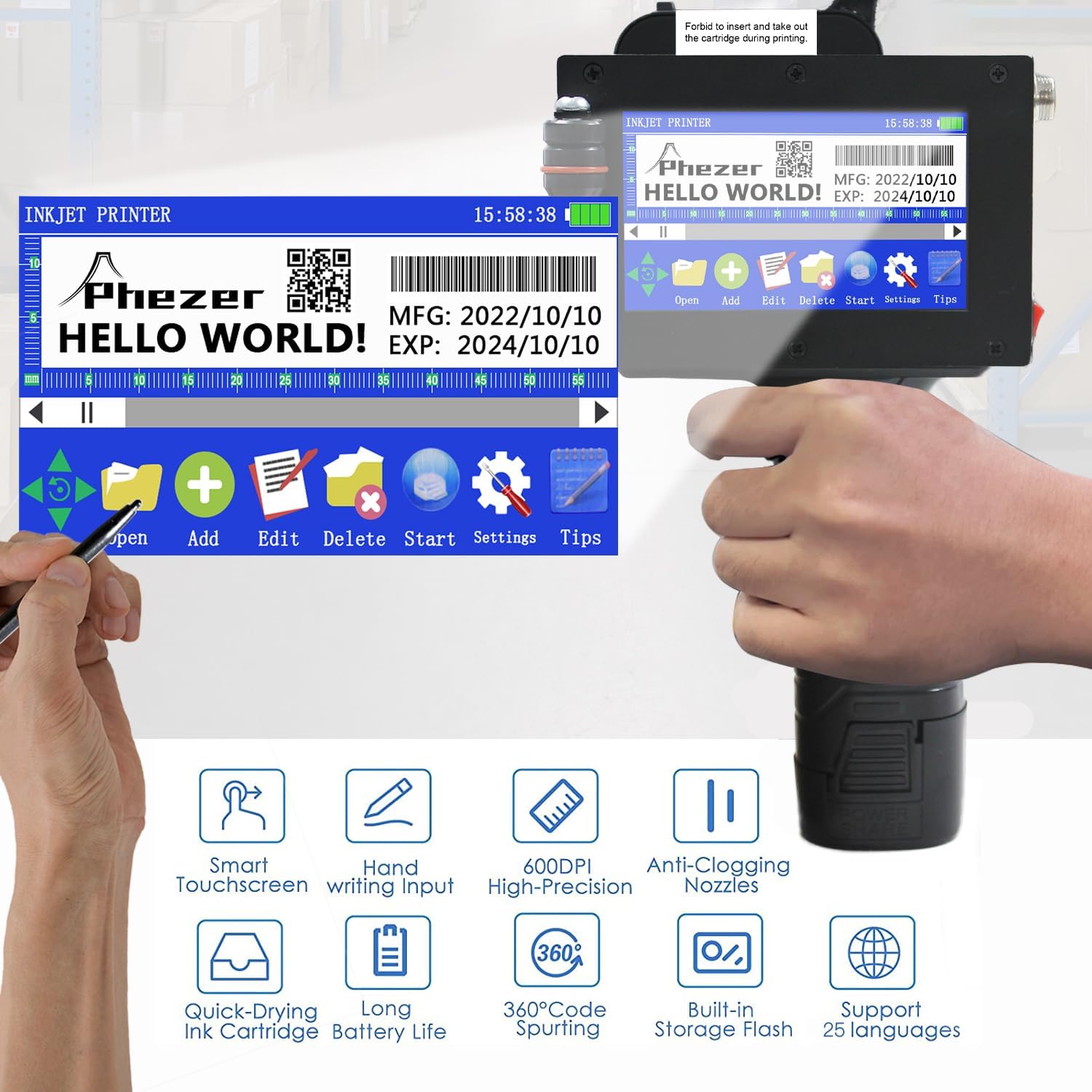
Image 3.1: Main screen interface with editing and settings options.
3.2. Creating and Editing Print Content
The printer supports various content types including text, date, time, QR codes, barcodes, and logos. You can directly edit font, size, and style on the touchscreen.

Aworan 3.2: Examples of supported print content types.
3.3. Variable Data Printing (Excel Files)
The printer can print variable data directly from Excel files. Tẹle awọn igbesẹ wọnyi:
- Ṣẹda titun kan file lori itẹwe.
- Select the 'Table' option to add a table.
- Insert a USB drive containing your Excel file (.xlsx format) into the printer's USB port.
- Exit and re-enter the 'Table' option to refresh the file akojọ.
- Select your desired Excel file lati akojọ.
- Save the changes using the 'OK' button.
- The printer is now ready to print the variable data from the Excel file.
Video 3.3: Guide on how to print Excel files with variable data.
3.4. Printing Procedure
To print, hold the printer firmly and press the print trigger. Gently slide the printer across the desired surface. The print height can be adjusted from 2mm to 25.4mm.

Aworan 3.4: Examples of multi-purpose usage on different materials.
3.5. 360-Degree Printing
The P16-1 supports 360-degree all-round printing, allowing you to print on curved or irregular surfaces.

Image 3.5: 360-degree coding on cylindrical objects.
3.6. Supported Surfaces
The printer is compatible with a wide range of materials, including paper, boards, carton, stone, pipe, cable, metal, glass, plastic, and cloth.
Video 3.6: Demonstrates printing on various surfaces like plastic and acrylic.
Video 3.7: Demonstrates printing on plastic bags and other flexible packaging.
4. Itọju
4.1. Fífọ ihò imú
If printing appears unclear or incomplete, the ink cartridge nozzle may need cleaning. Use a cotton fabric sprayed with a moderate amount of alcohol to gently wipe the nozzle once. Then, attempt to print again.
Video 4.1: Instructions for cleaning the nozzle when printing is unclear.
4.2. Preventing Clogs and Leaks
The included 42ml quick-drying ink cartridge is designed to minimize ink-leaking and nozzle-blocking. Always ensure the cartridge is properly seated and the protective cap is replaced when not in use for extended periods.
5. Laasigbotitusita
5.1. Unclear or Incomplete Printing
If your prints are not clear or complete, refer to the nozzle cleaning instructions in Section 4.1. Ensure the print surface is clean and dry, and that the printer is moved smoothly across the surface during operation.
Video 5.1: Addresses issues with unclear or incomplete printing.
5.2. Double Print Problem
If you experience double printing, adjust the nozzle settings on the printer's interface. Navigate to 'Settings' > 'Nozzle' and ensure the 'Double Print' option is set to 'Off' or adjusted as needed for your specific application.
Video 5.2: Explains how to resolve the double print issue.
6. Awọn pato
| Ẹya ara ẹrọ | Sipesifikesonu |
|---|---|
| Orukọ awoṣe | P16-1 |
| Imọ-ẹrọ titẹ sita | Inkjet |
| Ipinnu Titẹjade ti o pọju | 600 dpi (Dudu ati Funfun) |
| Print Iga | 2-25.4mm (1 inch) |
| Inki Katiriji Agbara | 72ml (42ml included) |
| Batiri | 2600mAh Litiumu Ion (pẹlu) |
| Asopọmọra | USB |
| Ọja Mefa | 5.51"D x 4.33"W x 8.86"H (14 x 11 x 22.5 cm) |
| Iwọn Nkan | 2.2 poun (1 kg) |
| Pataki Awọn ẹya ara ẹrọ | Borderless Printing, Display Screen, Internal Memory, Portable, Touch Screen |

Image 6.1: Physical dimensions of the Phezer P16-1 printer.
7. Atilẹyin ọja ati Support
Phezer is committed to providing professional service and reliable coding solutions. For any inquiries or support needs, please contact Phezer Coding and Marking Solution directly.
7.1. Olubasọrọ Support
If you purchased your product through Amazon, you can contact Phezer Coding and Marking Solution by navigating to the product page, clicking on the 'Sold by' link (usually next to the seller's name), and then selecting 'Ask a question'.