
1. Ifihan
The Unitek CFexpress Type A and SD4.0 UHS-II Memory Card Reader is designed for high-speed data transfer from CFexpress Type A and SD cards to your computer or compatible device. Featuring USB 3.2 Gen 2 connectivity, it supports transfer speeds up to 10Gbps, making it suitable for professionals requiring efficient handling of large files such as high-resolution photos and Full HD videos.

Image 1.1: Unitek CFexpress Type A and SD4.0 UHS-II Memory Card Reader.
2. Awọn ẹya Ọja
- Gbigbe Data Iyara Giga: Supports up to 10Gbps (1250MB/s) via USB 3.2 Gen 2x1 for CFexpress Type A and SD4.0 UHS-II cards. Backward compatible with USB 3.1 Gen 1 and USB 3.0. An LED indicator shows data transfer activity.
- Iho kaadi Meji: Features dedicated slots for CFexpress Type A and SD cards (SD/SDHC/SDXC/SDUC). Both slots can be used simultaneously. Note: Not compatible with CFexpress Type B/C or XQD cards.
- Ibamu gbooro: Compatible with Windows, macOS, Linux, and Android operating systems. Supports CFexpress cards up to 2TB capacity.
- Apẹrẹ ti o tọ ati gbigbe: Constructed with an aluminum alloy housing for durability and efficient heat dissipation. Its compact size is suitable for travel.

Image 2.1: Illustration of CFexpress Type A and SD card compatibility.
3. Package Awọn akoonu
Jọwọ rii daju pe gbogbo awọn nkan wa ninu package:
- 1 x Unitek CFexpress Type A and SD4.0 UHS-II Memory Card Reader
- 1 x USB-C si okun USB-C
- 1 x Itọsọna olumulo (iwe yii)
4. Eto
- Connect one end of the provided USB-C to USB-C cable to the USB-C port on the Unitek card reader.
- Connect the other end of the USB-C cable to an available USB-C port on your computer, laptop, tablet, or smartphone.
- The device is plug-and-play and does not require any driver installation. Your operating system should automatically recognize the card reader.
- For optimal 10Gbps transfer speeds, ensure your host device's USB-C port supports USB 3.2 Gen 2.
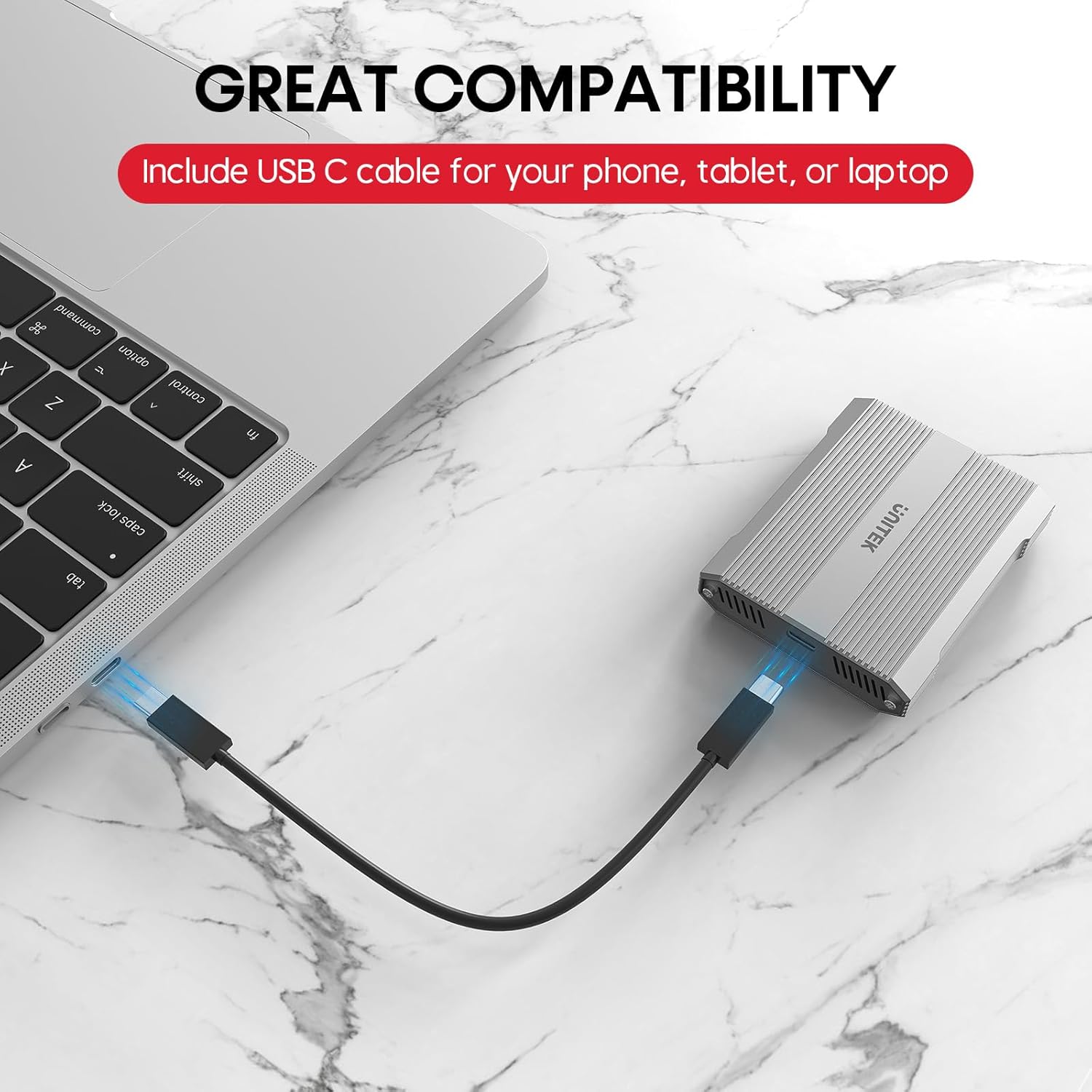
Image 4.1: Connecting the card reader to a laptop via USB-C.
5. Awọn ilana Iṣiṣẹ
5.1 Fifi Awọn Kaadi Iranti sii
- For CFexpress Type A Cards: Gently insert your CFexpress Type A card into the designated CFexpress Type A slot on the reader until it clicks into place. Ensure the card is oriented correctly.
- For SD Cards: Gently insert your SD, SDHC, SDXC, or SDUC card into the designated SD slot on the reader until it clicks into place. Ensure the card is oriented correctly.

Image 5.1: Correct insertion of a CFexpress Type A card.

Image 5.2: Correct insertion of an SD card.
5.2 Data Gbigbe
- Once a card is inserted and the reader is connected, it will appear as a removable drive in your computer's file explorer (Windows) or Finder (macOS).
- O le fa ati ju silẹ bayi files, copy, or move data between your memory card and your computer.
- The LED indicator on the reader will flicker during active data transfer.

Image 5.3: Visual representation of 10Gbps data transfer.
5.3 Safely Ejecting Cards
To prevent data corruption, always safely eject the memory card or the card reader from your operating system before physically removing the card or disconnecting the reader.
- Windows: Right-click on the drive icon in 'This PC' or 'File Explorer' and select 'Eject'.
- MacOS: Drag the drive icon from the desktop or Finder sidebar to the Trash, or right-click and select 'Eject'.
6. Ibamu
The Unitek R1022A card reader offers broad compatibility:
- Memory Card Types: CFexpress Type A, SD, SDHC, SDXC, SDUC (SD4.0 UHS-II).
- Awọn ọna ṣiṣe: Windows, macOS, Linux, Android.
- Awọn ẹrọ Olugbalejo: Laptops, desktop computers, tablets, and smartphones with a USB-C port.
Akiyesi pataki: This card reader is specifically designed for CFexpress Type A cards and is ko ni ibamu with CFexpress Type B, CFexpress Type C, or XQD cards.

Image 6.1: Compatibility with various operating systems and devices.
7. Itọju
- Keep the card reader clean and free from dust and debris. Use a soft, dry cloth for cleaning.
- Yago fun ṣiṣafihan ẹrọ naa si awọn iwọn otutu to gaju, oorun taara, tabi ọriniinitutu giga.
- Do not attempt to disassemble or modify the card reader, as this will void the warranty.
- Isakoso Ooru: The aluminum alloy housing aids in heat dissipation. However, during prolonged high-speed data transfers or if left connected with cards inserted, the device and cards may become warm. To prolong the lifespan of your cards and the reader, it is recommended to remove cards when not actively transferring data.
8. Laasigbotitusita
- Ohun elo Ko Damọ:
- Ensure the USB-C cable is securely connected to both the card reader and your host device.
- Gbiyanju lati sopọ si ibudo USB-C ti o yatọ lori ẹrọ rẹ.
- Ṣe ìdánwò pẹ̀lú okùn USB-C mìíràn tí ó bá wà.
- Tun kọmputa rẹ tabi ẹrọ alejo rẹ bẹrẹ.
- Awọn iyara Gbigbe lọra:
- Verify that your host device's USB-C port supports USB 3.2 Gen 2 (10Gbps). Older USB versions will result in lower speeds.
- Ensure your memory cards (CFexpress Type A or SD) are high-speed cards capable of 10Gbps or UHS-II speeds.
- Close any background applications that might be consuming system resources or performing other data transfers.
- Memory Card Not Reading:
- Ensure the memory card is inserted correctly and fully into the appropriate slot.
- Check if the memory card is damaged or corrupted. Try the card in another device if possible.
- Confirm that you are using a compatible card type (CFexpress Type A or SD). This reader does not support CFexpress Type B/C or XQD cards.
- Ohun elo gbigbona:
- It is normal for the device to become warm during operation, especially during large data transfers.
- If the device feels excessively hot, ensure it has adequate ventilation and is not covered.
- Remove memory cards from the reader when not in active use to reduce heat buildup.
9. Awọn pato
| Brand | Unitek |
| Orukọ awoṣe | R1022A |
| Media Iru | CFexpress Type A, SD4.0 UHS-II (SD/SDHC/SDXC/SDUC) |
| Asopọmọra Technology | USB Type C (USB 3.2 Gen 2x1) |
| Data Gbigbe Oṣuwọn | Títí dé 10 Gigabit fún ìṣẹ́jú-àáyá kan |
| Awọn ẹrọ ibaramu | Laptop, PC, Phone, Tablet |
| Eto isesise | Windows, MacOS, Lainos, Android |
| Pataki Ẹya | Compact, Plug & Play |
| Ohun elo Ile | Aluminiomu Alloy |
| Max CFexpress Card Capacity | 2TB |

Image 9.1: Compact design and dimensions of the card reader.
10. Official ọja Video
Video 10.1: Official product video demonstrating the Unitek CFexpress Type A and SD4.0 UHS-II Memory Card Reader, highlighting its dual card slots, 10Gbps data transfer speed, and USB-C connectivity.
11. Atilẹyin ọja ati Support
The Unitek CFexpress Type A and SD4.0 UHS-II Memory Card Reader comes with a 1-odun atilẹyin ọja lati ọjọ ti o ra.
For technical support, warranty claims, or any other inquiries, please contact Unitek customer service. Refer to the product packaging or the official Unitek webojula fun awọn julọ lọwọlọwọ alaye olubasọrọ.