
1. Ifihan
This manual provides detailed instructions for setting up, operating, and maintaining your Macally Wireless Keyboard and Mouse Combo. Designed for seamless integration with Mac, iPad, and iPhone devices, this combo offers multi-device Bluetooth connectivity and rechargeable batteries for enhanced productivity.
Jọwọ ka iwe afọwọkọ yii daradara ṣaaju lilo ọja lati rii daju iṣẹ ṣiṣe to dara ati lati yago fun ibajẹ.

Image: The Macally Wireless Keyboard and Mouse Combo in light green, showcasing awọn oniwe-aso oniru.
2. Package Awọn akoonu
- Macally Wireless Bluetooth Keyboard
- Macally Wireless Bluetooth Mouse
- USB-C Ngba agbara Cable
- Itọsọna olumulo
3. Eto
3.1 Ngba agbara si Awọn ẹrọ
Both the keyboard and mouse are equipped with built-in rechargeable batteries. Before initial use, or when the battery indicator shows low power, charge the devices using the provided USB-C cable.
- Àtẹ bọ́tìnnì Connect the USB-C cable to the charging port on the keyboard and to a USB power source. The keyboard has a 500mAh battery.
- Asin: Connect the USB-C cable to the charging port on the mouse and to a USB power source. The mouse has a 300mAh battery.
A full charge typically takes a few hours. The indicator light will change to show charging status (e.g., red for charging, green/off for fully charged).

Image: The keyboard and mouse are shown with text indicating their rechargeable battery feature and capacities (500mAh for keyboard, 300mAh for mouse).
3.2 Sisopọ Bluetooth
The Macally Wireless Keyboard and Mouse Combo supports multi-sync Bluetooth, allowing connection to up to three devices simultaneously.
Pípapọ̀ Àtẹ bọ́tìnnì:
- Tan-an keyboard nipa lilo agbara yipada.
- Press and hold one of the Bluetooth channel keys (BT1, BT2, or BT3) for 3-5 seconds until the LED indicator flashes, indicating pairing mode.
- Lori Mac rẹ, iPad, tabi iPhone, lọ si Eto > Bluetooth.
- Select "Macally Keyboard" from the list of available devices.
- Follow any on-screen prompts to complete the pairing process. The LED indicator will stop flashing once connected.
Pipọpọ Asin:
- Tan-an Asin nipa lilo agbara yipada.
- Press and hold the Bluetooth pairing button on the bottom of the mouse for 3-5 seconds until the LED indicator flashes.
- Lori Mac rẹ, iPad, tabi iPhone, lọ si Eto > Bluetooth.
- Select "Macally Mouse" from the list of available devices.
- Follow any on-screen prompts to complete the pairing process. The LED indicator will stop flashing once connected.

Image: The keyboard and mouse are shown connected to a Mac, iPad, and iPhone, illustrating the multi-sync Bluetooth capability.
4. Awọn ilana Iṣiṣẹ
4.1 Yipada Laarin Awọn ẹrọ
To switch between paired devices for the keyboard, simply press the corresponding Bluetooth channel key (BT1, BT2, or BT3) once. The keyboard will connect to the selected device.
For the mouse, press the Bluetooth channel switch button on the bottom of the mouse to cycle through the paired devices.
4.2 Keyboard Awọn iṣẹ
The keyboard features 108 keys, including a full numeric keypad and 21 macOS shortcuts. It also includes exclusive function keys optimized for iPad and iPhone.
Enabling Top Row Shortcuts:
By default, the top row keys may function as standard F-keys. To enable the macOS, iPad, and iPhone specific shortcuts (e.g., media controls, brightness), press the FN + ESC keys simultaneously. This toggles the function of the top row keys.
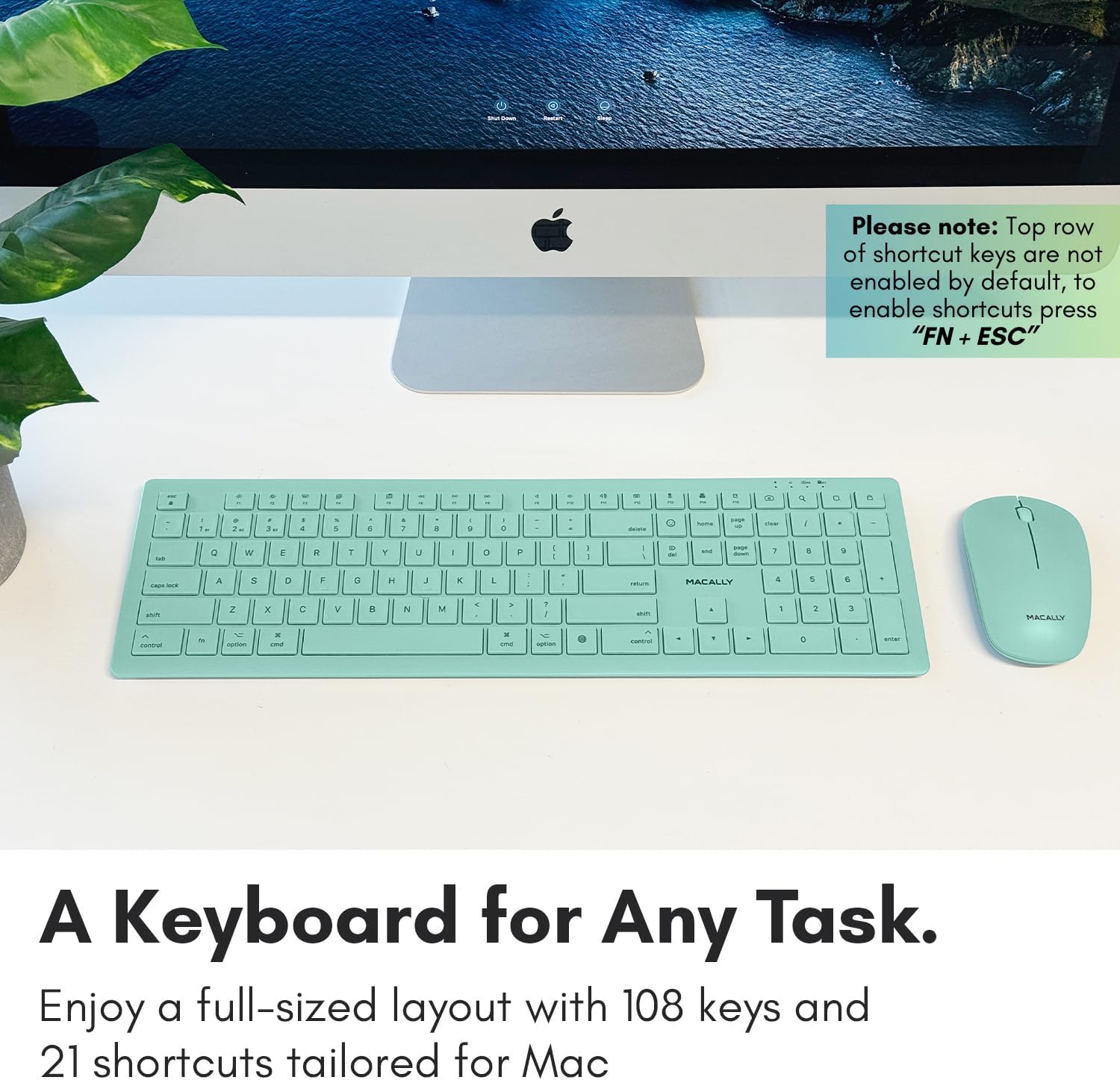
Image: The Macally keyboard is displayed, highlighting the top row keys and a note explaining how to enable shortcut functions using FN + ESC.
4.3 Mouse Awọn iṣẹ
The mouse is equipped with a 1200 DPI optical sensor, providing smooth and accurate tracking for various tasks. It features a comfortable, ambidextrous design.

Aworan: A sunmọ-soke view of the keyboard keys, illustrating the scissor switch mechanism for tactile and semi-silent keystrokes.
5. Itọju
5.1 batiri Itọju
To maximize battery life, it is recommended to turn off both the keyboard and mouse using their respective power switches when not in use for extended periods.
Avoid fully depleting the battery frequently. Recharge the devices when the low battery indicator appears.
5.2 Ninu
To clean the keyboard and mouse, use a soft, lint-free cloth. For stubborn dirt, slightly dampen the cloth with water or a mild, non-abrasive cleaning solution. Avoid spraying liquids directly onto the devices or using harsh chemicals.
6. Laasigbotitusita
- Ẹrọ ti ko sopọ: Ensure both the keyboard and mouse are powered on and fully charged. Verify that Bluetooth is enabled on your host device (Mac, iPad, iPhone). Try re-pairing the devices by following the Bluetooth Pairing steps in Section 3.2.
- Intermittent connection or
Ask a question about this manual
Ask about setup, troubleshooting, compatibility, parts, safety, or missing instructions. Manuals+ will review the question and use this page’s manual context to help answer it.