
MESWAO MES-B3
MESWAO 15.6 Inch Android 14 Tablet MES-B3 User Manual
Awọn itọnisọna okeerẹ fun iṣeto, iṣẹ, ati itọju.
1. Ifihan
This manual provides detailed instructions for the MESWAO 15.6 Inch Android 14 Tablet, model MES-B3. It covers essential information regarding product features, setup, operation, maintenance, and troubleshooting to ensure optimal performance and user experience. Please read this manual thoroughly before using your device.
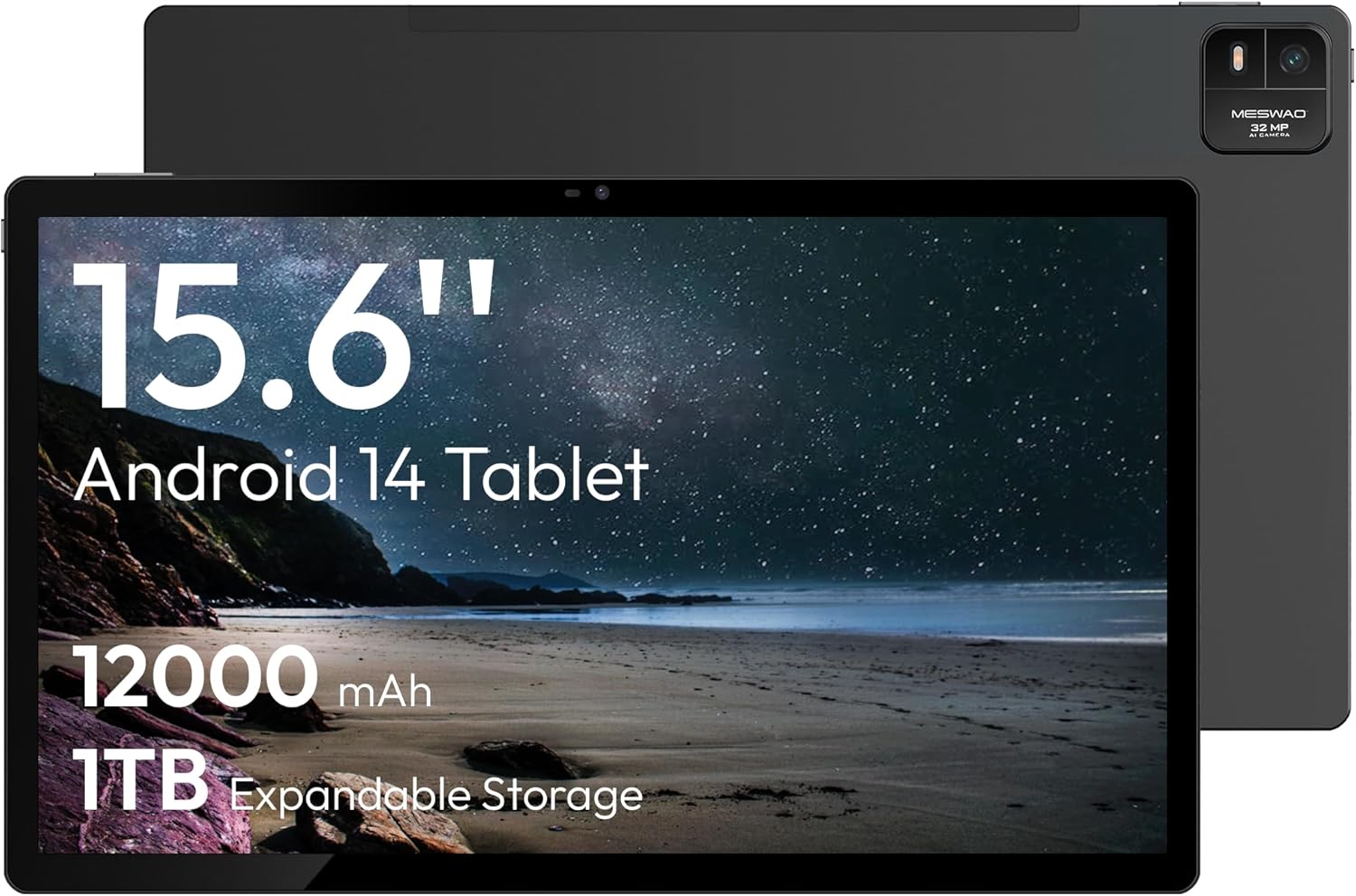
Figure 1.1: MESWAO 15.6 Inch Android 14 Tablet. This image displays the front and back view of the tablet, highlighting its large screen and rear camera module.
2. Alaye Aabo
To prevent damage to your device or injury to yourself or others, please observe the following precautions:
- Má ṣe fi tábìlẹ́ẹ̀tì náà sí ojú ọjọ́ tí ó le koko, oòrùn tààrà, tàbí ọ̀rinrin gíga.
- Yago fun sisọ tabi tẹri tabulẹti si ipa ti o lagbara.
- Lo ṣaja ati awọn ẹya ẹrọ ti a fọwọsi nikan.
- Do not attempt to disassemble or repair the tablet yourself.
- Pa tabulẹti naa mọ kuro ninu omi ati awọn omi miiran.
- Observe all local regulations regarding the use of electronic devices.
3. Package Awọn akoonu
Jẹrisi pe gbogbo awọn ohun kan wa ninu package:
- 15.6-inch Tablet x1
- 15W Charger x1
- Type-C to 3.5mm Adapter x1
- USB-A to Type-C Adapter x1
- Stuck Pin x1 (for SIM/TF card tray)
4. Ẹrọ Loriview
Familiarize yourself with the physical components of your MESWAO tablet.
4.1. Awọn ẹya ara ẹrọ ti ara
- Kamẹra iwaju: Located at the top center of the screen when held horizontally.
- Kamẹra ẹhin pẹlu Filaṣi: Located on the back, typically in a corner.
- Bọtini agbara: Usually on the side, used to power on/off or wake/sleep the device.
- Awọn bọtini iwọn didun: Ṣatunṣe awọn ipele ohun.
- Ibudo USB-C: Fun gbigba agbara ati gbigbe data.
- Iho Kaadi TF: Fun ibi ipamọ expandable.
- Awọn agbọrọsọ: Quad speakers with 8 sound chambers for audio output.

Olusin 4.1: Pariview of MESWAO Tablet's physical features. This image illustrates the location of stereo speakers, power and volume buttons, front camera, rear camera with flashlight, Type-C port, and TF card slot.
5. Eto
5.1. Gbigba agbara akọkọ
Before first use, fully charge the tablet using the provided 15W charger and USB-C cable. Connect the charger to the USB-C port on the tablet and plug it into a power outlet. The battery indicator on the screen will show charging progress.

Figure 5.1: Tablet charging illustration. This image shows the tablet connected to a charger, displaying a charging icon and indicating 100% charge in 3.5 hours.
5.2. Agbara lori / Paa
- Lati Fi agbara: Press and hold the Power button until the MESWAO logo appears.
- Lati Paarẹ: Tẹ bọtini agbara ki o si di titi akojọ aṣayan agbara yoo fi han, lẹhinna yan "Pa agbara."
- Lati Sun/Ji: Ni kukuru tẹ bọtini agbara.
5.3. Iṣeto ni ibẹrẹ
Lori agbara akọkọ, tẹle awọn itọnisọna loju iboju lati ṣeto tabulẹti rẹ:
- Yan ede ti o fẹ.
- Sopọ si nẹtiwọki Wi-Fi kan.
- Wọle pẹlu akọọlẹ Google rẹ tabi ṣẹda tuntun kan.
- Review ati ki o gba awọn ofin ati ipo.
- Ṣeto titiipa iboju (PIN, apẹrẹ, tabi ọrọ igbaniwọle).
5.4. Fífi Káàdì TF sí i
To expand storage, insert a TF (microSD) card:
- Locate the TF card slot on the side of the tablet.
- Use the provided stuck pin to gently eject the card tray.
- Place the TF card into the tray with the gold contacts facing down.
- Fi iṣọra tun fi atẹ naa sinu tabulẹti.

Figure 5.2: Tablet storage capabilities. This image highlights the 128GB ROM and support for up to 1TB expandable storage via TF card.
6. Awọn ilana Iṣiṣẹ
6.1. Ipilẹ Lilọ kiri
The MESWAO tablet uses Android 14, offering intuitive touch-based navigation:
- Fọwọ ba: Yan ohun kan tabi ṣii ohun elo kan.
- Ra: Yi lọ nipasẹ awọn iboju tabi awọn akojọ.
- Fun pọ-si- Sun-un: Mú kí àkóónú tóbi sí i tàbí dínkù lórí ìbòjú.
- Long Tẹ: Wọle si awọn akojọ aṣayan ọrọ-ọrọ tabi gbe awọn aami.

Figure 6.1: Android 14 operating system interface. This image displays various application icons and highlights features like smooth multitasking, parental control, and enhanced privacy.
6.2. Nsopọ si Wi-Fi
- Lọ si Eto > Nẹtiwọọki & Intanẹẹti > Wi-Fi.
- Yipada Wi-Fi On.
- Yan nẹtiwọki ti o fẹ lati inu akojọ.
- Tẹ ọrọ igbaniwọle sii ti o ba ṣetan, lẹhinna tẹ ni kia kia Sopọ.
6.3. Ṣiṣakoṣo awọn ohun elo
- Fi sori ẹrọ Awọn ohun elo: Download from the Google Play Store.
- Yọ Awọn ohun elo kuro: Long-press an app icon, then drag it to "Uninstall" or go to Eto > Awọn ohun elo.
- Pa Awọn ohun elo: Swipe up from the bottom of the screen and swipe away the app card.
6.4. Lilo kamẹra
The tablet features a 32MP rear camera with flash and a 5MP front camera.
- Ṣii awọn Kamẹra ohun elo.
- Fọwọ ba bọtini titiipa lati ya fọto kan.
- Yipada laarin awọn kamẹra iwaju ati ẹhin nipa lilo aami yi pada kamẹra.
- Access settings for flash, modes, and other options.
6.5. Iṣakoso batiri
Batiri 12000mAh pese lilo ti o gbooro sii. Lati mu igbesi aye batiri dara si:
- Ṣatunṣe imọlẹ iboju.
- Pa awọn ohun elo ti ko lo.
- Enable battery saver mode in Eto > Batiri.
6.6. Asopọmọra
- Bluetooth: Pair with wireless headphones, speakers, or other devices via Eto > Awọn ẹrọ ti a ti sopọ > Bluetooth.
- USB-C: Sopọ si kọmputa kan fun file transfer or use with compatible USB-C accessories.
- Simẹnti iboju Alailowaya: Share your tablet's screen to a compatible smart TV or monitor. Access this feature from the Quick Settings panel or Eto > Awọn ẹrọ ti a ti sopọ > Simẹnti.
6.7. Ohun Eto
Adjust volume and audio output options:
- Use the physical volume buttons on the side of the tablet.
- Access detailed settings in Eto > Ohun & gbigbọn.
- The tablet supports multiple audio options, including USB-C audio and 3.5mm via the provided adapter.
7. Itọju
7.1. Nu Táblẹ́ẹ̀tì Rẹ
Láti nu tábìlẹ́ẹ̀tì náà, lo aṣọ rírọ̀ tí kò ní àwọ̀. Fún àwọn èérún líle, fi díẹ̀ dì í.ampen awọn asọ pẹlu omi tabi a iboju regede apẹrẹ fun Electronics. Yago fun awọn kẹmika lile tabi awọn ohun elo abrasive.
7.2. Software imudojuiwọn
Ṣayẹwo nigbagbogbo fun ati fi awọn imudojuiwọn sọfitiwia sori ẹrọ lati rii daju iṣẹ ṣiṣe to dara julọ, aabo, ati iraye si awọn ẹya tuntun. Lọ si Eto > Eto > Imudojuiwọn eto.
7.3. Ibi ipamọ Management
To maintain performance, periodically manage your tablet's storage:
- Delete unnecessary apps and files.
- Gbe nla files to the TF card or cloud storage.
- Ko data kaṣe kuro fun awọn ohun elo inu Eto > Awọn ohun elo > [Orukọ App] > Ibi ipamọ & kaṣe.
8. Laasigbotitusita
Tọkasi awọn ọran ti o wọpọ ati awọn solusan:
| Isoro | Ojutu |
|---|---|
| Tabulẹti ko ni agbara lori. | Rii daju pe batiri ti gba agbara. So ṣaja pọ ki o duro fun iṣẹju diẹ ṣaaju igbiyanju lati tan-an lẹẹkansi. |
| Ko le sopọ si Wi-Fi. | Check if Wi-Fi is enabled. Verify the Wi-Fi password. Restart your router and the tablet. |
| Awọn ohun elo n kọlu tabi didi. | Close background apps. Clear the app's cache. Restart the tablet. Ensure the app is updated. |
| O lọra išẹ. | Free up storage space. Close unused apps. Restart the tablet. |
| Batiri n ṣan ni kiakia. | Reduce screen brightness. Disable unused features like Bluetooth or GPS. Close background apps. Check battery usage in settings. |
9. Awọn pato
Key technical specifications for the MESWAO 15.6 Inch Android 14 Tablet (MES-B3):
| Ẹya ara ẹrọ | Ẹ̀kúnrẹ́rẹ́ |
|---|---|
| Brand | MESWAO |
| Orukọ awoṣe | MES-B3 |
| Eto isesise | Android 14 |
| Iwon iboju | 15.6 inches |
| Ipinnu iboju | 1920 x 1080 Pixels (IPS HD) |
| isise | Octa-Core (MediaTek Helio G99, up to 2.2 GHz) |
| Olupilẹṣẹ Graphics | Mali-G57 |
| RAM (Memory Storage Capacity) | 6GB (DDR3 SDRAM) |
| Internal Storage (Flash Memory Size) | 128 GB |
| Expandable Ibi ipamọ | Up to 1TB via TF Card |
| Ipinnu Kamẹra ti o kẹhin | 32 MP |
| Ipinnu Kamẹra iwaju | 5 MP |
| Agbara Batiri | 12000mAh |
| Apapọ batiri Life | Awọn wakati 12 |
| Alailowaya Iru | 802.11a/b/g/n/ac (Wi-Fi 5) |
| Àwọ̀ | Grẹy |
| Iwọn Nkan | 2.35 iwon |
| Awọn iwọn Ọja (LxWxH) | 14.53 x 8.78 x 0.43 inches |
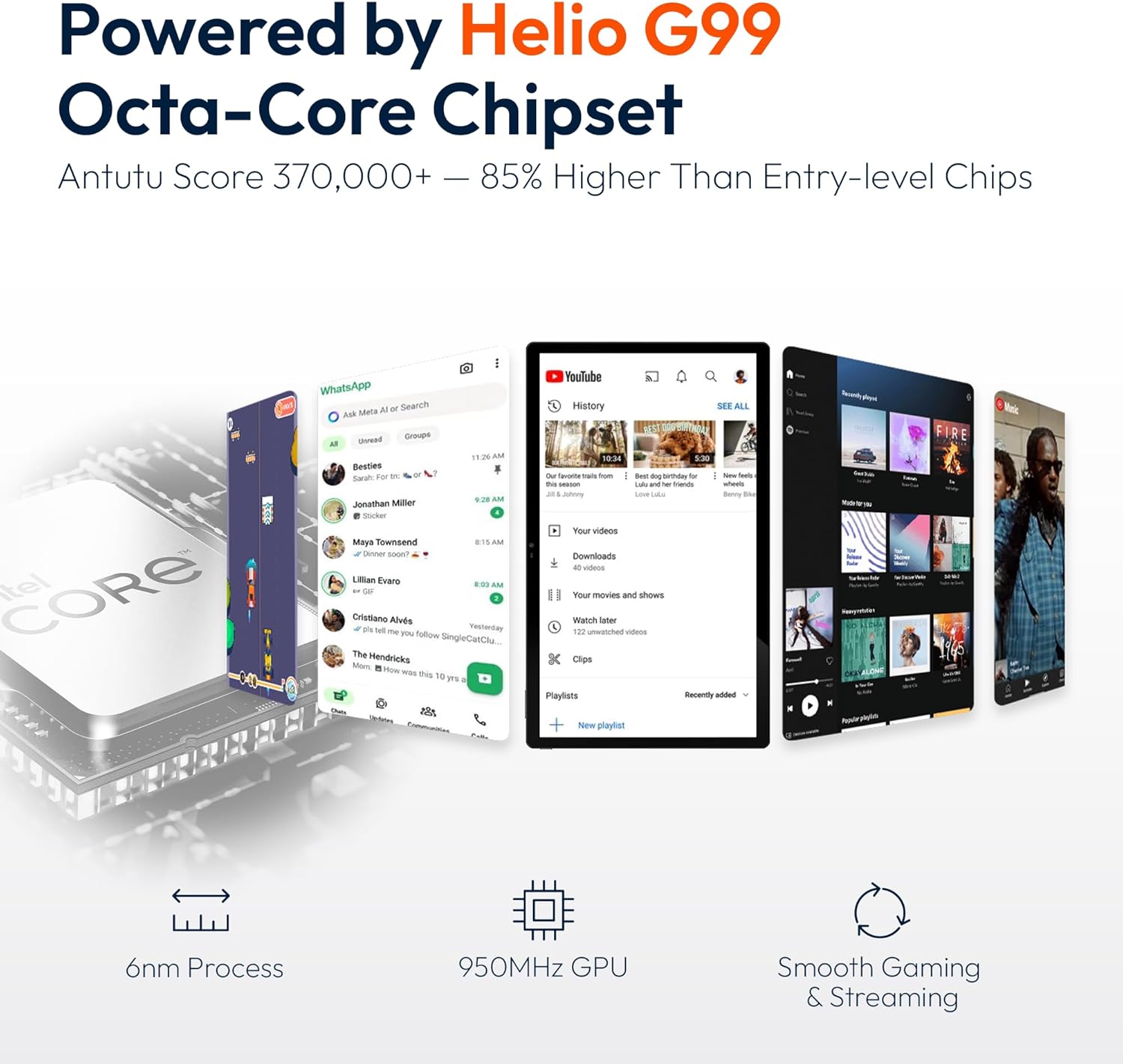
Figure 9.1: Processor and performance details. This image highlights the Helio G99 Octa-Core chipset, 6nm process, 950MHz GPU, and smooth gaming/streaming capabilities.
10. Atilẹyin ọja ati Support
10.1. atilẹyin ọja Information
The MESWAO 15.6 Inch Android 14 Tablet comes with a 12-osu atilẹyin ọja covering manufacturing defects. Please retain your proof of purchase for warranty claims.
10.2. Onibara Support
For technical assistance, troubleshooting, or warranty inquiries, please contact MESWAO customer support. They offer 24-wakati atilẹyin alabara ati ki o ni local service centers in the US, EU, and Japan.
- Ọna olubasọrọ: Refer to the contact information provided with your product packaging or visit the official MESWAO webojula.
- Ipinnu Ipinnu: Issues reported are typically responded to within 24 hours, with problems resolved or replaced according to policy.

Figure 10.1: MESWAO customer support and warranty details. This image highlights the 12-month warranty, 24-hour customer support, local after-sales centers, and quick response flow.