
X9 Performance X9RBBLKBDOCKS
X9 Full-Size Bluetooth Keyboard with Phone Holder
Model: X9RBBLKBDOCKS | Brand: X9 Performance
Ọrọ Iṣaaju
The X9 Full-Size Bluetooth Keyboard with Phone Holder is a versatile input device designed for enhanced productivity across multiple platforms. It features a full 110-key layout, integrated phone/tablet holder, and multi-device connectivity via 2.4G wireless and Bluetooth. This manual provides detailed instructions for setting up, operating, maintaining, and troubleshooting your keyboard.
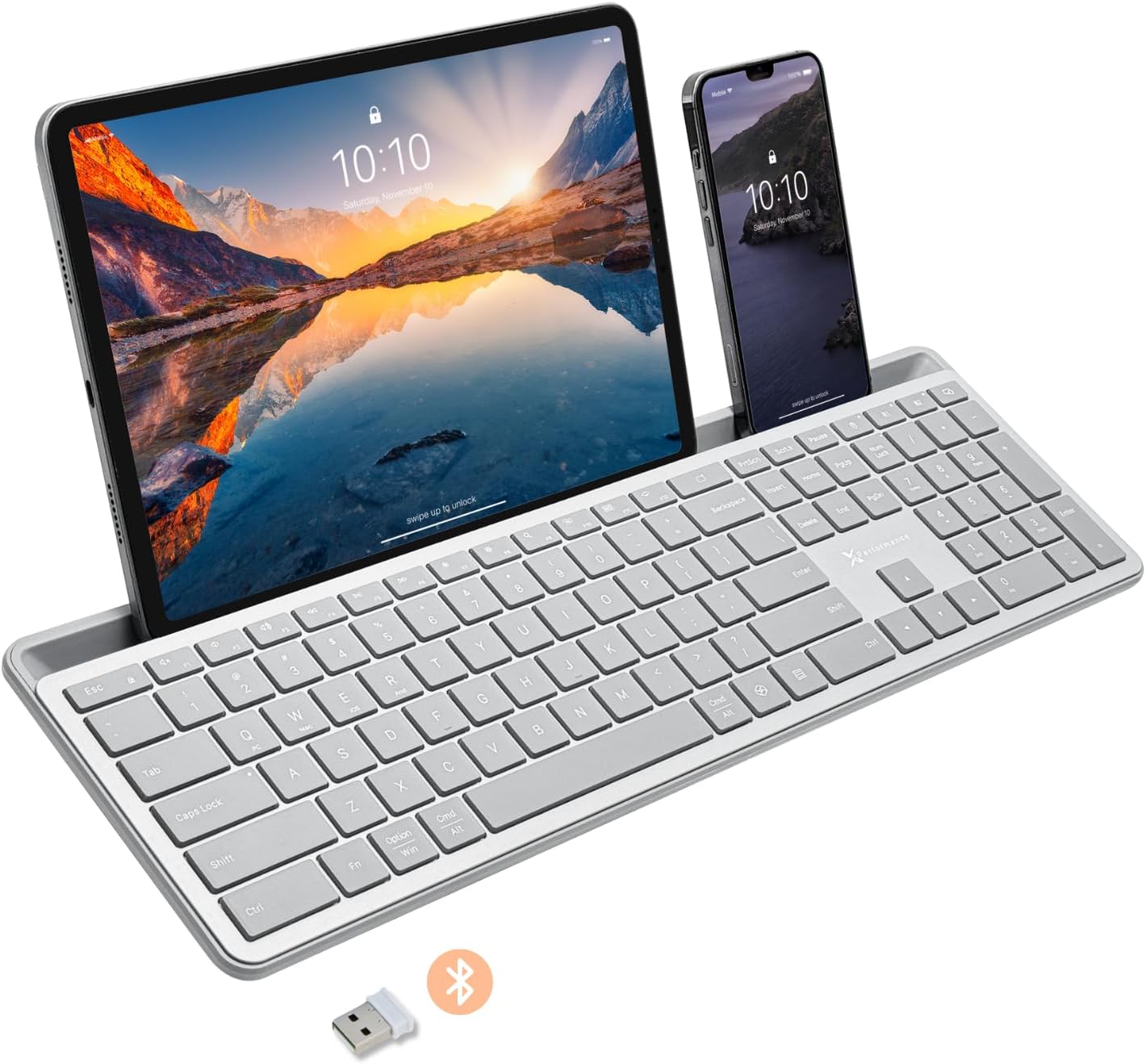
Image: The X9 Full-Size Bluetooth Keyboard in silver, featuring an integrated dock holding a tablet and a smartphone. A USB dongle and Bluetooth symbol are visible below the keyboard.
Key Awọn ẹya ara ẹrọ
- Asopọmọra Ipo Mẹta: Seamlessly connect up to three devices using 2.4G wireless (via included USB dongle) and two independent Bluetooth channels.
- Integrated Device Dock: An extra-long dock (16.75" long x 0.45" wide) securely holds your smartphone and tablet simultaneously, allowing for easy transitions between devices. Note: May not fit devices with thick cases.
- Awọn bọtini Afẹyinti: Crisp white LED backlighting with 3 adjustable brightness levels for comfortable typing in various lighting conditions.
- Batiri gbigba agbara: Equipped with a 1000 mAh rechargeable battery for extended use, with a USB-C charging cable included.
- Ìfilélẹ Ìtóbi Ni kikun: A complete 110-key layout including a numeric keypad for efficient data entry and productivity.
- Ibamu Multi-OS: Designed for Windows and Mac users, with seamless compatibility across macOS, iOS, and Android operating systems.
- Awọn bọtini idakẹjẹ: Keys are designed for a quiet typing experience.

Image: Diagram illustrating the keyboard's ability to pair with up to three devices: a smartphone via Bluetooth (channel 1), a desktop monitor via 2.4GHz wireless (channel 2), and a laptop via Bluetooth (channel 3).

Aworan: A sunmọ-soke view of the keyboard's integrated dock, highlighting its extra-long design and a note indicating its dimensions (0.45" width) and potential incompatibility with thick device cases.

Image: A close-up of the keyboard's side, showing a USB-C cable plugged into the charging port, with text indicating a 1000mAh rechargeable battery.
Package Awọn akoonu
Jọwọ rii daju pe gbogbo awọn nkan wa ninu package:
- X9 Full-Size Bluetooth Keyboard
- USB-C Ngba agbara Cable
- 2.4G USB Alailowaya Dongle
Eto Itọsọna
1. Ngba agbara si Keyboard
Before first use, fully charge the keyboard. Connect the included USB-C charging cable to the keyboard's charging port and the other end to a USB power source (e.g., computer USB port, USB wall adapter). The charging indicator light will show charging status and turn off when fully charged.
2. Nsopọ si awọn ẹrọ
The X9 keyboard supports three connection channels: one 2.4G wireless channel and two Bluetooth channels (B1 and B2).
2.1. 2.4G Alailowaya Asopọ
- Locate the 2.4G USB wireless dongle, typically stored in a compartment on the keyboard.
- Pulọọgi dongle USB sinu ibudo USB ti o wa lori kọnputa rẹ.
- Turn on the keyboard. The keyboard should automatically connect to your computer via the 2.4G dongle.
2.2. Bluetooth Connection (B1 / B2)
- Tan àtẹ bọ́tìnnì.
- Tẹ mọlẹ B1 or B2 key for 3-5 seconds until the corresponding indicator light (B1 or B2) starts blinking rapidly. This indicates the keyboard is in pairing mode.
- Lori ẹrọ rẹ (foonuiyara, tabulẹti, kọmputa), lọ si awọn eto Bluetooth ki o si mu Bluetooth ṣiṣẹ.
- Wa fun new devices. The keyboard should appear as "X9 Keyboard" or similar.
- Select the keyboard from the list to pair. Follow any on-screen prompts to complete the pairing process. The indicator light will stop blinking and remain solid for a few seconds, then turn off, indicating successful connection.
- Repeat these steps for the second Bluetooth channel (B2) if you wish to connect another device.
Awọn ilana Iṣiṣẹ
1. Yipada Laarin awọn ẹrọ ti a ti sopọ
To switch between your connected devices, simply press the corresponding connection key:
- Tẹ 2.4G key to switch to the device connected via the USB dongle.
- Tẹ B1 key to switch to the device connected via Bluetooth Channel 1.
- Tẹ B2 key to switch to the device connected via Bluetooth Channel 2.
2. Adjusting Backlight Brightness
The keyboard features three levels of backlight brightness. To adjust:
- Tẹ awọn Fn bọtini + Gilobu ina key (usually located near the F12 key) repeatedly to cycle through the brightness levels (Low, Medium, High, Off).

Image: A close-up of the keyboard in a dark setting, showcasing its clear backlit keys. Indicators for Low, Medium, and High brightness levels are shown below the keyboard.
3. Using the Copilot AI Key
The keyboard includes a dedicated Copilot AI key for quick access to AI functionalities on compatible systems. Press this key to activate Copilot or similar AI features.
4. Operating System Specific Functions
The keyboard is optimized for various operating systems. Some function keys may behave differently or require the Fn key to access secondary functions depending on your OS (Windows, macOS, iOS, Android).
- For optimal compatibility, ensure your device's operating system is updated.
- Some systems may require specific key combinations (e.g., Fn + Option + R for Android, as mentioned in customer reviews for specific app compatibility). Refer to your device's documentation for advanced keyboard settings.
Itoju
To ensure the longevity and optimal performance of your X9 keyboard, follow these maintenance guidelines:
- Ninu: Lo asọ asọ, ti ko ni lint die-die dampened with water or a mild cleaning solution to wipe the surface of the keyboard. Avoid excessive moisture. For cleaning between keys, use compressed air.
- Ibi ipamọ: Tọju keyboard ni itura, aye gbigbẹ kuro lati orun taara ati awọn iwọn otutu to gaju.
- Itọju Batiri: Avoid fully discharging the battery frequently. For long-term storage, charge the battery to about 50% to preserve its lifespan.
- Yago fun Idasonu: Jeki awọn olomi kuro ni keyboard lati ṣe idiwọ ibajẹ si awọn paati inu.
Laasigbotitusita
If you encounter issues with your X9 keyboard, refer to the following common problems and solutions:
| Isoro | Owun to le Fa / Solusan |
|---|---|
| Káàdì kìí tan. | Battery is depleted. Connect the keyboard to a power source using the USB-C cable and allow it to charge. |
| Keyboard does not connect via Bluetooth. |
|
| 2.4G wireless connection not working. |
|
| Awọn bọtini ko dahun tabi titẹ ni aṣiṣe. |
|
| Imọlẹ ẹhin ko ṣiṣẹ. |
|
Awọn pato
| Ẹya ara ẹrọ | Ẹ̀kúnrẹ́rẹ́ |
|---|---|
| Nọmba awoṣe | X9RBBLKBDOCKS |
| Asopọmọra Technology | Alailowaya 2.4G, Bluetooth |
| Awọn ẹrọ ibaramu | Laptop, PC, Mac, iOS, Android (Smartphone, Tablet) |
| Ifilelẹ bọtini itẹwe | Full-Size, 110-key |
| Imọlẹ afẹyinti | Single Color (White), 3 Brightness Levels |
| Agbara Batiri | 1000 mAh (Agba agbara) |
| Awọn iwọn Ọja (L x W x H) | 17.33" x 5.56" x 0.89" (44.02 cm x 14.12 cm x 2.26 cm) |
| Iwọn Nkan | 2.25 poun (1.02 kg) |
| Device Dock Dimensions (L x W) | 16.75" x 0.45" |
| Olupese | X9 išẹ |

Aworan: Ohun oke view of the X9 keyboard with measurements indicating its length (17.3"), width (5.55"), and height (0.89").
Alaye atilẹyin ọja
X9 Performance products are designed for reliability and performance. For specific warranty terms and conditions, please refer to the warranty card included with your product or visit the official X9 Performance website. Typically, products are covered against defects in materials and workmanship for a specified period from the date of purchase.
Atilẹyin
For further assistance, technical support, or to inquire about replacement parts, please contact X9 Performance customer support:
- Webojula: Visit the official X9 Performance webojú òpó wẹ́ẹ̀bù fún àwọn ìbéèrè tó ń fa ìbéèrè, àwọn awakọ̀, àti àwọn ohun èlò ìrànlọ́wọ́.
- Olubasọrọ: Tọkasi alaye olubasọrọ ti a pese lori apoti ọja tabi osise naa webaaye fun foonu tabi atilẹyin imeeli.
Please have your product model number (X9RBBLKBDOCKS) and purchase details ready when contacting support.
Ask a question about this manual
Ask about setup, troubleshooting, compatibility, parts, safety, or missing instructions. Manuals+ will review the question and use this page’s manual context to help answer it.