
1. Ifihan
This manual provides detailed instructions for the installation, operation, and maintenance of the Yitouniu EWeLink 2-Channel Smart WiFi Switch Relay. This device enables remote control of household appliances and electronic devices via a mobile application, RF remote control, and voice commands through smart assistants like Alexa and Google Home. It supports various operating modes and timing functions to enhance smart home automation.
2. Alaye Aabo
- Ensure power is disconnected before installation or maintenance to prevent electric shock.
- Installation should be performed by qualified personnel or under strict adherence to electrical safety guidelines.
- Maṣe kọja iwọn lọwọlọwọ ati voltagàwọn ìdíyelé e tí a sọ fún ẹ̀rọ náà.
- Jeki ẹrọ naa kuro ni omi, ọrinrin, ati awọn iwọn otutu to gaju.
- Rí i dájú pé gbogbo àwọn ìsopọ̀ wáyà náà wà ní ààbò àti pé wọ́n tọ́ kí o tó dá agbára padà.
3. Ọja Ipariview
The Yitouniu EWeLink Smart WiFi Switch Relay is a compact, 2-channel device designed for integrating traditional appliances into a smart home system. It features WiFi and Bluetooth connectivity for app control and supports RF 433MHz for remote control.

Aworan 3.1: Iwaju view of the Yitouniu EWeLink Smart WiFi Switch Relay. The device is white with branding and connection labels visible.

Aworan 3.2: Isunmọ view of the Yitouniu EWeLink Smart WiFi Switch Relay, showing input terminals (N, L), output terminals (NO, COM, NC), and model information.

Image 3.3: The compact size of the Yitouniu EWeLink Smart WiFi Switch Relay, held in a hand for scale.
4. Awọn pato
| Paramita | Iye |
|---|---|
| Iṣagbewọle Voltage | AC/DC 85-250V, Micro USB 5V input |
| Max lọwọlọwọ | 10A |
| Agbara to pọju | 2200W |
| WiFi Standard | WiFi 2.4GHz b/n/g + Bluetooth (IEEE 802.11b/g/n) |
| Awọn iwọn otutu ti nṣiṣẹ | -20°C si 70°C |
| Ohun elo | ABS ina |
| Ọja Mefa | 2.76 x 1.77 x 1.1 inches |
| Iwọn Nkan | 1.76 iwon |
| Olubasọrọ Iru | Ṣii ni deede |
| International Idaabobo Rating | IP65 |
| Ijẹrisi | FCC |
5. Eto ati fifi sori
5.1 Awọn itọnisọna Wiring
The device supports both AC/DC 85-250V input and Micro USB 5V input. Ensure correct wiring based on your application. The relay has Normally Open (NO), Common (COM), and Normally Closed (NC) contacts for controlling external devices.
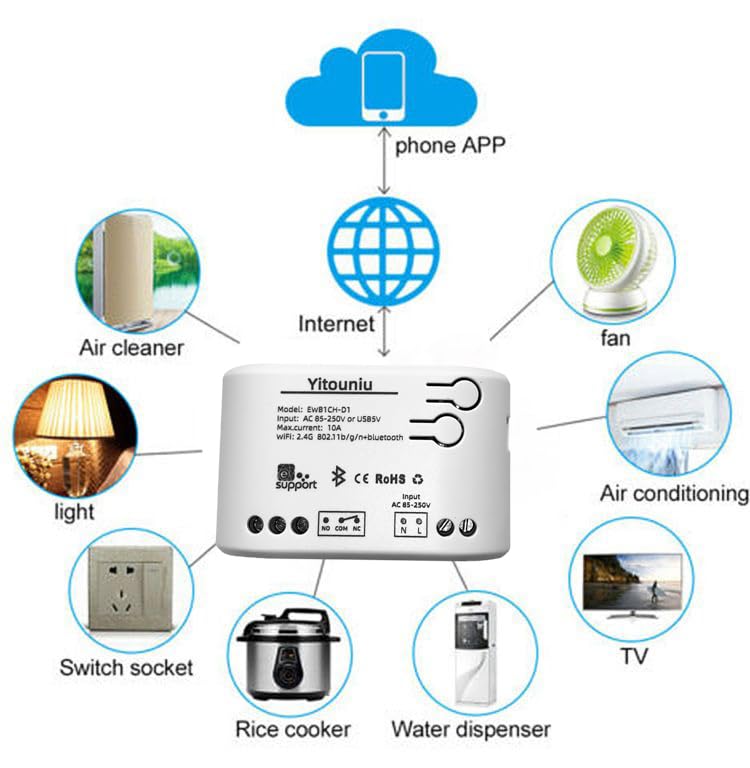
Image 5.1: Diagram illustrating the connectivity of the Yitouniu EWeLink Smart WiFi Switch Relay to various household appliances like lights, fans, and air conditioners, all controlled via a phone app and the internet.
5.2 App Gbigba lati ayelujara ati Sisopọ
- Gba awọn eWeLink app lati Apple App itaja tabi Google Play itaja.
- Forukọsilẹ iroyin ati ki o wọle.
- Power on the Smart WiFi Switch Relay.
- Open the eWeLink app, tap the '+' icon to add a device.
- Tẹle awọn ilana loju iboju lati so ẹrọ naa pọ mọ nẹtiwọọki WiFi 2.4GHz rẹ.

Image 5.2: Screenshots of the eWeLink app interface, showing controls for a garage door (ON/OFF) and a scheduling function for setting specific times.
6. Awọn ọna ṣiṣe
The device supports three operating modes: self-locking, interlocking, and inching (micromotion). These modes can typically be configured within the eWeLink app or via physical buttons on the device, depending on the specific model variant.
- Ipo titiipa ara-ẹni: Each channel operates independently. Pressing the button (or app control) turns the relay ON, pressing it again turns it OFF.
- Interlocking Mode: When one channel is turned ON, all other channels are automatically turned OFF. This is useful for applications where only one device should be active at a time.
- Inching (Micromotion) Mode: The relay turns ON for a set duration (e.g., 0.5 seconds to 1 hour) and then automatically turns OFF. This is suitable for momentary actions like garage door openers or pulse controls.
7. App Control and Voice Control
7.1 eWeLink App Features
The eWeLink app provides comprehensive control over your Smart WiFi Switch Relay:
- Titan/Pa a latọna jijin: Control connected devices from anywhere with an internet connection.
- Awọn iṣẹ akoko: Set schedules, countdowns, or recurring timers for automatic on/off operations.
- Iṣakoso Ominira: Each of the two channels can be controlled independently.
- Pipin ẹrọ: Share control of your devices with family members.
- Iṣakoso Ẹgbẹ: Organize multiple smart devices into groups for simultaneous control.

Image 7.1: A user remotely controlling home lighting via the eWeLink mobile application, demonstrating the convenience of app-based control.

Image 7.2: Illustration of the eWeLink app's group control and sharing functions, allowing multiple users to manage devices across different rooms.

Image 7.3: The timing function interface within the eWeLink app, enabling users to set specific on/off times for connected appliances.
7.2 Voice Iṣakoso Integration
The Yitouniu Smart WiFi Switch Relay is compatible with popular voice assistants, including Amazon Alexa and Google Home/Nest. To enable voice control:
- Ensure your Smart WiFi Switch Relay is successfully paired with the eWeLink app.
- Ṣii ohun elo Alexa tabi Google Home.
- Navigate to the 'Skills' or 'Works with Google' section.
- Wa fun and enable the 'eWeLink Smart Home' skill/service.
- Link your eWeLink account when prompted.
- Discover devices. Your Smart WiFi Switch Relay should now be controllable via voice commands.
Example paṣẹ:
- "Alexa, tan ina ile gbigbe."
- "Ẹ kú Google, pa afẹ́fẹ́ náà."

Image 7.4: A user interacting with voice assistants like Amazon Alexa and Google Home to control smart devices, highlighting the voice control capability of the relay.
8. Itọju
The Yitouniu Smart WiFi Switch Relay requires minimal maintenance. Follow these guidelines:
- Ninu: Wipe the device with a dry, soft cloth. Do not use liquid cleaners or solvents.
- Ṣayẹwo Asopọmọra: Ṣe àyẹ̀wò àwọn ìsopọ̀ wáyà láti rí i dájú pé wọ́n wà ní ààbò nígbà gbogbo.
- Awọn imudojuiwọn famuwia: Keep the eWeLink app updated to receive the latest firmware for the device, which may include performance improvements and new features.
9. Laasigbotitusita
- Ẹ̀rọ náà kò sopọ̀ mọ́ WiFi:
- Rii daju pe nẹtiwọki WiFi rẹ jẹ 2.4GHz. Ẹrọ naa ko ṣe atilẹyin awọn nẹtiwọki 5GHz.
- Ṣàyẹ̀wò bóyá ọ̀rọ̀ìpamọ́ WiFi tí a fi sínú àpù náà tọ́.
- Gbe ẹrọ naa sunmọ si olulana WiFi rẹ.
- Restart the device and your router.
- Device offline in app:
- Verify your home internet connection is active.
- Ṣayẹwo boya ẹrọ naa ni agbara.
- Tun ẹrọ naa bẹrẹ.
- Iṣakoso ohun ko ṣiṣẹ:
- Confirm the eWeLink skill/service is enabled and linked in your Alexa or Google Home app.
- Ensure the device is named clearly in the eWeLink app and discovered by your voice assistant.
- Ṣayẹwo asopọ intanẹẹti rẹ.
- Device not responding to RF remote:
- Ensure the RF remote is paired with the switch. Refer to the RF pairing instructions (if applicable to your specific remote).
- Check the battery in the RF remote.
10. Ohun ti o wa ninu Apoti
Nigbati o ba ṣii apoti ọja, o yẹ ki o wa awọn nkan wọnyi:
- 1 x Yitouniu Wifi 2-Channel Relay Switch
- 1 x Ilana itọnisọna (iwe yii)
11. Atilẹyin ọja ati Support
This product comes with a standard manufacturer's warranty. For specific warranty terms, conditions, and duration, please refer to the documentation included with your purchase or contact Yitouniu customer support. For technical assistance or further inquiries, please visit the official Yitouniu webojula tabi kan si wọn onibara iṣẹ awọn ikanni.