
TomTom Lite 5 inches
TomTom GO Classic Lite (5 Inch) User Manual
Model: Lite 5 inches
1. Ifihan
The TomTom GO Classic Lite (5 Inch) is a budget-friendly car satellite navigation device designed to provide cost-effective and reliable navigation. This device offers high-quality maps with monthly updates, live TomTom Traffic information, and the intuitive TomTom RouteBar for quick route overviews. It is engineered to provide confident and informed driving, ensuring peace of mind on the road.
Awọn ẹya pataki pẹlu:
- Ìjábọ̀ TomTom: Real-time updates to avoid traffic jams and provide reliable estimated times of arrival (ETAs).
- Europe Map Updates: Monthly map updates included to ensure the latest road information.
- Clear and Responsive Screen: A 5-inch capacitive touchscreen with higher resolution for clear guidance.
- Àwọn ìkìlọ̀ kámẹ́rà ìyára: Live notifications to help maintain speed limits (free for three months, then subscription-based).
- Updates via Wi-Fi: Conveniently update maps and software directly from the device without a computer.
- Exclusive TomTom Features: Includes the RouteBar, user-friendly interface, and smart search engine.
2. Eto
2.1. Ohun ti o wa ninu Apoti
Ṣaaju ki o to bẹrẹ, rii daju pe gbogbo awọn eroja wa:
- TomTom GO Classic Lite device with integrated mount
- Okun USB-C
- Installation poster
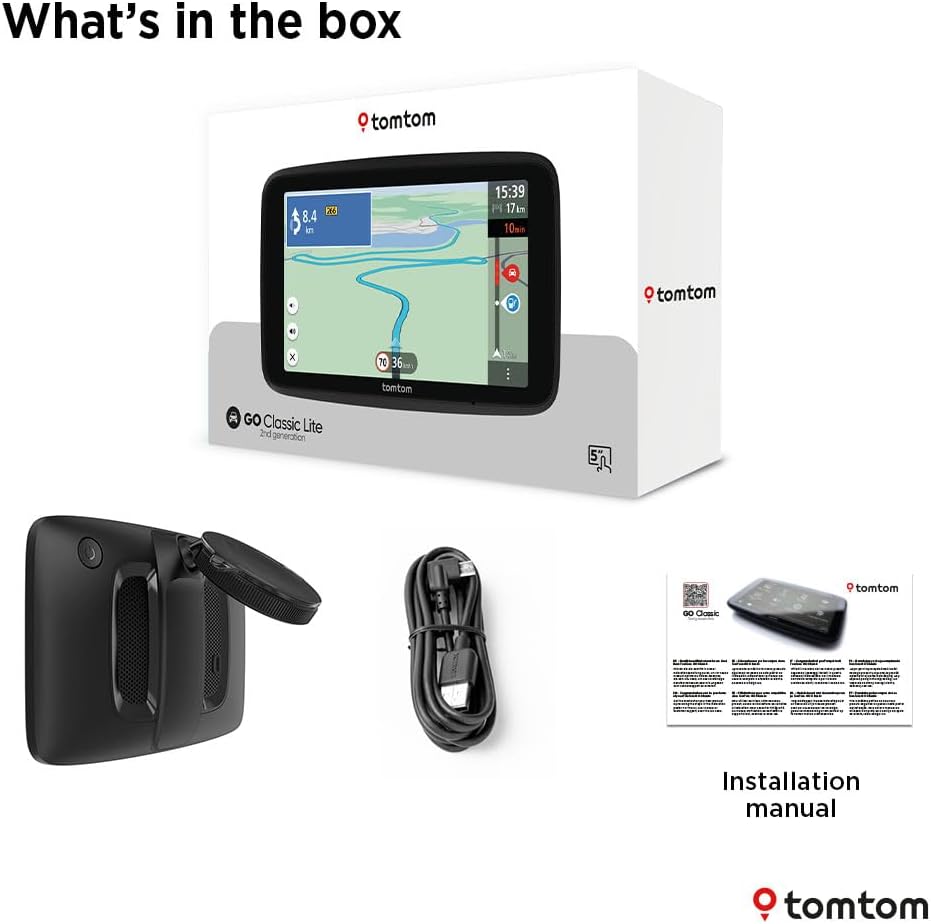
Image: Contents of the TomTom GO Classic Lite box.
2.2. Ẹrọ Loriview
Mọ ara rẹ pẹlu awọn eroja ti ẹrọ naa:

Aworan: Ẹyin view of the TomTom GO Classic Lite, highlighting the On/Off button, 5-inch capacitive touch screen, integrated reversible mount, powerful speaker, and USB-C port.
- Bọtini Tan/Pa: Located on the top edge.
- Ibudo USB-C: Fun gbigba agbara ati gbigbe data.
- Integrated Reversible Mount: Allows mounting on either the windscreen or dashboard.
- Powerful Speaker: For clear voice instructions.
2.3. Iṣagbesori Device
The TomTom GO Classic Lite features an integrated reversible mount for flexible placement in your vehicle.

Image: Mounting options for the TomTom GO Classic Lite, showing placement on a windscreen and dashboard. Note that dashboard mounting may require additional accessories.
- Windscreen Mounting: Attach the suction cup of the integrated mount firmly to a clean, dry area of your windscreen.
- Fifi sori Dasibodu: For dashboard mounting, an adhesive disk or beanbag (sold separately) is required. Attach the mount to this accessory.
Rii daju pe ẹrọ naa ti gbe ni aabo ati pe ko ṣe idiwọ rẹ view ti opopona tabi dabaru pẹlu awọn aabọ afẹfẹ.
2.4. Initial Power On and Wi-Fi Setup
Upon first power-on, the device will guide you through the initial setup process, including connecting to a Wi-Fi network. This connection is crucial for downloading map updates and software updates.
- Press and hold the On/Off button to power on the device.
- Follow the on-screen prompts to select your language, region, and connect to your home or mobile Wi-Fi network.
- Once connected, the device will check for available updates.
3. Ṣiṣẹ ẹrọ naa
3.1. Navigation Basics
The TomTom GO Classic Lite provides clear visual and spoken instructions for navigation.

Image: The TomTom GO Classic Lite displaying an active navigation route.
- Wọle Ibi-ipinnu kan: Tap the search icon on the main menu to enter an address, point of interest, or coordinates.
- Iṣiro Ipa-ọna: After entering your destination, the device will calculate the fastest route.
- Awọn ilana atẹle: Follow the spoken turn-by-turn directions and visual cues on the screen.
3.2. Ìrìnàjò TomTom
TomTom Traffic provides real-time traffic information to help you avoid delays and find faster routes.

Image: TomTom GO Classic Lite displaying real-time traffic updates on the screen.
- Traffic information is automatically integrated into route planning.
- The device will suggest alternative routes if significant delays are detected on your current path.
3.3. TomTom RouteBar
The RouteBar provides a condensed summary of your route, showing upcoming traffic, points of interest, and potential delays at a glance.

Image: The TomTom RouteBar providing a quick overview of route information.
- View realistic ETAs, including potential traffic delays.
- See icons for road works, fuel stations, and other relevant information along your route.
3.4. Map Updates and Coverage
The device includes monthly map updates for Europe, ensuring you always have the most current road information.
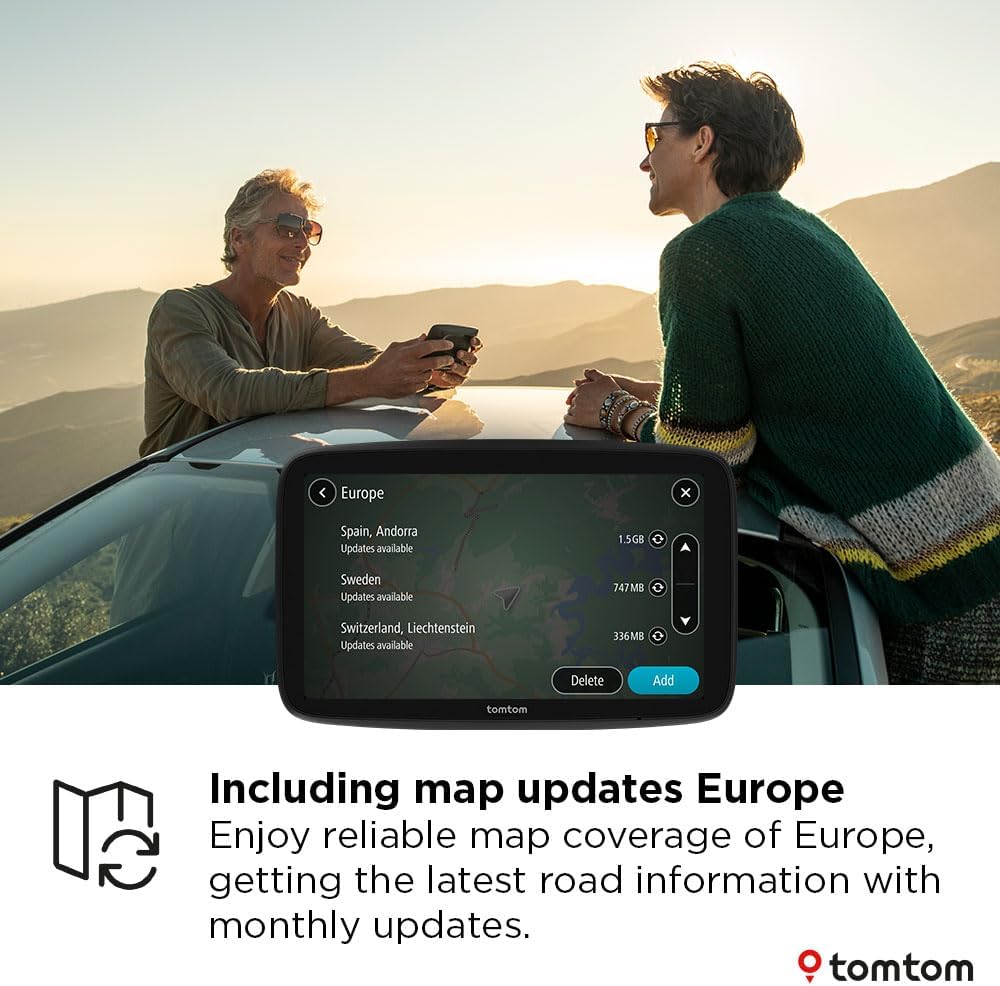
Image: TomTom GO Classic Lite displaying available map updates for various European countries.
- Map updates are delivered via Wi-Fi directly to your device.
- No computer is needed for these updates.
3.5. Speed Camera Alerts
Receive live notifications for speed cameras to help you stay informed and adhere to speed limits.
- Speed camera alerts are free for the first three months.
- A subscription is required to continue receiving alerts after the trial period.
4. Itọju
4.1. Ninu ẹrọ
- Use a soft, lint-free cloth to clean the screen and exterior of the device.
- Ma ṣe lo abrasive ose tabi epo.
4.2. Àwọn Àtúnṣe Sọfítíwẹ́ẹ̀tì àti Máàpù
Regularly check for and install software and map updates to ensure optimal performance and the most accurate navigation data.
- So ẹrọ rẹ pọ si nẹtiwọki Wi-Fi iduroṣinṣin.
- Navigate to the 'Settings' menu on your device and look for 'Updates' or 'Maps & Software'.
- Tẹle awọn ilana loju iboju lati ṣe igbasilẹ ati fi awọn imudojuiwọn eyikeyi ti o wa sori ẹrọ.
5. Laasigbotitusita
5.1. Ẹrọ Ko Nṣiṣẹ Tan-an
- Rí i dájú pé ẹ̀rọ náà ti gba agbára tán pátápátá. So ó pọ̀ mọ́ orísun agbára nípa lílo okùn USB-C tí a pèsè.
- Press and hold the On/Off button for at least 10-15 seconds to perform a soft reset.
5.2. Awọn iṣoro ifihan agbara GPS
- Rii daju pe ẹrọ naa ni oye view ti oju ọrun. Awọn idinamọ bii awọn ile giga tabi awọn ihò oju omi le da ifihan agbara GPS duro.
- Move the device to a different location in your vehicle, such as closer to the windscreen.
5.3. Awọn iṣoro Asopọ Wi-Fi
- Rii daju pe ọrọ igbaniwọle Wi-Fi rẹ tọ.
- Rí i dájú pé ẹ̀rọ náà wà láàrín ibi tí ẹ̀rọ náà wà fún ẹ̀rọ amúṣẹ́ Wi-Fi rẹ.
- Restart your Wi-Fi router and then try connecting the device again.
5.4. Map Update Failures
- Ensure you have a stable and strong Wi-Fi connection.
- Check if there is sufficient storage space on your device for the update.
- Try performing the update at a different time, as server load can sometimes affect download speeds.
6. Awọn pato
| Ẹya ara ẹrọ | Ẹ̀kúnrẹ́rẹ́ |
|---|---|
| Brand | TomTom |
| Orukọ awoṣe | Lite 5 inch |
| Iwon iboju | 5 inches |
| Iboju Iru | Agbara Iboju Agbara |
| Oriṣi maapu | Europe (monthly updates included) |
| Asopọmọra Technology | USB-C, Wi-Fi, Bluetooth |
| Iṣagbesori Iru | Integrated Reversible Mount (Dashboard Mount requires separate accessory) |
| Eto isesise | Windows CE |
| Awọn batiri | 1 Batiri litiumu polima (pẹlu) |
| Package Mefa | 18.5 x 12.7 x 4.8 cm |
| Iwọn Nkan | 380 g |
| Ilu isenbale | China |
7. Atilẹyin ọja ati Support
For warranty information and technical support, please refer to the official TomTom website or contact TomTom customer service directly. Details can typically be found on the TomTom support pages or within the device's digital documentation.
Ṣabẹwo si Ile itaja TomTom lori Amazon fun ọja alaye ati awọn ẹya ẹrọ diẹ ẹ sii.
Ask a question about this manual
Ask about setup, troubleshooting, compatibility, parts, safety, or missing instructions. Manuals+ will review the question and use this page’s manual context to help answer it.