
1. Ifihan
Thank you for choosing the Phomemo M834 A4 Portable Thermal Printer. This device offers a convenient, inkless printing solution for various needs, from business documents to personal use. Its compact design and versatile connectivity make it an ideal companion for professionals, students, and home users. This manual provides essential information for setting up, operating, maintaining, and troubleshooting your printer to ensure optimal performance.
2. Ọja Ipariview
Key Awọn ẹya ara ẹrọ
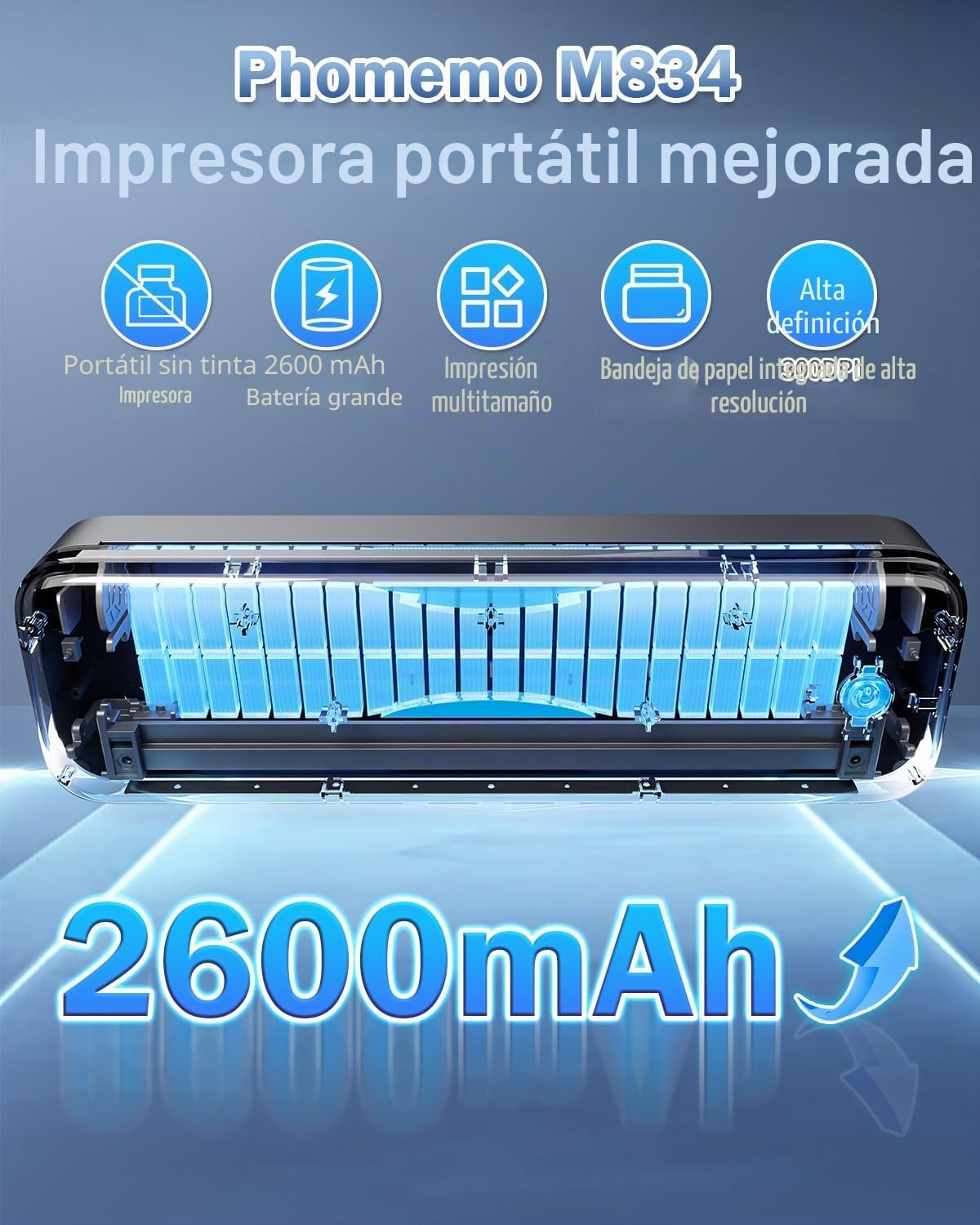
- Títẹ̀jáde Gbona Inkless: Eliminates the need for ink cartridges or ribbons.
- Ipinnu giga: 300 DPI for clear and sharp prints.
- Apẹrẹ to gbe: Weighs approximately 690g with dimensions of 26.4 x 7.8 x 4.5 cm, similar to a 500ml water bottle.
- Multi-size Paper Support: Compatible with 210mm (A4), 110mm, 80mm, and 53mm thermal paper, including roll, sheet, and folded paper.
- Asopọmọra Wapọ: Supports Bluetooth for smartphones/tablets (iOS/Android) and USB for PCs (Windows/macOS).
- Igbesi aye batiri gigun: Equipped with a 2600 mAh battery for extended use.
- Integrated Paper Box: Conveniently holds paper, reducing the need to carry separate sheets.
Ohun ti o wa ninu Apoti
- Phomemo M834 Portable Thermal Printer
- A4 Thermal Paper Roll
- Okun USB-C
- Itọsọna olumulo
Ọja aworan atọka
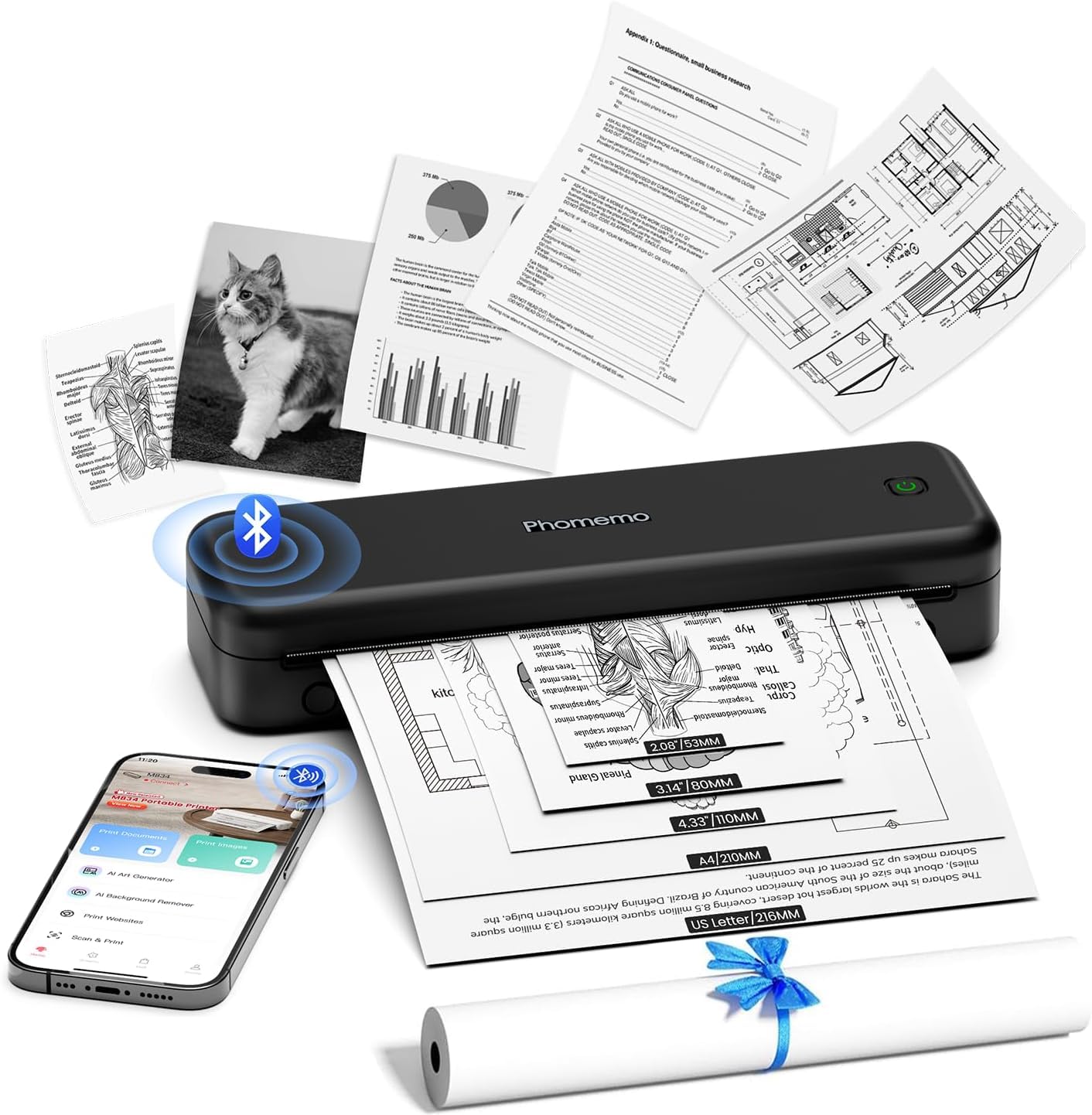
The Phomemo M834 printer features a sleek, compact design. The main body houses the thermal print head, paper feed mechanism, and battery. On the side, you will find the power button and USB-C port for charging and wired connection. The paper input slot is located at the top, and printed documents exit from the front.
3. Eto
3.1 Ngba agbara si itẹwe
Before initial use, fully charge the printer. Connect the provided USB-C cable to the printer's USB-C port and the other end to a compatible USB power adapter (not included) or a computer's USB port. The indicator light will show charging status (e.g., red for charging, green for fully charged).
3.2 Loading Thermal Iwe
- Ṣii ideri iyẹwu iwe.
- Insert the thermal paper roll or stack of sheets into the compartment, ensuring the printable side faces the print head. The printable side is typically smoother and will produce a mark when scratched with a fingernail.
- Gently feed the leading edge of the paper into the printer's feed slot until it is gripped by the rollers.
- Close the paper compartment cover. Ensure the paper is aligned correctly to prevent jams.

3.3 Driver Installation (for PC/Mac)
For printing from a computer, you need to install the appropriate drivers. Visit M834.Phomemo.com to download the latest drivers for your Windows or macOS operating system. Follow the on-screen instructions for installation.
4. Awọn ilana Iṣiṣẹ
4.1 Connecting via Bluetooth (for Mobile/Tablet)
- Download the "Phomemo" application from the App Store (iOS) or Google Play Store (Android).
- Turn on your Phomemo M834 printer by pressing and holding the power button.
- Mu Bluetooth ṣiṣẹ lori ẹrọ alagbeka rẹ.
- Open the Phomemo app and follow the in-app instructions to search for and connect to your M834 printer.
- Once connected, you can select documents (Word, Excel, PDF, TXT, JPG) or images within the app to print.
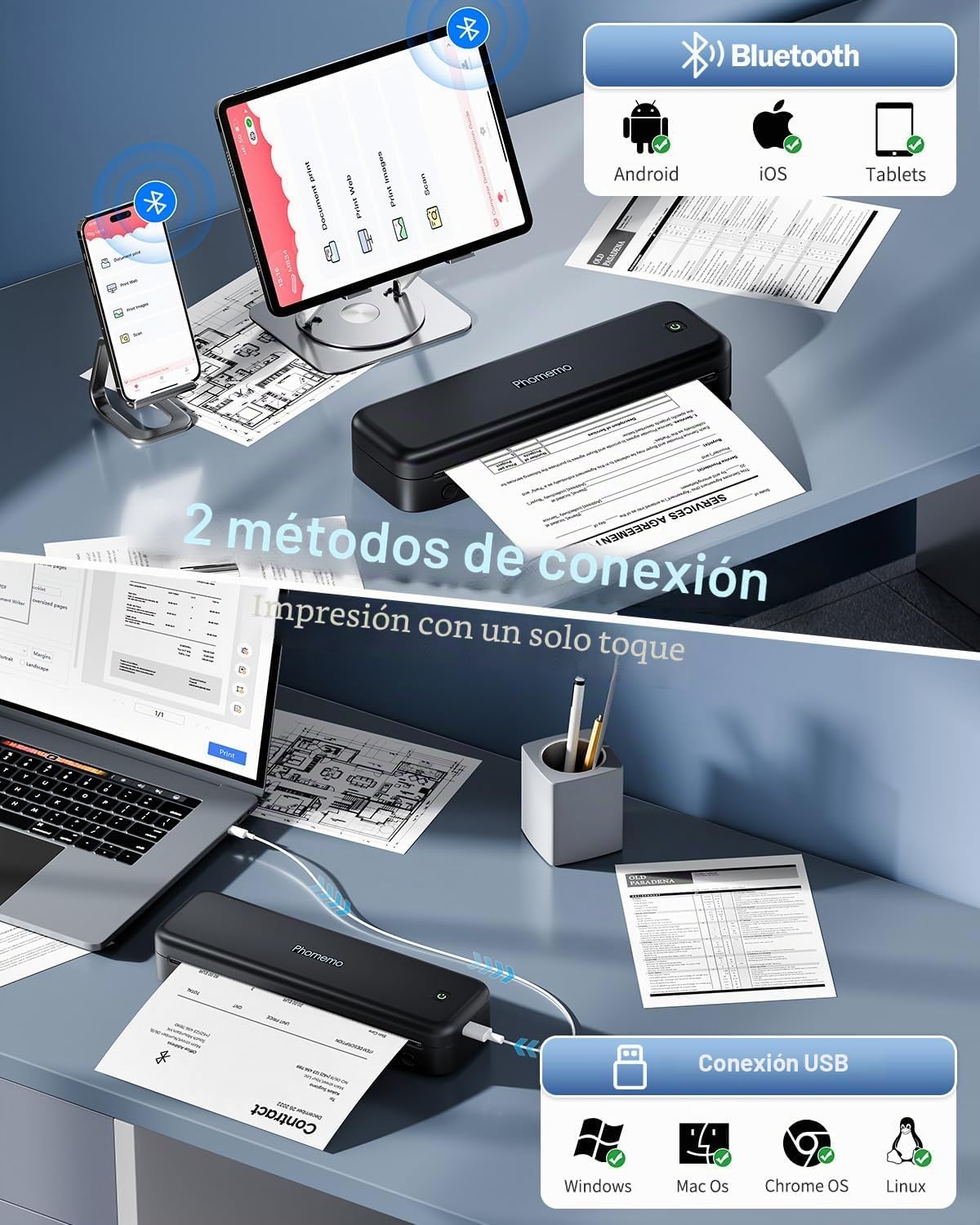
4.2 Connecting via USB (for PC/Mac)
- Ensure the printer drivers are installed on your computer (refer to Section 3.3).
- Turn on your Phomemo M834 printer.
- Connect the printer to your computer using the provided USB-C cable.
- Your computer should recognize the printer. You can now print documents from any application as you would with a standard printer.
4.3 Using the Phomemo App
The Phomemo app provides enhanced control over your printing experience:
- Document Print: Supports various formats including Word, Excel, PDF, TXT, and JPG.
- Print Images: Offers free-form editing, batch printing, and collage printing.
- Titẹ sita Web: Print content directly from web awọn oju-iwe.
- Ṣayẹwo: Scan documents using your phone's camera and print them directly.
- Isọdi: Adjust print depth and speed for optimal results.
5. Itọju
5.1 Ninu awọn Print Head
To maintain print quality, regularly clean the print head. Use a soft, lint-free cloth lightly dampened with isopropyl alcohol. Gently wipe the print head surface. Ensure the printer is turned off and cooled down before cleaning.
5.2 batiri Itọju
- Yago fun gbigba agbara si batiri ni kikun nigbagbogbo.
- Store the printer in a cool, dry place when not in use for extended periods.
- Charge the printer at least once every three months to prevent battery degradation.
5.3 Paper Storage
Store thermal paper in a cool, dry place away from direct sunlight and heat. Exposure to high temperatures or light can cause the paper to darken prematurely or reduce print longevity.
6. Laasigbotitusita
| Isoro | Owun to le Fa | Ojutu |
|---|---|---|
| Itẹwe ko titan | Batiri kekere; Bọtini agbara ko tẹ ni deede | Charge the printer; Press and hold the power button for a few seconds. |
| Dídára ìtẹ̀wé tí kò dára (ó rẹlẹ̀, ó ní ìlà) | Dirty print head; Low battery; Old/poor quality thermal paper; Incorrect print density setting | Clean the print head (Section 5.1); Charge the printer; Use fresh, high-quality thermal paper; Adjust print density in the Phomemo app. |
| Jam iwe | Improper paper loading; Damaged paper | Turn off the printer, carefully remove jammed paper; Reload paper correctly (Section 3.2); Use undamaged paper. |
| Ko le sopọ nipasẹ Bluetooth | Bluetooth off on device; Printer not in pairing mode; App issue | Ensure Bluetooth is enabled; Restart printer and app; Try pairing again through the app. |
| Cannot print from PC via USB | Drivers not installed; Loose USB connection | Install drivers from M834.Phomemo.com; Ensure USB cable is securely connected. |
7. Awọn pato
| Ẹya ara ẹrọ | Ẹ̀kúnrẹ́rẹ́ |
|---|---|
| Nọmba awoṣe | M834-BK |
| Imọ-ẹrọ titẹ sita | Gbona |
| Titẹ Ipinnu | 300 DPI |
| Asopọmọra | Bluetooth, USB-C |
| Compatible Paper Sizes | A4 (210x297 mm), 110mm, 80mm, 53mm, 8.5" x 11" US Letter |
| Max Monochrome Print Speed | Awọn oju-iwe 20 fun iṣẹju kan |
| Batiri | 2600 mAh litiumu polima |
| Awọn iwọn Ọja (L x W x H) | 26.4 x 7.8 x 4.5 cm |
| Iwọn Ọja | 695 giramu |
| Ibamu Awọn ọna ṣiṣe | Android, iOS, Windows, macOS |
| Awọ Inki | Black (Monochrome output) |
| Ilu isenbale | China |
8. Atilẹyin ọja ati Support
Phomemo products come with a standard manufacturer's warranty. For specific warranty details, please refer to the warranty card included with your product or visit the official Phomemo website. Our professional technical support team is available to assist you with any questions or issues you may encounter.
For support, please:
- Ṣabẹwo si osise wa webojula: www.phomemo.com
- Contact us through the "Phomemo" application.
- Tọkasi alaye olubasọrọ ti a pese ninu apoti ọja rẹ.