
ZYWELL ZM04
ZYWELL ZM04 Label Maker & Receipt Printer User Manual
Awoṣe: ZM04
1. Ifihan
The ZYWELL ZM04 is a versatile Bluetooth thermal label and receipt printer designed for various business and personal applications. This two-in-one device supports both 58mm and 80mm paper widths, offering efficient printing for logistics, retail, and other commercial needs. This manual provides comprehensive instructions for setting up, operating, maintaining, and troubleshooting your ZM04 printer.

Figure 1: ZYWELL ZM04 Label Maker and Receipt Printer
2. Package Awọn akoonu
Jọwọ rii daju pe gbogbo awọn nkan ti a ṣe akojọ rẹ si isalẹ wa ninu package rẹ:
- ZM04 Printer
- Okun USB
- Pulọọgi Agbara
- Batiri
- Itọsọna olumulo
- U-DISK (USB Drive with drivers and software)
- Labels (Sample eerun)
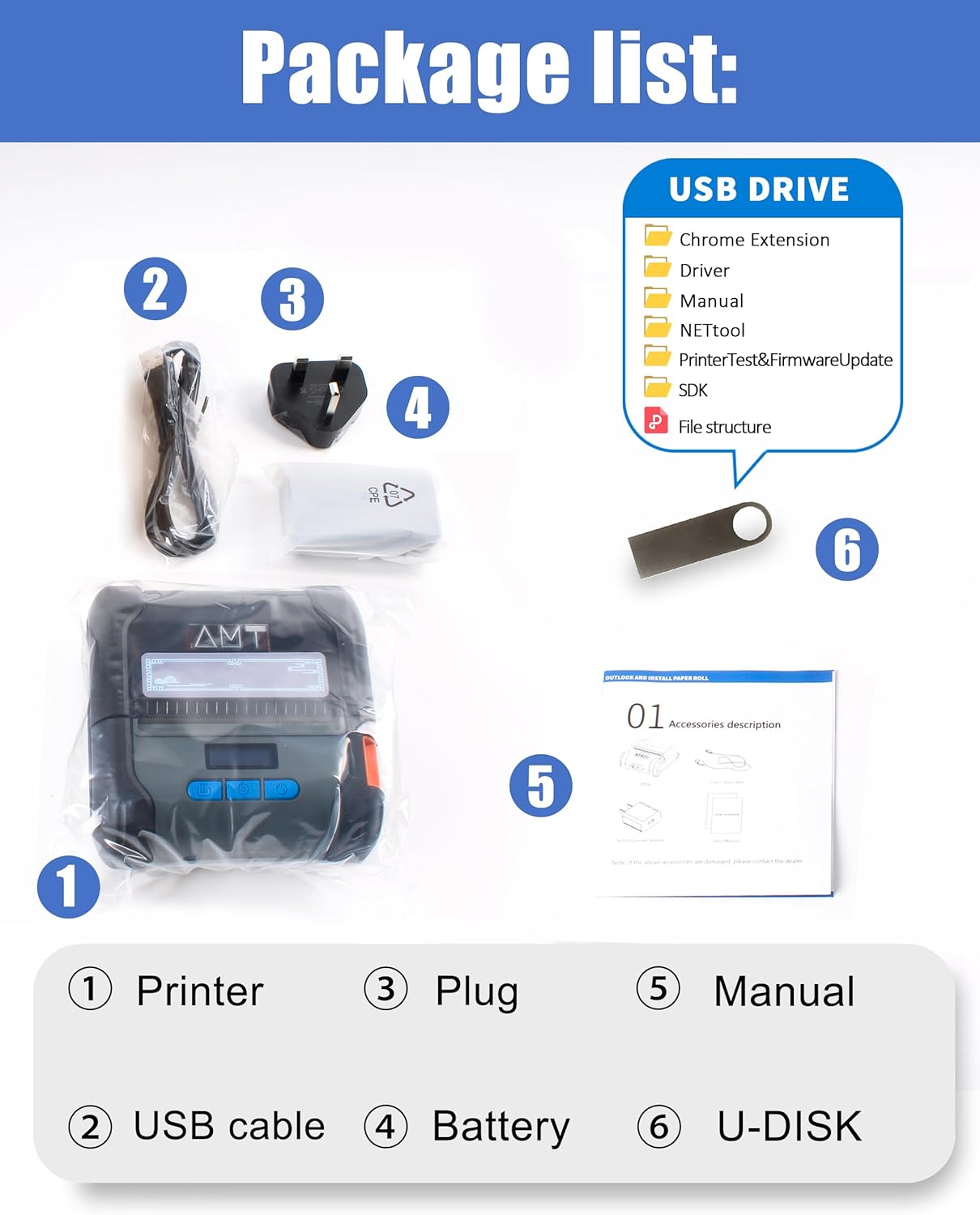
Figure 2: Contents included in the ZM04 printer package.
3. Ọja Ipariview
Familiarize yourself with the main components and controls of your ZM04 printer:
- Iboju: Displays current mode, battery status, and settings.
- Ṣii bọtini: Used to open the paper compartment.
- Bọtini agbara: Titan atẹwe si titan/pa.
- Ṣeto bọtini: Navigates through settings and confirms selections.
- Feed Button/OK Key: Feeds paper or confirms actions.

Figure 3: Key operational components of the ZM04 printer.
Dimensions and Specifications Overview:
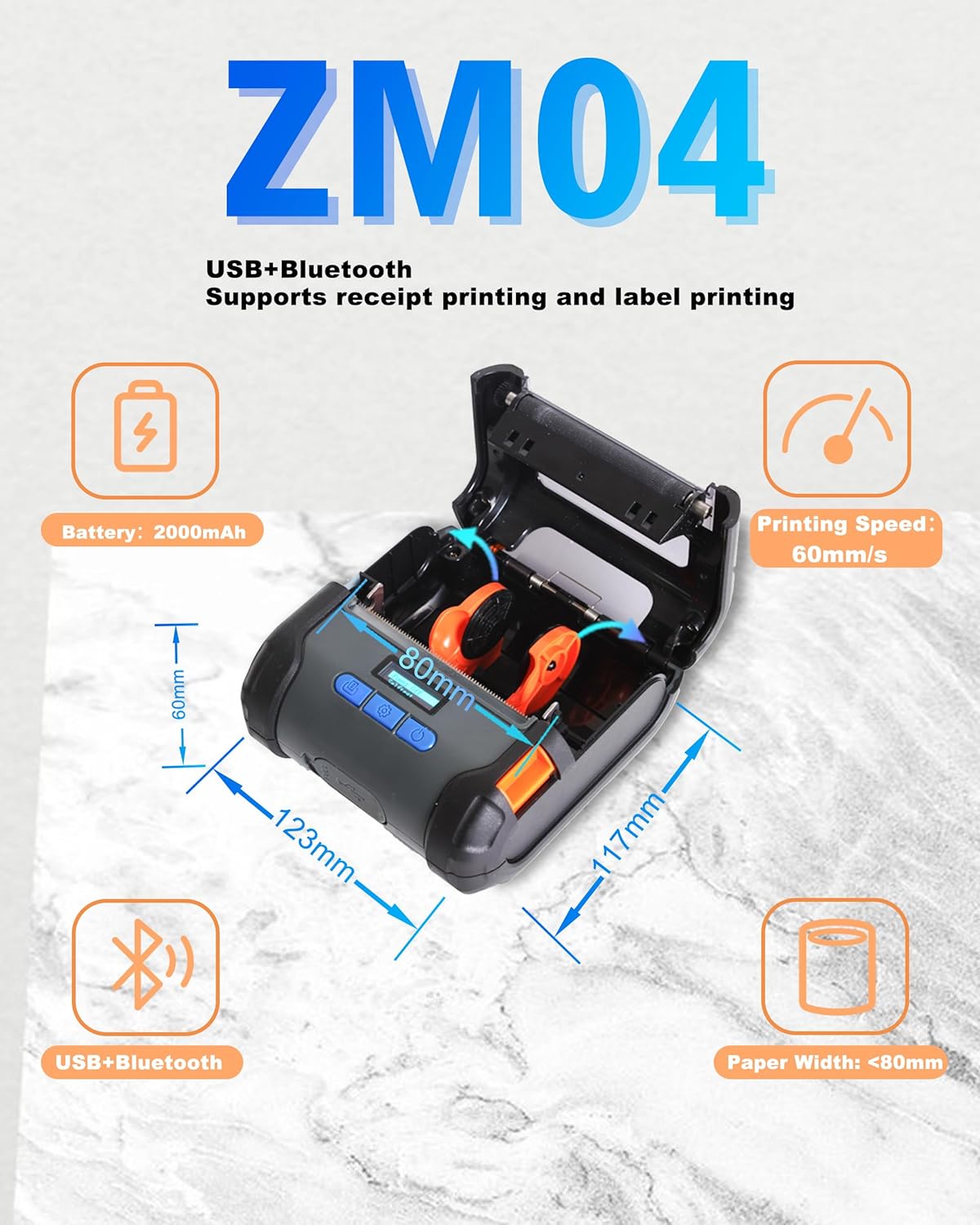
Figure 4: Physical dimensions and core specifications of the ZM04 printer.
4. Eto
4.1 Ngba agbara si itẹwe
Before first use, ensure the printer is fully charged. Connect the provided USB cable to the printer and a power adapter. The battery indicator on the screen will show charging status. A full charge provides long hours of use.
4.2 ikojọpọ Iwe
The ZM04 supports both label and receipt paper rolls (58mm to 80mm width).
- Press the "Open Key" to open the paper compartment cover.
- Insert the paper roll with the printing side facing up, ensuring it feeds smoothly into the print head.
- Pull a small length of paper out past the print head.
- Close the paper compartment cover firmly until it clicks into place.
Video 1: Demonstrates the process of loading paper into the ZM04 printer and switching between label and receipt printing modes.
5. Awọn ilana Iṣiṣẹ
5.1 Asopọmọra
The ZM04 printer supports both Bluetooth and USB connectivity.
- Bluetooth: Ideal for wireless printing from Android smartphones and tablets. iOS devices require specific apps (EMlabel, POSprinter) for connection.
- USB: Connects to Windows, ChromeOS, Linux, and Mac computers. Note: USB connection does not support iOS devices (iPhone, iPad).

Olusin 5: Pariview of Bluetooth and USB connectivity for the ZM04 printer.
5.2 Mode Switching (Label vs. Receipt)
The ZM04 is a two-in-one printer. It is crucial to select the correct command mode for your printing task. The screen displays the current mode.
- Receipt Mode: Set to "ESC" (ESC/POS command mode).
- Label Mode: Set to "TCPL" (TSPL command mode).
- Face Sheet Mode: Set to "CPCL" (CPCL command mode).
To switch modes, use the "Set Key" to navigate through the options on the electronic display until the desired command mode is selected. Selecting the wrong command mode will prevent printing.

Figure 6: The ZM04 printer supports both receipt and label printing modes, indicated by the display.
5.3 Printing Steps (via App)
For mobile printing, use the "EMlabel" or "POSprinter" software.
- Open the "EMlabel" app and select your desired print mode (Label or Receipt).
- Go to "Settings" within the app, then "Printer connection," and select "BT" for Bluetooth.
- Choose the printer address (e.g., "printer001"), click "Connect," and enter the password "0000" if prompted.
- After successful connection, the status will change to "disconnect" (indicating it's ready to print).

Figure 7: Step-by-step guide for connecting and printing using the mobile application.
6. Ibamu
The ZM04 printer offers broad compatibility with various operating systems and applications, though some limitations apply.
- Awọn ọna ṣiṣe: Android, Windows, ChromeOS, Linux, Mac.
- Ibamu iOS: While USB and direct Bluetooth connection are not supported for iOS, the "EMlabel" and "POSprinter" software allows iOS devices to connect and print labels/receipts.
- Receipt Applications: Loyverse and W&O POS APP are supported for receipt printing.
- Ko Ni ibamu Pẹlu: Square, DoorDash, Shopify.

Figure 8: Detailed compatibility matrix for the ZM04 printer across various platforms and applications.
7. Itọju
To ensure optimal performance and longevity of your ZM04 printer, follow these maintenance guidelines:
- Regularly clean the print head with a soft, lint-free cloth moistened with isopropyl alcohol. Ensure the printer is off and cool before cleaning.
- Keep the paper compartment free of dust and paper debris.
- Tọju itẹwe ni itura, aye gbigbẹ kuro lati orun taara ati awọn iwọn otutu to gaju.
- Use only high-quality thermal paper to prevent damage to the print head.
8. Laasigbotitusita
This section addresses common issues you might encounter with your ZM04 printer.
Q1: Why cannot connect with iOS?
A1: The USB and direct Bluetooth connections of the ZM04 do not natively support iOS. To connect to iOS for printing, you must download and use our dedicated software, "EMlabel" or "POSprinter," which facilitates the connection and printing process.
Q2: Why cannot Print?
A2: Please check that the mode displayed at the top right of the printer's screen matches the one you need for printing.
- For receipt printing, the mode should be "ESC".
- For label printing, the mode should be "TCPL".
- For face sheet printing, the mode should be "CPCL".
9. Awọn pato
| Ẹya ara ẹrọ | Ẹ̀kúnrẹ́rẹ́ |
|---|---|
| Brand | ZYWELL |
| Orukọ awoṣe | ZM04-UB-BK |
| Nọmba Awoṣe Nkan | ZM04 |
| Asopọmọra Technology | Bluetooth, USB |
| Imọ-ẹrọ titẹ sita | Gbona |
| Ijade itẹwe | Monochrome |
| Iyara Titẹjade ti o pọju (Monochrome) | 30 ppm (60mm/s) |
| Ipinnu | 203 x 203 dpi |
| O pọju Media Iwon | A9 (Supports 58mm/80mm paper width) |
| Media Print | Labels, Receipt Paper |
| Awọn ẹrọ ibaramu | Smartphones, Tablets (Android, iOS via app), Computers (Windows, ChromeOS, Linux, Mac) |
| Batiri | 2000 mAh Litiumu Ion (pẹlu) |
| Ọja Mefa | 4.6"D x 4.8"W x 2.3"H (117mm x 123mm x 60mm) |
| Iwọn Nkan | 1.37 iwon |
| UPC | 765133353996 |
10. Atilẹyin ọja ati Support
The ZYWELL ZM04 printer comes with a limited warranty. For specific warranty terms and conditions, please refer to the warranty card included in your package or contact ZYWELL customer support. For technical assistance or further inquiries, please visit the official ZYWELL webojula tabi kan si wọn onibara iṣẹ egbe.
Ask a question about this manual
Ask about setup, troubleshooting, compatibility, parts, safety, or missing instructions. Manuals+ will review the question and use this page’s manual context to help answer it.