
Plugable USBC-PDMON
Plugable USB-C Portable Monitor USBC-PDMON Instruction Manual
Model: USBC-PDMON | Brand: Plugable
1. Ọja Ipariview ati Key Awọn ẹya ara ẹrọ
The Plugable USBC-PDMON is a 15.6-inch Full HD (1920x1080) IPS portable monitor designed for enhanced productivity on the go. It features 100W Power Delivery pass-through charging and a 3x USB-C 10Gbps hub, making it a versatile solution for expanding your workspace.

Image: The Plugable USBC-PDMON portable monitor in use, showcasing its slim design and the protective case functioning as a stand.
Awọn ẹya pataki:
- 15.6-inch Full HD (1920x1080) IPS Display: Provides crisp, clear visuals with wide viewing angles and up to 300 nits brightness.
- 100W Power Delivery Pass-Through: Allows charging of your laptop, smartphone, or tablet (up to 85W output) while using the monitor.
- Integrated 3x USB-C 10Gbps Hub: Expands connectivity with two 10Gbps USB-C ports for data transfer or connecting peripherals.
- Gbigbe ati iwuwo fẹẹrẹ: Weighing 1.85lbs (with cover), it's ideal for travel and mobile workstations.
- Protective Case/Stand: The included cover protects the screen and conveniently folds into a stand for various viewing awọn igun.
- Ibamu Agbaye: Works with Mac, Windows, Chrome, iPad, iPhone, and Android devices equipped with full-featured USB-C or Thunderbolt ports.
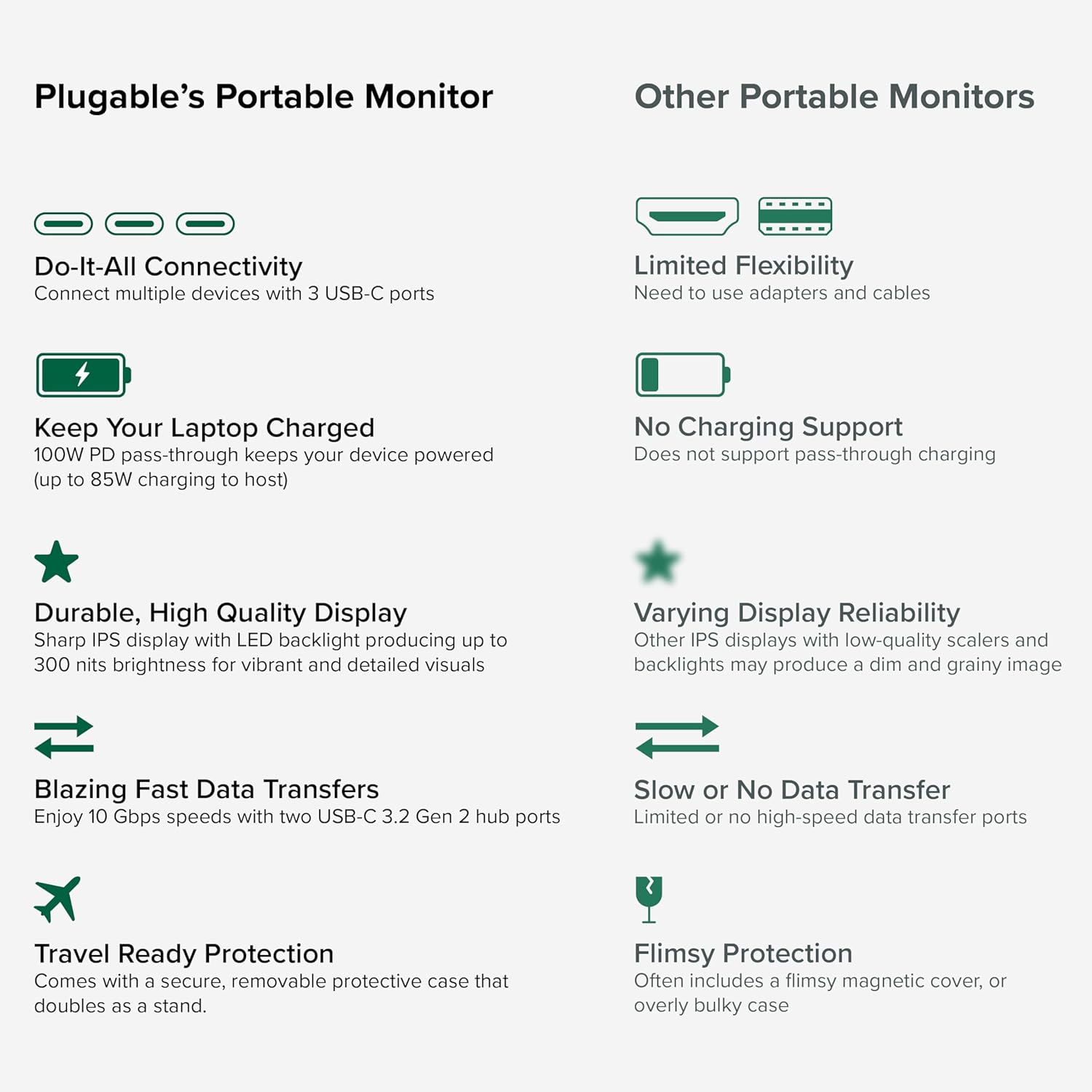
Image: A comparison highlighting the superior connectivity, charging support, display quality, data transfer speeds, and travel-ready protection of the Plugable monitor.
2. Kini To wa
Jọwọ ṣayẹwo awọn akoonu package lati rii daju pe gbogbo awọn ohun kan wa:
- 1920x1080 IPS Travel Display with Protective Case/Stand
- 1 Meter USB-C Host Cable
- Quick Bẹrẹ Itọsọna
3. Eto Itọsọna
Follow these steps to set up your Plugable portable monitor:
- Yọ Atẹle naa kuro: Carefully remove the monitor and its accessories from the packaging.
- Gbe Iduro naa si: The protective cover doubles as a stand. Fold the cover to create a stable base for the monitor. The built-in magnets will help secure it in place.
- Sopọ si Ẹrọ Rẹ: Use the included 1-meter USB-C host cable to connect the monitor to your laptop, smartphone, or tablet. Ensure your device has a full-featured USB-C port that supports video output (DisplayPort Alternate Mode) and Power Delivery.
- Power the Monitor (Optional/Recommended): For optimal performance and to utilize the pass-through charging feature, connect a USB-C power adapter (not included) to the monitor's dedicated power input port. This will also allow the monitor to charge your host device (up to 85W).
- Iṣeto ni Ifihan: Your device should automatically detect the monitor. You may need to adjust display settings (e.g., extend, mirror, resolution) in your operating system's display settings.

Image: Visual instructions on how to correctly fold the protective cover to form a stable stand for the monitor.

Image: An illustration demonstrating the power flow when the monitor is used as a hub, providing 85W charging to the connected laptop from a 100W input.
Ibamu:
The monitor is compatible with a wide range of operating systems and devices:
- Awọn iru ẹrọ atilẹyin: Mac, Windows, Chrome OS, Android.
- Asopọ si Gbalejo: USB-C, USB4, Thunderbolt.
- Awọn ọna ṣiṣe ibaramu: MacBooks, Dell XPS, Lenovo ThinkPad, Apple iPhone 15/16+, Samsung Galaxy S24, Google Pixel 8, iPads with USB-C, Samsung Galaxy Tab, Lenovo Tab.

Image: A visual guide to the monitor's broad compatibility across different operating systems and popular devices like laptops, phones, and tablets.
4. Awọn ilana Iṣiṣẹ
Once connected, your Plugable portable monitor is ready for use. Here are some operational tips:
Awọn ipo Ifihan:
- Extend Display: Use this mode to expand your desktop workspace across both your primary device and the portable monitor.
- Ifihan digi: This mode duplicates your primary device's screen onto the portable monitor, useful for presentations or sharing content.
Awọn iṣakoso atẹle:
The monitor features control buttons on the side for adjustments:
- Imọlẹ Soke/Isalẹ: Adjust the screen brightness to your preference.
- Ipo awọ: Cycle through preset color modes (Cool, Normal, Warm, sRGB, and User) to optimize visual appearance.
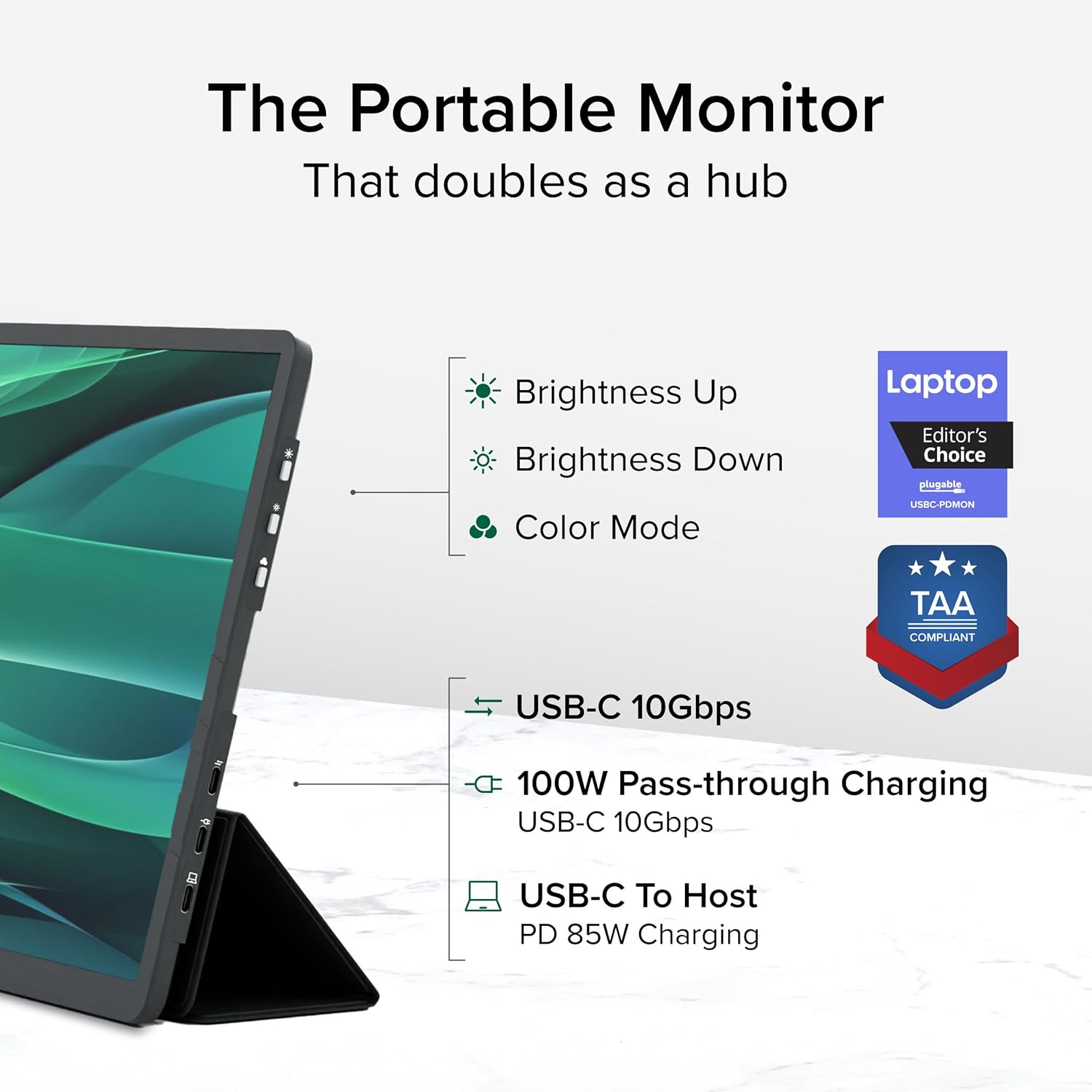
Aworan: A alaye view of the monitor's side, indicating the location of the brightness controls, color mode button, and the three USB-C ports for host connection, power delivery, and data hub functionality.
USB-C Hub Functionality:
The monitor acts as a hub, providing additional USB-C ports for your peripherals:
- Connect USB-C devices such as external drives, keyboards, or mice to the available 10Gbps USB-C ports on the monitor.
5. Itọju
To ensure the longevity and optimal performance of your Plugable portable monitor, follow these maintenance guidelines:
- Ninu iboju: Lo asọ rirọ, ti ko ni lint ni sere dampened with water or a screen-cleaning solution. Avoid harsh chemicals, abrasive materials, or direct spraying onto the screen.
- Ninu ara: Wipe the monitor's exterior with a soft, dry cloth.
- Ibi ipamọ: When not in use, always use the protective cover to prevent scratches and damage to the screen. Store in a cool, dry place away from direct sunlight and extreme temperatures.
- Mimu: Fi ọwọ́ mú monitor náà dáadáa. Má ṣe jẹ́ kí ó jábọ́ tàbí kí o fipá mú un.
6. Laasigbotitusita
If you encounter issues with your Plugable portable monitor, refer to the following common problems and solutions:
No Display or "No Signal" Message:
- Ṣayẹwo Isopọ USB: Ensure the USB-C cable is securely connected to both the monitor and your host device. Try unplugging and re-plugging the cable.
- Ṣàyẹ̀wò Agbára Ibudo USB-C: Confirm that your device's USB-C port supports video output (DisplayPort Alternate Mode). Not all USB-C ports have this capability.
- Agbara ita: If your host device cannot provide sufficient power, connect an external USB-C power adapter to the monitor's power input port.
- Tun awọn ẹrọ bẹrẹ: Try restarting your laptop, smartphone, or tablet.
Flickering or Unstable Display:
- Ibi ti ina elekitiriki ti nwa: Ensure the monitor is receiving adequate power. Connect an external USB-C power adapter if not already in use.
- Didara okun: Use the included high-quality USB-C cable. A different or lower-quality cable might cause instability.
- Awọn imudojuiwọn Awakọ: Rí i dájú pé àwọn awakọ̀ àwòrán ẹ̀rọ ìgbàlejò rẹ ti ní àtúnṣe tuntun.
No Charging or Slow Charging:
- Iwọn Adapter Agbara: Ensure the external USB-C power adapter connected to the monitor is rated for at least 100W to provide 85W pass-through charging to your host device.
- Ibamu USB: Verify the USB-C cable supports Power Delivery.
If these steps do not resolve your issue, please contact Plugable support for further assistance.
7. Awọn pato
Detailed technical specifications for the Plugable USBC-PDMON portable monitor:
| Ẹya ara ẹrọ | Sipesifikesonu |
|---|---|
| Iwon iboju | 15.6 inches |
| Ipinnu | FHD 1080p (1920 x 1080 Pixels) |
| Ifihan ọna ẹrọ | IPS |
| Apakan Ipin | 16:9 |
| Imọlẹ Aworan | 300 Candela (awọn ọra) |
| Iboju Iboju | Matte |
| Lapapọ Awọn ibudo USB | 3 (USB-C) |
| Ifijiṣẹ Agbara | 100W Pass-Through (85W to host) |
| Iyara Gbigbe Data | 10Gbps (USB-C hub ports) |
| Iwọn Nkan | 1.85 iwon |
| Ọja Mefa | 0.42 x 14.21 x 8.46 inches |
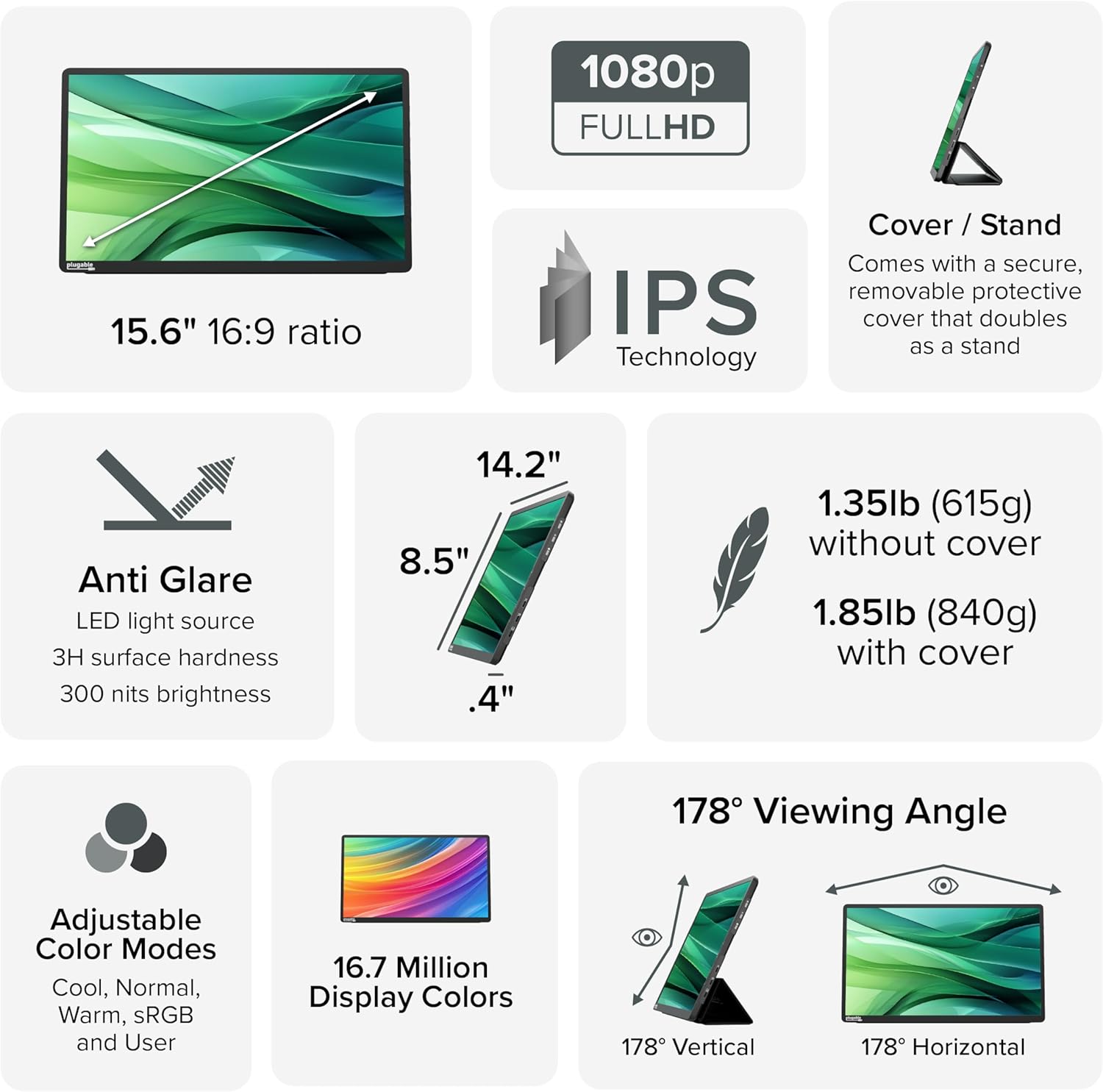
Image: A comprehensive infographic summarizing the monitor's technical specifications, such as screen size, resolution, IPS technology, anti-glare properties, weight, and viewing awọn igun.
8. Atilẹyin ọja ati Support
The Plugable USBC-PDMON portable monitor is designed with reliability at its core and built to meet the demands of both IT departments and home offices.
- Atilẹyin igbesi aye: Includes lifetime support from our North American team of connectivity experts.
- Atilẹyin ọja: Backed by a 2-Year Warranty.
For technical assistance or warranty claims, please visit the official Plugable webojula tabi kan si wọn support egbe taara.
Ask a question about this manual
Ask about setup, troubleshooting, compatibility, parts, safety, or missing instructions. Manuals+ will review the question and use this page’s manual context to help answer it.