
1. Ifihan
This manual provides detailed instructions for setting up, operating, maintaining, and troubleshooting your UOTEK AX3000 5G WiFi 6 Router. This device offers high-speed 5G cellular network access and advanced WiFi 6 connectivity for your home or office environment.
2. Package Awọn akoonu
- UOTEK AX3000 5G WiFi 6 Router (Model UT-R9010-M)
- 8 x High-Gain Omnidirectional Antennas
- Adapter agbara
- àjọlò Cable
- Itọsọna olumulo / Awọn ọna Bẹrẹ Itọsọna
3. Ọja Ipariview
Familiarize yourself with the router's physical components and indicators.
3.1. Igbimọ iwaju
The front panel features LED indicators for Power, Internet status, 2.4GHz WiFi, 5GHz WiFi, and Cellular signal strength.
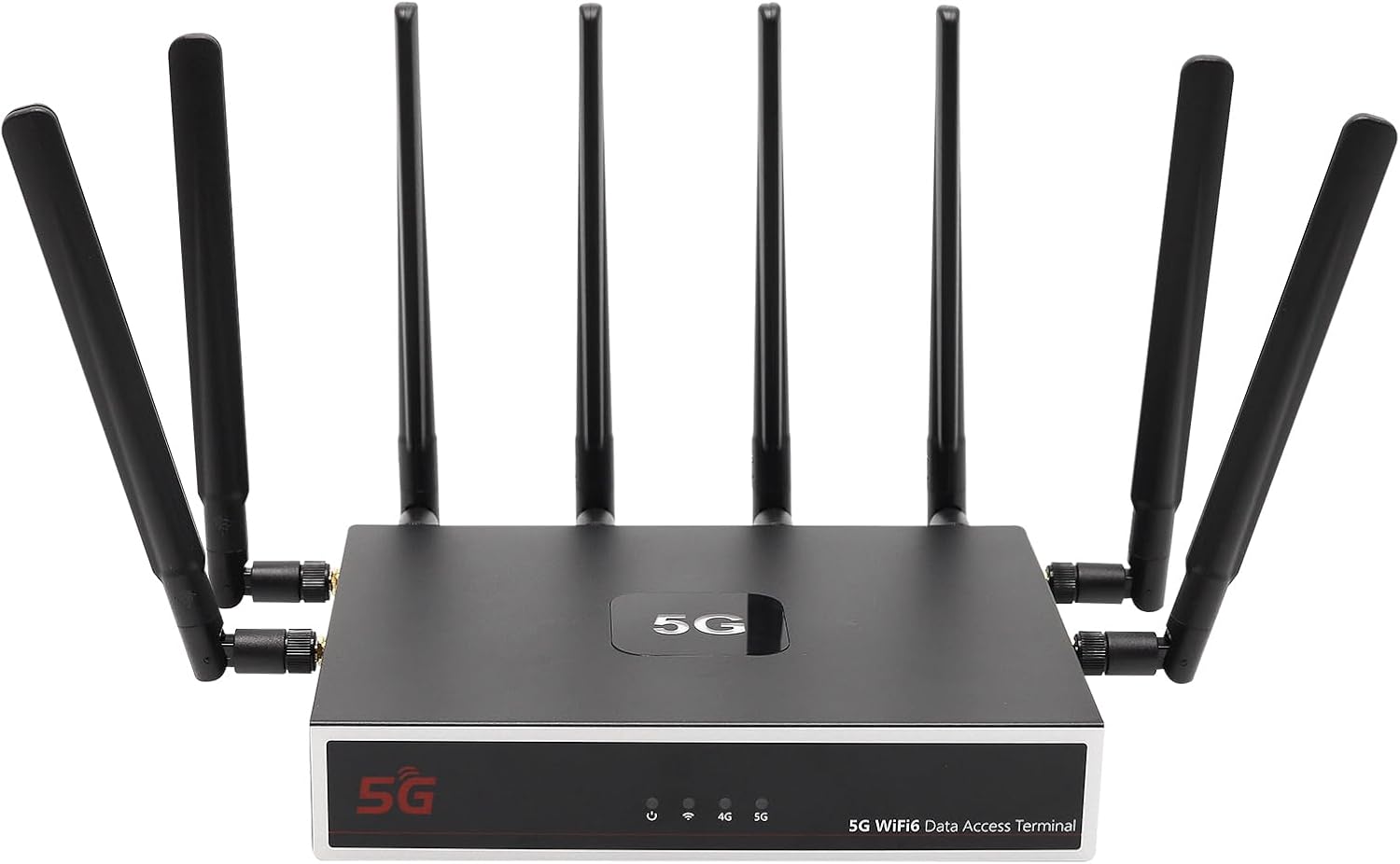
Aworan: Iwaju view of the UOTEK AX3000 5G WiFi 6 Router, showcasing its sleek design and 8 external antennas for enhanced signal coverage.
3.2. Ẹgbẹ Panel
The side panel includes the dual Nano SIM card slots and connectors for the external antennas.

Aworan: Apa view of the UOTEK AX3000 router, highlighting the dual Nano SIM card slots and the interfaces for connecting the external antennas.
3.3. Rule nronu
The rear panel provides the DC 12V power input, a WAN port for wired internet connection, two LAN ports for wired devices, and a reset button.

Aworan: Ẹyin view of the UOTEK AX3000 router, displaying the Ethernet LAN/WAN ports and the power input socket.
4. Eto
4.1. Insert SIM Cards
- Locate the SIM card slots on the side of the router.
- Ṣí ìbòrí ààbò náà dáadáa.
- Insert your Nano SIM card(s) into the designated slots with the gold contacts facing down and the notched corner aligned correctly.
- Rọra Titari kaadi SIM titi ti o fi tẹ sinu aaye.
- Pa ideri aabo ni aabo.

Aworan: A alaye view of the dual Nano SIM card slots on the UOTEK AX3000 router, showing the correct orientation for insertion.
4.2. Attach Antennas
Screw all 8 high-gain omnidirectional antennas firmly into their respective connectors on the router. Ensure they are securely tightened for optimal signal reception.

Image: The UOTEK AX3000 5G WiFi 6 Router with all 8 external antennas fully extended, ready for operation.
4.3. So Agbara pọ
Connect the provided power adapter to the DC 12V input port on the rear panel of the router, then plug the adapter into a power outlet. The router will power on automatically.
4.4. Wíwọlé àti Ìṣètò Àkọ́kọ́
- Sopọ si olulana: O le sopọ mọ olulana nipasẹ Wi-Fi tabi Ethernet.
- Wi-Fi: Wa fun the default Wi-Fi network name (SSID) printed on the router's label. Connect using the default Wi-Fi password also found on the label.
- Àjọlò: Connect an Ethernet cable from one of the LAN ports on the router to your computer.
- Wiwọle Web Ni wiwo: Ṣii a web ẹrọ aṣawakiri ki o tẹ adiresi IP aiyipada (fun apẹẹrẹ,
192.168.100.1) sinu ọpa adirẹsi. - Wo ile: Tẹ orukọ olumulo aiyipada (fun apẹẹrẹ,
admin) ati ọrọigbaniwọle (fun apẹẹrẹ,admin) when prompted. You will be guided through the initial setup process. - Set Admin Password: For security, change the default administrator password immediately.
- Ṣe atunto Wi-Fi: Customize your Wi-Fi network name (SSID) and set a strong password.
4.5. Oṣo Video Itọsọna
Video: This video demonstrates the unboxing, SIM card insertion, and antenna connection process for a similar 5G router, providing a visual guide for the initial physical setup.
5. Awọn ilana Iṣiṣẹ
5.1. Nsopọ Awọn ẹrọ
- Wi-Fi: On your devices (smartphones, laptops, tablets), search for your configured Wi-Fi network name (SSID) and enter the password.
- Àjọlò: Connect devices like desktop computers, smart TVs, or gaming consoles to the router's LAN ports using Ethernet cables for a stable wired connection.

Image: The UOTEK AX3000 5G WiFi 6 Router efficiently connecting up to 100 smart devices simultaneously, ensuring high capacity and efficiency.
5.2. Dual SIM Card Functionality
The router supports dual SIM cards, allowing for automatic switching between networks to maintain optimal signal strength and connectivity. If one network signal weakens, the router can seamlessly switch to the stronger available SIM card.
5.3. Wi-Fi 6 (802.11ax) Enhancements
Benefit from advanced Wi-Fi 6 technologies like OFDMA and DL MU-MIMO, which enable more stable and high-speed wireless transmission. These technologies allow the router to synchronously schedule multiple users to send and receive data in parallel, reducing network latency and improving overall efficiency.

Image: A diagram comparing Wi-Fi 6 (OFDMA+MU-MIMO) with Wi-Fi 5, showing how Wi-Fi 6 allows data from multiple users to be transferred simultaneously, improving efficiency.
5.4. VPN Configuration
The router comes with pre-installed OpenVPN and WireGuard support, allowing you to configure VPN services for enhanced security and privacy. Access the VPN settings through the web interface to set up your preferred VPN service.
Video: This video provides a setup guide for a GL.iNet router, demonstrating how to connect to Wi-Fi and configure VPN services through the web interface, which is applicable to general router setup.
6. Itọju
6.1. Awọn imudojuiwọn famuwia
Regularly check the UOTEK official website for the latest firmware updates. Firmware updates can improve performance, add new features, and enhance security. Follow the instructions provided with the firmware update package carefully.
6.2. Ṣíṣe àtúntò sí Àìṣeéyípadà Ilé-iṣẹ́
If you encounter persistent issues or wish to clear all configurations, you can reset the router to its factory default settings. Locate the reset button on the rear panel, use a paperclip or a thin object to press and hold the button for about 10 seconds until the LED indicators flash.
6.3. Ibi ti o dara julọ
For the best Wi-Fi coverage and 5G signal reception, place the router in a central location within your home or office, away from obstructions like thick walls, large metal objects, and other electronic devices that may cause interference. Elevating the router can also improve signal distribution.
7. Laasigbotitusita
7.1. Ko si Ayelujara Asopọ
- Check if the SIM card(s) are correctly inserted and activated with your mobile carrier.
- Verify that the cellular signal LED indicator is lit and stable.
- Ensure the Ethernet cable is securely connected to the WAN port (if using wired internet).
- Restart the router by unplugging and re-plugging the power adapter.
7.2. Weak Wi-Fi Signal or Slow Speeds
- Ṣatunṣe ipo ti awọn eriali ita fun gbigba ifihan to dara julọ.
- Relocate the router to a more central and open area, away from potential interference sources.
- Ensure your devices are Wi-Fi 6 compatible to fully utilize the router's capabilities.
7.3. Ko le Wiwọle Web Ni wiwo
- Verify that your device is connected to the router's network (Wi-Fi or Ethernet).
- Double-check the IP address entered in the browser (e.g.,
192.168.100.1). - Pa cache aṣàwákiri rẹ kuro tabi gbiyanju ẹrọ aṣawakiri miiran.
- If you forgot your admin password, perform a factory reset (see Section 6.2).
8. Awọn pato
| Ẹya ara ẹrọ | Apejuwe |
|---|---|
| Orukọ awoṣe | UT-R9010-M |
| Asopọmọra Technology | WiFi 6 (802.11ax), 5G, Ethernet |
| Igbohunsafẹfẹ Band Class | Ẹgbẹ-meji (2.4GHz & 5GHz) |
| Eriali Iru | 8 x External High-Gain Omnidirectional Antennas |
| Atilẹyin kaadi SIM | Dual Nano SIM Card Slots |
| Àjọlò Ports | 1x WAN, 2x LAN Gigabit Ports |
| Pataki Awọn ẹya ara ẹrọ | Internet Security, LED Indicators, VPN Support (OpenVPN, WireGuard) |
| Iwọn Nkan | 3.1 iwon |
| Package Mefa | 10.47 x 10.24 x 3.11 inches |
| Olupese | UTEK TECHNOLOGY(SHENZHEN) CO.,LTD. |
9. Atilẹyin ọja ati Support
The UOTEK AX3000 5G WiFi 6 Router comes with a standard manufacturer's warranty. For detailed warranty information, technical support, or customer service inquiries, please visit the official UOTEK webojula tabi kan si wọn support egbe taara.