
Thomson 145G
Thomson Streaming Stick 4K 145G User Manual
Awoṣe: 145G
Ọrọ Iṣaaju
This user manual provides comprehensive instructions for the setup, operation, maintenance, and troubleshooting of your Thomson Streaming Stick 4K 145G. Please read this manual carefully before using the device to ensure proper functionality and to avoid damage.

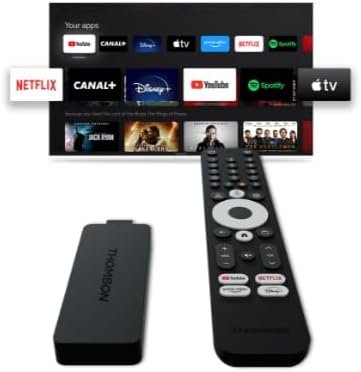
Image: The Thomson Streaming Stick 4K 145G alongside its remote control, illustrating the main components of the product.
Ohun ti o wa ninu Apoti
Upon unboxing your Thomson Streaming Stick 4K 145G, please verify that all components are present:
- Thomson Streaming Stick 4K 145G
- Isakoṣo latọna jijin
- Adaparọ agbara
- Okun USB (fun agbara)
- HDMI Extender (optional, may be included)
- Quick Bẹrẹ Itọsọna
Eto Itọsọna
Follow these steps to set up your Thomson Streaming Stick 4K 145G:
- Connect the Streaming Stick: Plug the Thomson Streaming Stick 4K 145G directly into an available HDMI port on your television. If space is limited, use an HDMI extender if provided.
- So agbara: Connect the provided USB cable to the power input port on the streaming stick and then connect the other end to the power adapter. Plug the power adapter into a wall outlet.
- Power On TV and Select Input: Turn on your television and select the HDMI input to which the streaming stick is connected.
- Iṣeto akọkọ: The device will boot up and guide you through the initial setup process on your TV screen. This typically includes:
- Aṣayan ede.
- Connecting to your Wi-Fi network.
- Signing in with your Google account (required for Google TV features and app downloads).
- Gbigba ofin ati ipo.
- Asopọmọra isakoṣo latọna jijin: The remote control should automatically pair with the device. If not, follow the on-screen instructions or press and hold the Home and Back buttons simultaneously on the remote until pairing is complete.
Aworan: A alaye view of the Thomson Streaming Stick 4K 145G, highlighting its HDMI connector for TV input and the power input port.
Awọn ilana Iṣiṣẹ
Once set up, you can begin using your Thomson Streaming Stick 4K 145G to access various streaming services and content.
Awọn iṣẹ iṣakoso latọna jijin
Mọ ararẹ pẹlu awọn bọtini isakoṣo latọna jijin:
- Bọtini agbara: Turns the device on or off (standby).
- Bọtini Iranlọwọ Google: Ó ń mú àwọn àṣẹ ohùn ṣiṣẹ́ fún wíwá àti ìṣàkóso.
- Paadi Lilọ kiri (Ayika): Use up, down, left, right to navigate menus.
- O dara/Bọtini Yan: Jẹrisi awọn aṣayan.
- Bọtini Pada: Pada si iboju ti tẹlẹ.
- Bọtini Ile: Pada si iboju ile Google TV.
- Awọn bọtini iwọn didun (+/-): Ṣe atunṣe iwọn didun TV.
- Bọtini Mute: Mutes TV volume.
- Awọn bọtini Ọna abuja App: Dedicated buttons for Netflix, Disney+, YouTube, and Prime Video for quick access.

Image: The Thomson Streaming Stick 4K 145G and its remote control, showing the layout of the buttons on the remote.
Lilọ kiri lori Google TV
The Google TV interface organizes content from your streaming services into a single, personalized experience.
- Iboju ile: Ó ń ṣe àfihàn àwọn àkóónú tí a dámọ̀ràn, àwọn ohun èlò tí a fi sórí ẹ̀rọ, àti àkójọ àwọn ohun tí o ń wò.
- Awọn ohun elo: Access all your installed applications. You can download more from the Google Play Store.
- Ile-ikawe: Find your purchased movies and TV shows from Google Play.
- Wa Use the search icon or Google Assistant button to find content by title, genre, or actor.
To stream content, simply select an app or a recommended title from the home screen. Ensure you have an active subscription for paid services.
Itoju
Proper maintenance ensures the longevity and optimal performance of your streaming stick.
- Ninu: Use a soft, dry, lint-free cloth to clean the device and remote control. Do not use liquid cleaners or aerosols.
- Afẹfẹ: Ensure the streaming stick is placed in a well-ventilated area and not covered, as proper airflow prevents overheating.
- Awọn imudojuiwọn sọfitiwia: The device will automatically check for and install software updates. Ensure it remains connected to the internet for these updates.
- Ibi ipamọ: Nigbati o ko ba wa ni lilo fun awọn akoko ti o gbooro sii, fi ẹrọ naa pamọ si ibi ti o tutu, ibi gbigbẹ kuro lati orun taara.
Laasigbotitusita
If you encounter issues with your Thomson Streaming Stick 4K 145G, refer to the following common problems and solutions:
| Isoro | Owun to le Fa | Ojutu |
|---|---|---|
| Ko si agbara/Ẹrọ ti ko tan | Power adapter not connected, faulty outlet, or damaged cable. | Rí i dájú pé ohun tí a fi ń so agbára pọ̀ mọ́ ẹ̀rọ náà àti ibi tí ó ń ṣiṣẹ́ lórí ògiri. Gbìyànjú ibi tí ó yàtọ̀ síra. |
| Ko si ifihan agbara lori TV | Incorrect HDMI input selected, loose HDMI connection, or device not powered on. | Verify the TV is on the correct HDMI input. Re-seat the HDMI cable. Ensure the streaming stick has power. |
| Isakoṣo latọna jijin ko dahun | Batteries low/dead, remote not paired, or obstruction. | Replace batteries. Re-pair the remote by holding Home and Back buttons. Ensure no obstructions between remote and device. |
| Buffering or poor streaming quality | Weak Wi-Fi signal, internet speed issues, or network congestion. | Move the device closer to the Wi-Fi router. Restart your router. Check your internet speed. Reduce other network activity. |
| Awọn ohun elo kọlu tabi didi | Outdated app, insufficient memory, or software glitch. | Restart the device. Check for app updates in the Google Play Store. Clear app cache (Settings > Apps > [App Name] > Clear cache). |
If the issue persists after trying these solutions, you may need to perform a factory reset (Settings > System > About > Factory reset). Note that a factory reset will erase all data and settings on the device.
Awọn pato
Key technical specifications for the Thomson Streaming Stick 4K 145G:
- Orukọ awoṣe: STREAMING STICK 4K THOMSON 145G
- Nọmba awoṣe: 145G
- Ipinnu: 4K UHD
- Asopọmọra: Wi-Fi, USB, Ethernet (via adapter), HDMI, IR
- Orisi Asopọmọra: HDMI
- Awọn iṣẹ Ayelujara ti o ni atilẹyin: Netflix, Disney+, Prime Video, YouTube, Spotify (and others via Google Play Store)
- Iru Adari: Isakoṣo latọna jijin
- Okunfa Fọọmu: TV Stick
- Àwọ̀: Dudu
- Awọn iwọn ọja: 1.3 x 9.3 x 3.4 cm
- Ìwúwo: 460 g
- Olupese: Thomson
- Akọkọ Wa: 8 Oṣu Kẹjọ ọdun 2024
Atilẹyin ọja ati Support
For warranty information and technical support, please refer to the documentation included with your purchase or visit the official Thomson support webojula. Jeki ẹri rira rẹ fun awọn iṣeduro atilẹyin ọja.
Olupese: Thomson
Awọn imudojuiwọn sọfitiwia ti ni idaniloju titi di: Unknown (as per product data)
Ask a question about this manual
Ask about setup, troubleshooting, compatibility, parts, safety, or missing instructions. Manuals+ will review the question and use this page’s manual context to help answer it.