
1. Ifihan
The WWZMDiB CP2112 is a versatile Micro USB to SMBus/I2C communication adapter designed for various electronic projects. This device facilitates seamless communication between a host computer and SMBus or I2C slave devices, making it ideal for portable controllers, USB dongles, and data logging applications. It features an integrated 194-byte one-time programmable ROM for customizable product information and supports a HID to SMBus library API for rapid application development across Windows, Mac, and Linux operating systems.
2. Key Awọn ẹya ara ẹrọ
- Single-Chip HID USB to SMBus Master Bridge: Integrated USB transceiver, requiring no external resistors or crystals.
- SMBus Master Device: Supports SMBus communication protocols.
- Iṣeto GPIO: General Purpose Input/Output pins configurable as input, output, open-drain, or push-pull.
- 512-byte SMBus Data Buffer: Configurable clock speed for efficient data transfer.
- Integrated 194-byte One-Time Programmable ROM: Allows for customizable product information storage.
- USB Peripheral Function Controller: USB Specification 2.0 compliant, full-speed (12 Mbps).
- USB Suspend States: Supports SUSPEND and /SUSPEND pins for power management.
- HID Interface: Standard USB class device, typically requiring no custom drivers.
- Atilẹyin Eto Iṣẹ: Compatible with Windows, Mac, and Linux.
- HID-to-SMBus Library API: Provides APIs for quick application development.
- SMBus Configuration Options: Includes configurable clock speed, device address (7-bit slave address), read/write timeouts, SCL low timeout, and retry counter timeout.
- GPIO Interface Features: 8 GPIO pins with configurable options, usable as inputs, open-drain or push-pull outputs, configurable clock output for external devices (48 MHz to 94 kHz), and toggle LED during SMBus reads/writes.
- Ipese Voltage: Self-powered (3.0 to 3.6 V), USB bus powered (4.0 to 5.25 V), I/O voltage (1.8 V to VDD).

olusin 1: Iwaju view of the WWZMDiB CP2112 Adapter.

olusin 2: Pada view of the WWZMDiB CP2112 Adapter.
3. Ohun ti o wa ninu Apoti
The package for your WWZMDiB CP2112 Adapter typically includes the following components:
- 1x CP2112 Adapter Board
- 1x Micro USB Cable
- Jumper Wires (various colors)
- Pin Headers (for soldering onto the board)

Figure 3: The WWZMDiB CP2112 Adapter in its retail packaging.
Video 1: Unboxing and component overview of the CP2112 Adapter, showing the board, USB cable, and pin headers.
4. Awọn ilana iṣeto
Follow these steps to set up your WWZMDiB CP2112 Adapter:
- Attach Pin Headers: Solder the included pin headers to the designated holes on the CP2112 adapter board. Ensure a secure connection for reliable operation.
- Connect Jumper Wires: Use the jumper wires to connect the CP2112 adapter to your target SMBus or I2C device. Refer to the pinout diagram (if available) for correct connections.
- So okun USB pọ: Plug the Micro USB end of the provided cable into the CP2112 adapter and the standard USB-A end into your computer.
- Fifi sori Awakọ: The CP2112 is a standard USB Human Interface Device (HID) class device and typically does not require custom driver installation on Windows, Mac, or Linux. If issues arise, ensure your operating system is up to date or check the manufacturer's website for specific driver information.
- USB Port Recommendation: To avoid potential compatibility issues, especially with USB 3.0 ports, it is recommended to use a USB 2.0 port on your computer if available.
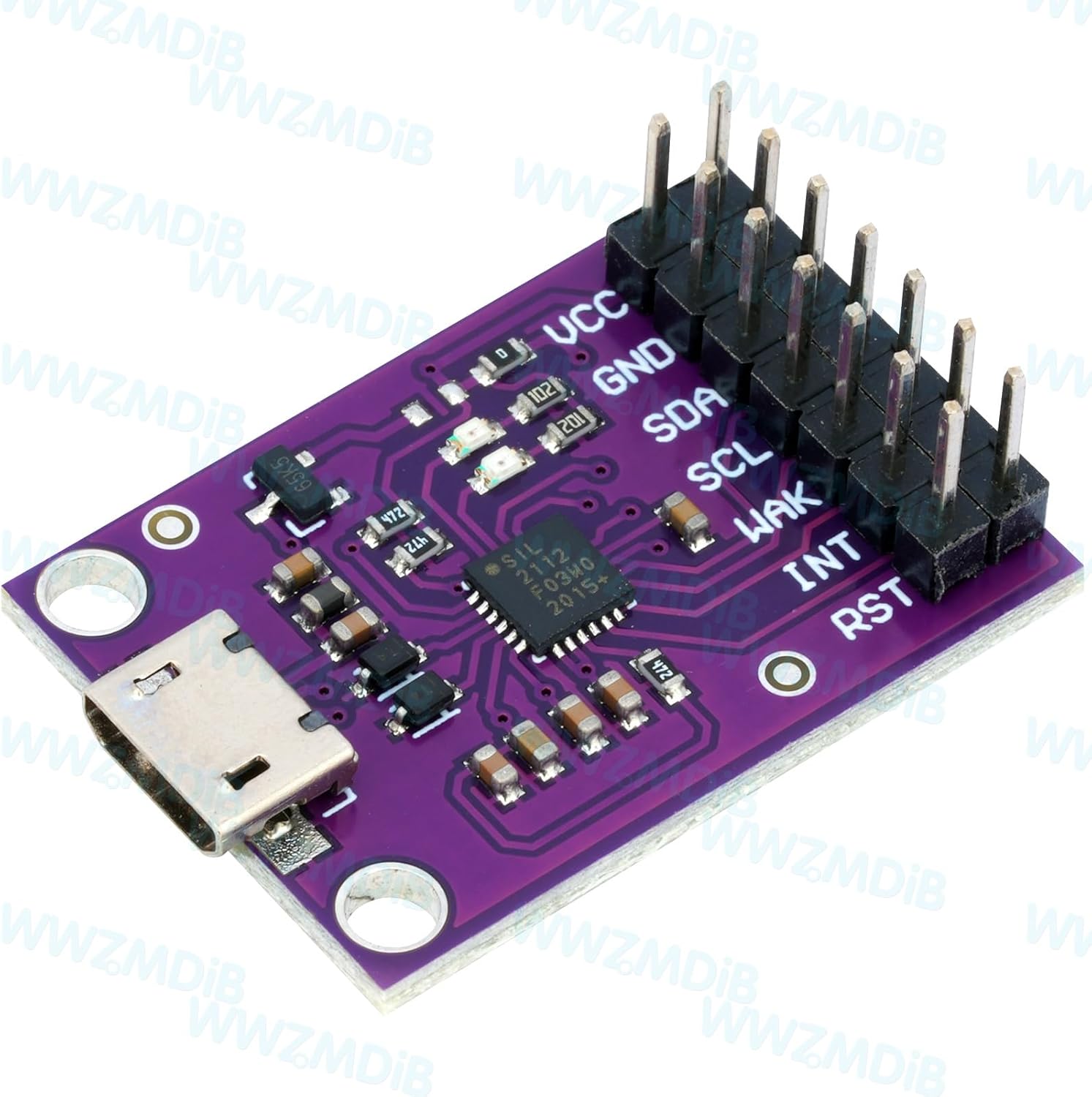
Figure 4: The CP2112 Adapter with pin headers and jumper wires connected.
Video 2: Demonstration of connecting the pin headers and USB cable to the CP2112 Adapter.
5. Awọn ilana Iṣiṣẹ
The WWZMDiB CP2112 Adapter functions as a bridge for SMBus and I2C communication. To operate the device, you will typically use a software application on your computer that utilizes the provided HID to SMBus library API.
- Idagbasoke Software: Develop or use existing applications that leverage the HID to SMBus library API. This API allows your software to send and receive data over the SMBus/I2C interface.
- Ilana Ibaraẹnisọrọ: Ensure your target device's SMBus or I2C address and communication parameters (e.g., clock speed, timeouts) are correctly configured within your software. The CP2112 will only acknowledge its own 7-bit slave address but will not respond to read/write requests to it directly.
- Gbigbe Data: Use the API functions to initiate read and write operations to your connected SMBus/I2C slave devices. The 512-byte data buffer helps manage data flow.
- GPIO Control: If your application requires it, configure and control the 8 GPIO pins for various functions such as inputs, outputs, or clock generation. The LEDs on the board can be configured to toggle during SMBus read/write operations, providing visual feedback.
6. Imọ ni pato
| Sipesifikesonu | Ẹ̀kúnrẹ́rẹ́ |
|---|---|
| Brand | WWZMDiB |
| Orukọ awoṣe | CP2112 Adapter |
| Asopọmọra Technology | I2C, USB |
| Agbara Ibi ipamọ Iranti | 194 Bytes (One-Time Programmable ROM) |
| SMBus Data Buffer | 512 Awọn baiti |
| Awọn ọna System Support | Windows, MacOS, Lainos |
| Iwọn Nkan | 1.41 iwon |
| Package Mefa | 3.66 x 3.62 x 0.67 inches |
| Ọjọ Akọkọ Wa | Oṣu Keje 26, Ọdun 2024 |

Figure 5: Physical dimensions of the CP2112 Adapter.
7. Itọju
To ensure the longevity and proper functioning of your WWZMDiB CP2112 Adapter, please observe the following maintenance guidelines:
- Ibi ipamọ: Store the adapter in a dry, cool environment away from direct sunlight and extreme temperatures.
- Ninu: Use a soft, dry cloth to gently clean the adapter. Avoid using liquid cleaners or solvents, which may damage the electronic components.
- Mimu: Handle the board with care to prevent physical damage to the components or solder joints. Avoid bending or dropping the device.
- Awọn isopọ: Ensure all connections (USB cable, jumper wires) are secure but not forced, to prevent damage to the ports or pins.
8. Laasigbotitusita
If you encounter issues with your WWZMDiB CP2112 Adapter, consider the following troubleshooting steps:
8.1. USB Connection Unstable or Unavailable
If the USB connection is unstable or the device is not recognized by your computer:
- Prioritize USB 2.0: To avoid potential compatibility issues, especially with some USB 3.0 ports, try connecting the adapter to a USB 2.0 port on your computer.
- Ṣayẹwo Cable: Ensure the USB cable is securely connected at both ends. Try using a different Micro USB cable to rule out a faulty cable.
- Gbiyanju Oriṣiriṣi Ibudo USB: Connect the adapter to a different USB port on your computer.
- Tun Kọmputa bẹrẹ: A simple computer restart can often resolve connectivity issues.
- Ìfìdíwọ̀n Awakọ̀: Although the CP2112 is typically plug-and-play, verify that your operating system's USB drivers are up to date.
8.2. Device Not Detected or Getting Hot
If the device is not detected by your PC or becomes excessively hot during use:
- Ṣayẹwo fun Awọn Yiyi Kukuru: Inspect your wiring and connections for any accidental short circuits, which can cause overheating.
- Ibi ti ina elekitiriki ti nwa: Ensure the power supply to the device is within the specified range (4.0 to 5.25 V for USB bus powered, 3.0 to 3.6 V for self-powered).
- Awọn ọrọ sọfitiwia: If using custom software, ensure it is correctly configured and not causing unexpected behavior.
- Olubasọrọ Support: If the issue persists after trying the above steps, the device may be faulty. Contact WWZMDiB customer support for further assistance.

Figure 6: Frequently Asked Questions regarding USB connection and CP2112 features.
9. Atilẹyin ọja ati Support
For warranty information, technical support, or any inquiries regarding your WWZMDiB CP2112 Adapter, please refer to the documentation included with your purchase or visit the official WWZMDiB webO tun le kan si olutaja taara nipasẹ pẹpẹ ti a ti ra ọja naa.